
Introduction
The“Share” function enables SOLIDWORKS users to share their 3D designs (part, assembly, drawing) with anyone. The 3D can then be viewed, annotated, measured and exploded.
Advantage: the person receiving the design doesn’t need to have SOLIDWORKS or any other role. All they need is access (a free account) to 3DEXPERIENCE!
Note: This command is only available in SOLIDWORKS 2023 SP3 or later.
Step 1: Activate the sharing function on the platform
By default, this function is not activated. Go to the“Content” tab in“Platform Management” and activate it.
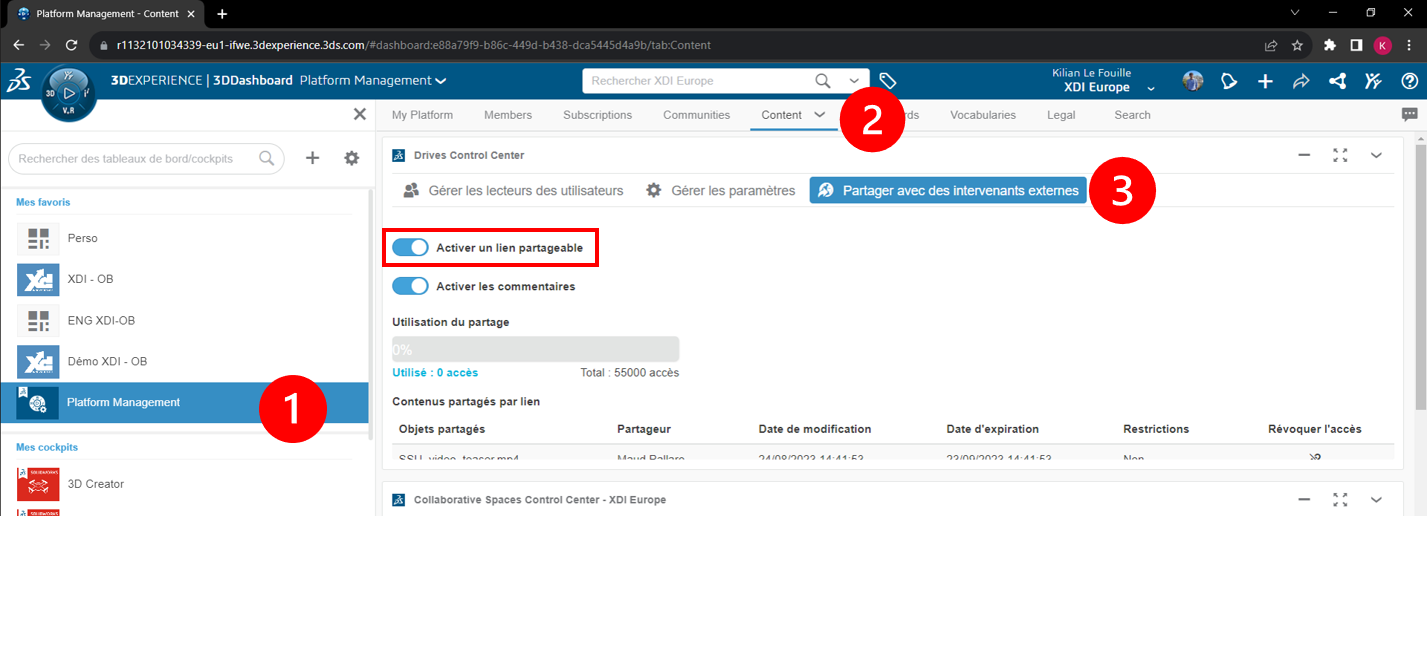
Step 2: Generate a share link
Open the 3D file you wish to share, then click on“Share“.
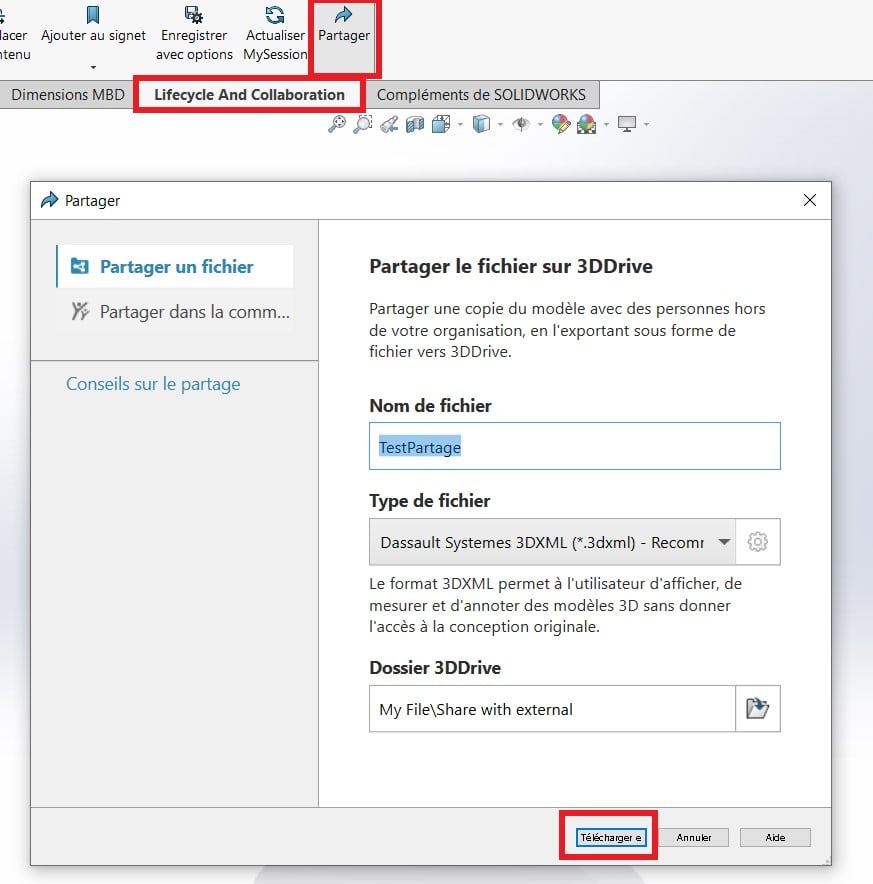 Choose the recommended 3DXML file format, then click“Download“.
This will generate a URL link containing the 3D model.
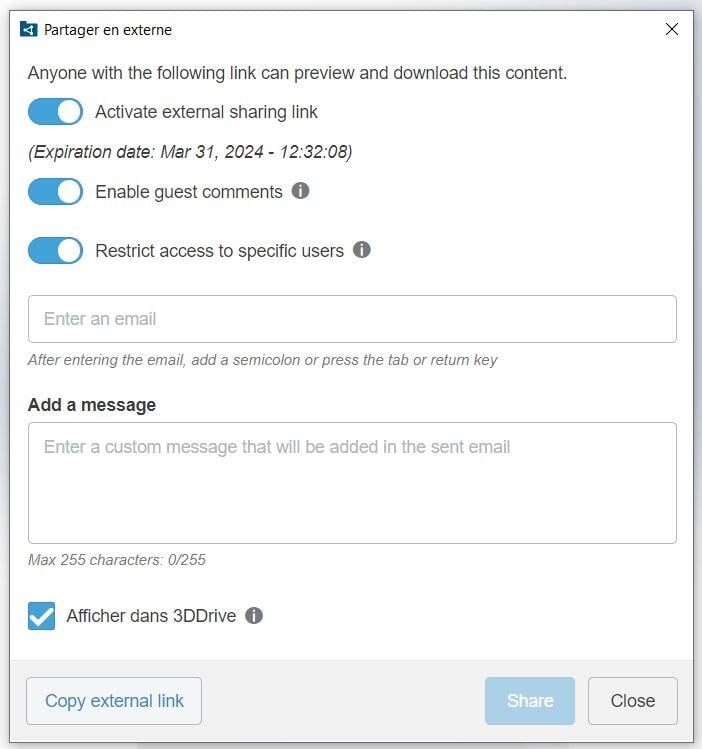
You can then :
1. Enter the email address of the person you wish to send the link to, then“Share“.
OR
2. Uncheck the“Restrict access” option and click on“Copy external link“.
Step 3: View the shared file
The copied link simply needs to be pasted into a web browser. Then simply log in/create a 3DEXPERIENCE account and view the file!
Tip: Create an account for your recipient yourself, and send them the login details along with the URL link!
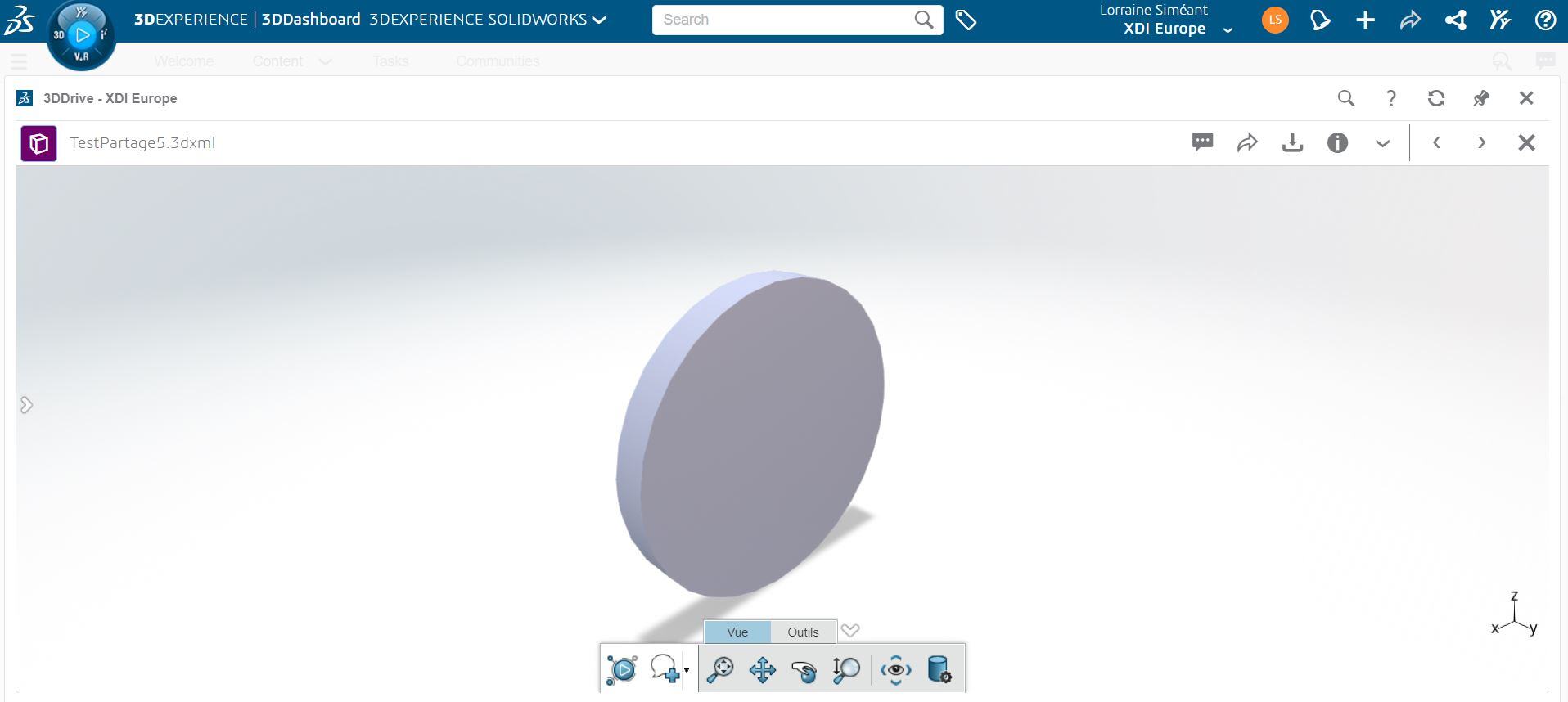
The“Tools” tab lets you make exploded views, measurements and annotations.
Step 4: Manage shared links
The generated share links are stored in the“Shared with outside” folder of the 3DDrive application.

If necessary, the platform administrator can revoke access to one or more shared files before their expiry date. This may be necessary if a user has inadvertently shared a file that should not be accessible to external stakeholders.
Conclusion
Now you can share your files in just a few clicks! No need to generate STEP exports or take screenshots in SOLIDWORKS!




