
Definitions – what is a product BOM?
A Bill Of Materials (BOM) is a list of components or documents that will make up your product.
It’s a way of seeing a product in terms of which department of the company is looking at it: design office, purchasing, workshop… There are therefore different types of BOM.
The main types of BOM are :
- cadBOM: CAD nomenclature, obtained from SOLIDWORKS or CATIA
- eBOM: engineering BOM, engineering or purchasing nomenclature
- mBOM: manufacturing BOM, manufacturing bill of materials
This is often what is sent to an ERP system, in Excel or CSV format.
Let’s take a look at how to manage different BOMs in 3DEXPERIENCE SOLIDWORKS and CATIA.
1. cadBOM: CAD nomenclature
The design office creates its assembly in SOLIDWORKS or CATIA, and thus obtains the CAD construction tree. This is commonly known as cadBOM.
This cadBOM can be used as a basis for work, but it must also be taken into account. it only contains what has been “drawn”. It will therefore have to be enriched and reorganized to show all the elements needed to build and use this product (such as glues, greases, etc.).
This will enable us to better manage modifications and upgrades. This nomenclature will become theeBOM (engineering BOM).
How do I get cadBOM?
a. From SOLIDWORKS or CATIA
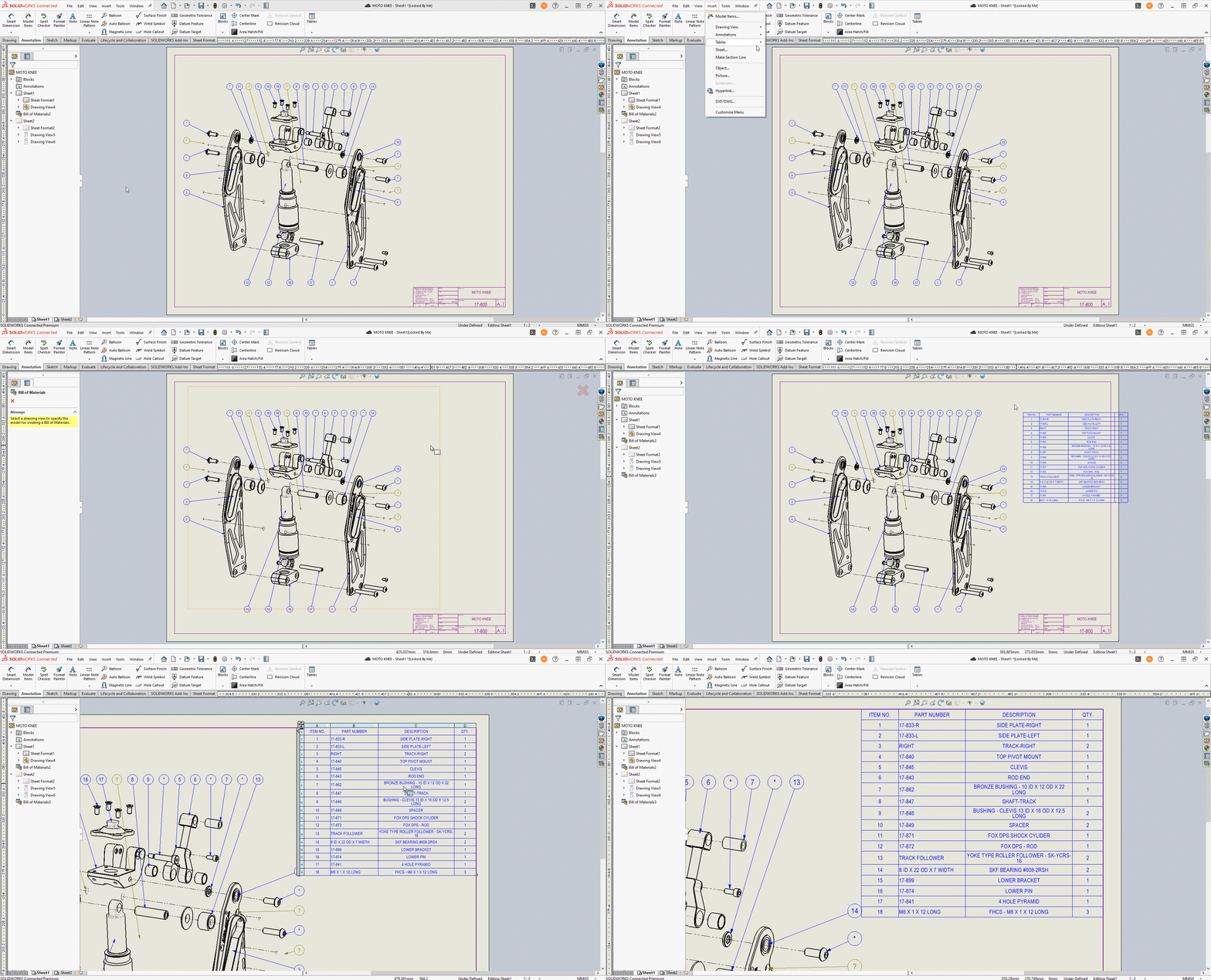
In general, the drawing is also used to display the BOM, and to extract it as a CSV file. You can therefore insert a table in your drawing:
b. From Bookmarks
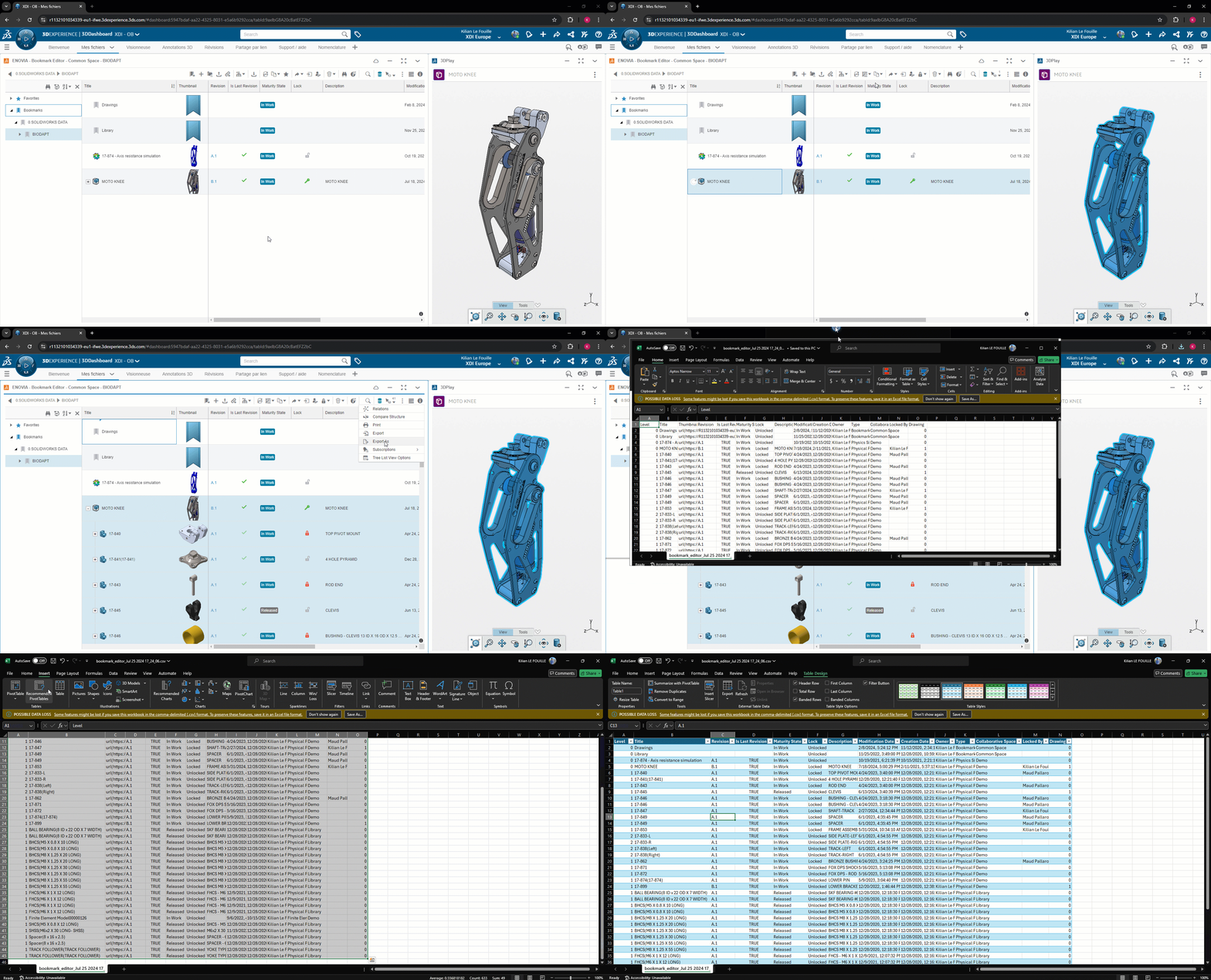
You can also extract a cadBOM without CAD software, using 3DEXPERIENCE. In the Bookmark Editor application, you can extract a CSV file from your cadBOM.
This BOM will need to be reworked to display quantities, however.
2. eBOM, engineering nomenclature
The design office is responsible for creating an eBOM that represents the final composition of the product, including all essential components such as adhesives, greases, software, belts/chains/hoses etc.
This eBOM is essential, as it constitutes the reference nomenclature for the product as designed.
Different stages such as purchasing, manufacturing, shipping, maintenance or renovation require specific groupings and adjustments revealed in eBOM.
Often, the design office does this in an Excel file, filled in manually. You have to remember to update it as soon as you change something, and errors can creep in, which is very costly for companies.
How do I get eBOM?
Prerequisite: you need the “Product Release Engineer (XEN-OC)” role, which is not included by default with SOLIDWORKS or CATIA.
a. Add the application to your 3DEXPERIENCE dashboard
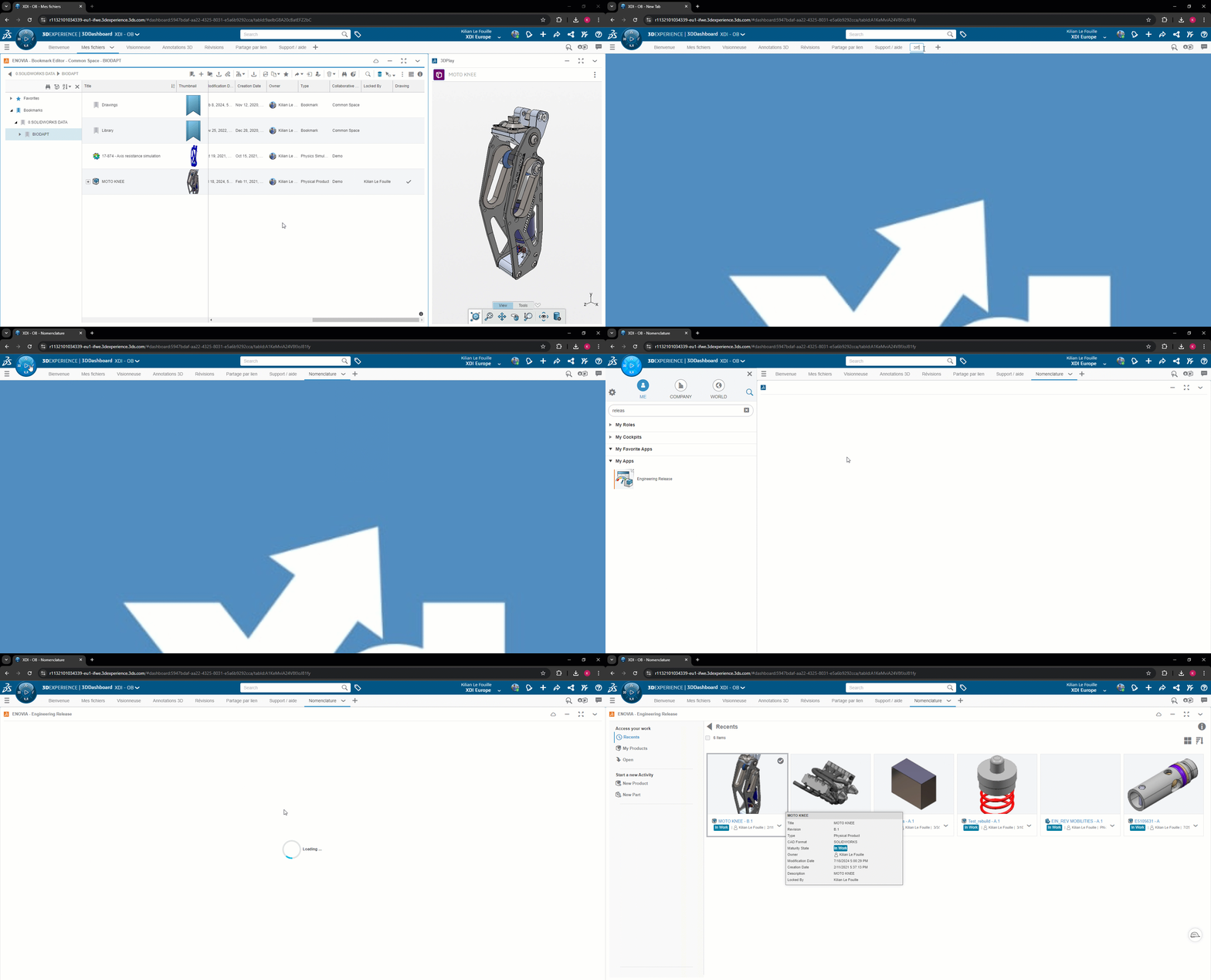
b. Add product
Whether the CAD is complete or not, you can start working on your eBOM. Changes made on the CAD will automatically appear in the BOM, allowing you to define your product as you go along, so you can get to market faster.

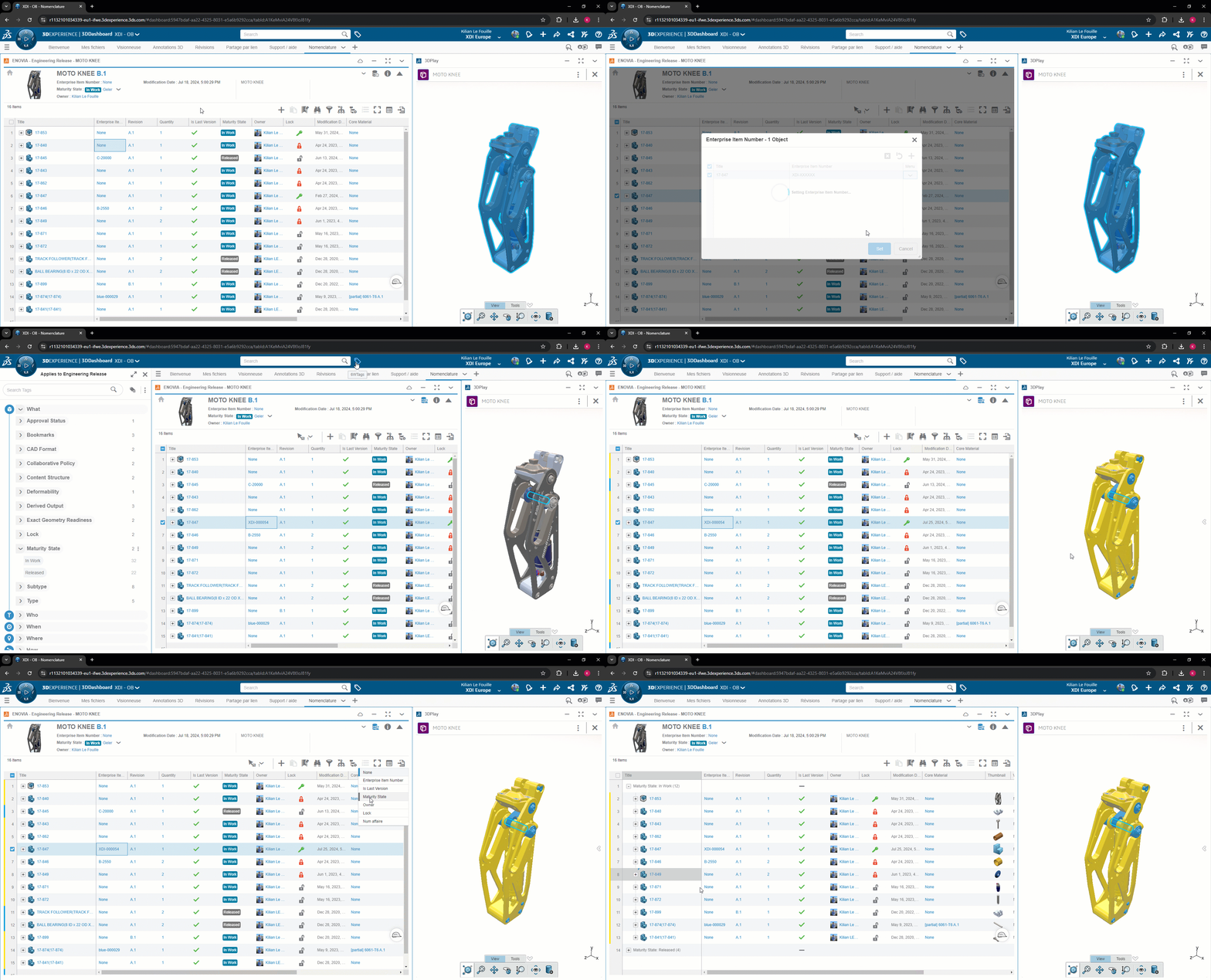
c. Add / filter / group your BOM
The eBOM management role “Product Release Engineer” allows you to :
- Access the BOM without CAD software: everything is done from the web interface.
- Define your document coding
- Manage revisions / quantities / maturities: in progress / frozen / distributed.
- Understand who does what: you know which person is working on which file
- Sort, group, display according to the properties you require: supplier, project code, library item…
- Visualize your 3D models without installation
- And of course… Export in CSV format (Excel)
Would you like to discuss your requirements?
3. mBOM, manufacturing bill of materials
For the manufacture of a product, the BOM must be structured by taking into account production sites, supply methods, manufacturing equipment, production processes, etc.
Manufacturing BOMs ( mBOMs ) play a crucial role in this process. They use the eBOM reference BOM as a starting point, and adapt it to meet specific manufacturing constraints.
How do I get mBOM?
Prerequisite : you need the roleManufacturing Items Engineer (MFN-OC)” role, as well as the “Product Release Engineer (XEN-OC)” role, which are not included by default with SOLIDWORKS or CATIA.
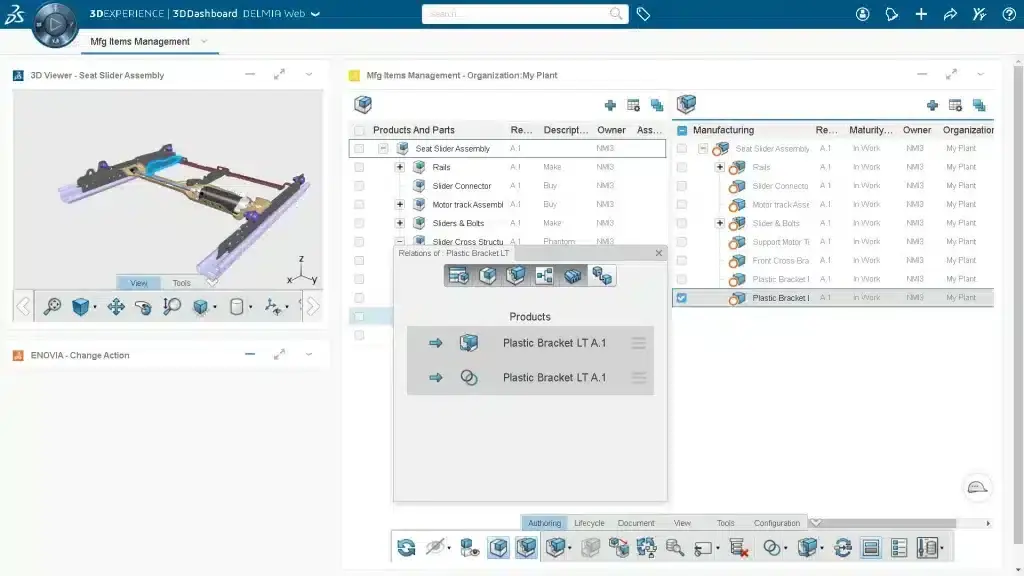
The MFN role allows you to :
-
Create the mBOM from the eBOM.
-
Ensuring digital continuity in CAD / eBOM / mBOM
- Define assemblies and kits for manufacturing
- Manage revisions and maturities
Would you like to discuss your requirements?
Conclusion
BOM management in 3DEXPERIENCE ensures a seamless transition between design and manufacturing. Choosing 3DEXPERIENCE means guaranteeing digital continuity between SOLIDWORKS or CATIA, with the BOM.
Do away with Excel files where you enter information manually – it’s too error-prone!




