
A new member has joined your team and you’ ve invited them to work on 3DEXPERIENCE? Here are all the steps you need to take to get them started on 3DEXPERIENCE.
1. Sharing the 3DSpace collaboration space
To give your user access to your files, you now need to add them to one of your collaborative spaces. By default, the only one you’ll have is called common space.
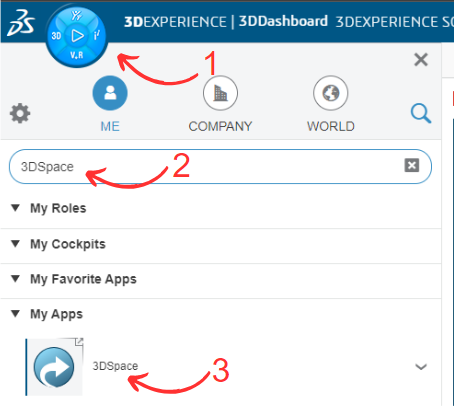
Open the 3DSpace application from the compass.
Select the space of your choice, then click on the arrow to add a member.
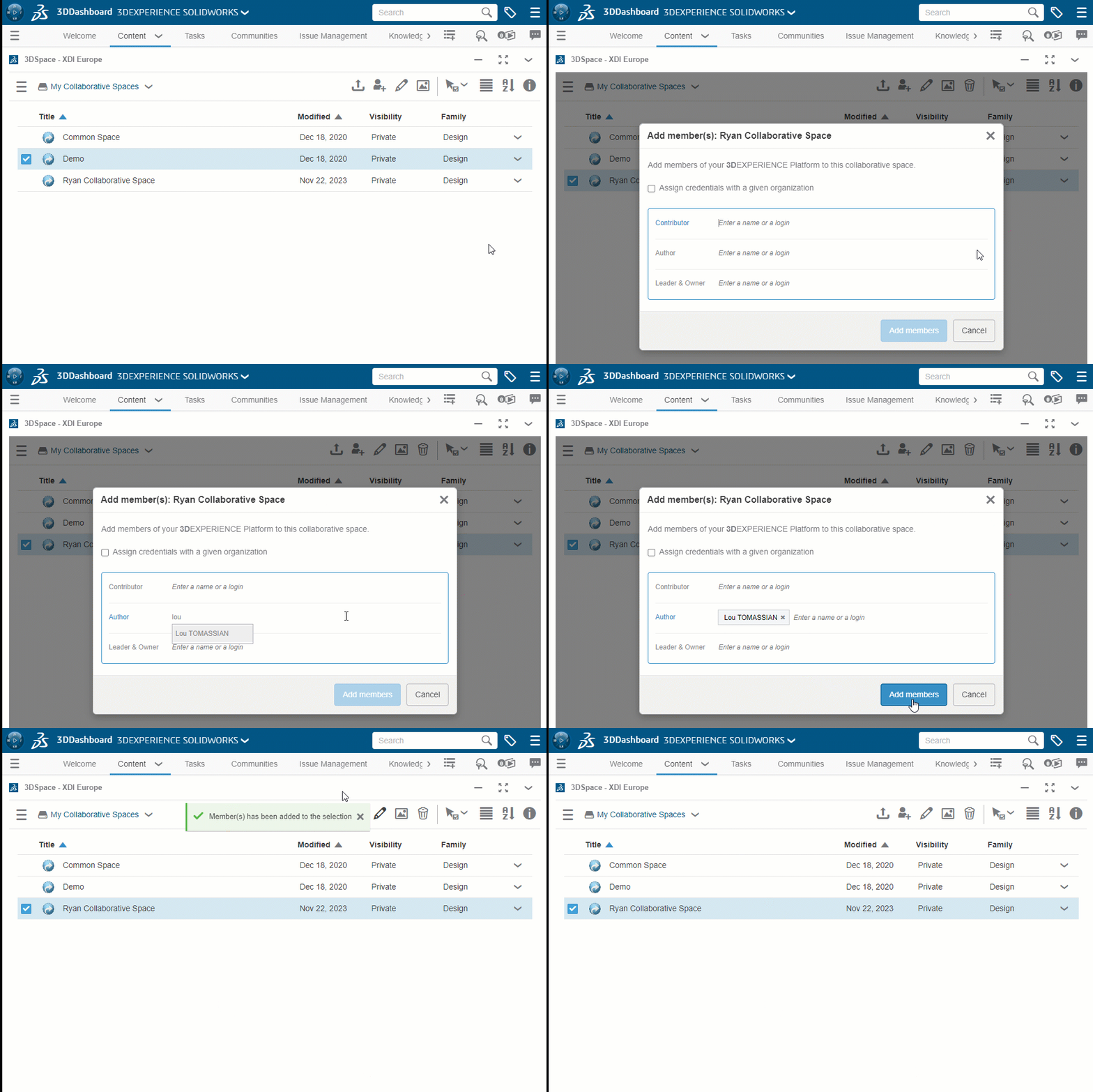
Note: Each newly added user is assigned a role which determines his or her access rights to the collaborative workspace: adding new files, modifying existing files or viewing only. There are different types of role:
- Contributor: provides read-only access to files
- Author : allows you to edit your own files; cannot distribute or delete other contributors’ content
- Responsible: allows a user to broadcast content
- Owner : allows a user to administer the collaborative space, including adding or deleting users.
2. Share your bookmarks/folders
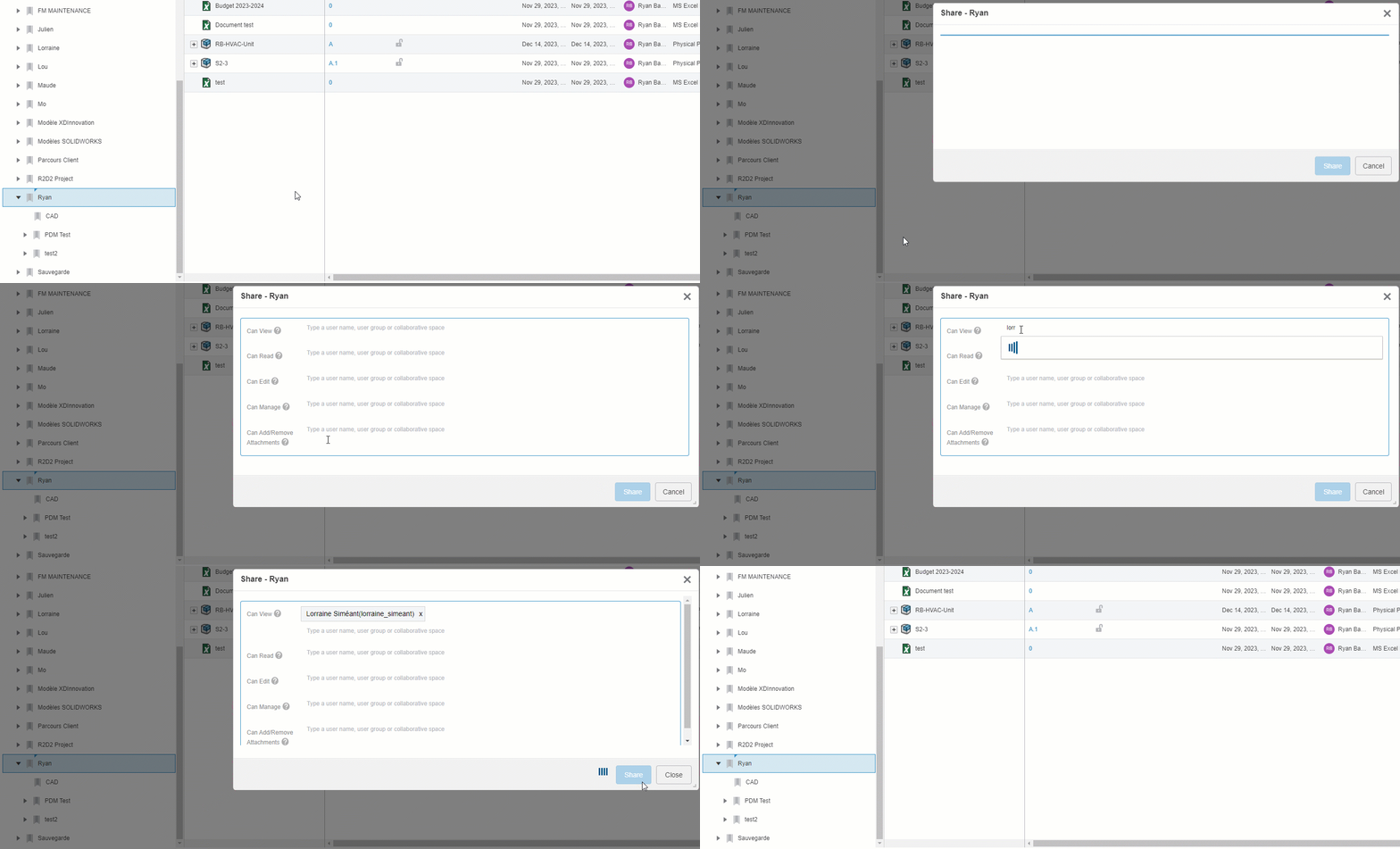
For more details on the possibilities offered by bookmarks, see our article :
Create Folders and Control Access Rights in 3DEXPERIENCE
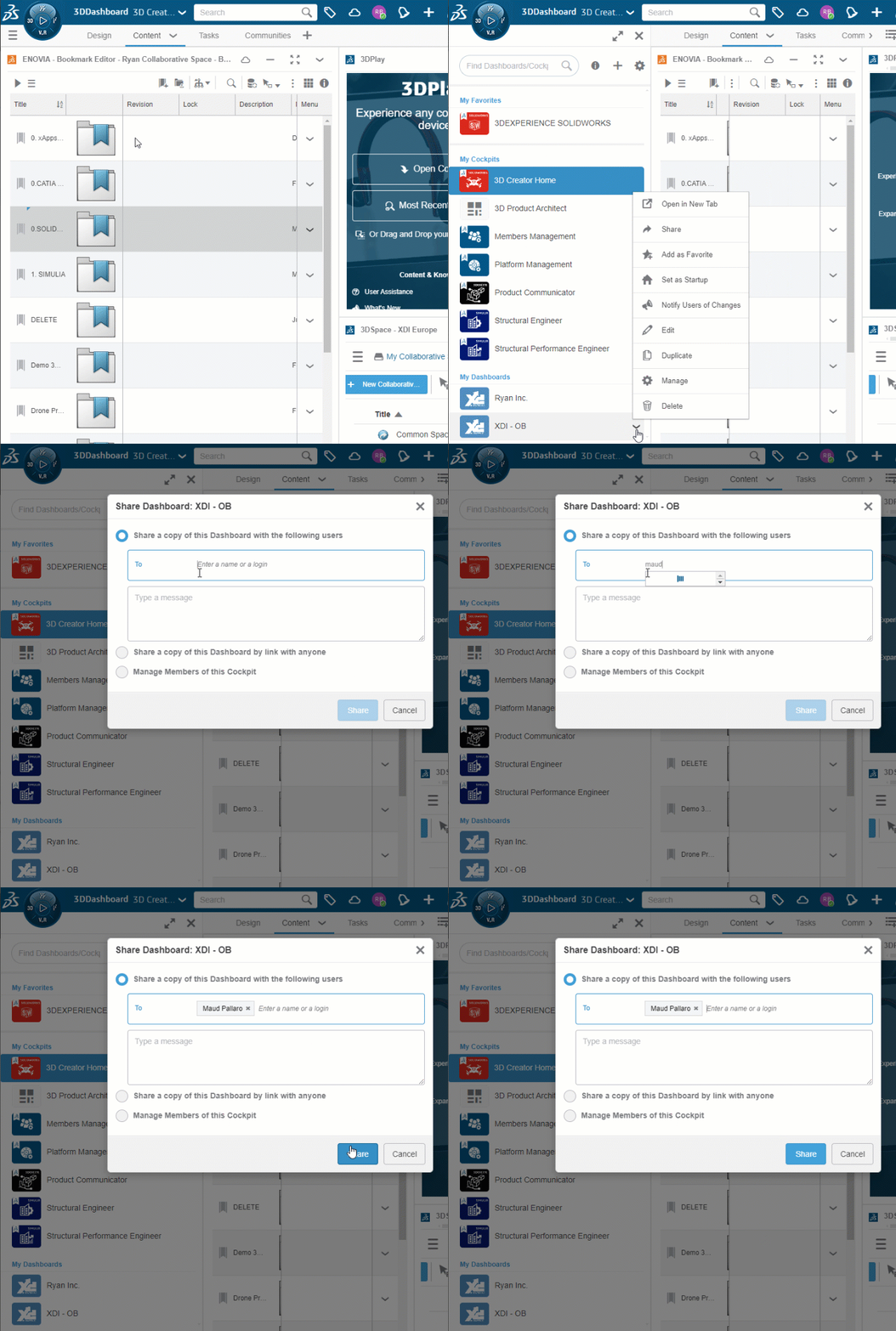
3. Share your dashboard
If all members have the same interface on 3DEXPERIENCE, it’s much more practical! This means sharing the 3DDashboard:
Summary
It is essential to take the right steps when a new member is added to the platform. This will ensure a smooth introduction to SOLIDWORKS and 3DEXPERIENCE.
For more information, contact us at support@xdinnovation.eu




