
1. Recommended parameters
- Do you need primary and secondary revisions?
By default, only the primary revision is active (A, B, C…), but you can configure your platform to allow secondary revision (A.2, A.3… then B.1, B.2…).
Primary revisions are mainly used for a major new version of an object, while secondary revisions are used for minor updates and internal iterations of an object.
Tip: for smaller companies, use the default settings (primary revisions only):

For larger companies, or if you have specific needs, you can use primary and secondary revisions:

Please note: if an object is saved on the platform, its revision index cannot be modified. Changing parameters will only affect new components.
Choose your revision parameters before importing SOLIDWORKS data!
- How to activate primary and secondary?
First, let’s access the “Platform management” dashboard.
Go to the “Content” tab and the “Collaborative spaces configuration center” application.
In the “Lifecycle and collaboration” section, you can choose to have only primary revisions (A, B, C…) or primary and secondary revisions (A.1, A.2, A.3, B.1…):
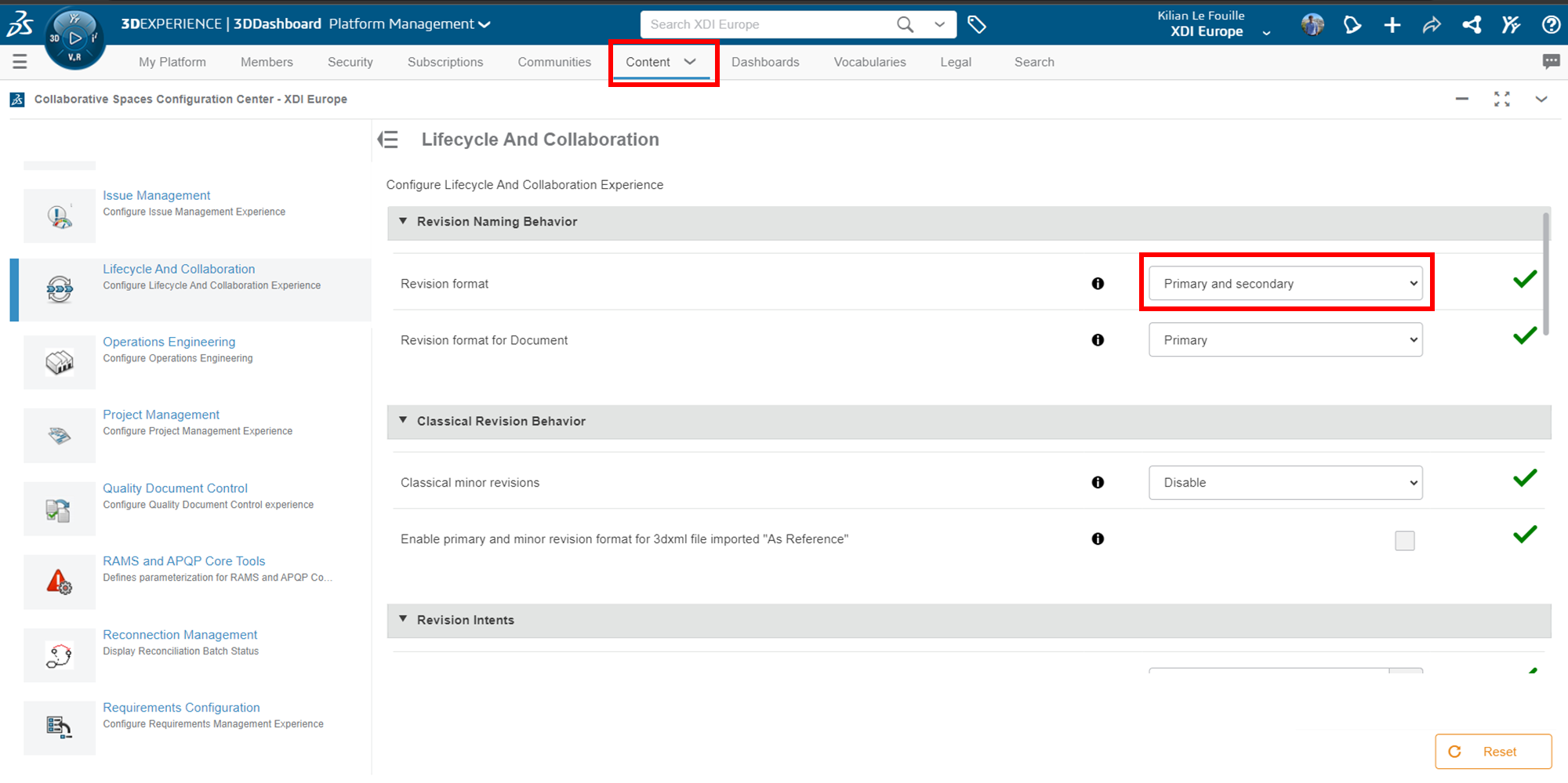
Important: In order to activate secondary revisions, it is necessary to deactivate the “Classic minor revisions” option in the “Classic revision behavior” drop-down menu.
- Need another review character?
If you’re not used to working with letters for your revisions, or if you have specific processes, you have several options to choose from:
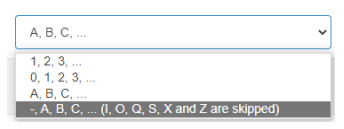
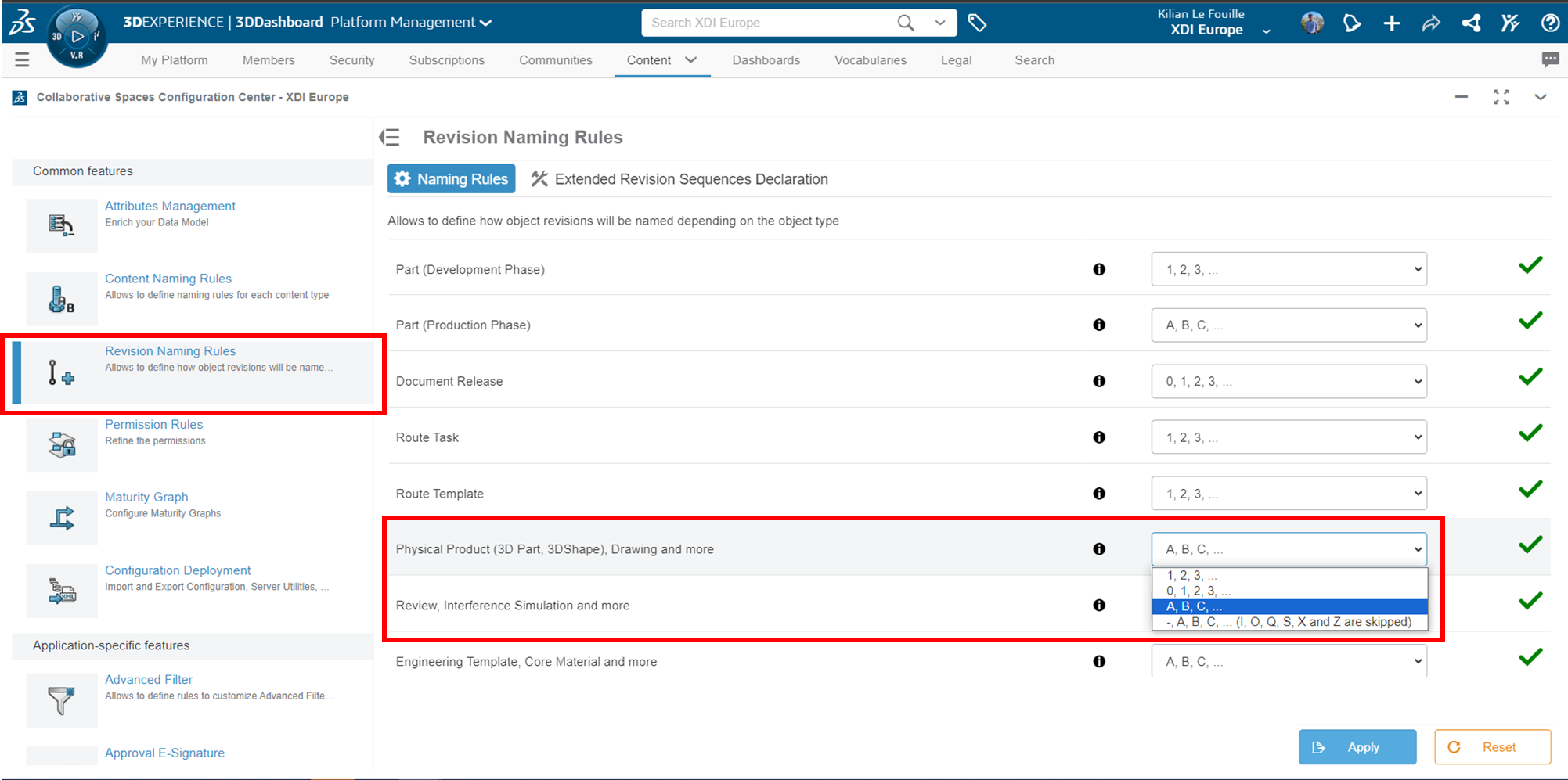
You can have revision schemes like: 1.1, 1.2, 1.3… Then 2.1, 2.2, 2.3…
To choose your setting, go to the “Revision naming rules” section:
2. Best practices
Depending on your access rights in 3DSpace, you can customize the platform to suit your processes. In 3DSpace, you can be either : Contributor, Author or Responsible & Owner.
- By default, the author cannot Distribute objects
For example, the head of the design department can be a Manager, while designers can be Authors.
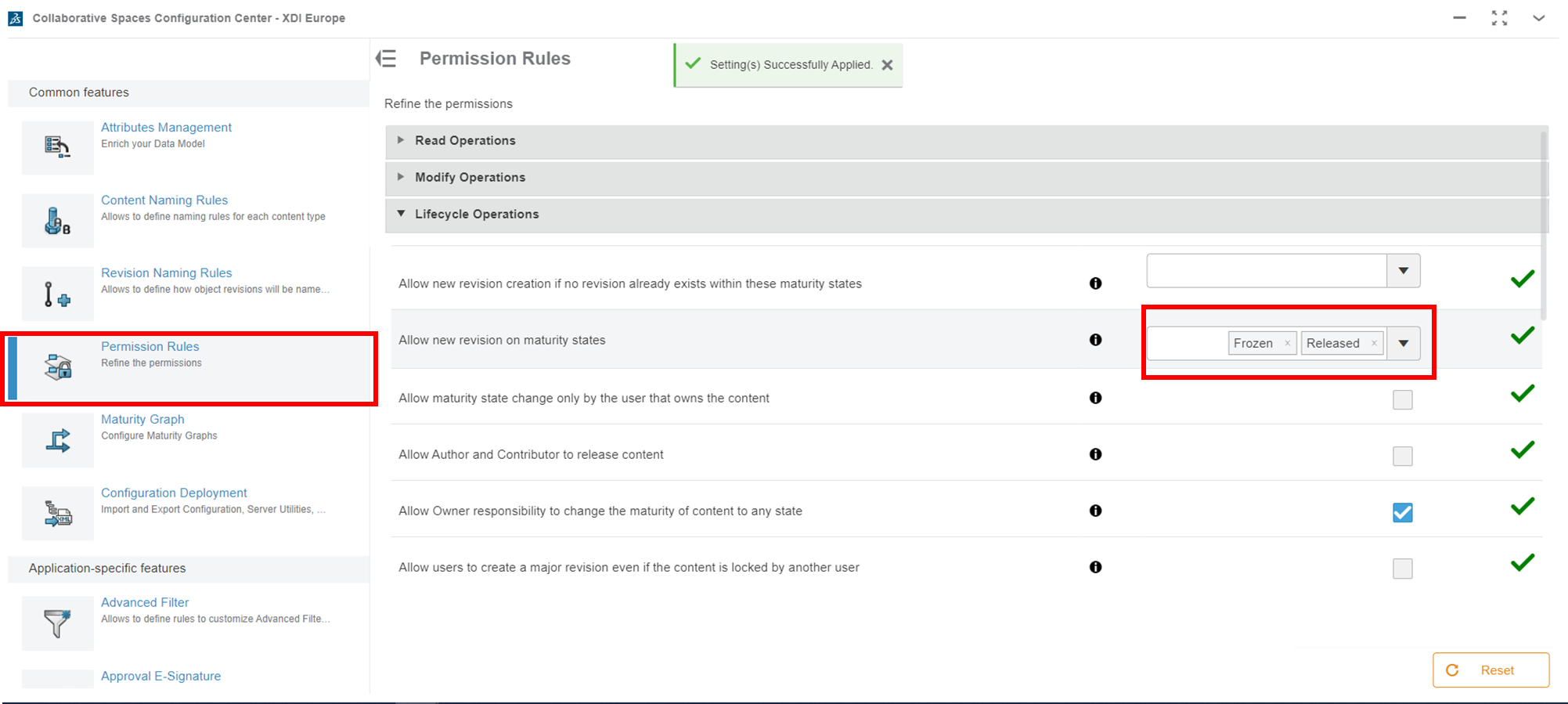
- Prevent revisions on “in-process” objects.
The last thing you want is someone working on a revision that isn’t the most recent. To avoid this, let’s prohibit the creation of new revisions on “In process” objects.
(optionally, you can also do this for “Frozen” objects).
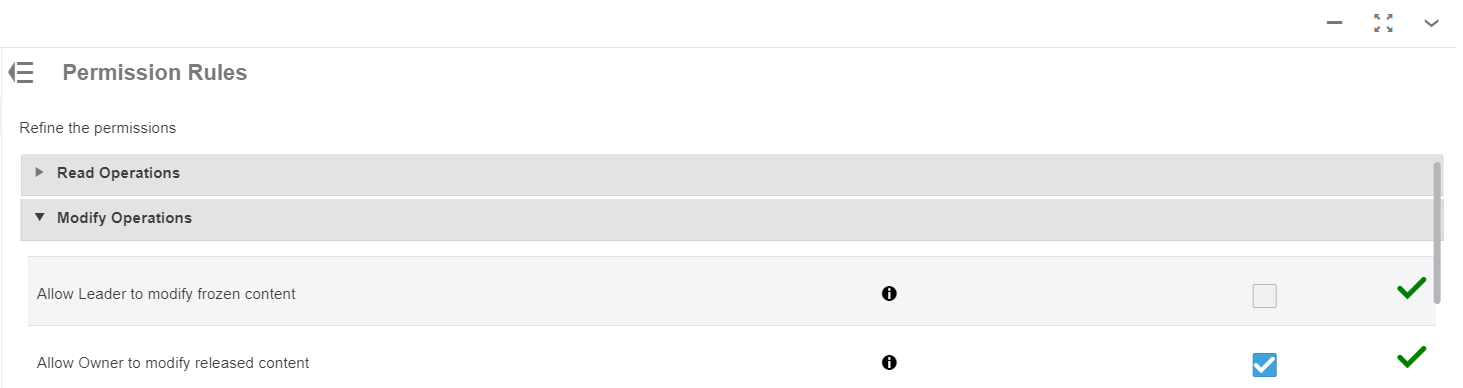
- The Manager should NOT be able to modify “frozen” content.
By default, the 3DSpace Manager can always edit “frozen” content. Disable this option to avoid this.
- Creating transition rules for maturity
This can enable you to prevent the Dsitribution of an object if the user is an “author” or if a more recent revision already exists. You can also rename or add transitions if required.
Select Section: “Maturity graph” and Type: “Engineering definition”.
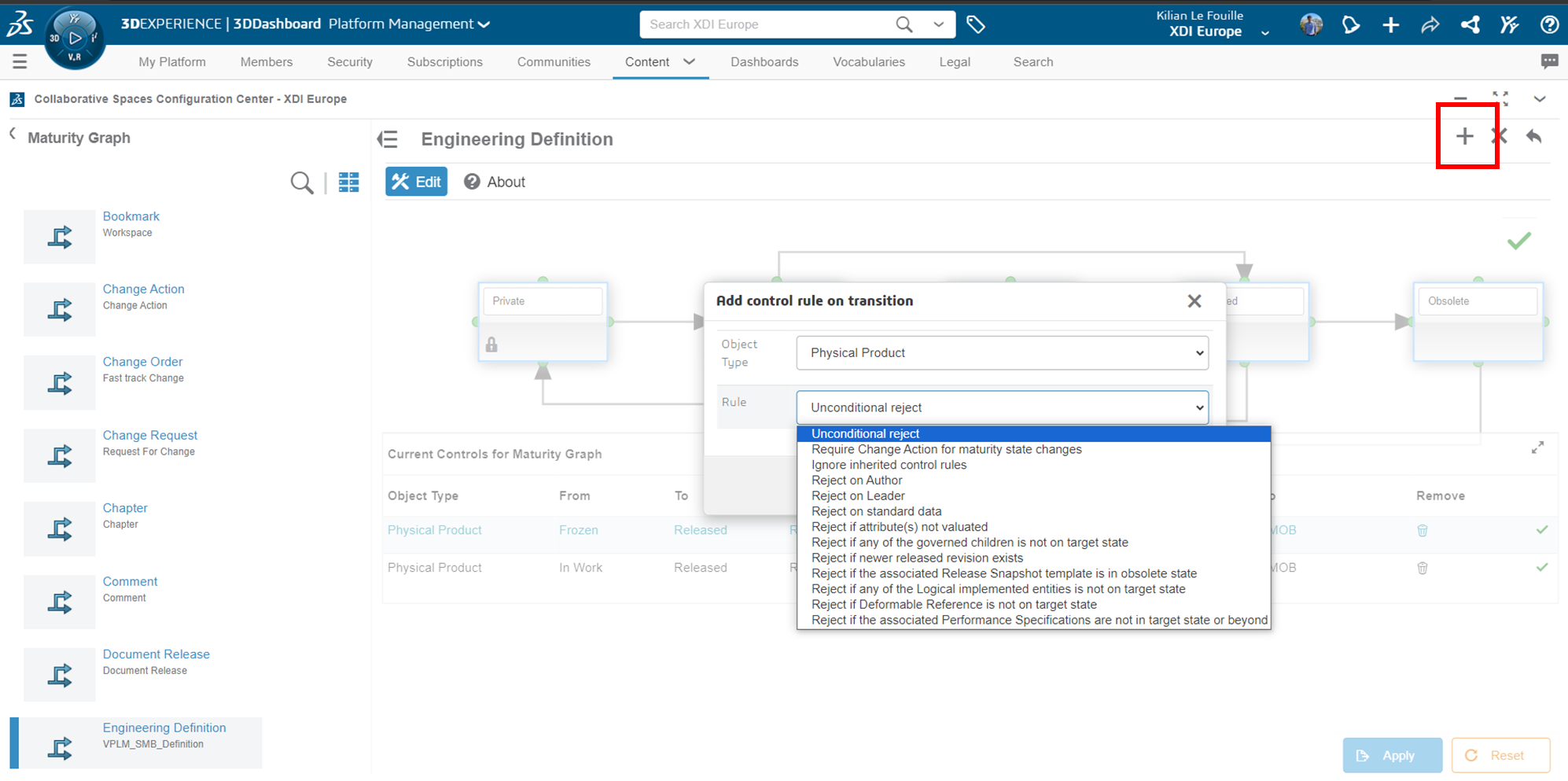
What you don’t want is for a part to be modified if its drawing has been Distributed – the drawing wouldn’t be up to date.
You can avoid this by creating the rule “Reject if one of the governed children is not in the target state”.
Conclusion
Thanks to this article, you already have a few tips for setting up your versions/revisions according to your workflow.
Need help?
We look forward to hearing from you! Contact us at support@xdinnovation.eu




