
TL;DR:
- Automating CAD tasks can reduce double-entry time by up to 90% and prevent errors.
- SMEs can easily start with free tools like VBA macros or DriveWorksXpress to increase productivity.
- Rigorous planning, documentation, and systematic testing are essential for deploying effective and sustainable automation.
Imagine an engineer who spends two hours every morning manually re-entering Bill of Materials (BOM) data into SOLIDWORKS—data that is already present in the company’s ERP. Multiply this loss by five employees, fifty weeks, and you get a silent productivity drain that hampers your competitiveness. Yet, CAD data re-entry represents up to 30% of engineers’ time according to industry studies. This guide shows you, step-by-step, how to automate your design processes with Dassault Systèmes tools to reclaim this lost time and invest it in what truly matters: innovation.
Table of contents
- Why Automate Your CAD Tasks?
- Prerequisites for Effective Automation
- Practical Steps: Automating a Common CAD Task
- Monitoring Results and Going Further
- Our Perspective: Automating Without Overcomplicating and Prioritizing Value
- Custom Solutions to Automate Your CAD with Ohmycad
- Frequently Asked Questions About CAD Task Automation
Key Points
| Point | Details |
|---|---|
| Major Time Savings | CAD automation often reduces time spent on repetitive tasks by 30% to 90%. |
| Start Simply | Use free tools (macros, DriveWorksXpress) first before investing in advanced solutions. |
| Essential Verification | Regularly testing and monitoring your automation prevents errors and ensures long-term success. |
| Collaborative Value | Cloud and PLM multiply automation gains by strengthening collaboration and traceability. |
Why Automate Your CAD Tasks?
Having introduced the issue, let us explain why CAD task automation is an absolute priority for any SME or freelancer wishing to remain competitive.
The Numbers Speak for Themselves
The gains achieved by companies that take the plunge are hard to ignore. According to available industry benchmarks, CAD-ERP integration can reduce errors and time spent on double data entry by 70% to 90%. CAM programming with DELMIA is accelerated by 80% thanks to toolpath automation. These are not theoretical figures: they are results measured in the field.
| Task Involved | Estimated Time Saving | Automation Method |
|---|---|---|
| CAD-ERP Re-entry | 70% to 90% | PDM/ERP Integration |
| Repetitive Drawing Creation | 60% to 75% | VBA Macros, DriveWorksXpress |
| CAM Programming | 80% | Automated DELMIA |
| Variant Generation | 50% to 70% | PowerCopy, DriveWorks Pro |
This data illustrates a simple reality: every repetitive task is an opportunity for optimization.
The SME and Freelance Context
Industrial SMEs and freelancers face a particular constraint: limited resources. No dedicated IT team, no infinite budget, and often a single CAD engineer who wears multiple hats. In this context, every minute saved is strategic. Automation is therefore not a luxury reserved for large groups. It is an accessible lever, particularly thanks to CAD innovations in 2026 that make these tools more affordable and easier to use.
“Automating repetitive tasks frees up your engineers to focus on what the machine cannot do: design, innovate, and decide.”
Debunking Common Misconceptions
Two obstacles systematically arise when discussing CAD automation with SMEs. First: “it’s too complicated.” False. Native tools like DriveWorksXpress or the SOLIDWORKS macro recorder allow you to start without a single line of code. Second: “it’s too expensive.” Also false. Several solutions are included for free in your existing licenses.
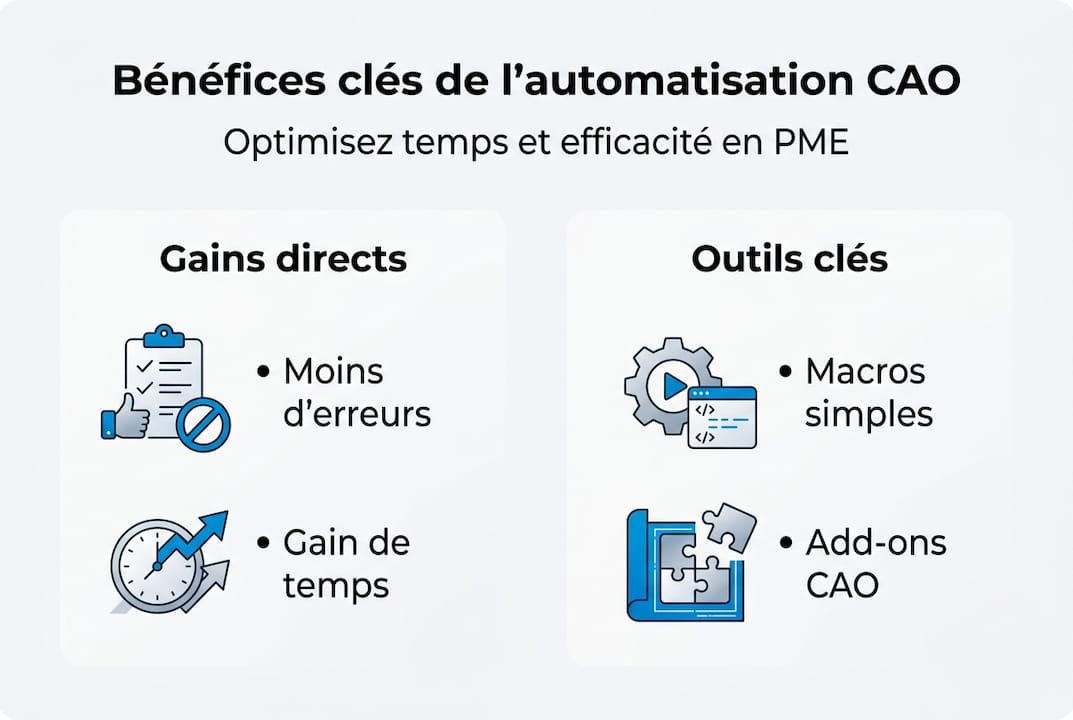
Here are the concrete benefits to expect:
- Reduction of human errors: the machine does not forget a field and does not make rounding mistakes
- Data consistency: the same model always generates the same outputs
- Improved traceability: every automated action can be logged
- Time freed for innovation: your engineers focus on added value
Pro tip: Start by identifying a single task that you perform at least three times a week. Just one. This is the one you will automate first, to quickly see the return on investment before scaling up.
Good prior organization is also indispensable. Before launching any automation, remember to organize your CAD files in a structured manner: a clean environment is the foundation of a reliable automation.
Prerequisites for Effective Automation
Once convinced of the benefits, it is time to see what you need to take concrete action.
Available Dassault Systèmes Tools
Automation methods with Dassault Systèmes software cover a wide spectrum, from simple macros to advanced PLM integrations. Here is a comparative table to clarify:
| Tool | Software Involved | Required Level | Cost |
|---|---|---|---|
| VBA Macros | SOLIDWORKS | Beginner to Intermediate | Included in license |
| DriveWorksXpress | SOLIDWORKS | Beginner | Included (base version) |
| DriveWorks Pro | SOLIDWORKS | Intermediate | Additional license |
| CATScript / EKL | CATIA | Intermediate to Advanced | Included in CATIA |
| PowerCopy | CATIA | Intermediate | Included in CATIA |
| Knowledgeware | CATIA | Advanced | Optional module |
| PDM-ERP Integration | SOLIDWORKS / 3DEXPERIENCE | Advanced | Variable based on config |
This table shows that free entry points exist. You do not have to invest immediately in DriveWorks Pro or Knowledgeware to start automating.
Necessary Skills
Rest assured: a basic level of scripting is enough to get started. Macro recorders in SOLIDWORKS capture your actions and automatically generate the corresponding VBA code. You can then slightly modify this code to make it parametric. For CATIA, CATScript works on a similar principle. The good news: there are a multitude of online resources, and our team can also guide you through this start.

For more advanced integrations, particularly on 3DEXPERIENCE, a profile capable of reading Python scripts or using the graphical configuration interface will be necessary. To learn more about this environment, our guide to mastering 3DEXPERIENCE is a useful resource.
Preparing Your Environment Before Starting
Here are the preparatory steps not to be overlooked:
- Inventory of repetitive tasks: list everything you do more than twice a week in your CAD software
- Software version check: macros and plugins often depend on a specific version
- Administrator rights: some automations require write permissions on network folders
- Backups: before any deployment, secure a full copy of your reference files
If you use CATIA, also check your CATIA installation to ensure that the necessary modules are properly activated in your license.
Practical Steps: Automating a Common CAD Task
Now equipped with the right tools and proper preparation, you can follow these concrete steps to launch your first automation.
Concrete Example: Automating Drawing Creation in SOLIDWORKS
Take a universal task in industrial SMEs: creating a manufacturing drawing from a parametric part. Manually, this task takes between 20 and 45 minutes per variant. Automated, it is done in less than 2 minutes.
Detailed Steps:
-
Identify and document the task: note precisely every action you perform manually (opening the model, changing parameters, inserting views, adding the title block, PDF export). This list becomes the specifications for your automation.
-
Choose the right tool: for drawing creation based on part variants, DriveWorksXpress is ideal if you are starting from scratch. For more specific sequences, the SOLIDWORKS VBA macro recorder is more flexible.
-
Record or configure your automation: in SOLIDWORKS, activate the recorder via Tools > Macros > Record. Then perform your usual procedure. Stop the recording. The generated macro will reproduce your actions exactly.
-
Parameterize and adapt: open the generated VBA file and identify the fixed values you want to make variable (dimensions, references, serial numbers). Replace them with variables that you will fill in via a form or by reading an Excel file.
-
Test on a copy: never deploy directly on your production files. Create a test folder with representative copies of your real use cases.
-
Validate and document: if the results are consistent across at least ten varied test cases, your macro is ready. Document each parameter and its use for your colleagues.
Pro tip: For automations in SOLIDWORKS, free native tools like DriveWorksXpress or simple VBA macros are the best starting point before investing in Pro or 3DEXPERIENCE solutions. Also prioritize PDM integration to guarantee the traceability of each revision.
Table of Automatable Actions and Recommended Methods
| CAD Action | Ideal Method | Level | Typical Manual Duration | Automated Duration |
|---|---|---|---|---|
| Drawing Generation by Variant | DriveWorksXpress | Beginner | 30 min | 2 min |
| Automatic PDF Export | VBA Macro | Beginner | 10 min | 10 seconds |
| Material Change on Families | VBA Macro + Excel | Intermediate | 20 min | 30 seconds |
| ERP BOM Generation | PDM-ERP Integration | Advanced | 45 min | Automatic |
| Copying Parametric Features | PowerCopy (CATIA) | Intermediate | 25 min | 3 min |
These estimates vary according to the complexity of your assemblies and the quality of your initial parameterization, but they provide a realistic order of magnitude of the gains achievable within the first few weeks.
Monitoring Results and Going Further
After the automation itself, ensure the quality of your automations and consider the subsequent steps to maximize the value created.
Checks to Perform After Each Automation
An unvalidated automation is more dangerous than a manual process: it can produce serial errors without anyone noticing immediately. Here are the essential checks to put in place:
- Validation of results on several test cases: use at least ten examples covering edge cases (extreme values, rare combinations)
- Comparison with manual reference: compare your automated outputs point by point with those produced manually for the same input
- Exception handling: your script must react cleanly if a file is missing, a parameter is out of range, or a permission is denied
- Robustness tests: simulate degraded conditions (slow network, locked file) to check stability
- Periodic review: plan a quarterly review to ensure your automations remain aligned with your templates and standards
A sign of a well-designed automation meets three criteria: it is reproducible (same input, always same output), traceable (every execution is logged), and scalable (it can be adapted without rewriting everything).
The Cloud and PLM Dimension: Going Further
The true transformation happens when you connect your automations to a collaborative environment. On the 3DEXPERIENCE cloud CAD platform, automation involves dedicated PLM services like PLMOpenService and PLMPropagateService, as well as EKL or Python scripting.
“Automation on the cloud via PLM services and EKL or Python scripting reduces IT costs for SMEs while promoting fluid collaboration between distributed teams.”
The concrete advantages for an SME moving to the cloud are significant: no more local server to maintain, access to automations from any site, and instant sharing of validated models between collaborators. For companies working on complex projects, consulting feedback on industrial projects in 3DEXPERIENCE can provide very concrete insights.
Our Perspective: Automating Without Overcomplicating and Prioritizing Value
Let’s take a step back to share our lessons from the field, after supporting many SMEs and freelancers in their automation journey.
The most frequent trap we observe is not failing to automate. It is automating too fast, too broadly, without documentation. One SME we supported had developed a suite of twenty interconnected macros in less than six months. Result: no one knew why some existed anymore, and when an employee left, the scripts became unusable.
Our conviction is simple: start small, document everything, train your teams. A single well-documented automation is better than ten orphan scripts. SME-adapted tools exist to allow you to move forward progressively, without skipping steps.
The art of industrial automation is also knowing what not to automate. Some tasks require human judgment, contextual validation, or a creative decision. Preserving these moments is just as important as automating the rest. Prioritize automations with a quick return on investment, measure the real gains after two to three weeks, and evolve your scripts only when a concrete need arises.
Custom Solutions to Automate Your CAD with Ohmycad
Do you want to go faster and further in automation? Benefit from Ohmycad’s support to transform your CAD processes in a structured and efficient way.
Our team offers an audit of your current workflows to identify the quickest gains to implement, as well as personalized support on the Dassault Systèmes tools adapted to your profile. Whether you need to understand the strengths of CATIA for industry or explore efficient 3D methods for your sector, we have the resources to guide you.
Get off to a good start with Ohmycad CAD expertise: our experts are available to answer your questions and co-build a realistic and profitable automation roadmap with you. Contact us for an initial discussion without obligation.
Frequently Asked Questions About CAD Task Automation
What types of CAD tasks are the simplest to automate for an SME?
Drawing creation, part variant generation, or data re-entry are the easiest to automate quickly, particularly via native methods like VBA macros or DriveWorksXpress included in SOLIDWORKS.
Is it possible to automate in the cloud with CATIA or 3DEXPERIENCE?
Yes, cloud automation is done via dedicated PLM services and EKL or Python scripting, which promotes collaboration between SME teams without complex server infrastructure.
What are the concrete productivity gains?
By automating, you typically save 30% to 90% of time depending on the tasks involved and the level of PDM or ERP integration implemented.
Do I need to know how to program to automate in SOLIDWORKS or CATIA?
A basic level is sufficient thanks to the macro recorders or DriveWorksXpress included in your license, but learning VBA or CATScript allows you to achieve much more powerful automations.
How can I avoid errors when deploying an automation?
Always test on a copy of your reference files, document each script precisely with its parameters, and plan regular checkpoints to validate outputs on representative cases.




