
Introduction
Is your part projected in the wrong direction when drawing? Your projection standard is probably not the right one. In this article, we’ll look at how to switch from the US view projection standard to the EU view projection standard.
Change projection mode
By default, the drawing model used by SOLIDWORKS is the American view projection mode. At the end of these few steps, we’ll have set up our drawing in European view projection mode. We’ll use this part with a circular and a rectangular end to illustrate the change.
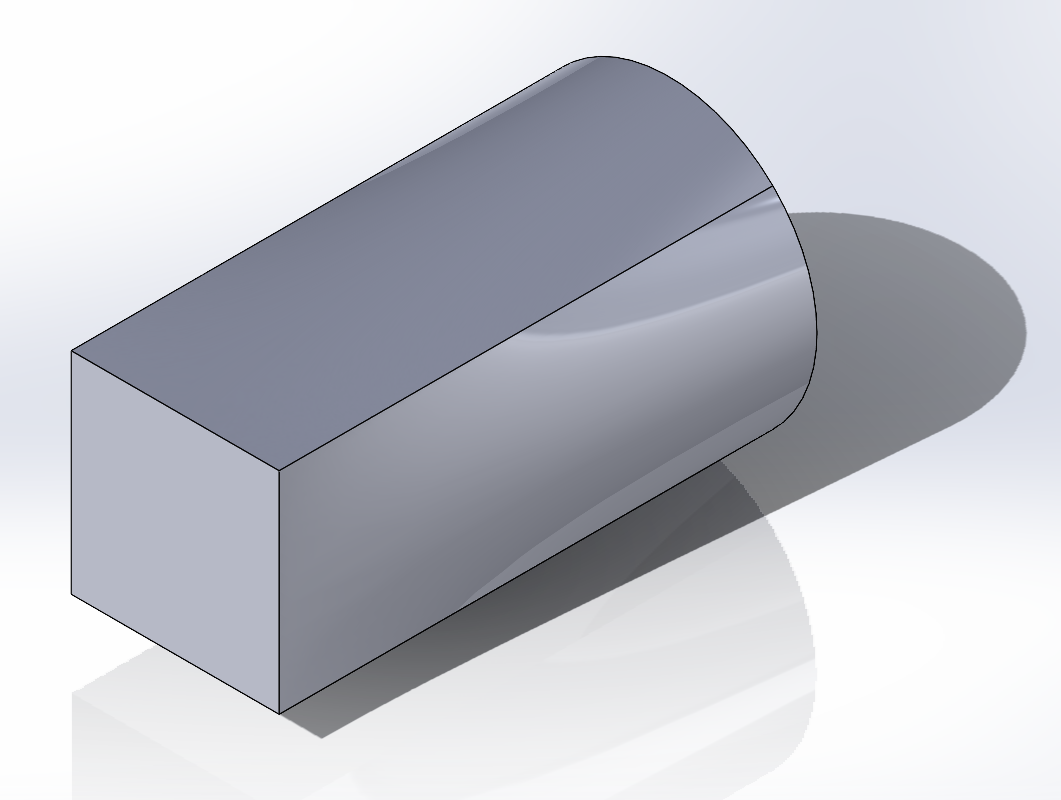
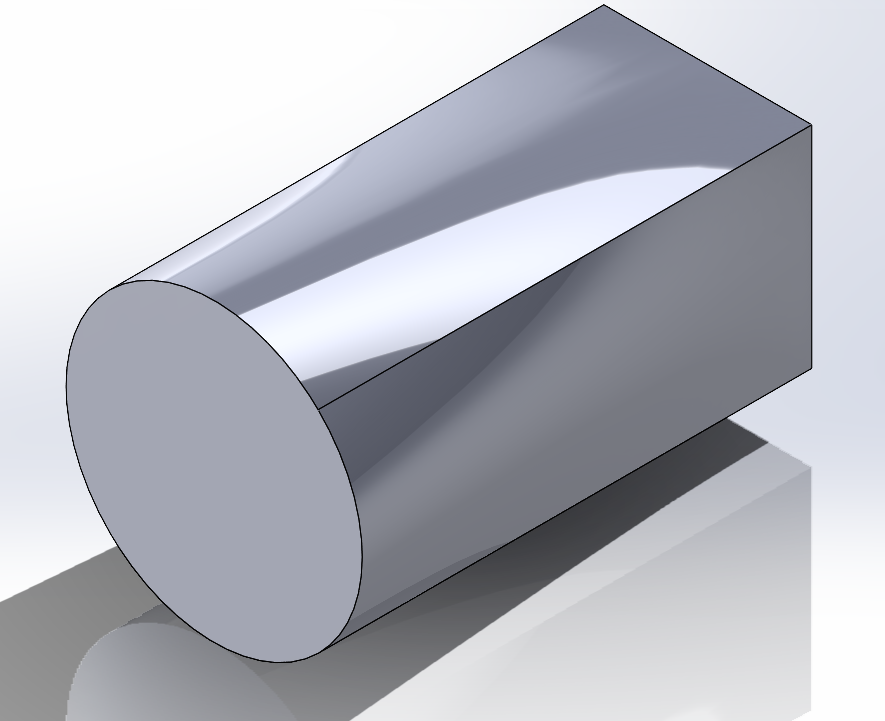
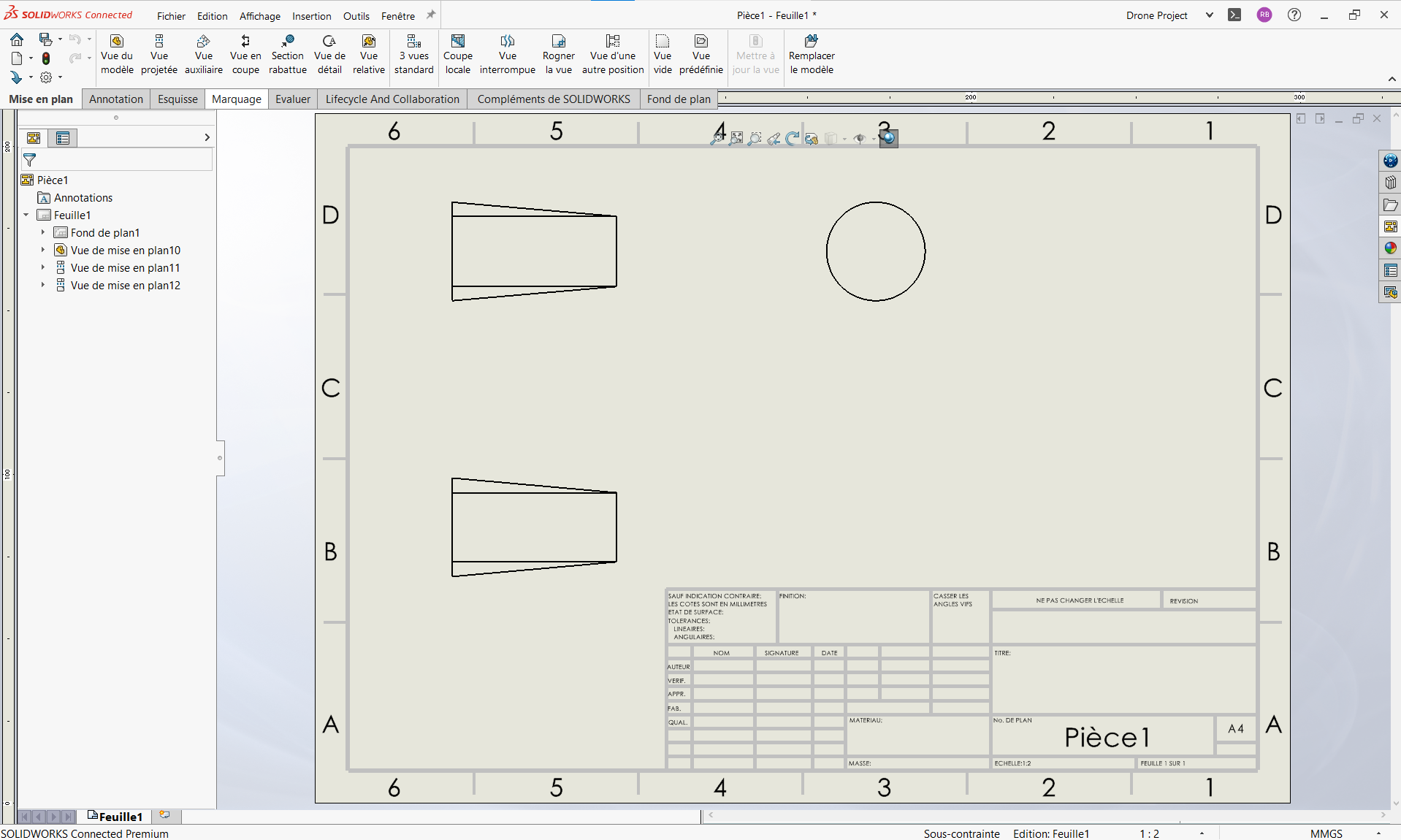
After creating the drawing and projecting the part, we obtain this result:
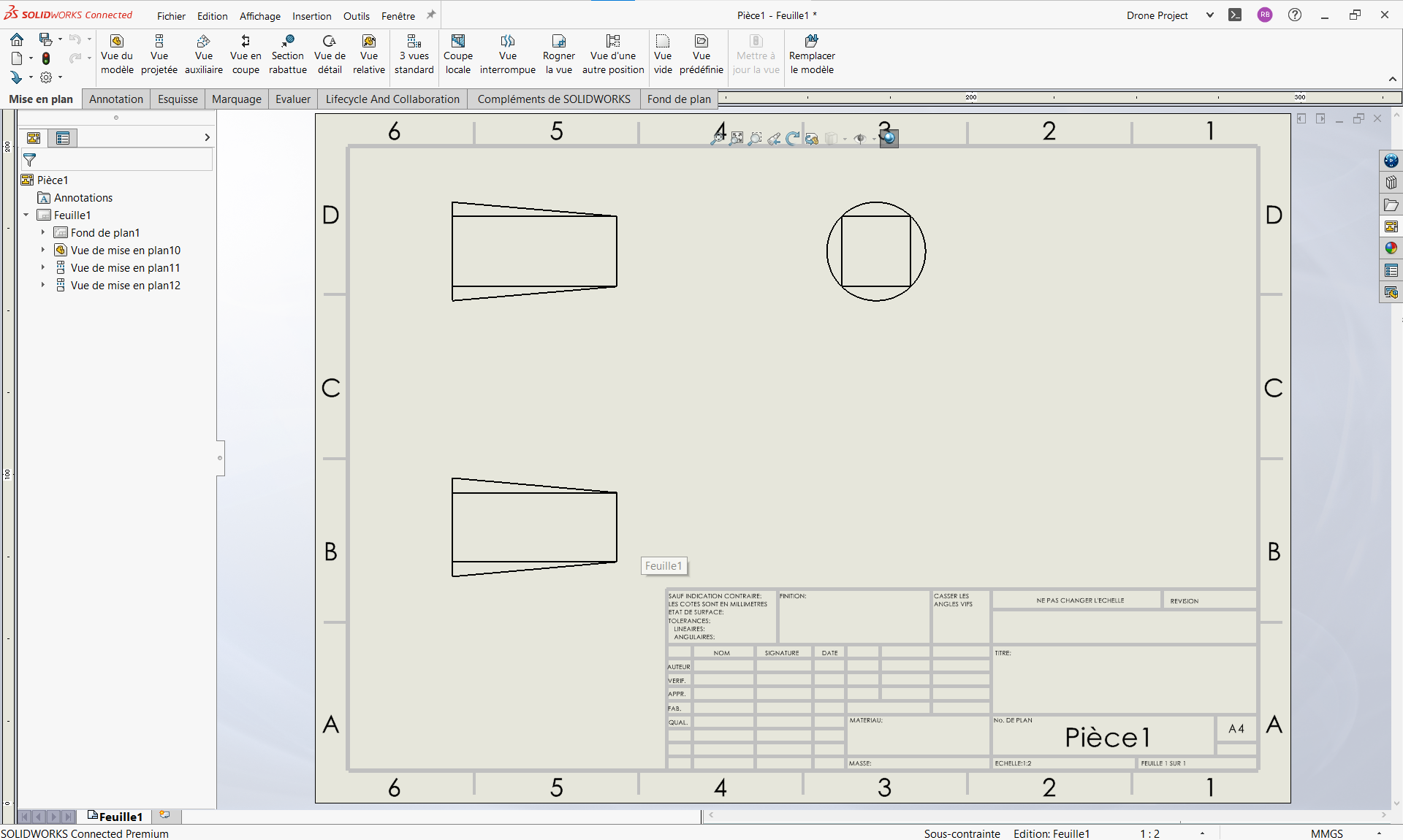
To change the projection mode :
1. In the Features Manager tab (left), right-click on“Sheet 1 “ then select “Properties
 “. The window below will appear:
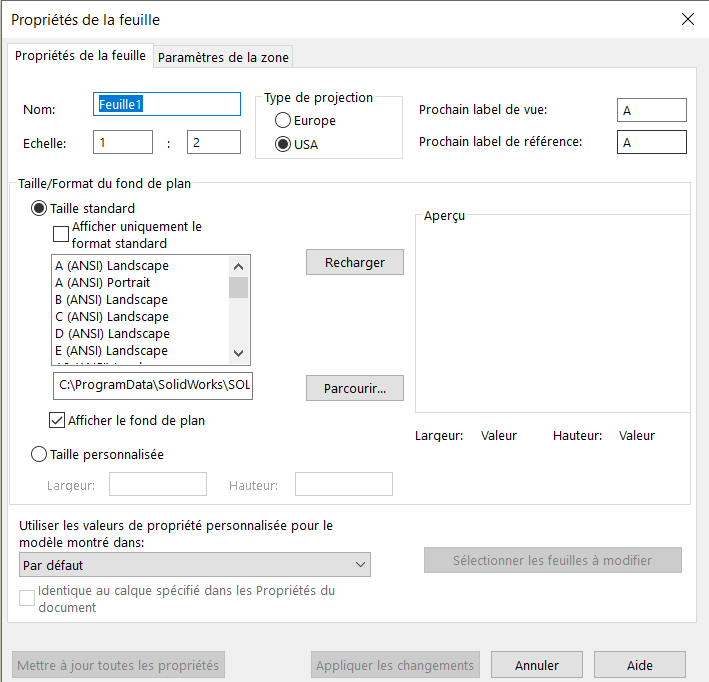
2. Then, at the top of the window, in the“Projection type” box, select Europe and click on“Apply changes“.
This gives the following result:
Save as template
To ensure that the change of projection mode is taken into account for all future drawings, you can save your drawing as a local or 3DEXPERIENCE model .
I. Registering with 3DEXPERIENCE
By registering your model on 3DEXPERIENCE, you can make it available to all platform users, easily and securely.
1. First, click on“File” then select“Save as template“.
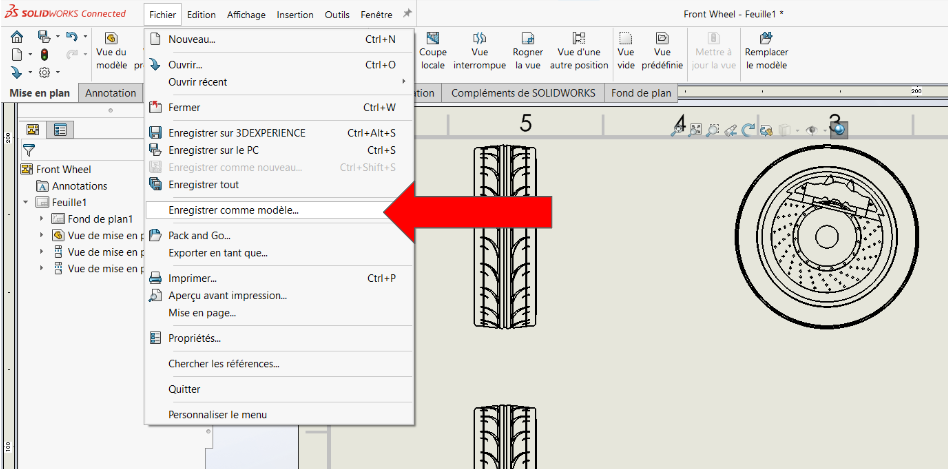
The following window will open:
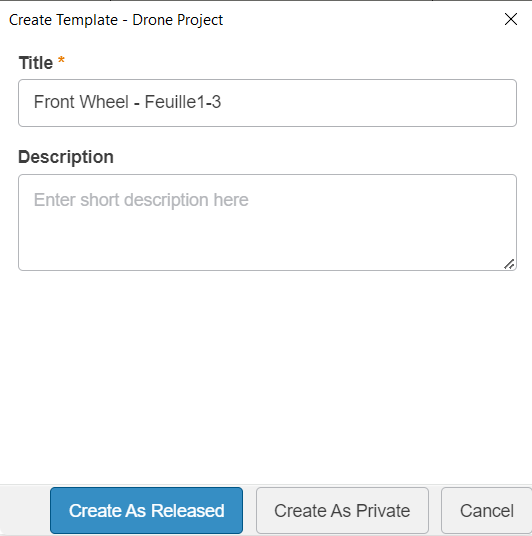
After choosing a name and possibly a description for the model, it can be saved on the common space (the server) of the 3DEXPERIENCE platform in two states of maturity:
- Released (Distributed)
- Private
For more information on maturity states, click “here”.
2. Local recording
1. First, click on“File“, then select“Save as new“.
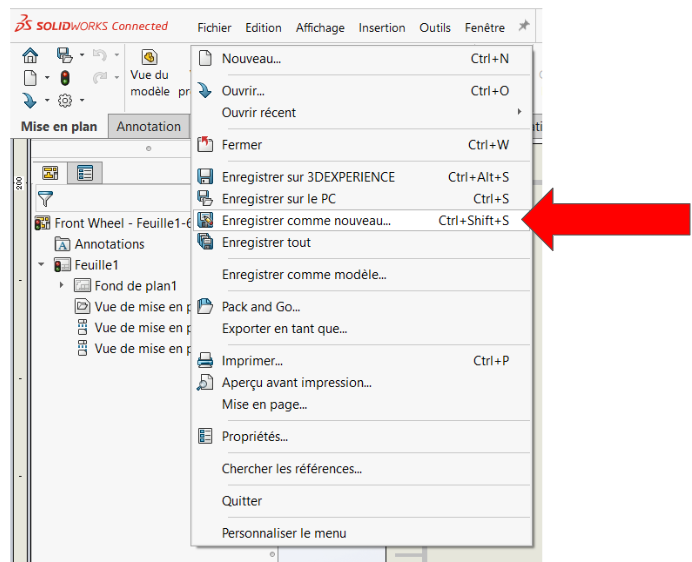
The following window will open, allowing you to choose where to save your model:
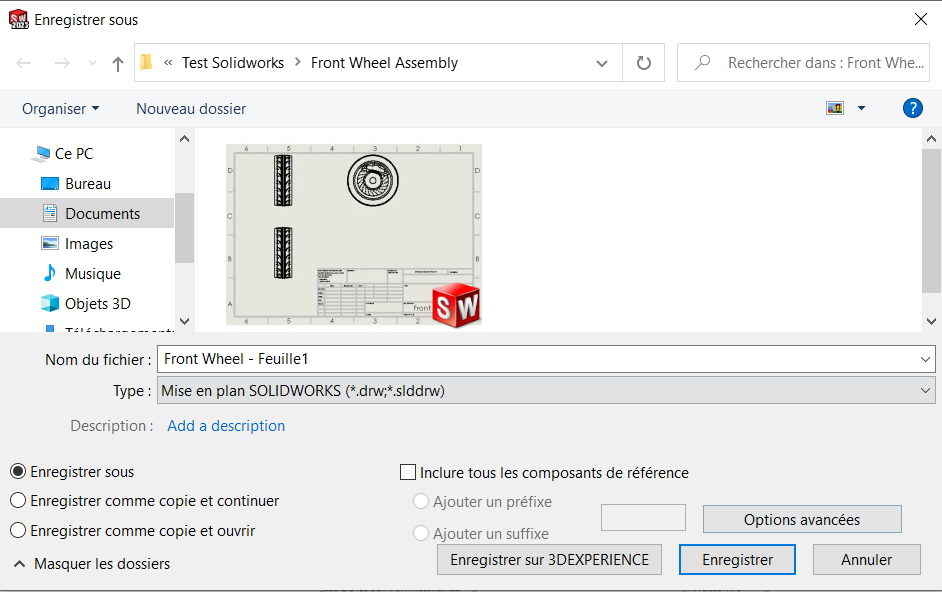
2. Click on“Type” then select the“Drawing templates (*.drwdot)” format.
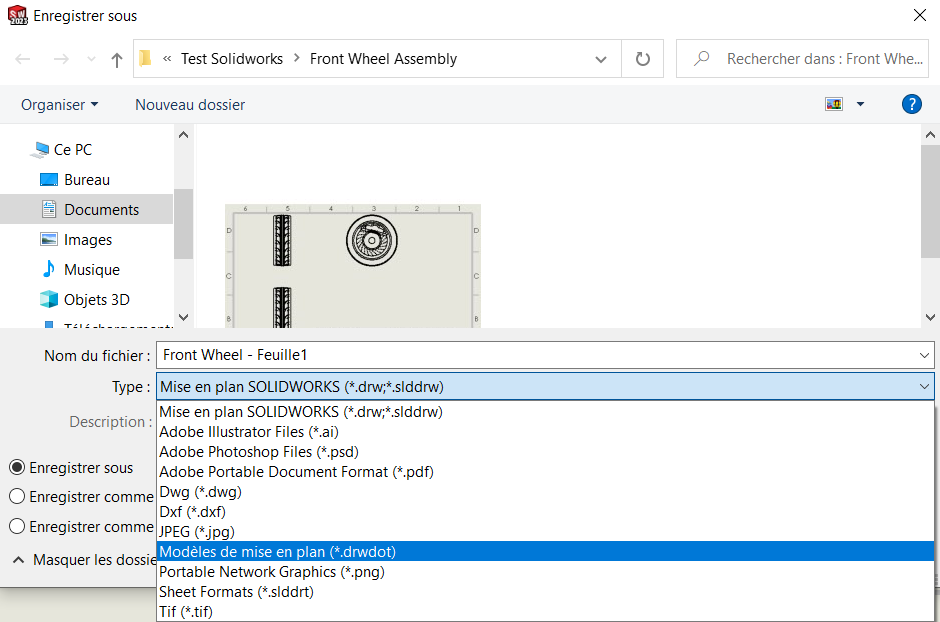
The basic model will be displayed in the window:
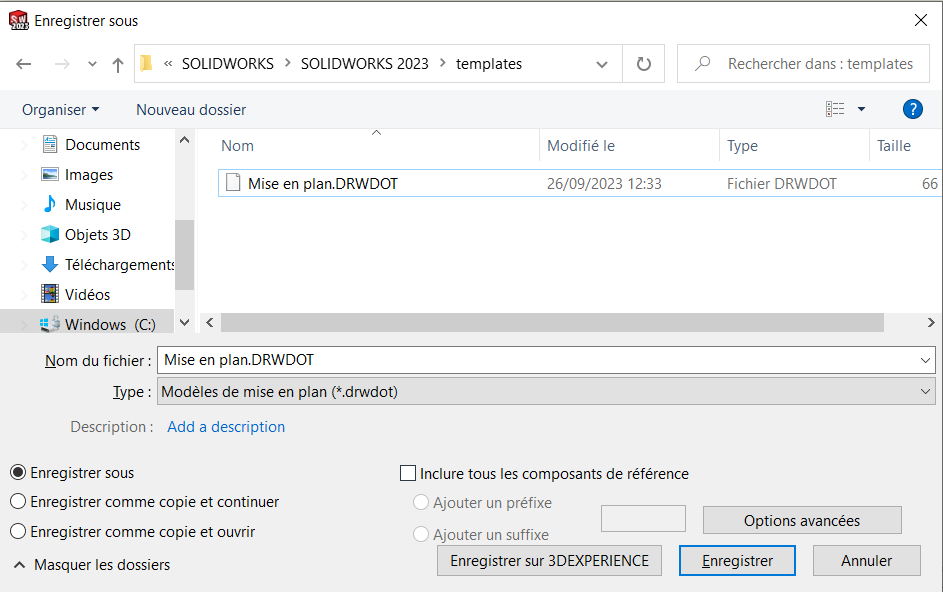
3. Click on“Drawing.DRWDOT” then click on“Save“.
Each time you create a new drawing, it will automatically be based on the template you’ve just created. This means you no longer need to manually modify the projection parameters for each individual drawing. This simplified process will save you time and ensure consistency across all your layouts.
Feel free to consult our other articles for more information and tips on layouts. If you have any further questions, please do not hesitate to contact the XDI team.




