
Introduction
Managing revisions is essential for industrial companies. For example, a company may manufacture and sell the A revision of a part, then move on to the revision B after modification.
The 3DEXPERIENCE platform makes revision management simple and efficient.
Please note: Revisions may only be used for track the history of the design. When working, you should always use the latest revision. If you want to explore different design ideas, you should use the revision branches.
Before you start revising, please familiarize yourself with the concept of maturities.
Creating revisions in CATIA
1. Save to 3DEXPERIENCE
Windows is not equipped with tools for editing CAD files, so these are only available whensaving to 3DEXPERIENCE.
2. Change maturity status
You can change maturities directly via the registration with options :
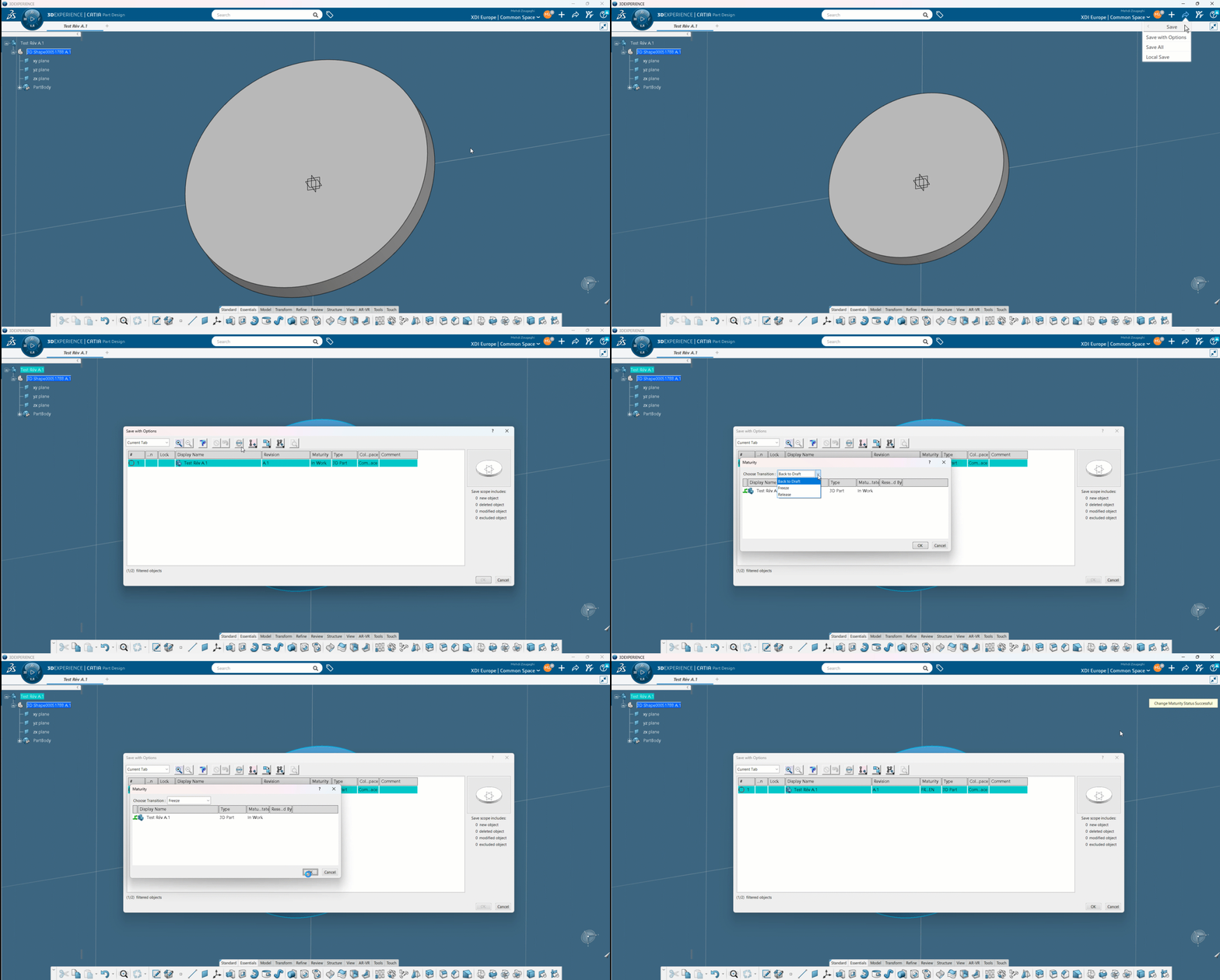
Change to“Freeze/Frozen” if you want to create a revision, but it is not yet published.
Change to“Release/Released” if your file will be manufactured and converted (STEP, PDF…).
3. Modifying the design in CATIA
You can immediately start making modifications in CATIA, in the workshop of your choice (Part Design for a part, Assembly Design for an assembly).
Once you’ve made your changes, you can save them using the ‘Save with options’ option.
A B.1 revision can be saved with the following modifications:
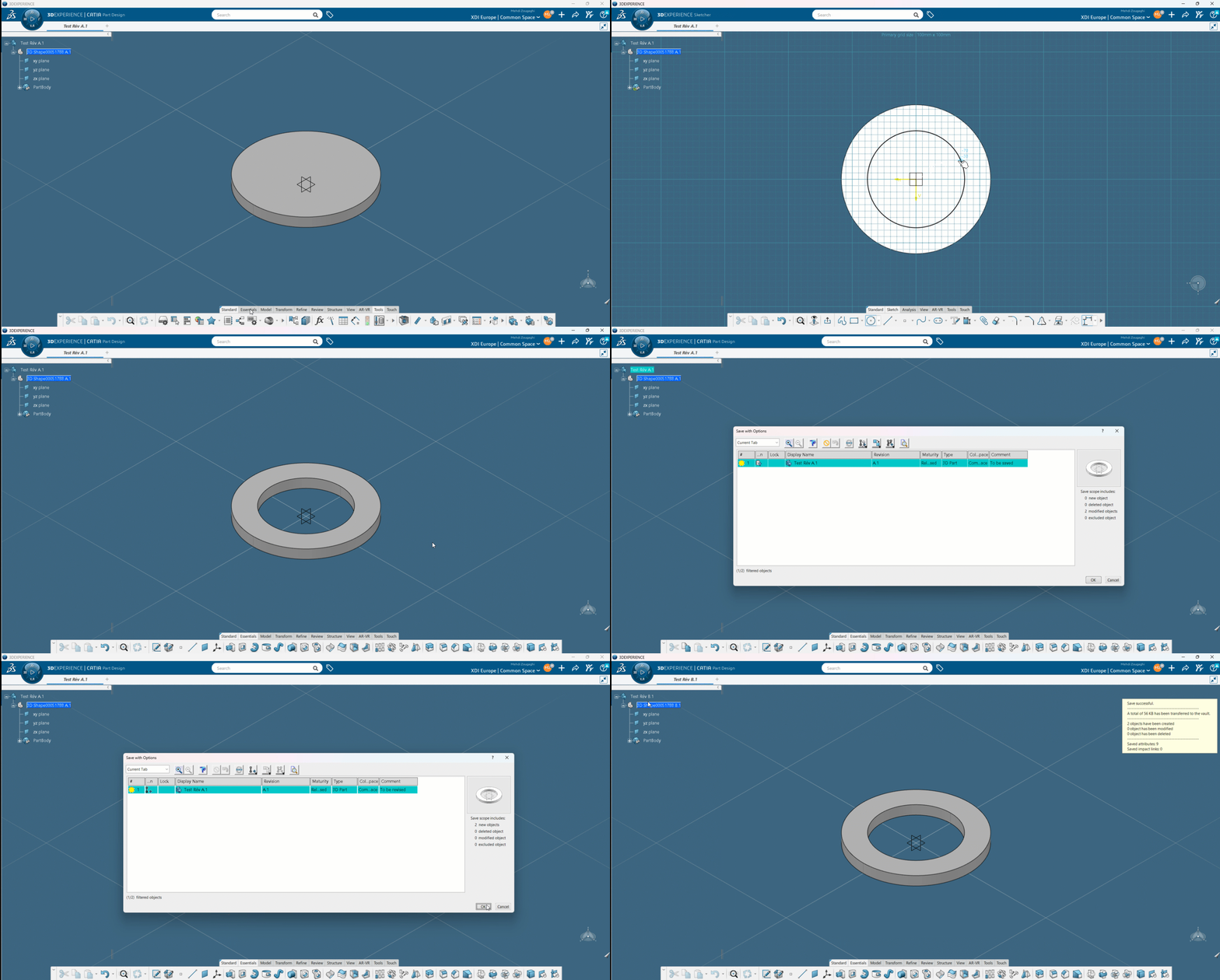
Revision A.1 remains accessible, of course.
Tip: For an assembly, you don’t need to create a new revision of ALL components, just the ones that have been modified. The others will be reused.
If you try to save directly (without options) you will get the following error message: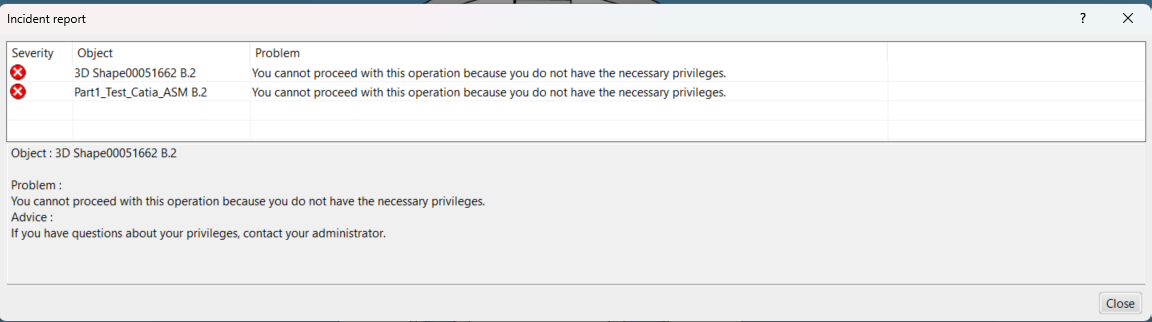
No need to panic! Once you’ve closed this message, you’ll be automatically returned to the save with options tab.
Step 3: Access to previous revisions
For parts :
For parts, the easiest way to view all revisions and switch from one to another is to use the“Bookmarks” tool directly on CATIA by clicking on ❌ or ✔️:
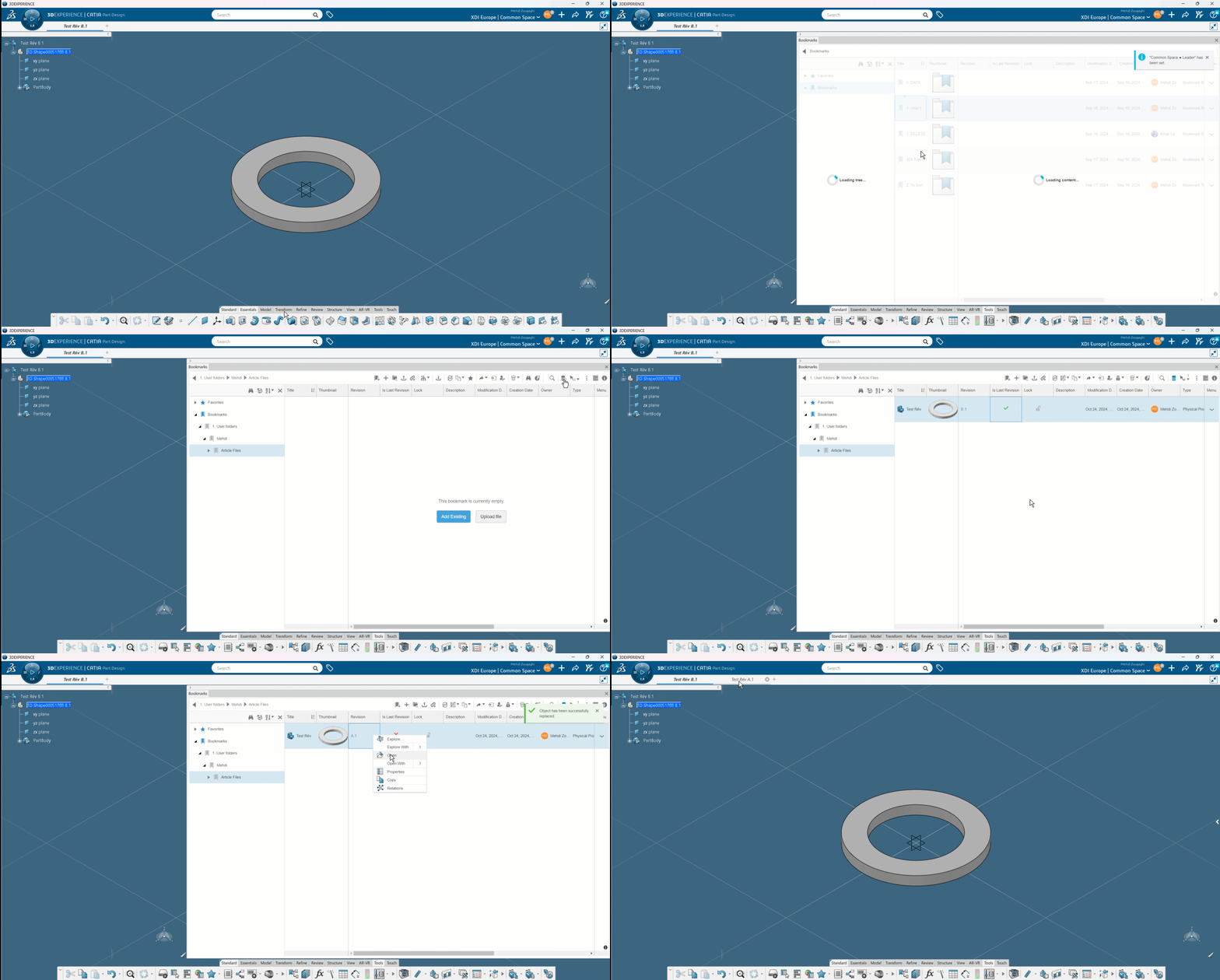
For assemblies, in the Product modification tab, it is possible to switch directly from one revision to another for parts in the assembly:
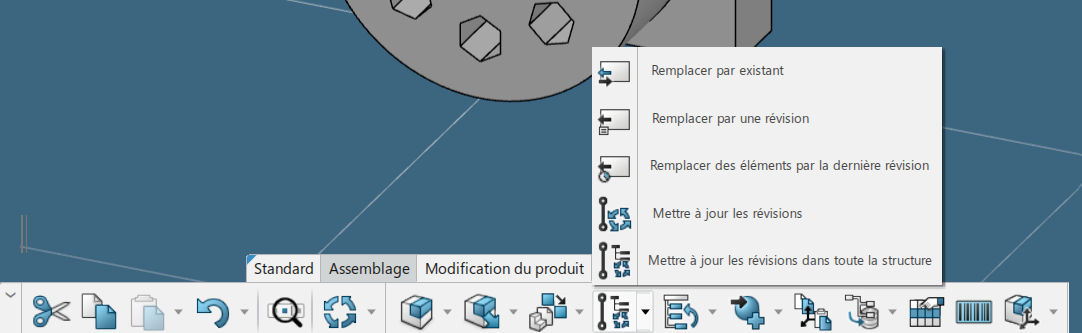
The ‘Update revisions throughout structure’ option replaces all parts with their latest revision.
Revision of Mise en plan
CATIA drawings are linked to the parts or assemblies they represent. In other words, modifying the maturity or revision of a part or assembly automatically results in the same modification on the drawing.
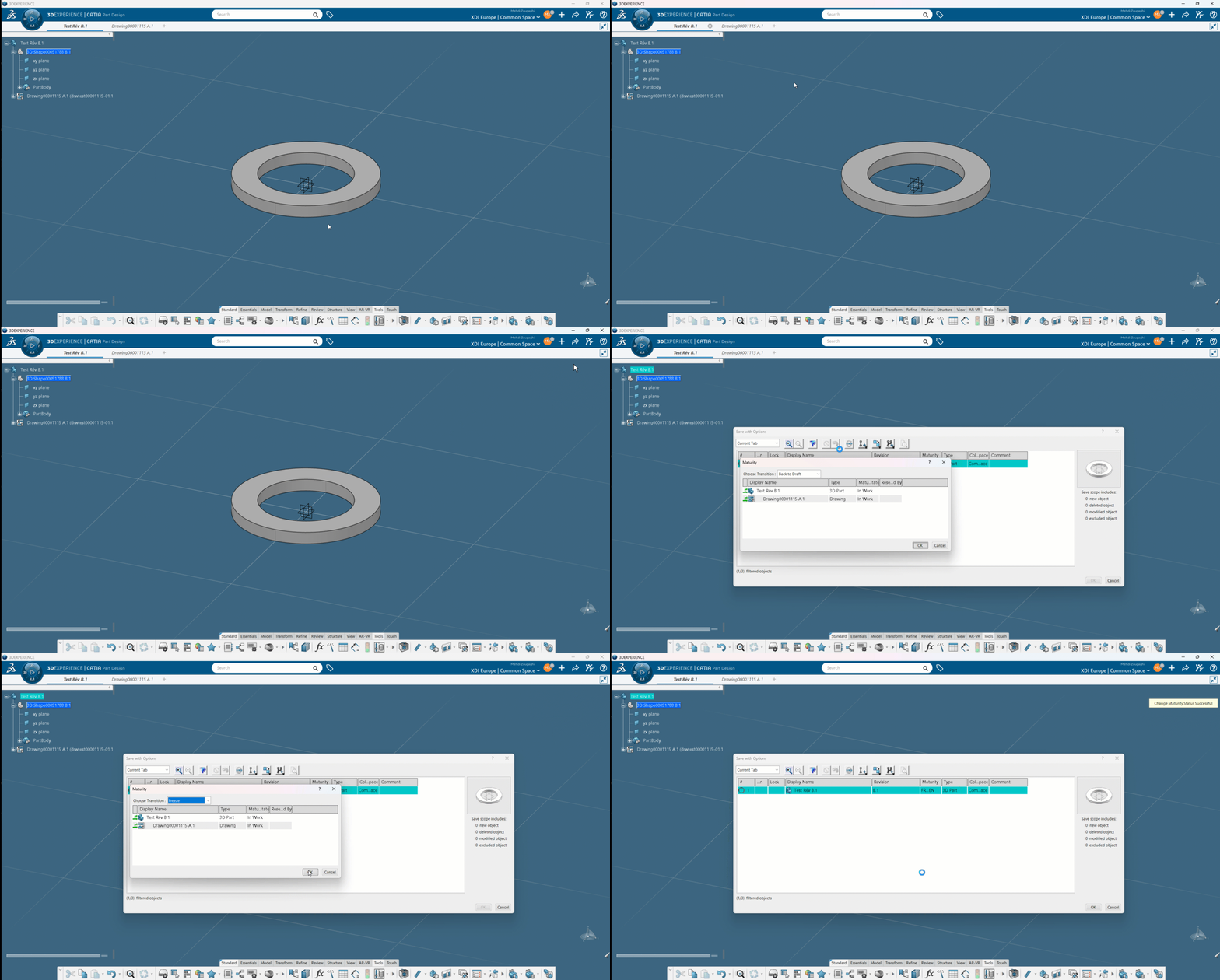
This link is maintained only with maturity changes via registration with options. Changing maturity via the collaborative lifecycle workshop or through bookmarks on the platform will not propagate the maturity change.
Further information – settings
Go further by customizing your settings to suit your workflow: Revision settings management.
Conclusion
Whether you’re working alone or as part of a large team, revisions help you keep track of your designs, what you’ve sent to your suppliers or your 3D printer.
It’s integrated with CATIA and is the new standard in design.
Need help?
We look forward to hearing from you! Contact us at support@xdinnovation.eu




