
Introduction
Some computers have more than one graphics card. In general, SOLIDWORKS is configured to use the default graphics card, which is not necessarily the most powerful! It is possible toforce the software to use the best graphics card to boost performance.
Step 1: Impose the graphics card on Windows
To do this, go to the computer’s“Graphics settings“.
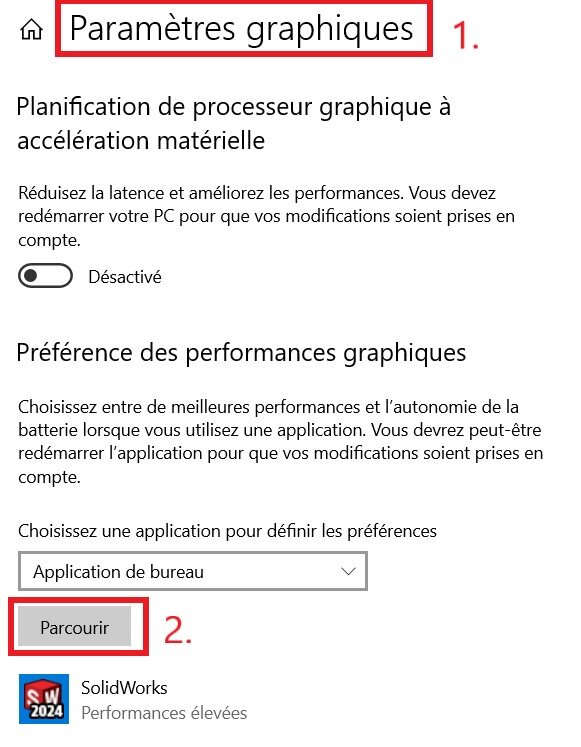
Add SOLIDWORKS (sldworks.exe) from the network path :
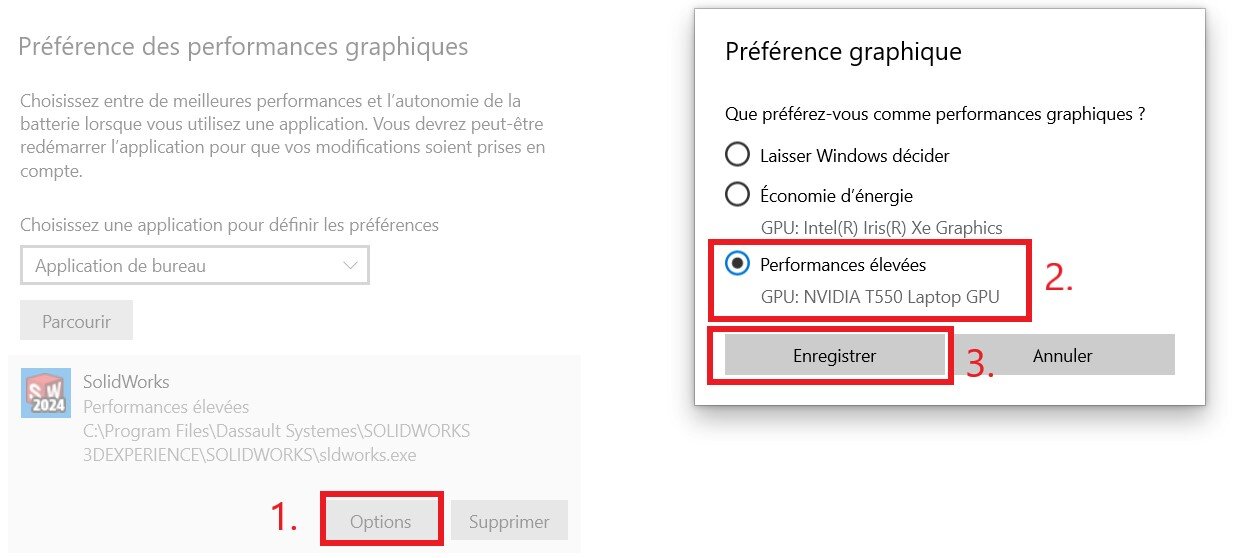
C:\Program Files\Dassault Systemes\SOLIDWORKS 3DEXPERIENCE\SOLIDWORKS
In Options, set your graphics preference.
Step 2: Impose an NVIDIA graphics card
If you have an NVIDIA graphics card, you’ll also need to set it up in a dedicated menu.
On your desktop, right-click and go to“NVIDIA Control Panel“.
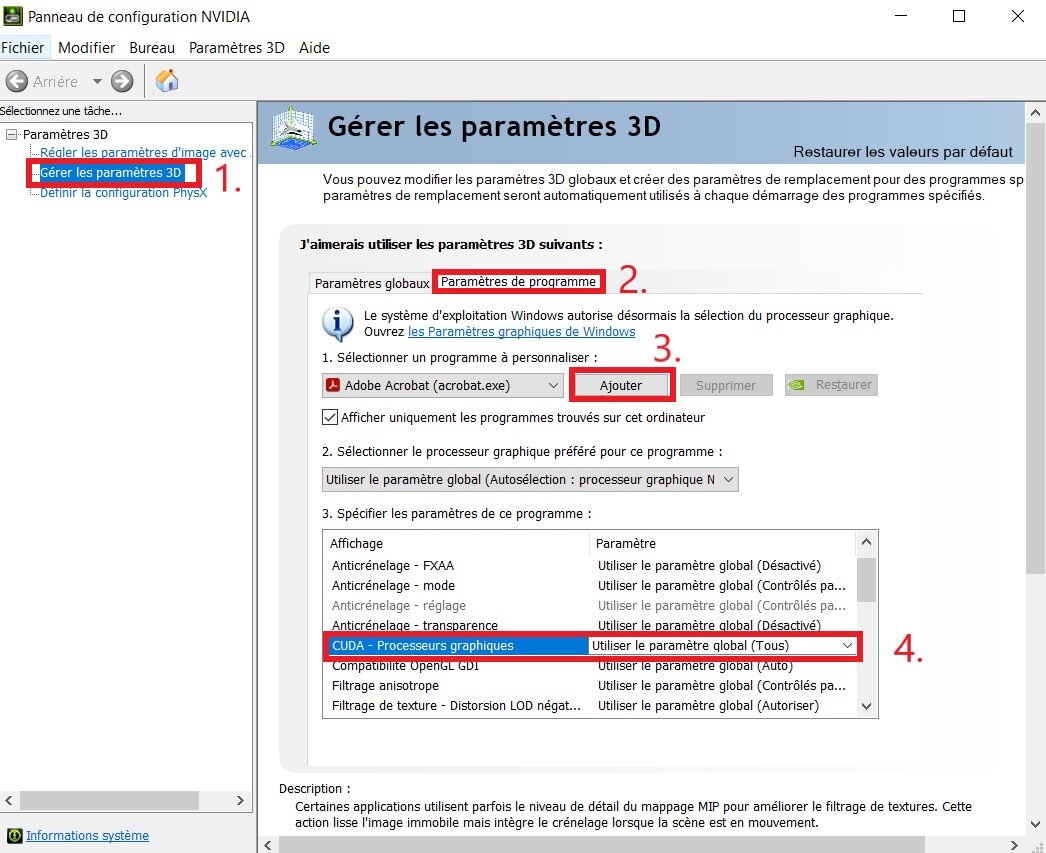
Add SOLIDWORKS from the same network path as above, and check that“CUDA” is set to the correct graphics card.
Step 3: Impose an AMD graphics card
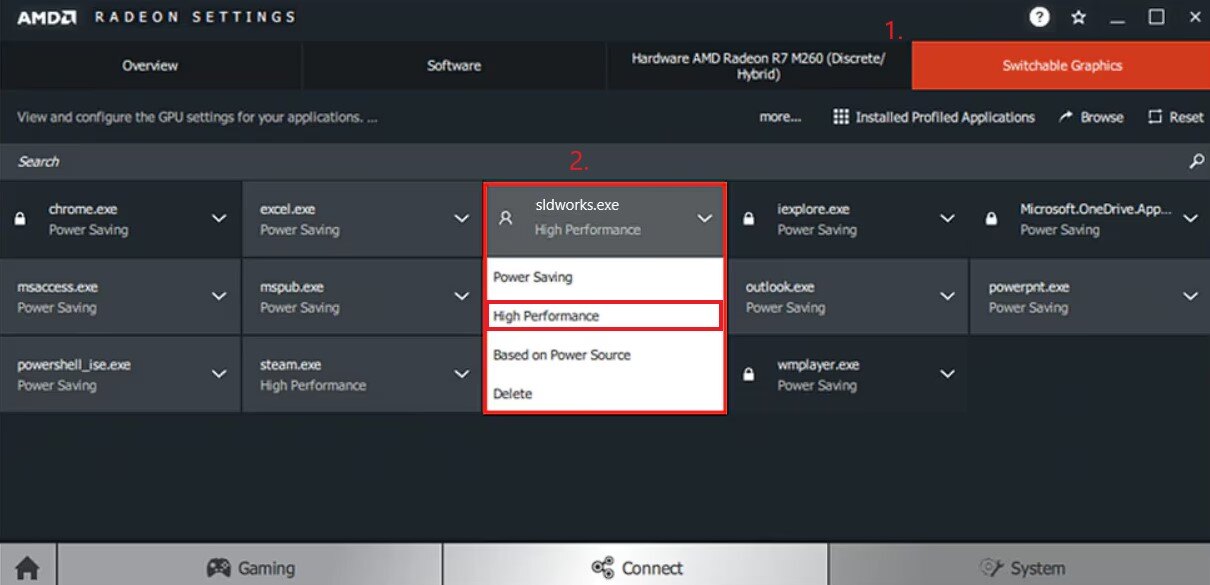
If you have an AMD graphics card, you’ll also need to set up a dedicated menu for it.
On your desktop, right-click and go to“AMD Radeon Settings“.
Go to the Systems menu > Switchable Graphics and add SOLIDWORKS from the same network path as above.
Step 4: Restart your computer
After setting up the graphics card for SOLIDWORKS, restart the computer and open the software.
Conclusion
From now on, SOLIDWORKS will make the most of your computer’ s graphics card!
Tip: follow the same steps for other applications: VISUALIZE,…
Do you still have graphic problems?
1. Upgrade your graphics card
Update your graphics card driver (e.g. NVIDIA GeForce RTX) to the latest version available on the manufacturer’s website.
2. Analyze your 3D files
Some bugs or latencies can be caused by overly heavy or inappropriate designs. Learn how to avoid them in this article!
3. Choose certified equipment
If the previous solutions don’t bring any improvement, it may be necessary to change hardware for an optimal user experience.
Click here for a list of our certified hardware for SOLIDWORKS 3DEXPERIENCE!




