
Rendering Optimization with SOLIDWORKS Visualize: Creating Photorealistic Visuals
The ability to create photorealistic renderings is essential for effectively presenting products and concepts to clients and stakeholders.
- SOLIDWORKS Visualize produces photorealistic renderings of your 3D models to present to clients.
- Key elements: realistic textures and materials, masterful use of lighting and shadows, camera effects (depth of field, angle).
- Adjust the resolution and anti-aliasing settings as needed; add animation for more dynamic presentations.
- Post-processing refines the final result.
SOLIDWORKS 3DEXPERIENCE offers a range of advanced tools to optimize the rendering of your 3D models, allowing you to create visuals that capture attention and inspire confidence.
In this article, we will explore techniques for optimizing rendering with SOLIDWORKS VVISUALIZEE, allowing you to present your products convincingly and professionally.
1. Use of textures and materials
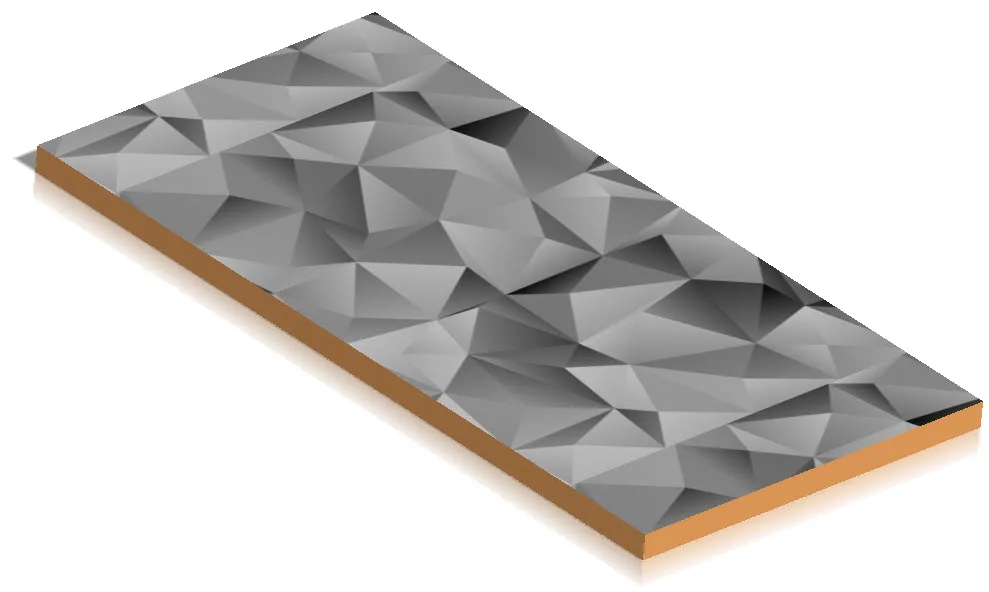
One of the keys to achieving photorealistic renderings is the judicious use of textures and materials.
With SOLIDWORKS VISUALIZE, you have access to an extensive library of predefined textures and materials that you can easily apply to your models. By choosing quality textures and adjusting material properties, you can create realistic surfaces that reflect light naturally, thus adding realism to your renders.
2. Mastering Lighting and Shadows
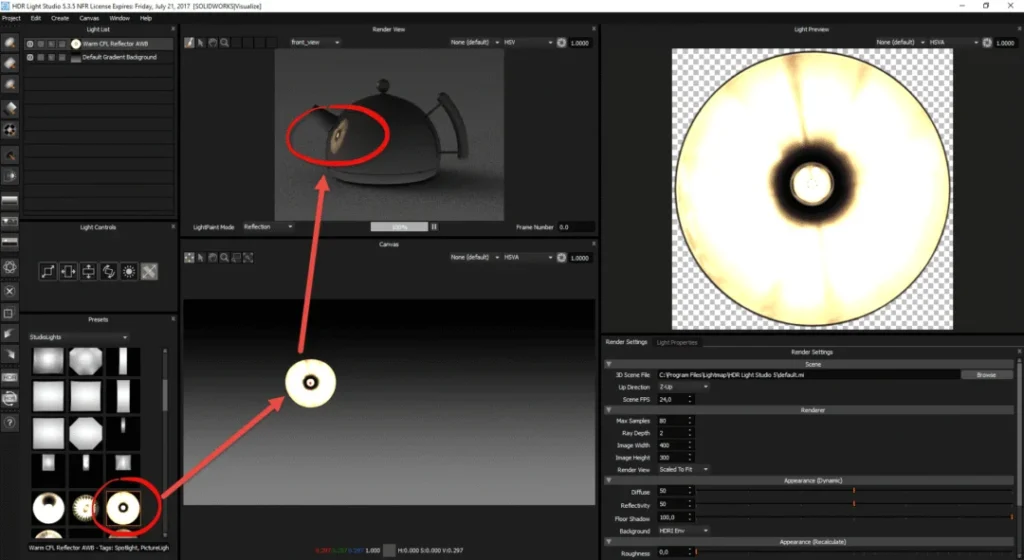
Appropriate lighting is essential for creating photorealistic renderings.
With SOLIDWORKS VIZUALIZE, you can precisely control the lighting of your product using virtual light sources such as spotlights, floodlights, and ambient lights.
By adjusting the intensity, color, and direction of the light, you can create light and shadow effects that add depth and realism to your renderings.https:
3. Using Camera Effects
Camera effects can also play a role in optimizing rendering.
With SOLIDWORKS VIZUALIZE, you can adjust various camera settings, such as depth of field, focus, and angle of view, to create visual effects. By experimenting with these settings, you can create dynamic visual compositions that highlight your products’ features.https:https://ohmycad.com/wp-content/uploads/2024/04/SOLIDWORKS-VISUALIZE-effets-de-cameras-jpg.webp
4. Rendering Settings:
SOLIDWORKS VIZUALIZE offers a variety of customizable rendering settings, such as resolution, color depth, and anti-aliasing options.
By adjusting these parameters according to your needs, you can improve the visual quality of your renderings and achieve more realistic results. https://ohmycad.com/wp-content/uploads/2024/04/SOLIDWORKS-VISUALIZE.png
5. Animation and movement:
Although static renderings can be very realistic, adding animation and movement can make your visuals even more dynamic and engaging.
SOLIDWORKS VIZUALIZE lets you create animations your 3D models and create visual sequences that showcase your products' features and benefits in a captivating way.
6. Post-processing and retouching:
After generating your renderings, you can use post-processing and image-editing software to further refine the appearance of your visuals.
SOLIDWORKS VIZUALIZE offers flexible export options that allow you to transfer your renderings to third-party software for final adjustments and creative editing.
Conclusion
With these techniques SOLIDWORKS 3DEXPERIENCE, you can significantly improve the quality of your renders and create photorealistic visuals.
By using textures and materials, mastering lighting and shadows, and experimenting with camera effects, you can present your products in a compelling and professional way, thereby strengthening your brand image and credibility in the market.
SOLIDWORKS Training by Ohmycad
3DEXPERIENCE SOLIDWORKS for StartupsThis offer is specially designed for startups wanting to leverage SOLIDWORKS 3DEXPERIENCE to accelerate their growth. With daily, personalized support, the packOhmycare provides ongoing support for design and development challenges.
/wp:paragraph –>
When working with Ohmycad, you’ll have access to a team of passionate and dedicated experts who are ready to support you on your journey with SOLIDWORKS 3DEXPERIENCE.
Whether for technical questions, design advice, or project challenges, our team is here to help you succeed. With over 700 satisfied 3DEXPERIENCE clients, Ohmycad is the ideal partner to maximize your investment in SOLIDWORKS 3DEXPERIENCE and achieve your goals effectively.
Frequently asked Questions
What is SOLIDWORKS Visualize used for?
To create photorealistic visuals of 3D models in order to present products and concepts to clients and stakeholders in a compelling way.
How do I create a realistic rendering in Visualize?
By combining high-quality textures and materials, carefully controlled lighting (intensity, color, and direction of light sources), and camera effects such as depth of field.
Can you animate a model in Visualize?
Yes. We animate 3D models to create sequences that highlight a product's features and benefits.
Is Visualize included in my SOLIDWORKS subscription?
This is a rendering tool within the SOLIDWORKS ecosystem; its availability depends on your subscription plan. Your Ohmycad engineer will verify what is included in your plan.