
Why can SOLIDWORKS constraints slow down assemblies?
Solidworks as the worldwide CAD market leader.
Nevertheless, a number of performance problems remain. In the field of computer-aided design (CAD), Solidworks remains an essential tool for a multitude of engineers and designers seeking to transform their ideas into digital realities. However, like all sophisticated software, Solidworks is not immune to the occasional slowdown that can disrupt workflows and reduce productivity. These interruptions can be not only frustrating, but also costly in terms of time and efficiency. This article looks at the potential causes of slowdowns in Solidworks and proposes solutions to optimize its performance, enabling users to get the most out of this powerful tool.
Summary:
This article describes the main causes of Solidworks slowdowns and how to correct them. Key factors include hardware limitations (processor, RAM, graphics card, storage) and unsuitable or obsolete software configurations. Remedies include hardware upgrades, parameter optimization (graphics, memory, extensions, multi-threading) and the adoption of cloud solutions like Solidworks Connected and 3DEXPERIENCE to offload computation and improve collaboration. A proactive, integrated approach delivers sustainable increases in performance and productivity.
Do your Solidworks designs slow down just because of bad equipment?
Or related to optimizing Solidworks settings, updating and adopting online best practices? Indeed, Solidworks can experience slowdowns for a variety of reasons, ranging from hardware problems to inappropriate software configurations. Identifying and understanding these causes is essential to effectively resolving performance issues and maintaining high productivity. One of the most frequent causes of Solidworks slowdowns is the mismatch between the software’s hardware requirements and the capabilities of the machine being used. Solidworks requires considerable computing power, particularly in terms of processor, RAM and graphics card. If one of these components fails to live up to expectations, software performance can suffer considerably. What’s more, slow storage, such as a traditional hard disk compared to an SSD, can also contribute to extended load times and delays in task execution. Inadequate software configuration may also cause slowdowns. Optimization of Solidworks settings, such as graphics performance options, virtual memory settings and caching preferences, is crucial to ensure smooth operation. Poorly configured settings can not only affect software speed, but also stability, potentially leading to crashes or unexpected behavior. It’s also important to ensure that the software is up to date, as updates can contain bug fixes and performance enhancements.
What’s more, to overcome Solidworks slowdowns, it’s essential to follow a systematic approach that takes into account both hardware and software aspects. By adopting a proactive strategy, users can not only solve current problems, but also prevent future slowdowns. Start by evaluating your system’s hardware components. Make sure that your processor, RAM memory and graphics card not only meet Solidworks’ minimum recommendations, but also the specifications recommended for best performance. A hardware upgrade can often have a significant impact on overall software performance, reducing loading times and improving the fluidity of operations. What’s more, switching to an SSD disk for data storage can considerably speed up file and application access times. Explore Solidworks settings to identify adjustments that can improve performance. Reduce the quality of visual renderings if necessary, and adjust memory settings to allocate more resources to the software. Also make sure that Solidworks is configured to make full use of your hardware’s capabilities, notably by enabling multi-threaded processing if your processor supports it. In addition, deactivating unnecessary or seldom-used extensions can free up system resources, contributing to faster performance.
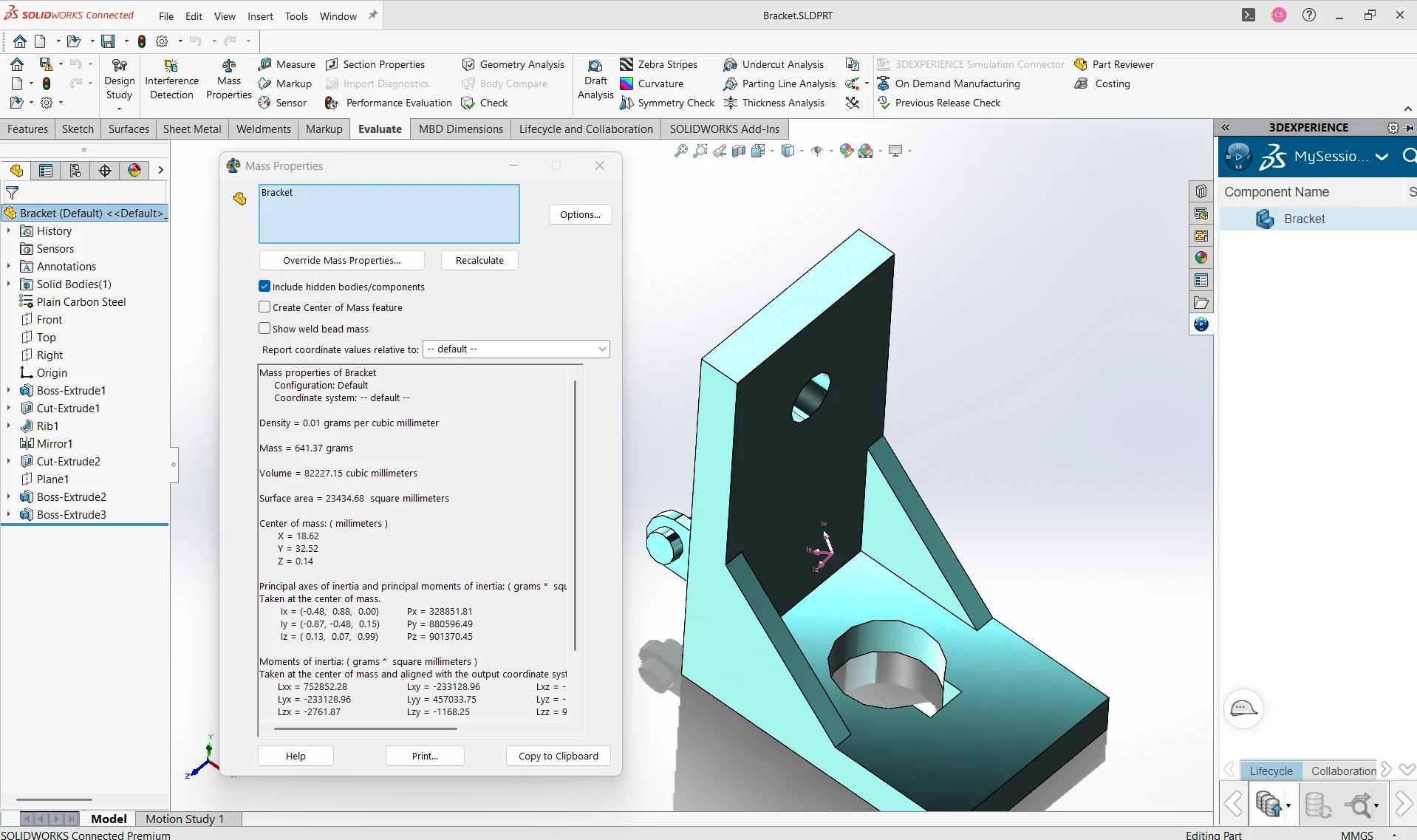
Indeed, the transition to cloud-based solutions such as Solidworks Connected and 3DEXPERIENCE can also deliver significant performance benefits. These platforms provide flexible access to CAD tools, reduce the load on local hardware and offer extended computing capabilities via the cloud. What’s more, they facilitate the management of software licenses and updates, ensuring that users always have the latest, best-performing version of the software. Using Solidworks online via the cloud offers several advantages that can help mitigate performance issues. By adopting these solutions, companies can not only improve work efficiency, but also promote a culture of collaboration and innovation. By delegating some of the computing to cloud servers, Solidworks Connected and 3DEXPERIENCE free up local hardware resources. This means that even machines with modest specifications can run Solidworks more smoothly. This approach also enables companies to reduce the costs associated with purchasing high-end hardware, while benefiting from optimum performance thanks to the cloud’s advanced computing capabilities. Cloud solutions also enhance collaboration by enabling multiple users to work simultaneously on the same project, regardless of their geographical location. This is particularly useful in remote or distributed working environments, where real-time collaboration can make the difference between project success and failure. What’s more, these platforms facilitate file sharing and version management, ensuring that all stakeholders have access to the latest information.
| Cause | Impact | Key figures | Solutions | |
|---|---|---|---|---|
| Too many constraints | +20 to +40% rebuild time | >150 constraints = slowdowns | <80 contraintes par sous‑assemblage{{{wpml_tag_20}}} {{{wpml_tag_21}}} {{{wpml_tag_22}}} {{{wpml_tag_23}}}Contraintes redondantes{{{wpml_tag_24}}} {{{wpml_tag_25}}}+15 à +30 % de calcul supplémentaire{{{wpml_tag_26}}} {{{wpml_tag_27}}}1 redondance = +5 à +10 %{{{wpml_tag_28}}} {{{wpml_tag_29}}}0 redondances{{{wpml_tag_30}}} {{{wpml_tag_31}}} {{{wpml_tag_32}}} {{{wpml_tag_33}}}Assemblages lourds{{{wpml_tag_34}}} {{{wpml_tag_35}}}Temps ×2 à ×5{{{wpml_tag_36}}} {{{wpml_tag_37}}}>1000 components = loss of performance | Sub-assemblies of <300 parts |
| Complex geometries | +25% recalculation | Curved surfaces ×3 more expensive | Prefer flat faces | |
| Limited CPU | Up to 90% load monopolizes the solver | <3,5 GHz = baisse notable{{{wpml_tag_59}}} {{{wpml_tag_60}}}>=4.5 GHz single-core | ||
| Insufficient RAM | Swap ×10 | <16 Go = trop limité{{{wpml_tag_70}}} {{{wpml_tag_71}}}32–64 Go recommandés{{{wpml_tag_72}}} {{{wpml_tag_73}}} {{{wpml_tag_74}}} {{{wpml_tag_75}}}GPU non certifiée{{{wpml_tag_76}}} {{{wpml_tag_77}}}Vue 3D ×3 plus lente{{{wpml_tag_78}}} {{{wpml_tag_79}}}Cartes non‑pro = instabilités{{{wpml_tag_80}}} {{{wpml_tag_81}}}GPU pro (Quadro / RTX A){{{wpml_tag_82}}} {{{wpml_tag_83}}} {{{wpml_tag_84}}} {{{wpml_tag_85}}}Stockage lent{{{wpml_tag_86}}} {{{wpml_tag_87}}}Chargements ×4{{{wpml_tag_88}}} {{{wpml_tag_89}}}HDD ≈100 Mo/s vs NVMe ≈3000 Mo/s{{{wpml_tag_90}}} {{{wpml_tag_91}}}SSD NVMe{{{wpml_tag_92}}} {{{wpml_tag_93}}} {{{wpml_tag_94}}} {{{wpml_tag_95}}}Add‑ins inutiles{{{wpml_tag_96}}} {{{wpml_tag_97}}}+10 à +25 % mémoire{{{wpml_tag_98}}} {{{wpml_tag_99}}}>5 active add-ins = overload | Limit to 2-3 | |
| No cloud | 100% local load | Cloud = 30-70% load shedding | 3DEXPERIENCE / SW Connected |
In conclusion, Solidworks slowdowns can be frustrating, but with a thorough understanding of the underlying causes and appropriate solutions, they can be effectively mitigated. By combining hardware upgrades, software optimization and the use of cloud solutions such as Solidworks Connected and 3DEXPERIENCE, users can improve Solidworks performance and optimize productivity. This integrated approach not only solves current problems, but also paves the way for more efficient operations in the future. Ultimately, the key to minimizing Solidworks slowdowns lies in a proactive approach that incorporates both hardware and software enhancements, as well as intelligent adoption of emerging technologies. Users need to keep abreast of the latest updates and recommended practices to get the most out of their CAD tools. By remaining vigilant and adopting the most appropriate solutions, it is possible to turn performance challenges into opportunities for continuous improvement.
FAQ
Question: What are the main causes of Solidworks slowdowns? Short answer: Slowness is mainly due to hardware limitations (processor, RAM, graphics card, storage) and unsuitable or obsolete software configurations. Insufficient CPU or RAM, an unsuitable graphics card and a slow hard disk (vs. SSD) mean longer loading and execution times. On the software side, excessively high graphics settings, poor memory management, unnecessary active extensions and an out-of-date version degrade speed and stability. Question: Which Solidworks settings should be optimized to improve performance? Short answer: Adjust graphics performance options (reduce visual quality if necessary), configure memory correctly (including virtual memory and caching), enable multi-threading if your processor supports it, and disable rarely-used extensions. Keeping Solidworks up to date also brings fixes and performance improvements. Question: Which hardware upgrades have the greatest impact? Short answer: Align your hardware with the recommendations (beyond the minimum) for processor, RAM and graphics card. Switching to an SSD delivers a net gain in access and load times, while more RAM and a more powerful CPU improve the fluidity of operations. A graphics card adapted to CAD uses stabilizes and accelerates the display. Question: How can I systematically resolve slowness? Short answer: 1) Evaluate your hardware against recommended specifications and upgrade if necessary (priority to SSD, then CPU/GPU/RAM). 2) Optimize Solidworks settings (graphics, memory, multi-threading, extensions). 3) Make sure you’re using the latest version of the software. This proactive approach helps to solve current problems and prevent future slowdowns. Question: How do Solidworks Connected and 3DEXPERIENCE help improve performance? Short answer: These cloud solutions offload computing to remote servers, freeing up local resources and enabling smaller machines to run Solidworks more easily. They simplify license and update management, and enhance collaboration (simultaneous working, file sharing, version management), which is particularly useful for distributed teams. Question: How can Solidworks Ohmycad-certified technical experts help your CAD projects move forward? Short answer: If you subscribe to the Ohmycare package, our experts such as Maude Marche, Alan Rein-Garric and Diego Juantegui are at your disposal on a daily basis whenever you have a technical problem. Whether it’s a software bug, a parameter setting error, or any other issue that’s holding you back from optimizing your project’s progress. For €50 a month, you’ll have your technical team at your fingertips, wherever and whenever you work. A dedicated assistant will support and coach you throughout your projects. Ohmycad is also a training center if you want to go further!




