
Introduction
CATIA 3DEXPERIENCE backup is done on a secure server, and no longer on Windows directly (unless you export a copy). It’s a system designed to manage CATIA data, its maturity, revisions, who’s working on it, etc…
Save with 3DEXPERIENCE
Step 1: Save on the server
On CATIA, click on the arrow icon in the top right-hand corner, then on“Save“.
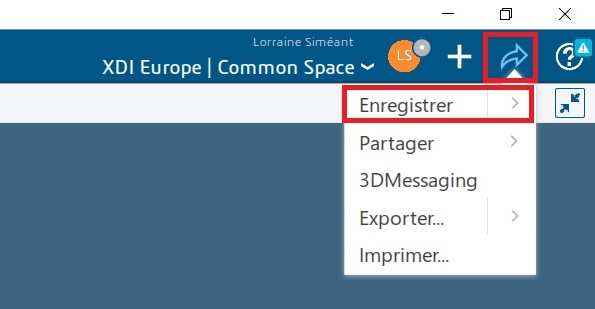
Your file is then saved directly on your server. By default, there is only one, named“Common Space“.
Note: when you save on 3DEXPERIENCE, a backup is automatically created in your local cache under Windows. This is used to improve performance when opening and saving.
What happened to your saved files, given that you didn’t select a folder? Don’t panic, just follow the next step!
Step 2: Organize your files in the platform’s folders
Let’s take a look at how to organize your files in the platform’s folders.
Good to know: the server on which files are stored (3DSpace) does not allow you to create folders. This space is used to manage access rights for other platform members.
To find your folders, use the“Bookmark Editor” application.
On CATIA, go to the Tools tab > Bookmarks.
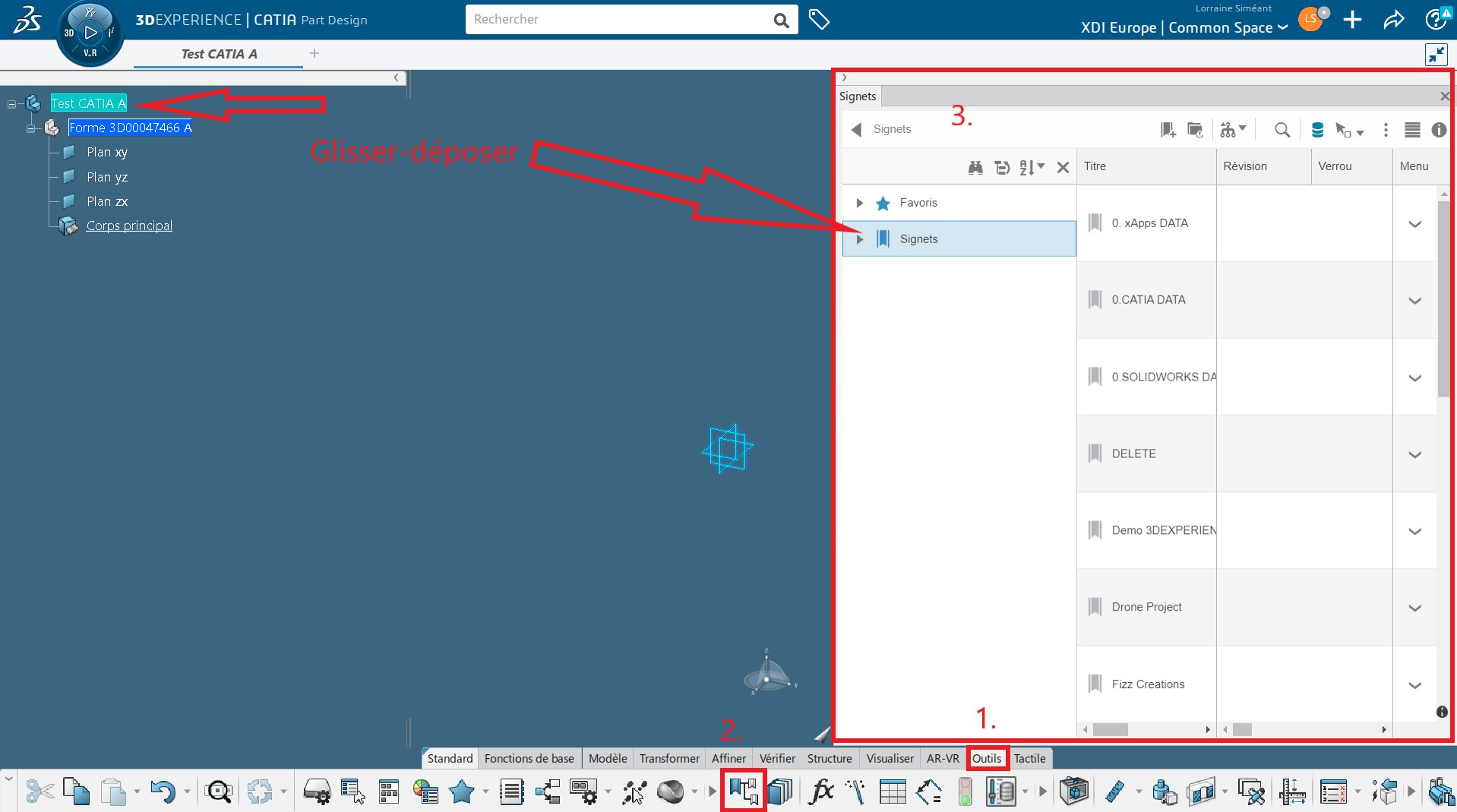
A folder panel appears on the right. Simply drag and drop your part or assembly into the folder of your choice, and that’s it!
You can find the same application on the platform.
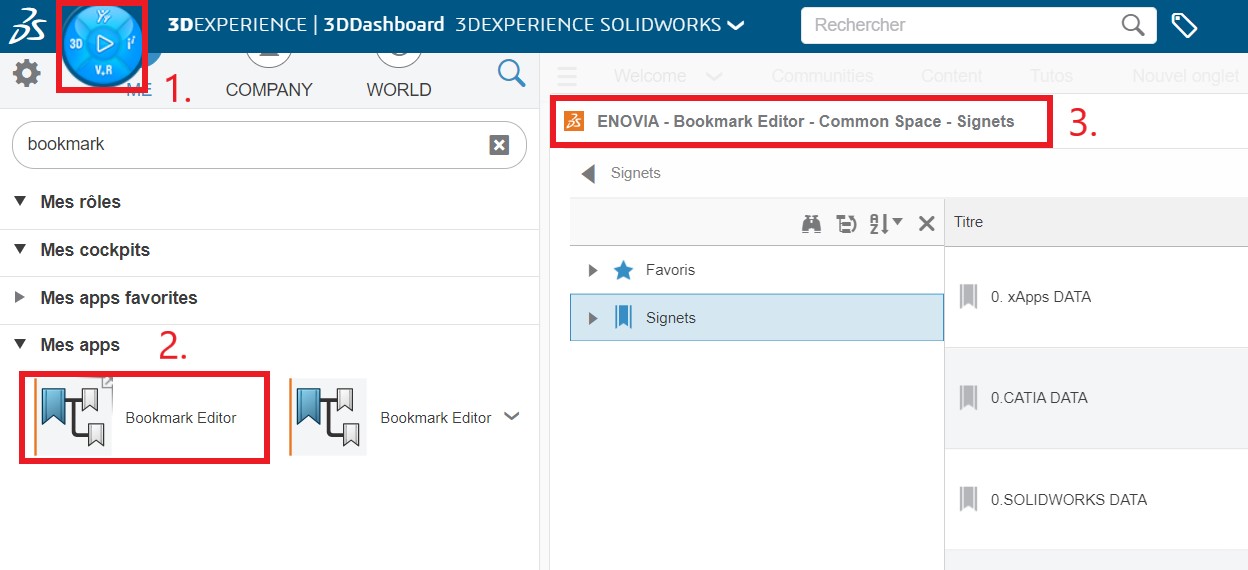
For more information on folder management with Bookmark Editor, see our article here !
Step 3: Use the search bar for quick access
All files saved on 3DEXPERIENCE can be found using the search bar, including those that have not been organized into folders. It’s a handy tool for finding a file fast!

Tip: Use shortcuts to filter results for Part only (3dp:) and physical products (prd:).
Now you’re ready to save with CATIA 3DEXPRIENCE!




