
Introduction
In this video, we start by discussing whether or not you need to delete objects and what alternative methods you can use.
We then show how to delete individual elements and elements that are part of an assembly structure or saved on the platform from SOLIDWORKS.
Please note: deleting an object is permanent – there is no “recycle garbage can” in 3DEXPERIENCE to recover your files.
Do we really need to do away with it?
3DEXPERIENCE is a Product Lifecycle Management (PLM) platform designed to track the history of each item. It creates relationships between items, and deleting these relationships is not necessarily the best solution.
In some cases, you can use the following solutions to avoid deleting an object:
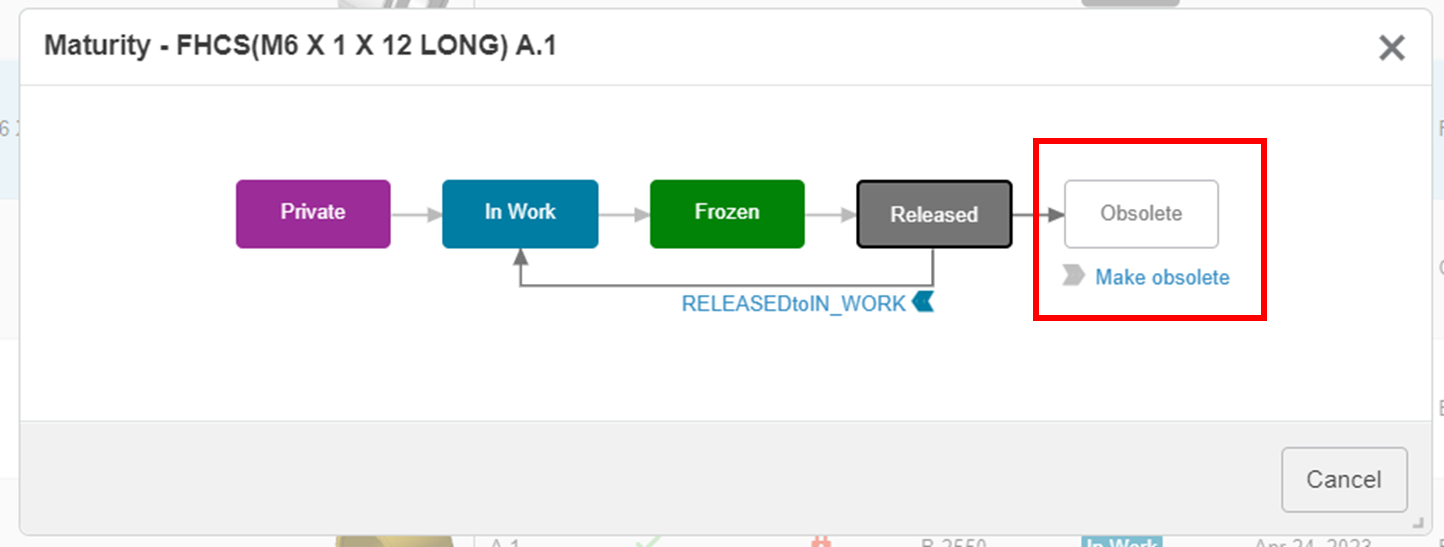
- Change maturity status to “obsolete
Obsolete components cannot be used in assemblies or edited.
- Create another collaboration space(find out how here)
You can create a workspace called “Trash” and move all unwanted components into it. They will then no longer be visible to users who are not present in this “Trash” workspace, but you will still be able to retrieve them should the need arise.
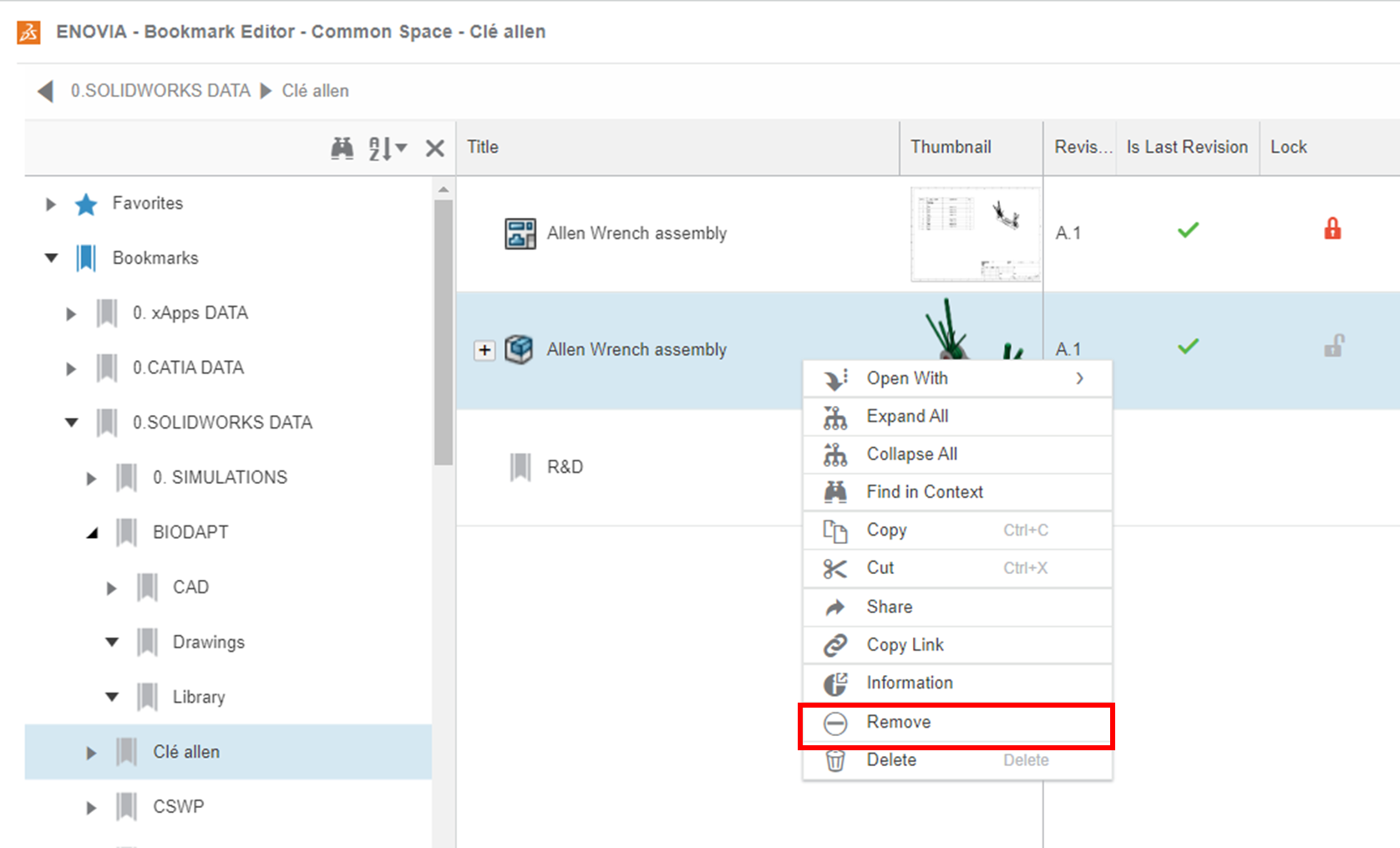
- “Remove” the file instead of “delete”.
Instead of “deleting”, you can “remove” the object from the associated bookmark. Combined with the two methods described above, this is generally sufficient for most customers.
How to delete?
Now that we’re sure we want to delete objects, let’s find out how. You can delete objects from many applications, but we recommend you do it from the bookmark editor.
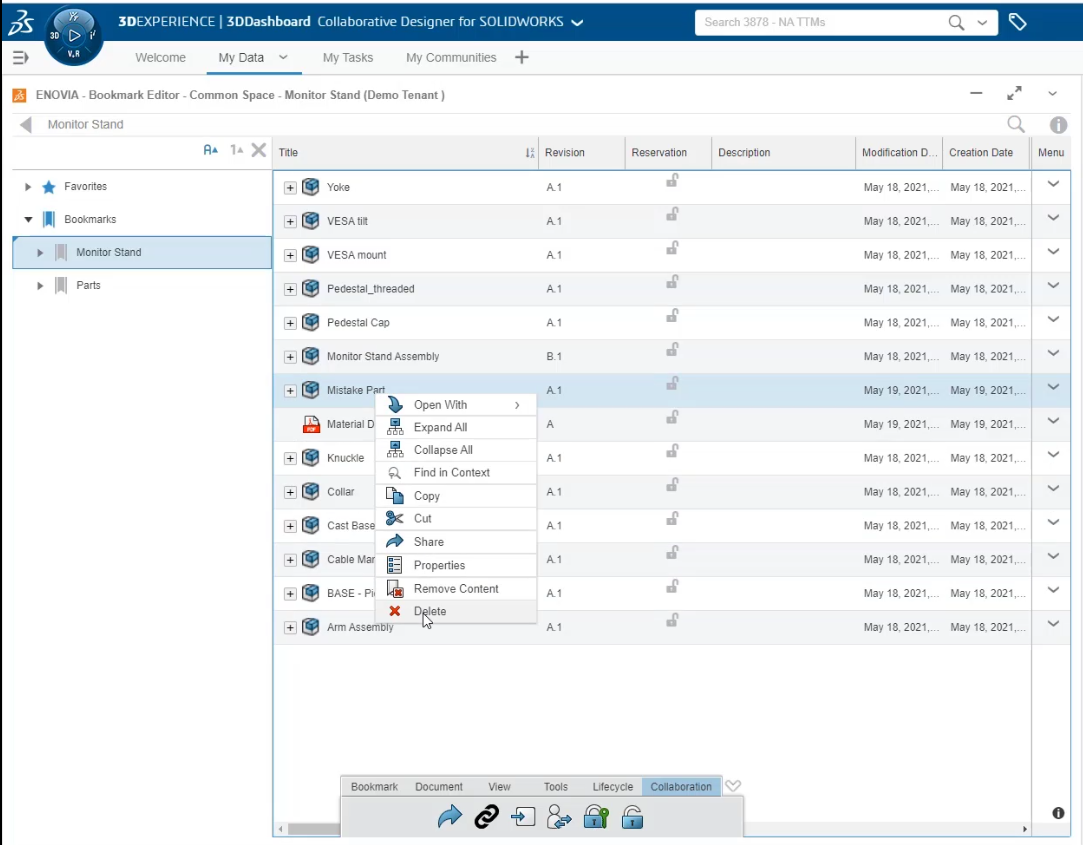
In Bookmarks, simply right-click on the file and click on “Delete” :
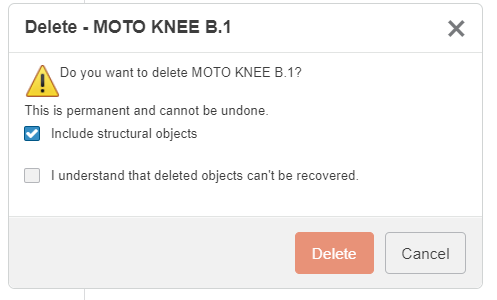
To delete an assembly and all associated subassemblies and parts, select “Include structural objects” :
But here are the rules to follow to be able to delete:
- First, delete the last revision.
If you have revisions A, B and C, you must delete them in the order C then B then A.
- First delete the parent.
You cannot delete a component used by an assembly or drawing, as they are the component’s parent. This ensures that no references are lost in your database.
If you wish to delete this component, open the parent in SOLIDWORKS, remove the part from the assembly and save in 3DEXPERIENCE. You can then delete the component in 3DEXPERIENCE.
- You cannot delete a component locked by someone else.
- You cannot delete a Frozen, Released or Obsolete component.
- According to your rights, you cannot delete a component that belongs to someone else.
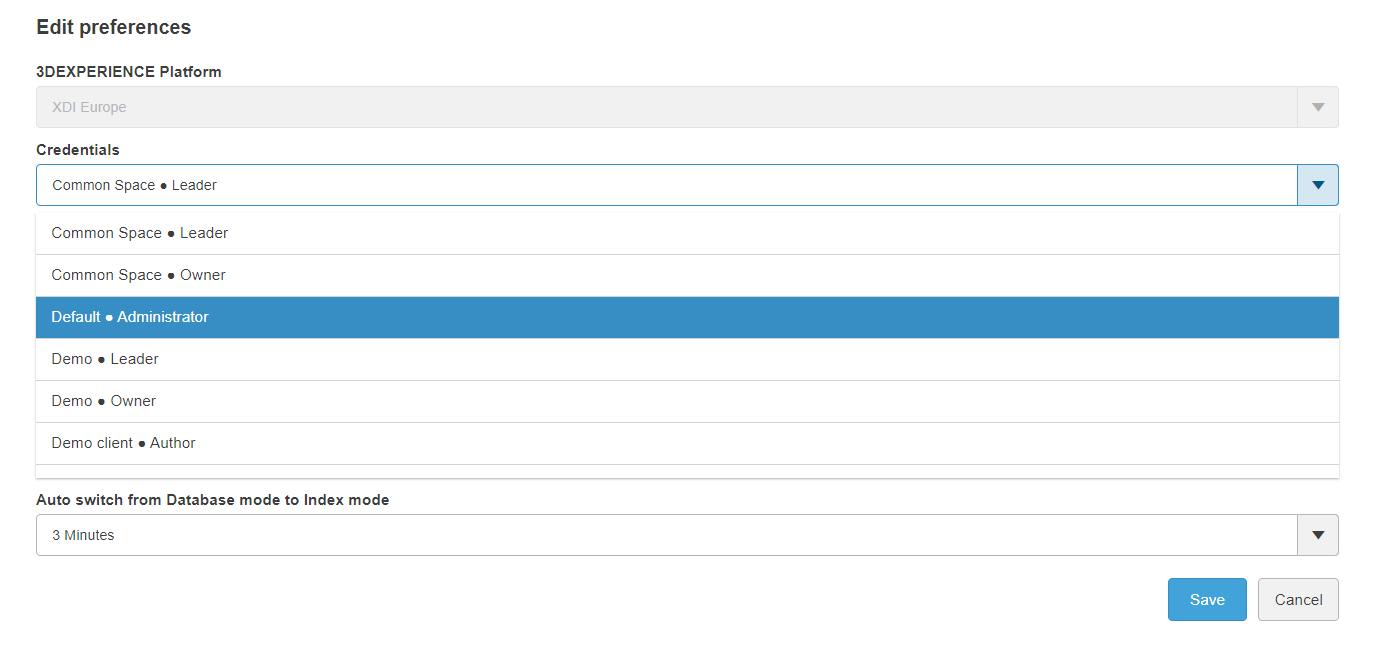
If you are an administrator, you can bypass this limitation by logging in as “Default – Administrator” in the Bookmark application settings:
Advice on how to remove a complete set with all associated components.
While there’s no ready-made solution for deleting an assembly with all its associated sub-assemblies, parts and drawings, here’s the best way to do it in 2023:
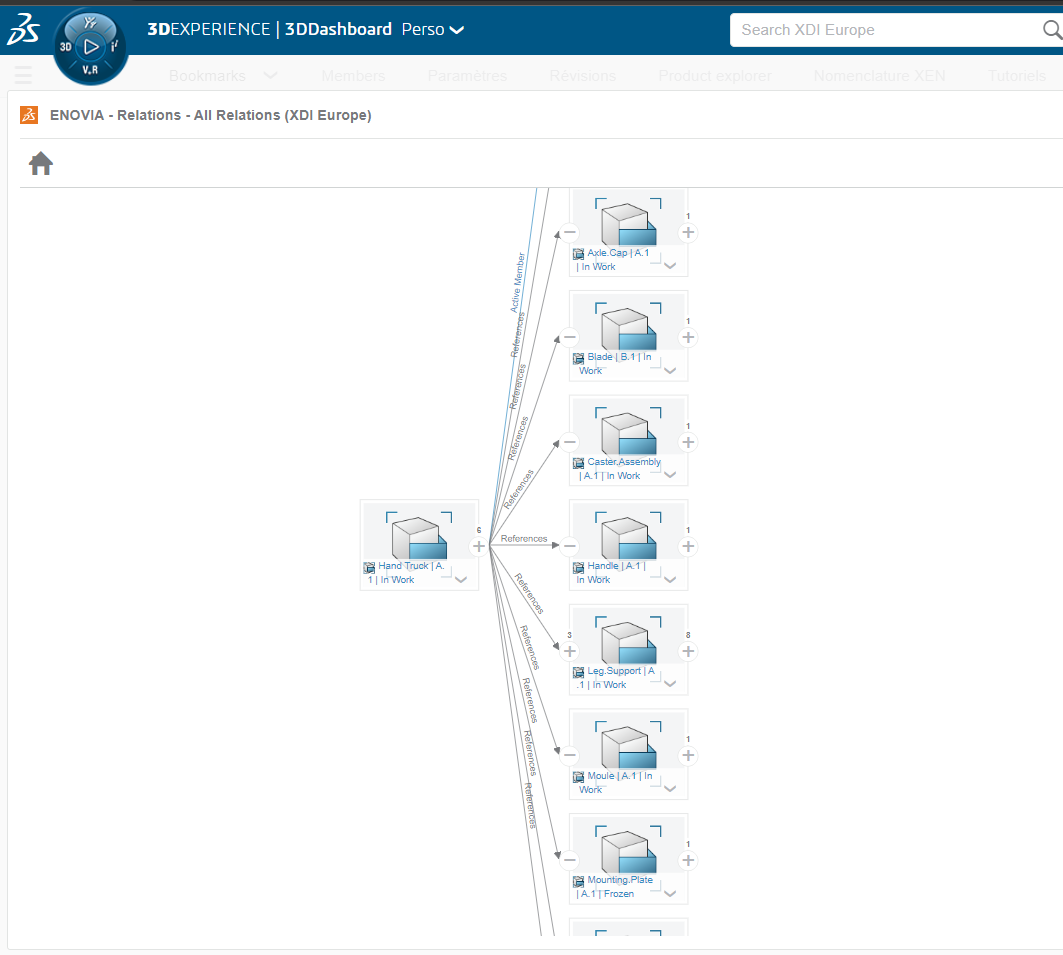
1. Gather all assembly configurations in the Bookmark application.
You can use the “Relationships” application to find all the configurations:
2. Search for all associated drawings.
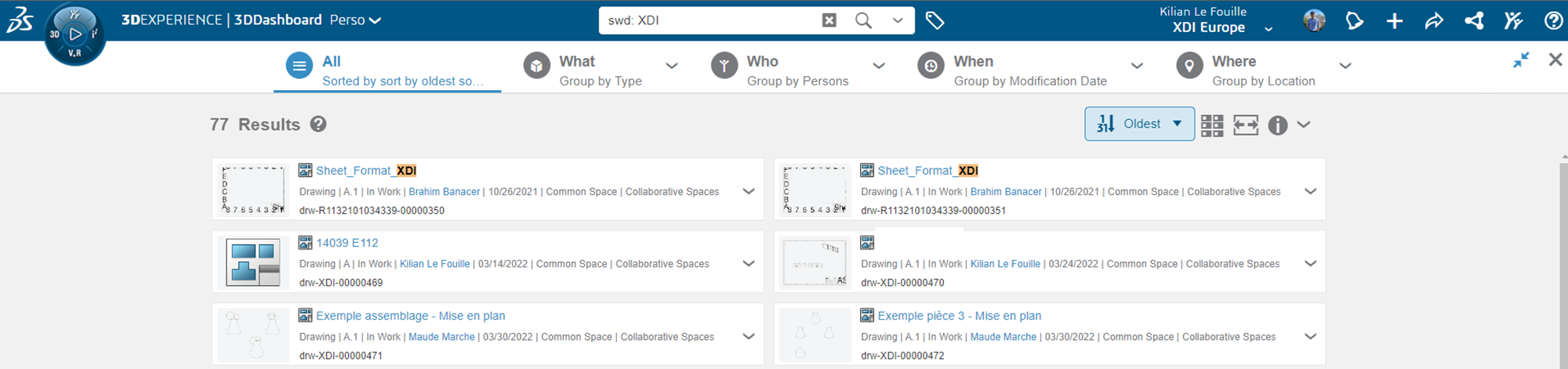
There’s no magic formula for this step: you’ll need to carry out a manual search and, if necessary, check relationships with the “relationships” application.
It’s best to have a common project number in the title of each drawing for that project, so you can search for them all at once.
Tip: type “swd : your search” to filter results on SOLIDWORKS drawings only.
3. Remove configurations one by one and “include all structural objects”.
This will remove all sub-assemblies and included parts.
4. Wait a few hours.
If you’re planning to import an assembly with the same name as the one you’ve just deleted, we advise you to wait a few hours before importing the new data again.
There’s no technical justification for this, but in our experience it avoids any confusion with previously deleted objects :)
Conclusion
Deleting in 3DEXPERIENCE is rarely the best solution. If you have any doubts about whether or how to do this, please contact us! We’ll be delighted to guide you towards the best option for you.




