
Introduction
When you need to regularly update or add properties to design files, this can become a tedious and time-consuming task.
The “Update Custom Properties” feature in SOLIDWORKS Connected simplifies this process by automating the updating of material information, revision and project information such as customer name and delivery date, ensuring that documentation is always accurate and compliant.
How do you plan the allocation of properties?
1. Access the Task Scheduler
- Open SOLIDWORKS
- Click on Tool > SOLIDWORKS Applications > SOLIDWORKS Task Scheduler
2. Schedule a task
- Choose “Update custom properties” from the left-hand menu
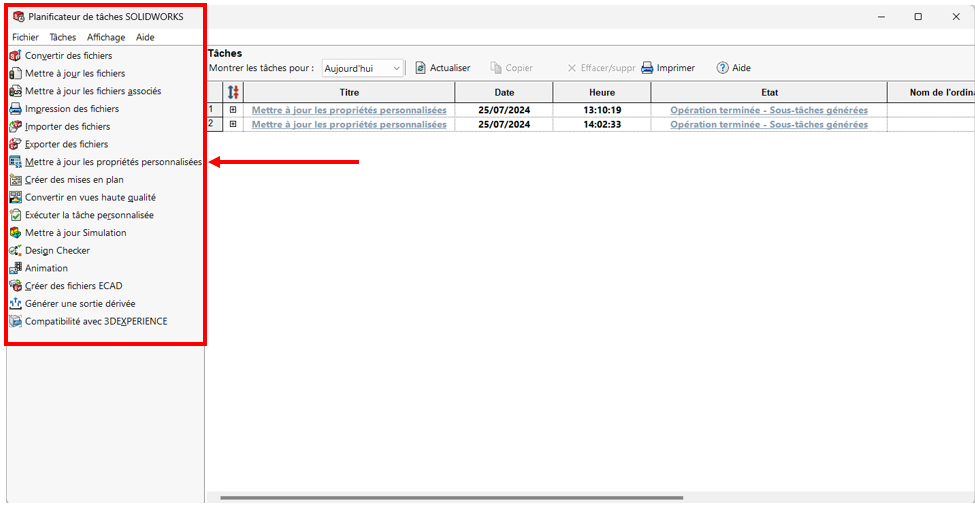
In the window that opens :
- Choose the location of the folder containing the parts to which you want to assign/modify properties by clicking on “Add a folder”, and include sub-folders if required.
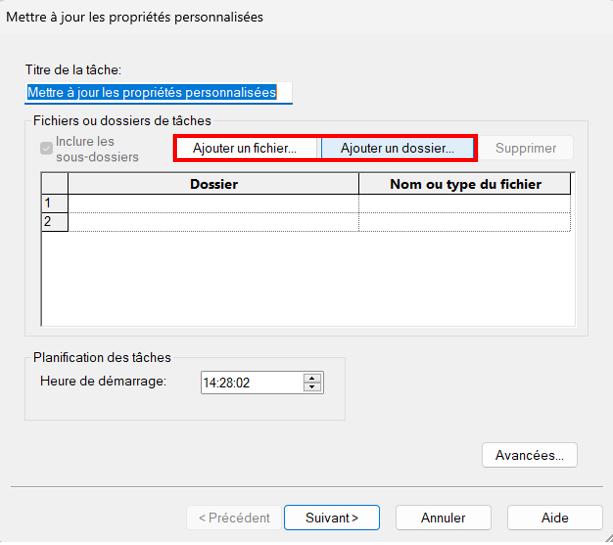
- Optional: enter the time you want the task to run in “Task scheduling”.
- Click on “Next
- In the next window, for each property to be added/modified, fill in the “Name”, “Type” and “Value” fields. You can also use the drop-down menu.
- Finally, in the “configuration” field, enter the name of the desired configuration. If your component doesn’t contain one, you can enter the value “default”.
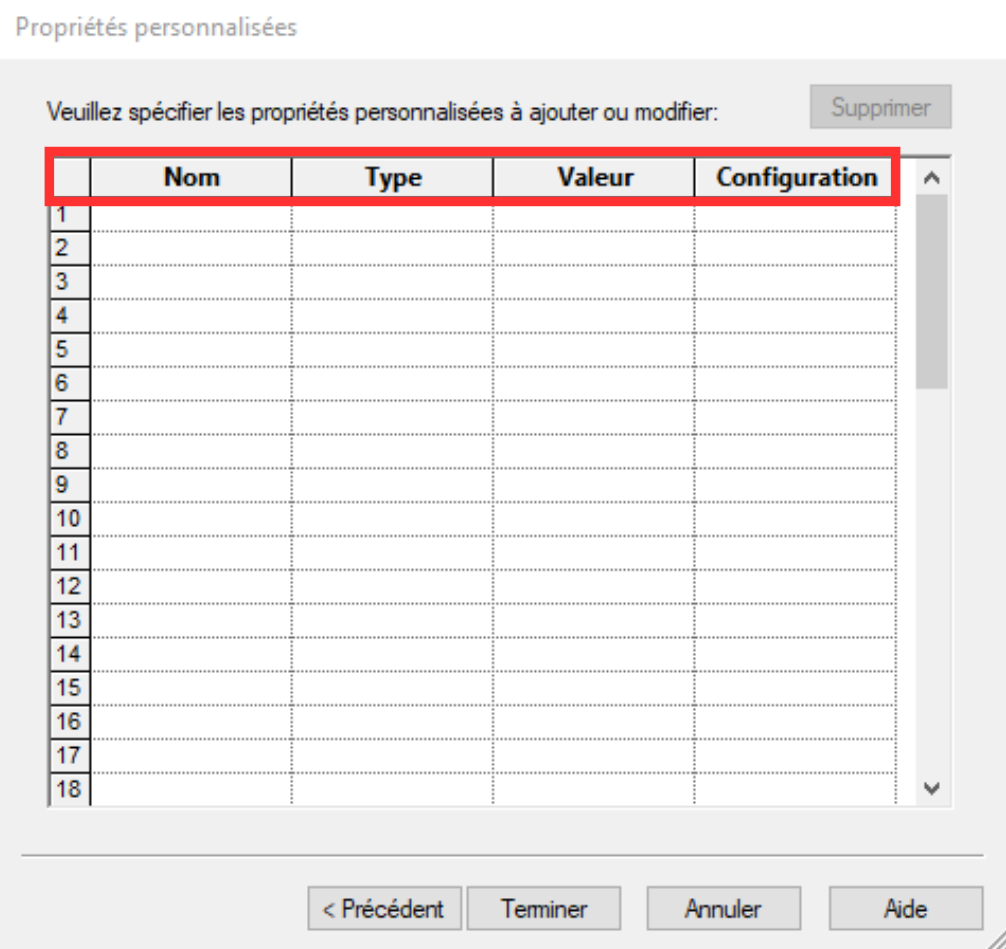
WARNING: If you wish to modify a property, the name entered in the task scheduler must be identical to the original property name in your file,
So if you want to add a new property, be sure to enter a name that’s not already in use!
- Click on “Finish
- A line corresponding to the created task appears in the task scheduler
{% video_player “embed_player” overrideable=False, type=’hsvideo2′, hide_playlist=True, viral_sharing=False, embed_button=False, autoplay=False, hidden_controls=False, loop=False, muted=False, full_width=False, width=’688′, height=’387′, player_id=’173973027192′, style=” %}
3. Manage your tasks
In the task planner, you can view all your tasks and filter them by date.
To see their status, remember to refresh.
4. Your properties have been added to your files!
So, how much time do you think you’ve saved with this tool?
Conclusion
The Task Scheduler helps you to increase efficiency by automating simple, repetitive tasks, such as updating or adding properties to your design files.
This tool can also be used to schedule other tasks, such as the automatic export of 3D files in STEP, PDF, DXF…To find out more, read this article on the subject.
Need help? We’d love to! Send us an e-mail to
support@xdinnovation.eu




