
The idea here is to be able to control dimensions from the tree, so you can quickly and easily update your designs.
Step 0: Display parameters in the tree
First of all, if you want to be able to modify dimensions quickly from the tree, you need to display these values there. To do this, you need to :
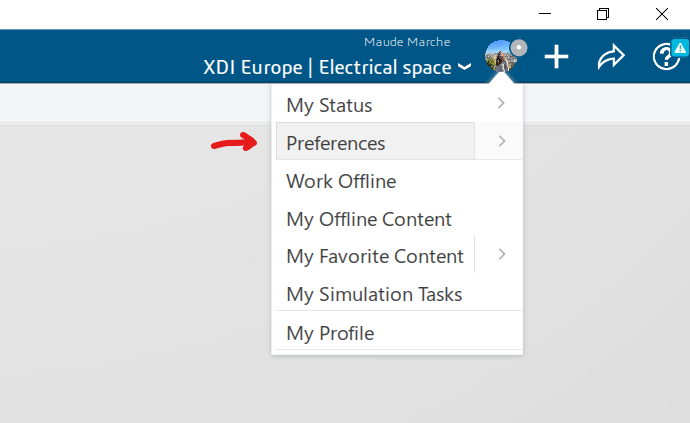
- Go to your preferences (top right of the screen, on your initials or photo)
- Click on “Common properties” > “Object properties” > “3D shape” > “View”
- In the “Commands” section, find the list of commands displayed in the tree.
- Check the “Settings” and “Relationships” options
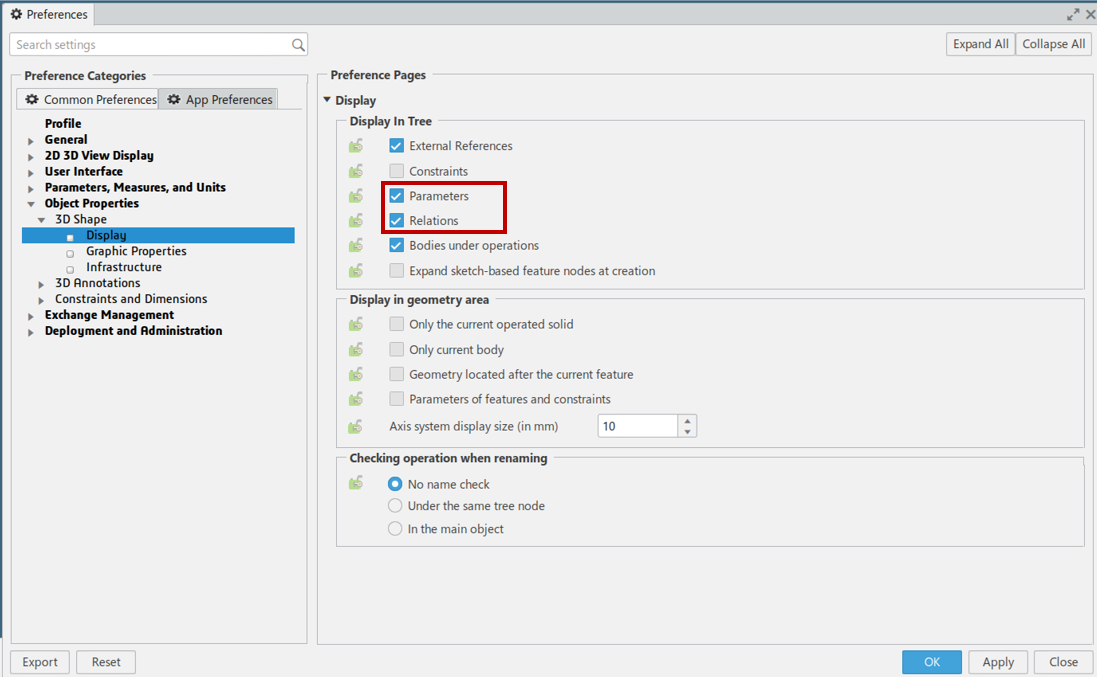
- Now, options will be displayed in the tree if they are used in the component
Step 1: Create your settings
We will now create our parameters:
- Go to the “Tools” tab
- Select the“Formula” tool
- Choose the type of parameter to create and add the
- Enter its value and validate
Step 2: Associating parameters with functions
The parameter can be associated with a dimension or a function. In this section, we’ll look at how to integrate it with a function.
- First, edit the function driving the desired value
- Right-click in the value field, and the“Edit formula” option appears.
- We then fetch the desired parameter, and when double-clicked, it is added to the
- When validated, the value field is grayed out, meaning that the value is piloted.
Step 3: Create equations
We’ll now perform a similar operation for one dimension. This time we’ll use the parameter in an equation.
- We now edit the sketch containing the dimension
- When you click on a value, the “Edit formula” icon appears.
- The same window as before opens
- You can add numerical values and operation symbols
- When you confirm, the annotation fx appears next to the dimension
Step 4: Change parameters to quickly modify geometry
Now that the parameters and applications are correctly defined, you can modify the parameters in the tree and the part will adapt automatically.
Conclusion:
You can now create your own parameters and use them in equations to facilitate your design.
If you have any questions, please do not hesitate to contact us at support@xdinnovation.eu. 😉




