
TL;DR:
- 3D file qualification prevents costly manufacturing and simulation errors.
- Key criteria include the absence of non-manifold edges, T-junctions, and self-intersecting faces.
- A structured process of checking, fixing, and validating is essential to ensure CAD compatibility.
A poorly structured 3D file can bring an entire production chain to a halt. In startups and SMEs using SOLIDWORKS or CATIA, import errors, corrupted geometry, and format incompatibilities cost hours of unplanned work. Yet 3D file qualification is still often overlooked, treated as a formality rather than a strategic step. This guide walks you through, step by step, why this approach is essential, which criteria to check, how to proceed in practice, and how to adapt your files to the specific requirements of your CAD tools.
Table of contents
- Why qualify your 3D files?
- The essential criteria for qualifying a 3D file
- 3D file validation process
- Adapting your 3D files to the requirements of SOLIDWORKS and CATIA tools
- What most users forget about 3D file qualification
- Advanced solutions to optimize the qualification of your 3D files
- Frequently asked questions about 3D file qualification
Key Points
| Point | Details |
|---|---|
| Mandatory qualification | Unqualified files lead to errors and extra costs in design and manufacturing. |
| Key technical criteria | Follow manifold rules, avoid T-junctions, and ensure sizes suitable for CAD. |
| Step-by-step validation | A structured process makes it easier to detect errors and optimizes import into SOLIDWORKS or CATIA. |
| Limited automation | Human expertise remains essential to ensure file quality, even with good automated tools. |
Why qualify your 3D files?
Working with unqualified 3D files means accepting that you are operating without a safety net. The consequences are rarely visible at first, but they build up quickly. A model with poorly defined surfaces may import without any apparent error, then cause a crash during simulation or generate unusable parts in additive manufacturing.
Here are the most common issues linked to the lack of qualification:
- Massive time losses: manual correction of errors during the project, often discovered too late.
- Manufacturing errors: a corrupted STL file sent to a 3D printer or machining center produces non-compliant parts.
- CAD incompatibilities: a STEP file imported into SOLIDWORKS with missing faces creates a display issue in SOLIDWORKS that is difficult to diagnose.
- Simulation failures: FEA and CFD solvers reject imperfect geometries or produce incorrect results.
- Collaboration friction: when multiple teams share files, inconsistent geometry creates differences in interpretation between sites or partners.
The impact is even greater in advanced manufacturing contexts. In CNC machining, a self-intersecting surface can generate incorrect toolpaths. In multiphysics simulation, a mesh based on defective geometry skews all results. Unqualified models have structural irregularities and lead to interpretation errors that propagate through every subsequent step.
For distributed teams, file consistency is even more critical. When a design office in France shares an assembly with a subcontractor in Asia, any geometric ambiguity turns into delays or non-compliance.
“3D file qualification is not a technical option; it is a condition for success for any serious industrial project.”
Pro tip: Add a systematic verification step as soon as you receive any external file, before you even open it in your CAD environment. This prevents contaminating your assemblies with defective geometry.
The essential criteria for qualifying a 3D file
Qualifying a 3D file means ensuring it complies with a set of precise geometric and dimensional rules. These criteria are not arbitrary: they reflect the requirements of the computation engines used by SOLIDWORKS, CATIA, and digital manufacturing tools.
The main geometric defects to detect are:
- Non-manifold edges: an edge shared by more than two faces. This type of error is invisible to the naked eye but blocks any meshing process.
- T-junctions: T-shaped junctions between surfaces that create geometric discontinuities incompatible with most solvers.
- Self-intersecting faces: surfaces that intersect themselves, making the volume ambiguous for the software.
- Slivers (degenerate faces): extremely thin or elongated faces that disrupt computation algorithms.
- Flipped normals: faces with incorrect orientation, which disrupts display and simulation.
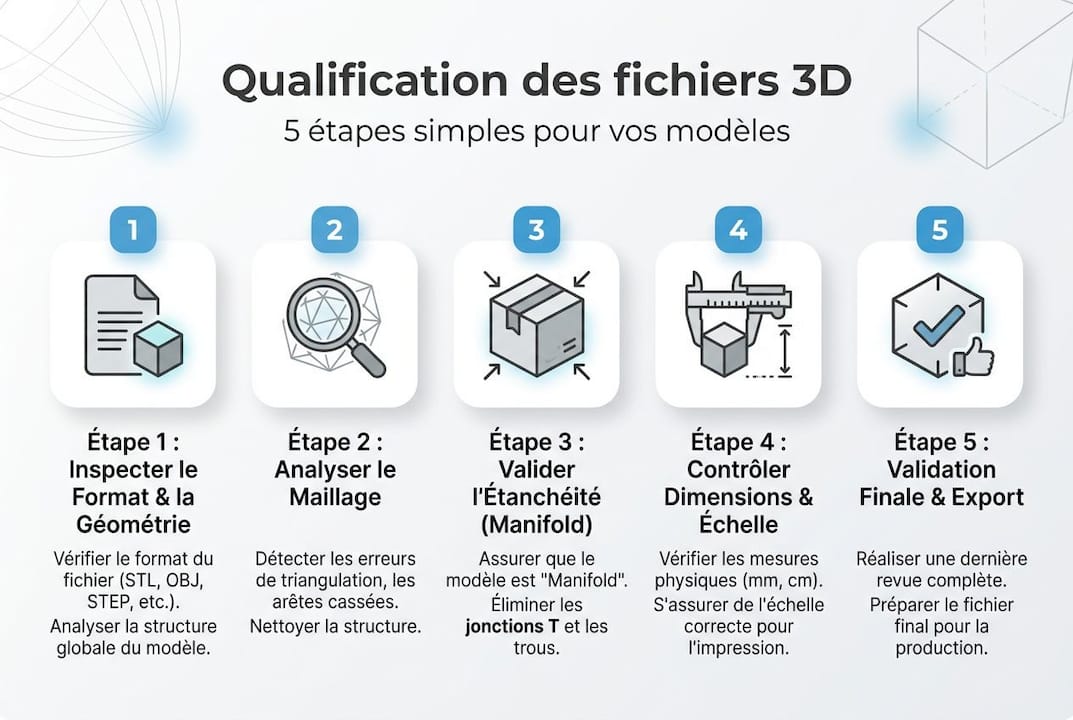
To be valid, a file must comply with the manifold rule, avoid T-junctions, and ensure minimum and maximum dimensions consistent with the tolerances of the target tools.
| Criterion | Recommended value | Impact if not met |
|---|---|---|
| Minimum dimension | > 0.01 mm | Meshing or import error |
| Maximum dimension | < 2,000 mm | Solver limits exceeded |
| Non-manifold edges | 0 | Simulation/manufacturing blocked |
| Self-intersecting faces | 0 | Incorrect simulation results |
| Consistent normals | 100% | Incorrect display and rendering |
These criteria apply regardless of the file format. Whether you work in STEP, IGES, or Parasolid, the fundamental geometric rules remain the same. To go further on modeling best practices, our 3DEXPERIENCE 3D design guide details the standards to adopt from the design phase onward.
Pro tip: During a quick analysis, focus first on non-manifold edges and self-intersecting faces. These are the two most common and most blocking error types in a professional CAD workflow.
3D file validation process
With the criteria clearly identified, let us move on to the practical method. Validating a 3D file cannot be improvised: a structured approach saves time and avoids cascading fixes.
Recommended validation steps:
- Controlled import: open the file in a neutral validation tool (MeshLab, Netfabb, or your CAD software’s native diagnostic module) before integrating it into an assembly.
- Automatic error analysis: run a full diagnostic to identify non-manifold edges, degenerate faces, and normal inconsistencies.
- Automated repair: use built-in repair tools for simple errors (flipped normals, small holes).
- Manual correction: for complex errors such as T-junctions or slivers, manual intervention is often still required.
- Dimensional check: verify that dimensions fall within acceptable ranges for your target workflow.
- Final import test: reimport the corrected file into SOLIDWORKS or CATIA and check that there are no warnings.
Geometry validation must be performed before any FEA/CFD simulation or release to manufacturing, without exception. Adding this step upstream avoids costly backtracking. For projects involving fluid simulation in CAD, geometric rigor is particularly critical because CFD solvers are highly sensitive to surface imperfections.
| Tool | Type | Strengths | Limitations |
|---|---|---|---|
| Native SOLIDWORKS diagnostics | Built-in | Fast, no export required | Less accurate on complex meshes |
| Netfabb | Specialized | Advanced automatic repair | Less intuitive interface |
| MeshLab | Open source | Detailed mesh analysis | No automatic repair |
| CATIA DMU | Built-in | Suitable for large assemblies | Limited to advanced licenses |
For teams managing many assemblies, please consult our resources to optimize SOLIDWORKS assemblies and reduce processing times.
Pro tip: To quickly detect non-manifold edges in SOLIDWORKS, enable the “Check” option in the Tools menu and filter results by error type. You can identify problem areas in under two minutes on most models.
Adapting your 3D files to the requirements of SOLIDWORKS and CATIA tools
Once the file has been geometrically validated, you must still ensure it is compatible with the target CAD tool. SOLIDWORKS and CATIA have specific requirements in terms of formats and import settings.
Recommended formats by use case:
- STEP (AP203/AP214): a universal format, recommended for cross-software exchanges. Very well supported by SOLIDWORKS and CATIA.
- Parasolid (.x_t, .x_b): SOLIDWORKS’ native format, offering the best geometric fidelity for exchanges between software based on the Parasolid kernel.
- IGES: an older format, to be used only when STEP is not available. Less reliable for complex surfaces.
- CATPART / CATPRODUCT: CATIA native formats, to be used as a priority in a pure Dassault Systèmes environment.
- 3DXML: a lightweight format for visualization and sharing, without full design data.
Correcting geometry to meet CAD tool requirements prevents 90% of import or simulation failures, representing a considerable gain over the total duration of a project.

To automate conversions, tools such as Datakit or 3DTransVidia can process batches of files using preconfigured conversion profiles for SOLIDWORKS or CATIA. This drastically reduces manual intervention on high-volume projects.
Also consider metadata management: a well-qualified file includes revision information, units of measure, and tolerances. 3DEXPERIENCE codification makes it possible to structure this information systematically and with full traceability.
Key takeaway: Always comply with dimensional constraints (0.01 mm minimum, 2,000 mm maximum) and prioritize STEP format for external exchanges. These two simple rules eliminate most import issues.
What most users forget about 3D file qualification
Our field experience with SMEs and startups reveals a recurring mistake: believing that automatic repair tools are sufficient. They are useful, but they do not replace human judgment.
An automatic tool can fix a flipped normal in seconds. But it cannot know whether a degenerate face is the result of a modeling error or an intentional design choice. In the latter case, automatic repair can introduce an invisible functional error.
Project context matters greatly. A file intended for additive manufacturing does not have the same requirements as a file for FEA simulation. Applying the same qualification rules indiscriminately can sometimes lead to over-correction and degrade model accuracy.
We always recommend a human review after any automatic correction, especially for critical functional parts. Advanced design requires a combination of high-performance tools and domain expertise. One without the other is taking a risk that SME timelines and budgets cannot always absorb.
Advanced solutions to optimize the qualification of your 3D files
You now master the fundamentals of qualification. The next step is to implement a reliable, repeatable process within your organization.
At Ohmycad, we support startups and SMEs in implementing robust CAD workflows, from file qualification through to product data management. Our solutions include access to 3DEXPERIENCE Cloud CAD to centralize and secure your qualified files, as well as 3D visualization in CAD tools to visually validate your models before production. To go even further in presenting your projects, also explore our resources on SOLIDWORKS photorealistic rendering. Contact our team for a personalized assessment of your current workflow.
Frequently asked questions about 3D file qualification
Which common errors prevent a 3D file from being qualified?
The most blocking irregularities are non-manifold edges, T-junctions, and self-intersecting surfaces, which make the model unusable for simulation or manufacturing.
How can you check that the model size meets CAD tolerances?
Ensure that the minimum dimension exceeds 0.01 mm and that the maximum dimension remains below 2,000 mm—two critical thresholds for compatibility with CAD solvers.
Is it possible to automate 3D file qualification?
Many tools offer partial automatic repair, but manual validation remains essential for complex or functional parts.
Why are qualified 3D files vital for FEA/CFD simulation?
They ensure mesh integrity and prevent crashes: FEA/CFD validation before manufacturing is a sine qua non for obtaining usable, reliable results.




