

TL;DR:
- Structured file organization and consistent naming are essential for efficient management.
- Progressive migration to Cloud PDM facilitates traceability and collaboration in SMEs.
- Workflow automation ensures compliance, saves time, and reduces errors in document management.
A version accidentally overwritten, files renamed without logic, an impossible audit to pass: this is what awaits teams that neglect documentation in their CAD projects. For a startup or industrial SME, these situations are not theoretical. They translate into delivery delays, costly manufacturing errors, and loss of credibility with clients or partners. This guide offers you a structured, progressive method adapted to the realities of small organizations, to document your CAD projects with rigor, without unnecessary complexity.
Table of contents
- Properly Preparing the Document Structure of a CAD Project
- Writing Technical Specifications and Synchronizing with CAD
- Ensuring Version Control and Traceability in CAD Projects
- Automating Workflow and Ensuring Document Compliance
- Our Vision: Documenting a CAD Project Without Complexity or Extra Cost
- Going Further in CAD Documentation with Ohmycad
- Frequently asked questions
Key Points
| Point | Details |
|---|---|
| Clear Document Hierarchy | Organizing folders and naming from the start prevents future confusion. |
| Specifications Linked to CAD | Aligning technical documents with models significantly reduces the risk of errors. |
| Automated Version Control | A PDM system automates version management, gaining traceability and compliance. |
| Workflow Automation | Automating approvals and notifications secures and accelerates CAD documentation. |
Properly Preparing the Document Structure of a CAD Project
Even before opening SOLIDWORKS or CATIA, the way you organize your files determines the quality of all future documentation. A clear file structure is the foundation of a controlled CAD project.
A structured folder hierarchy by project, phases, and file types prevents confusion between parts, assemblies, and drawings. Here is a concrete example of organization for a mechanical project:
- Project_ClientName_2026/
- 01_Specifications/
- 02_Design/
- Parts/
- Assemblies/
- Drawings/
- 03_Simulation/
- 04_Deliverables/
- 05_Archives/
This logic applies regardless of the software used. It also facilitates future integration into a PDM (Product Data Management) system.
File naming is equally critical. Adopt a convention from day one: project name, part number, revision index, date. For example: “PROJ001_PART_042_REV02_20260310”. To learn more about naming best practices, consult our guide on how to qualify your 3D files effectively.
Pro tip: Never create a “Miscellaneous” or “Temp” folder. These folders become traps for forgotten files. If a file has no logical place, it means your file structure needs to be revised.
The question of moving to a PDM arises quickly as the team grows. Here is a summary table to help you decide:
| Criterion | Manual Management | PDM (e.g., SOLIDWORKS PDM) |
|---|---|---|
| Initial Cost | Low | Medium to High |
| Version Control | Manual, risky | Automatic, reliable |
| Multi-User Collaboration | Difficult | Seamless |
| Traceability | Limited | Complete |
| Suitable for Startups | Yes (beginning) | Yes (growth) |
To understand the different types of 3D files you will manage, a dedicated guide will give you the necessary basics. And if you are considering a migration to Dassault Systèmes’ cloud platform, our resource for mastering 3DEXPERIENCE guides you step by step.
Writing Technical Specifications and Synchronizing with CAD
CAD documentation without written technical specifications is like a construction plan without dimensions. 3D models must always be accompanied by text documents that specify functional requirements, tolerances, and applicable standards.
Here are the steps to build a usable technical specification:
- Number each requirement with a unique identifier (e.g., SPEC-MECH-042) to enable cross-references.
- Define dimensional tolerances by referencing appropriate ASME or ISO standards, as well as GD&T (Geometric Dimensioning and Tolerancing) symbols.
- Associate each specification with the corresponding CAD model via a direct link or note in the file.
- Specify acceptance conditions: validation criteria, tests to be performed, compliance thresholds.
- Update specs in parallel with each model revision, never after the fact.
Clear and measurable mechanical specifications, with references to ASME/ISO standards and GD&T, are the foundation of documentation usable by all project stakeholders.
Synchronization between written documents and CAD models is what transforms passive documentation into an active tool. When an engineer modifies a dimension in SOLIDWORKS, the corresponding specification must be updated immediately, and vice versa.
“Synchronization between specs and CAD models reduces design errors by 1 to 3% of total project cost, a significant gain on complex industrial projects.”
Pro tip: Create a correspondence table between your specification identifiers and associated CAD file names. This simple document saves hours of searching during a revision or audit.
To go further in choosing your tools, our selection of innovative CAD tools for startups and SMEs will give you concrete leads.
Ensuring Version Control and Traceability in CAD Projects
Without version control, every modification to a CAD file is a risk. Who modified what, when, and why? These questions must find an immediate answer during an audit or quality incident.
There are several approaches to managing versions:
- Manual management: renaming files with revision index, archiving in dated folders.
- Local PDM (such as SOLIDWORKS PDM Standard): automatic version management, check-in/check-out, integrated history.
- Cloud PDM (such as 3DEXPERIENCE): multi-site collaboration, secure access, real-time traceability.
A PDM system ensures version control and revisions automatically, which significantly reduces the risk of human error.

| Method | Advantages | Limitations |
|---|---|---|
| Manual | Simple, no cost | High risk of error, no traceability |
| Local PDM | Reliable, integrated with CAD software | License cost, no remote collaboration |
| Cloud PDM | Collaboration, access anywhere | Subscription, learning curve |
To implement robust version control, follow these steps:
- Define a revision nomenclature (A, B, C or 01, 02, 03).
- Document each revision with a brief description of modifications.
- Designate a validation manager before any production release.
- Archive obsolete versions without deleting them.
- Use dedicated tools to create versions and file revisions.
Some tips to avoid common pitfalls:
- Never overwrite an existing file without creating an archived copy.
- Use the revision management integrated into your CAD software.
- Explore revision branches to manage variants of the same product without multiplying files.
- Associate each revision with a modification order or formalized change request.
Automating Workflow and Ensuring Document Compliance
Automation of document processes is no longer reserved for large corporations. Today, even a 10-person SME can implement automated approval workflows that reduce errors and accelerate validation cycles.
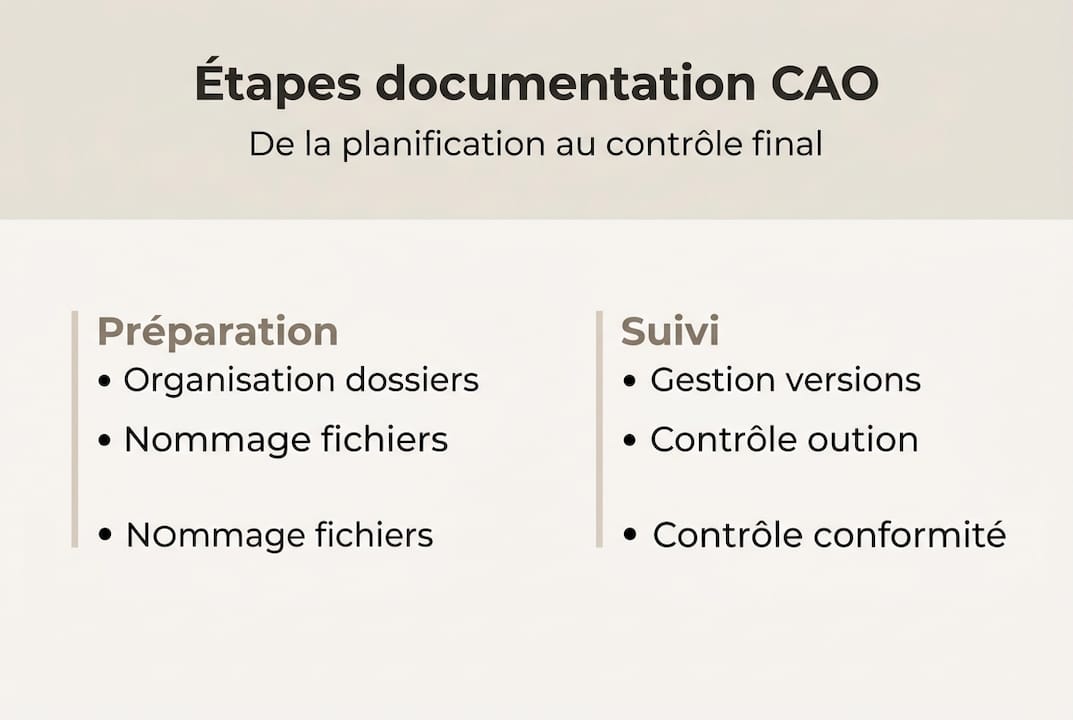
Why automate? Because manual validation by email is a constant source of oversights, duplicates, and unapproved versions in circulation. Automating approval and notification workflows ensures complete traceability at every stage.
Here are the main actions that can be automated in a documented CAD environment:
- Automatic validation: triggering an approval request as soon as a file reaches a certain status.
- Notifications: email or message alert when a revision is submitted or approved.
- Automatic archiving: copying validated files to a secure archive space.
- File locking: prevents modification of a file under validation.
- Report generation: automatic summary of modifications for audits.
📊 Key statistic: Multi-site manual management is inefficient and generates high audit risks, while a PDM with automation significantly reduces document workflow processing time.
Document compliance is a real issue, particularly for ISO certifications or client audits. An automated workflow creates an audit trail that can be used without additional effort. To structure your cloud approach, explore our guide on cloud document management and our resources on file codification with 3DEXPERIENCE. Multi-team cloud CAD collaboration then becomes a real competitive advantage.
Our Vision: Documenting a CAD Project Without Complexity or Extra Cost
By supporting dozens of CAD projects in industrial startups and SMEs, we have observed a recurring mistake: believing that a complete PDM is needed from day one. This belief pushes some teams to over-invest too early, or conversely to implement nothing because “it’s too complicated.”
The reality is more nuanced. For startups and SMEs, starting with careful manual organization (structured folders, consistent naming) then progressively migrating to a scalable cloud PDM avoids costly errors and accelerates time-to-market.
Our recommendation: define your naming conventions and file structure from the pilot project. Document them in a README file accessible to the entire team. When you reach 3 to 5 collaborators on the same project, it’s the right time to evaluate a cloud solution such as SME cloud design via 3DEXPERIENCE.
Pro tip: Anticipate migration from the start by adopting conventions compatible with market PDMs. Renaming 500 files after the fact is a tedious task you can avoid with a little foresight.
Going Further in CAD Documentation with Ohmycad
You now have the basics to document your CAD projects with method and rigor. But practical implementation often raises questions specific to your context, software, or sector.
At Ohmycad, we offer in-depth resources to support you at every stage. Start by exploring 3D types to better understand what you are managing, then discover how to transition to cloud CAD with 3DEXPERIENCE to centralize your data. Finally, our guide to mastering CAD codification will give you the keys to sustainable organization. Our team of experts is available to support you in choosing and implementing the solution adapted to your organization.
Frequently asked questions
What are the common mistakes when documenting a CAD project?
Common mistakes are inconsistent naming, lack of version management, and poor synchronization between documents and CAD models. A clear file hierarchy by project, phases, and types is the first defense against these problems.
What to do if starting without PDM?
Adopt careful folder organization, precise naming, and prepare for a possible cloud migration when the project grows. Starting manually then migrating to a scalable cloud PDM is a proven strategy for SMEs and startups.
How to reduce the risk of error on a multi-collaborator project?
Centralizing files via a cloud PDM, automating validation tracking, and using a notification system helps make exchanges more reliable. Multi-site manual management generates high audit risks that only a PDM can truly eliminate.
What gains can be expected from an automated workflow?
Automation reduces processing time and makes tracking modifications and audits more reliable. Automating approval and notification workflows ensures complete traceability without additional manual effort.




