
What is it?
If you’re familiar with revisions, you may be wondering what revision branches are. Let’s simplify things: they’re a copy of your original file, as if you’d “saved it as new”. But they offer more possibilities than a simple copied file.
Application 1: Design exploration
The best use of revision branches is in design exploration – let’s say you need to design a wheel. You have a first design, but you want to test different versions.
Don’t use “save as new” or “save as” under a new name! Use Branches instead – this creates a new file, with a new name, and allows you to close the branch afterwards. Changes made to this new branch will have no effect on the original project.
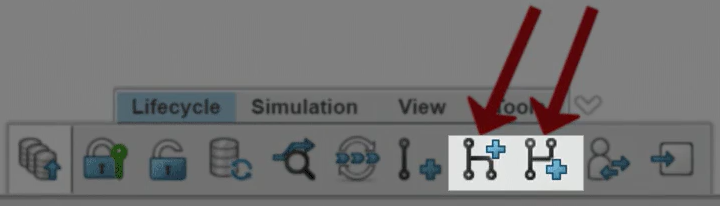
Step 1: Create a new branch
You can create a new branch from SOLIDWORKS or from your bookmarks. Let’s try different designs of a wheel used in an assembly:
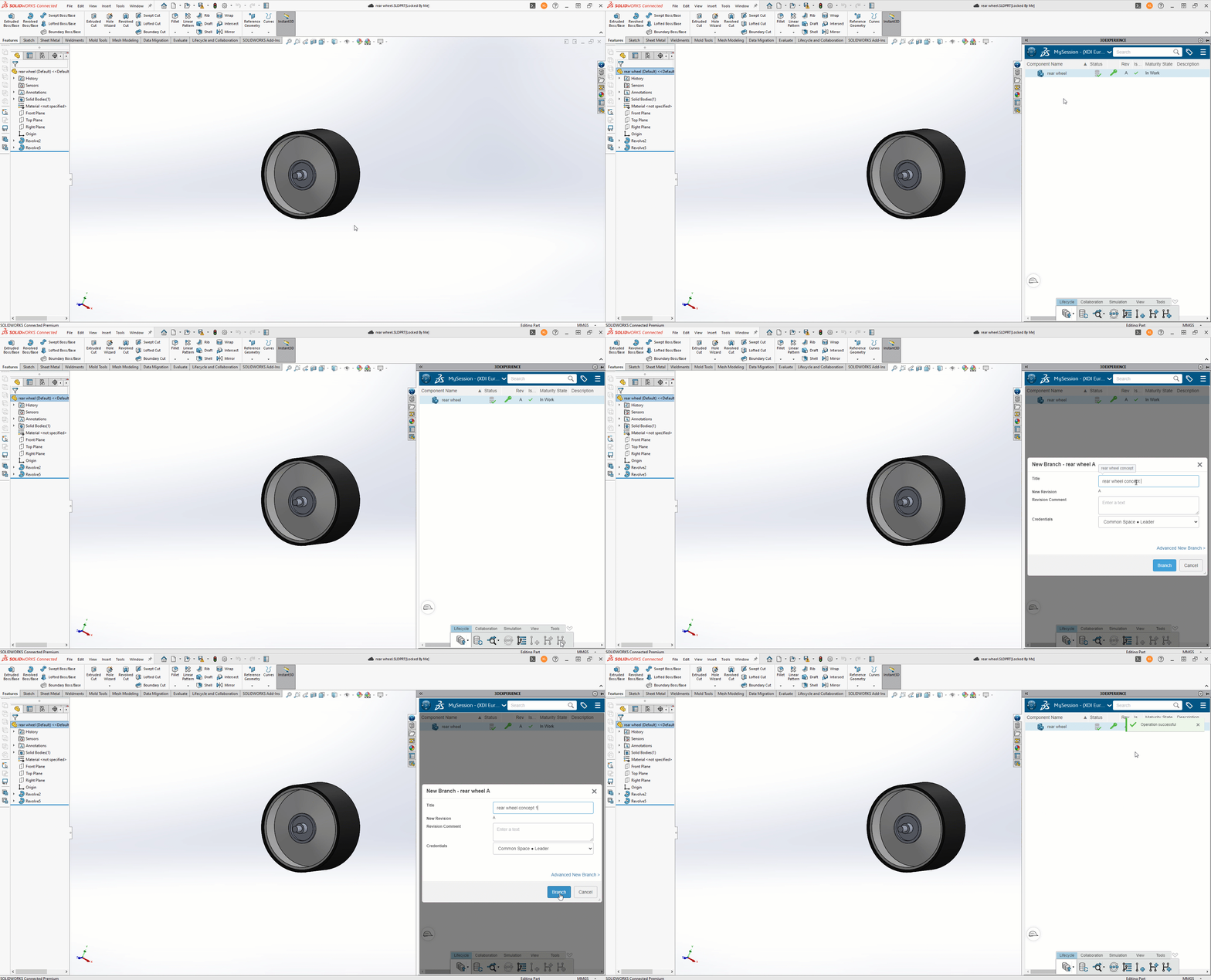
Best practice: a branch is a copy. It must have a different name than the original file!
To find the branch you’ve just created, use “replace with revision” or the search bar :
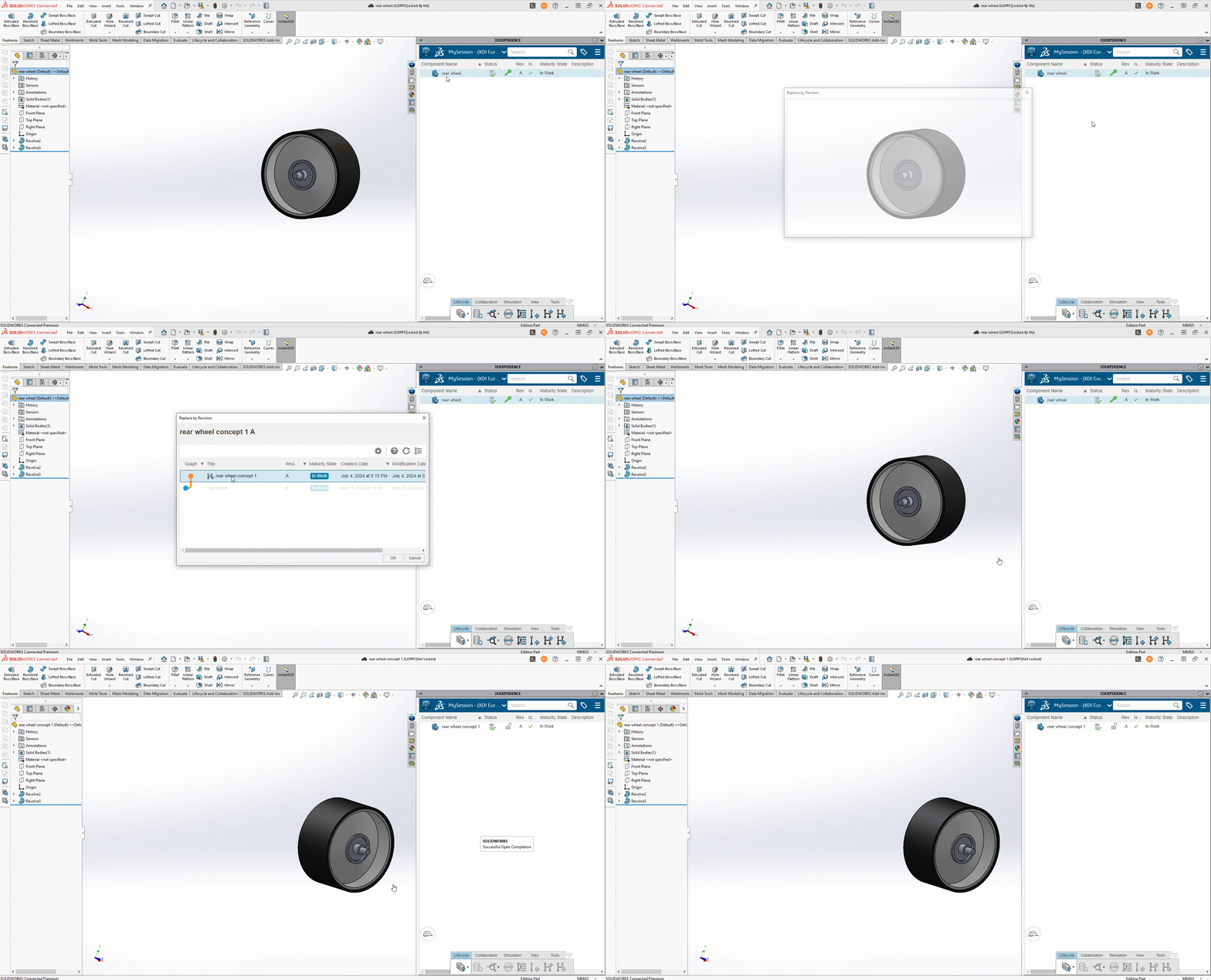
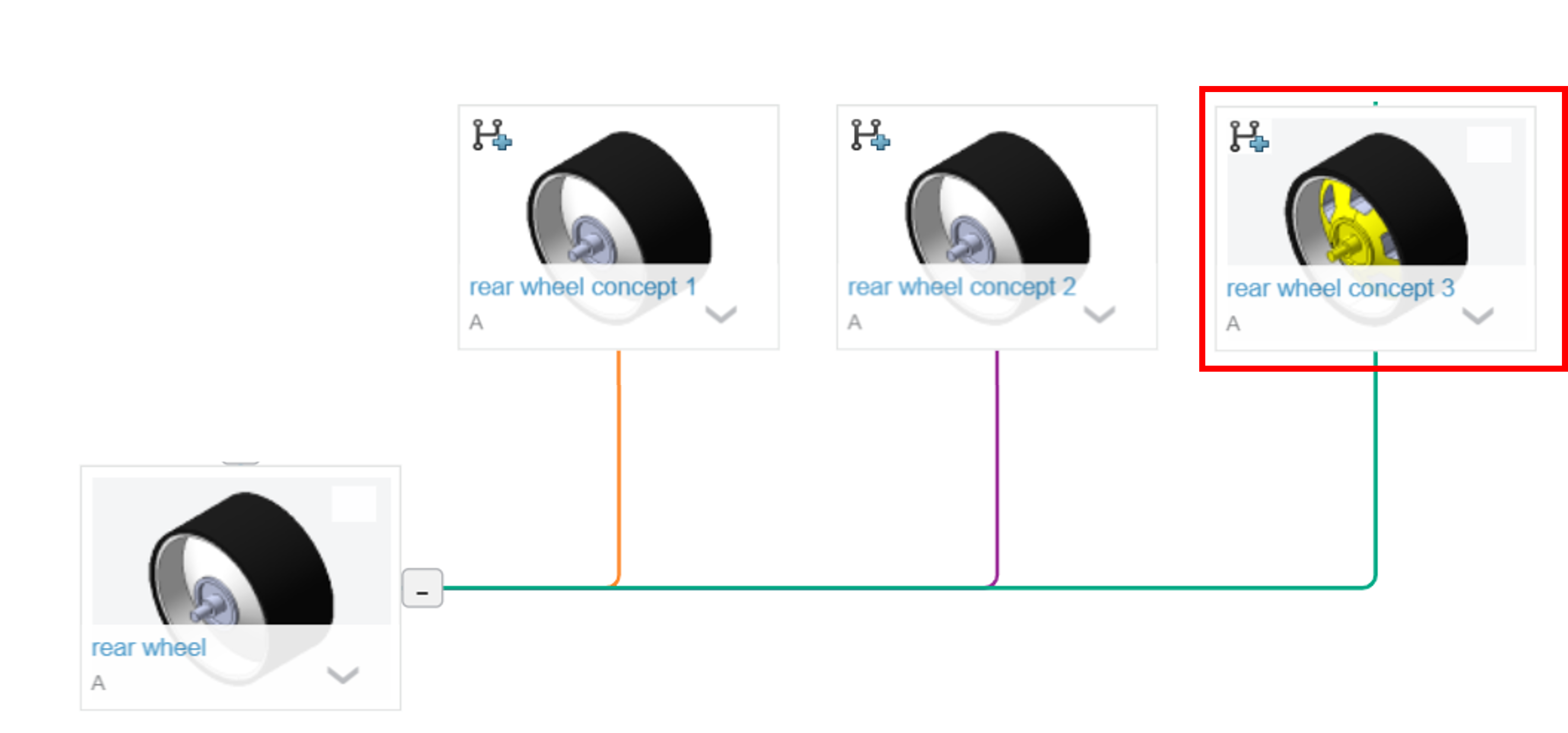
You can modify the geometry of this branch without affecting the base part. When exploring new concepts, it may be necessary to create several branches:
Step 2: Merge the branch
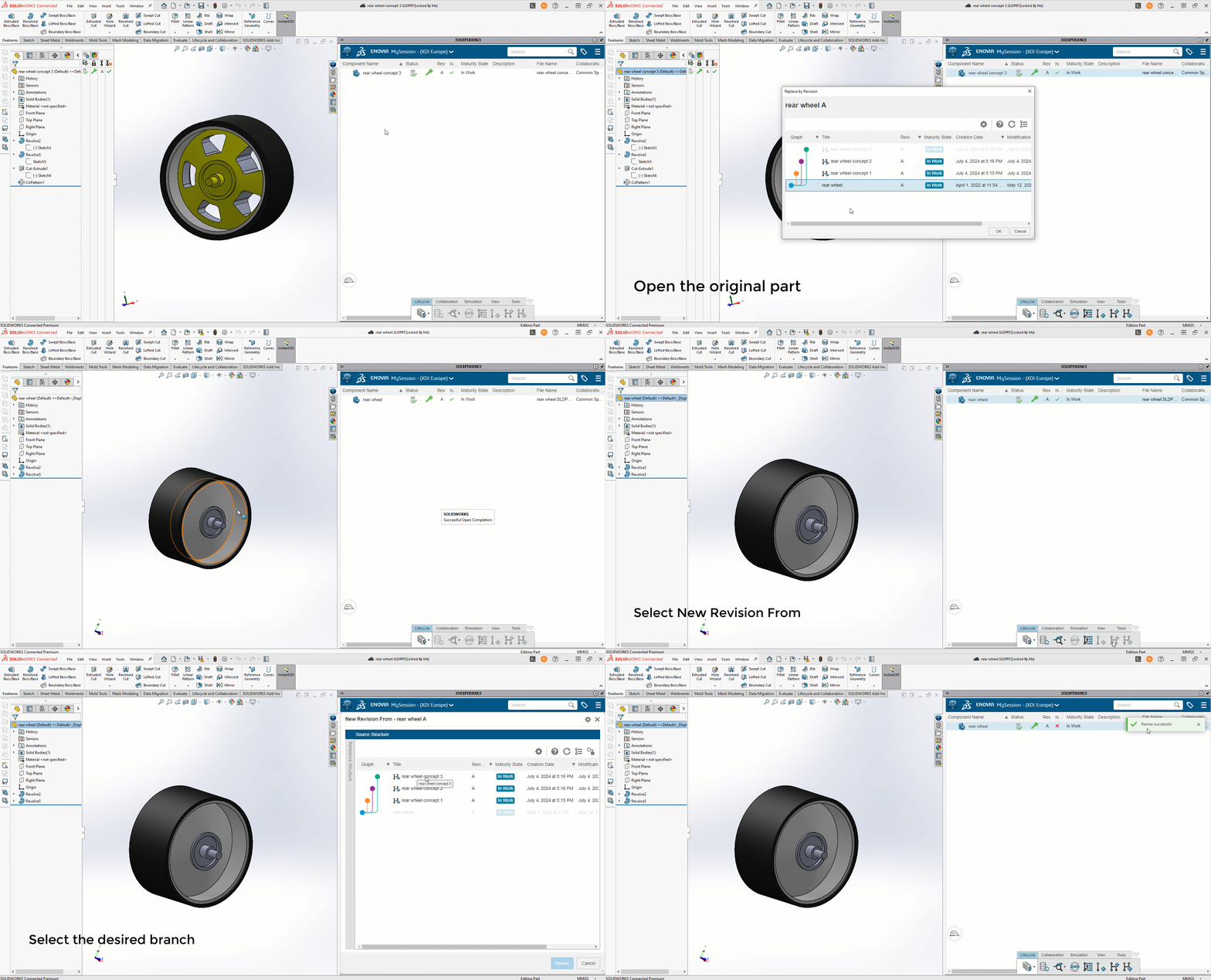
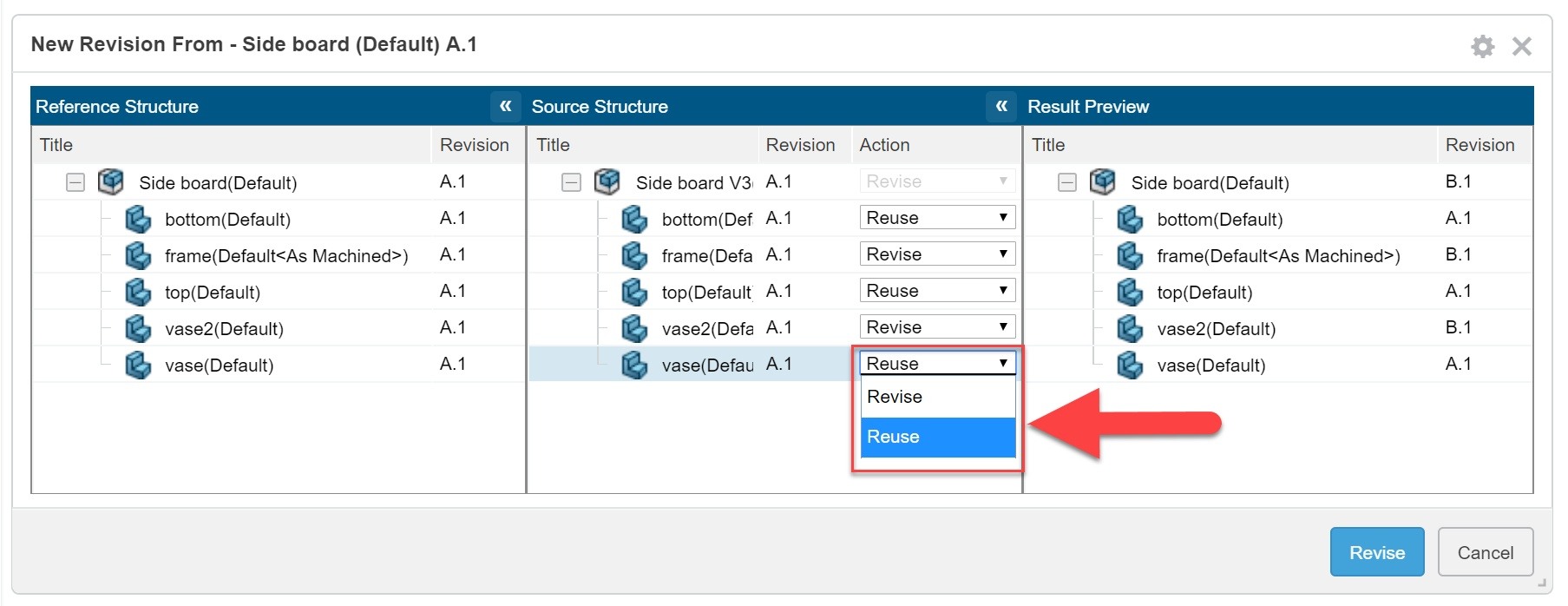
Finally, one of the iterations is selected. The “New Revision From” command can be used to merge the chosen branch into the original design as a new revision!
Suppose we want to choose this wheel concept:
We need to go back to the original part and choose “new revision from” to create revision B of this part. Then we choose the concept we want:
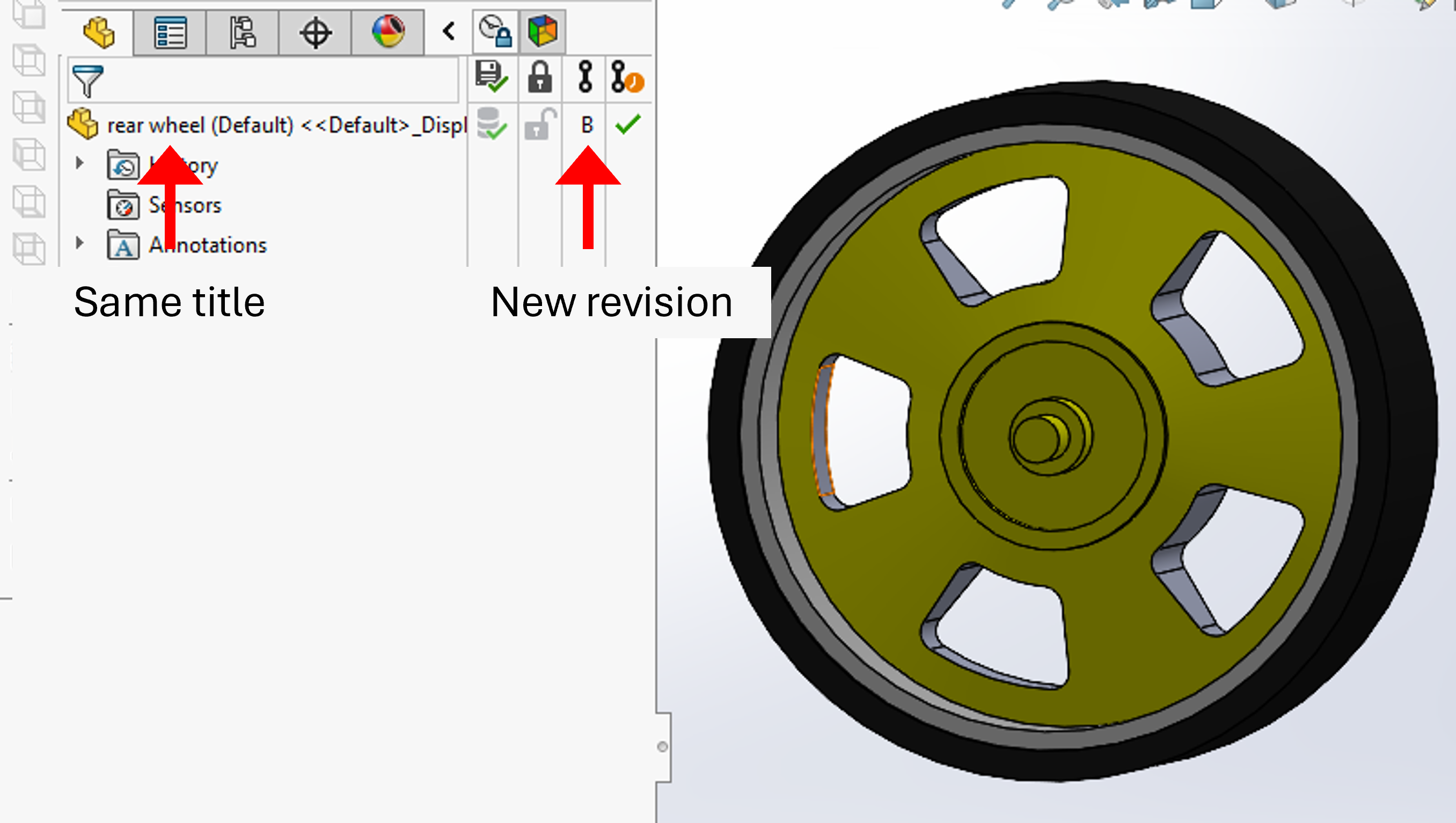
Note: the file retains its original title (“rear wheel”), but a new revision is created.
Step 3: replace in the assembly
Now, every assembly using the original part detects the existence of a new version:
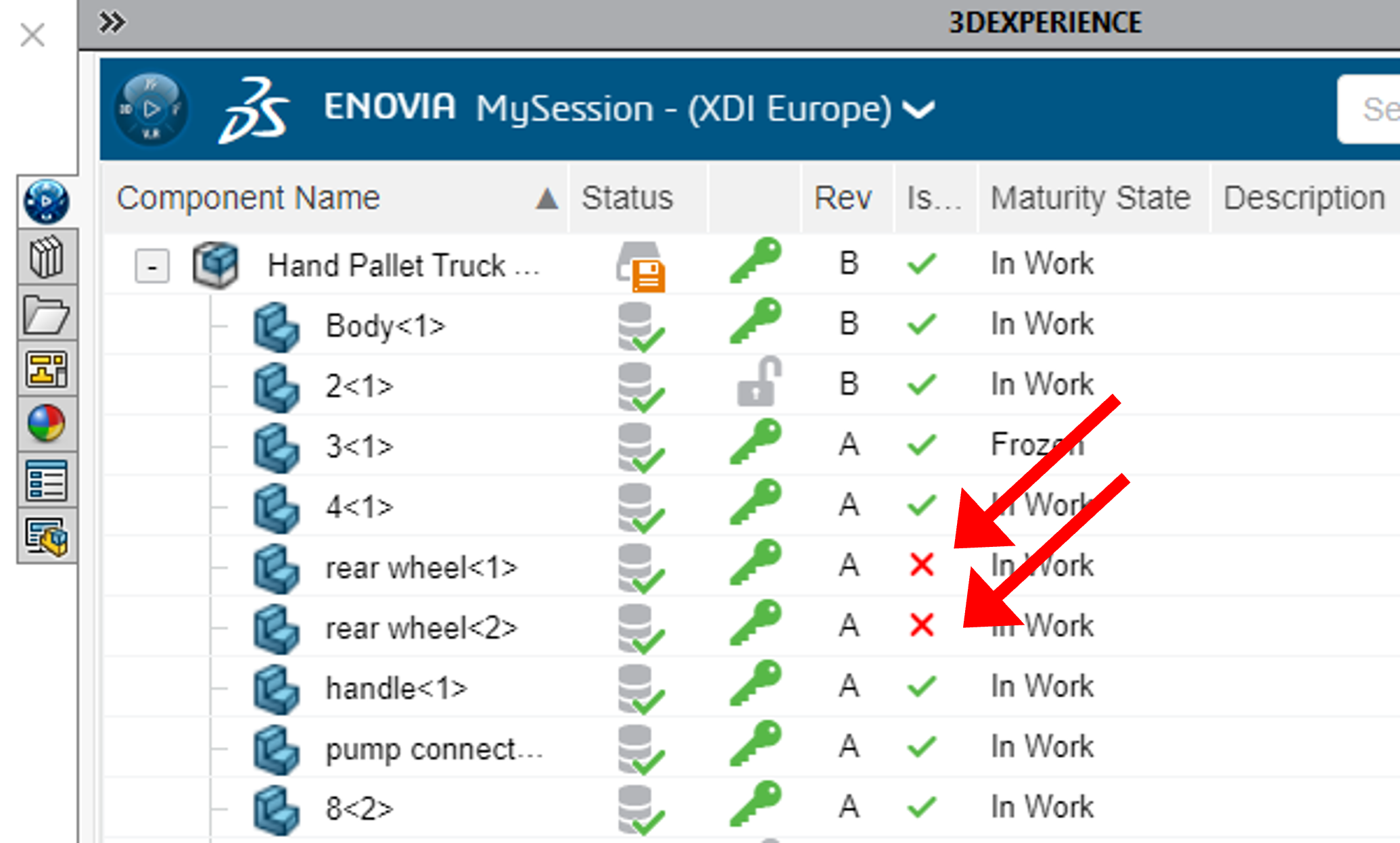
You can easily replace it with the new geometry:
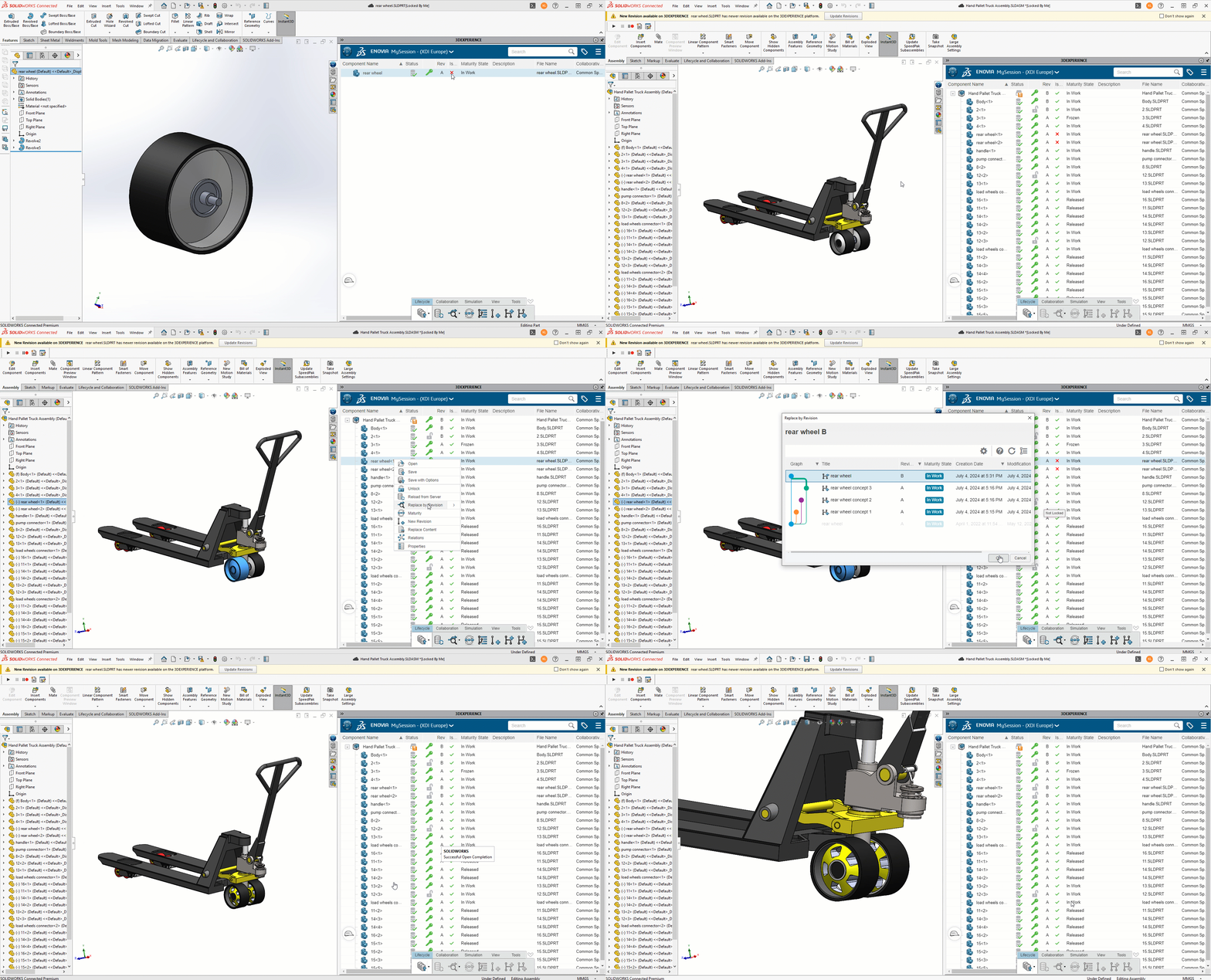
No need to send a message to your colleagues to get them to work with the latest version.
Note: you can also use branches for assemblies or sub-assemblies! But merging the branch may prove trickier.
Use 2: Product family
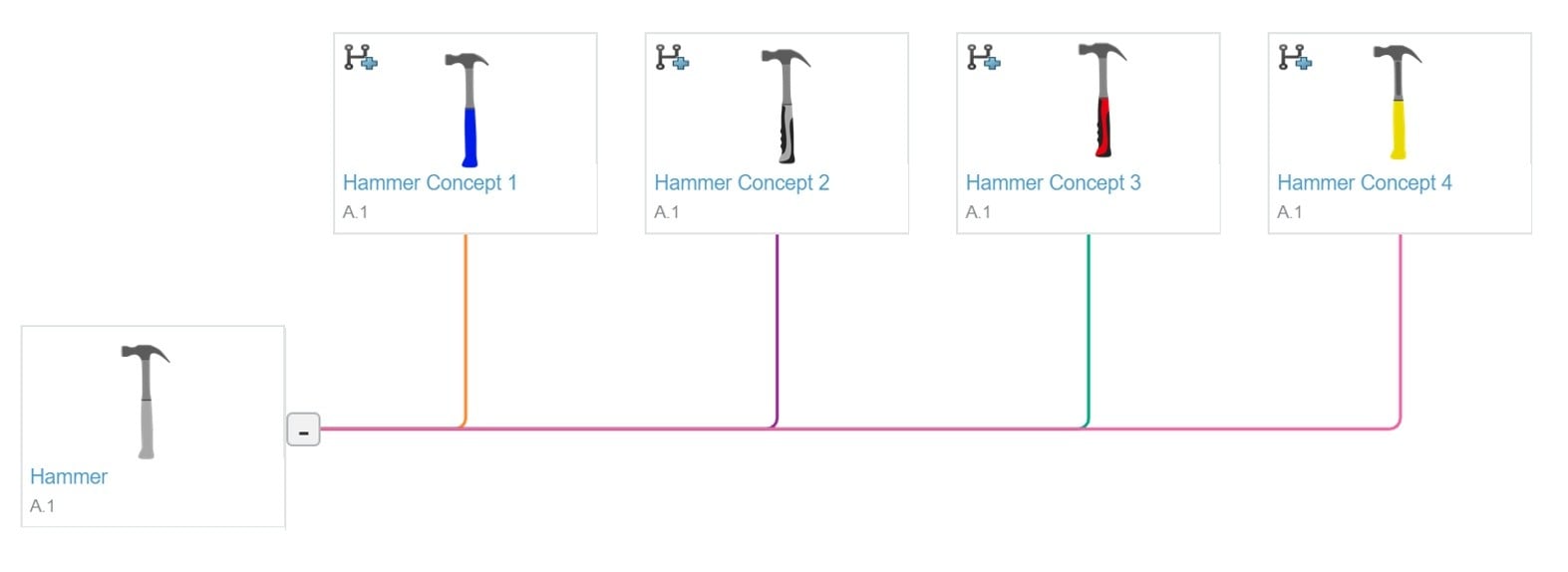
Sometimes, product design evolves in a non-linear way, with each iteration becoming a unique branch that may be similar to but different from the original idea. For example, a hammer can be used as the basis for a collection of various hand tools.

But there are dozens of specialized hammer types and other hand tools, such as hatchets and axes, that may have evolved from the first hammer.
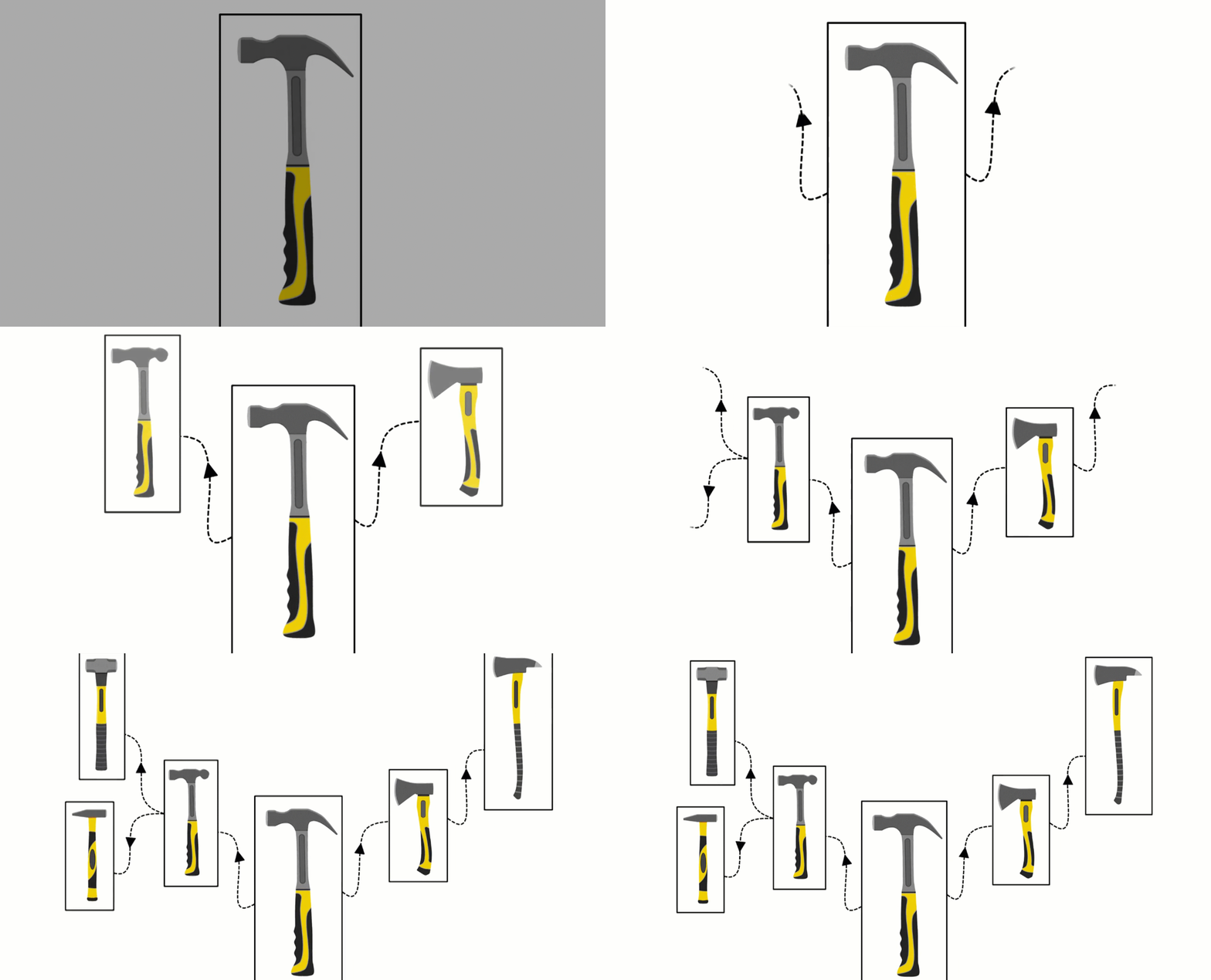
All these products feature similar elements that are repeated from one model to the next. This is where the New Branch command comes in. Simply click on the New Branch button in the action bar, and a simple window appears for naming the new branch and adding a comment:

The idea of creating a branch for a product (think “Save as”) is not new to design, but adding a graphical history overview is one way of visualizing the origin and complete history of a product.


Each of these branches exists as a single file on the 3DEXPERIENCE platform (i.e. any changes made to the original product will not be reflected in an associated branch), but they will always be visually linked to the original product.
Conclusion
The “New Branch” and “New Review From” tools are super cool, and add a lot of power to concept ideation.
I’d love to hear what you think about these features. Feel free to send your comments or questions to your dedicated CSM engineer!




