
Introduction
Deciding how design content will be organized, and who can access it and when, is an important part of preparing for the 3DEXPERIENCE platform.
This applies not only to large companies implementing a formal publishing and change control process, but also to smaller design teams just starting to use product review and lifecycle features.
Most users are used to the folder structure of Windows, and it’s important to understand how to work with 3DEXPERIENCE’s bookmark editor to stay organized.
Step 1: Manage access to collaborative spaces
1. Access collaborative spaces with 3DSpace
Definition: All files uploaded to 3DEXPERIENCE are stored in a so-called collaborative space. A collaborative space allows you to control who has access to the content it contains.
Collaborative spaces are managed using the“3DSpace” application.
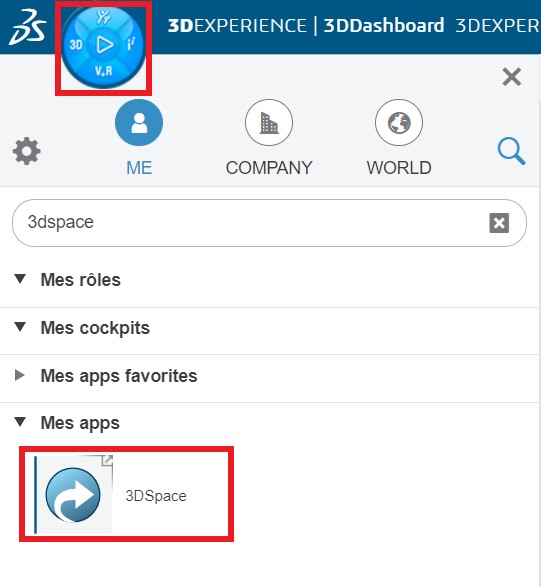
By default, every new 3DEXPERIENCE platform is preconfigured with a collaborative space called“Common Space“. All new users added to the platform are automatically added here.
2. Create a collaborative space
It may be a good idea to create a new collaborative space to store your design, to ensure that your intellectual property is preserved when you invite new members onto your 3DEXPERIENCE platform.
Tip: it’s advisable to create collaborative workspaces only when content-specific access control is required. One is usually enough! The more you create, the more complex it becomes.
You can create a new collaborative space by defining the title and description, as well as the visibility of the content for other platform users.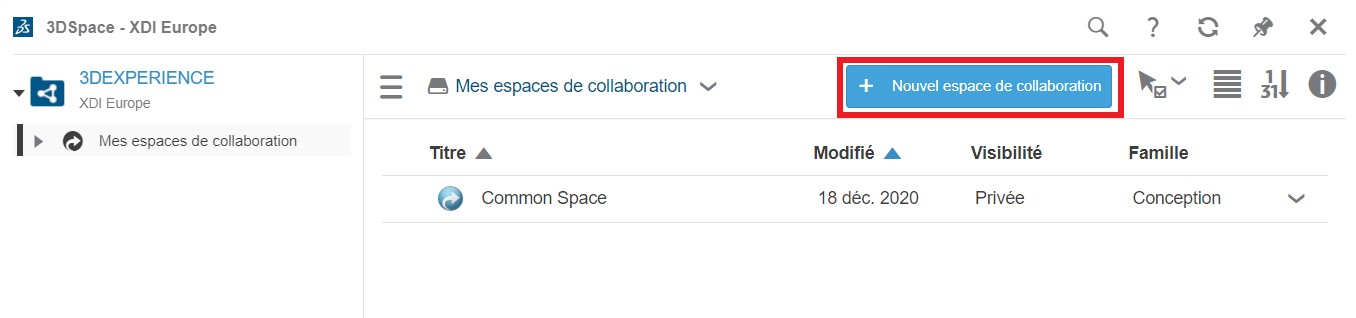
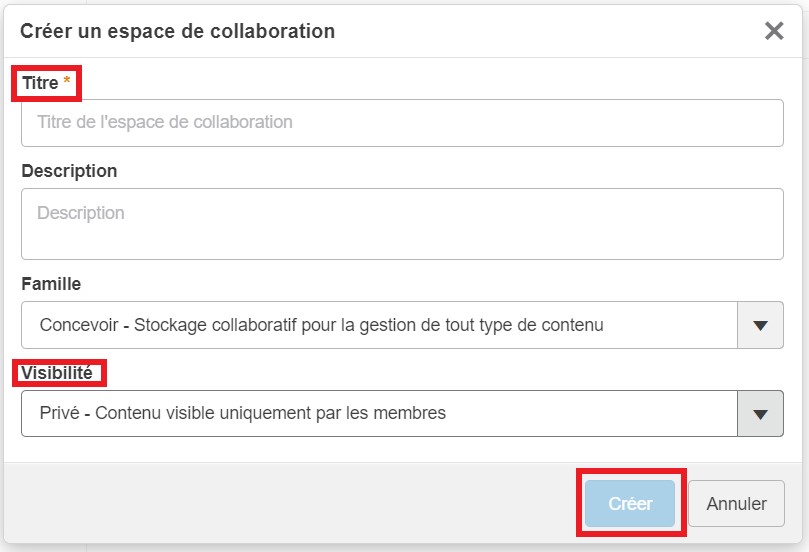
There are 3 types of content visibility:
- Private – Content visible only to members of the collaborative space. Recommended for projects where design content must be restricted to those working on the project.
- Protected – Only content in the Distributed and Obsolete maturity states will be visible to all platform users within the company.
- Public – Visibility of all content for all corporate users, regardless of maturity status. Recommended for standard parts and libraries.
3. Add members to the collaborative space
Select the collaborative space and add users.
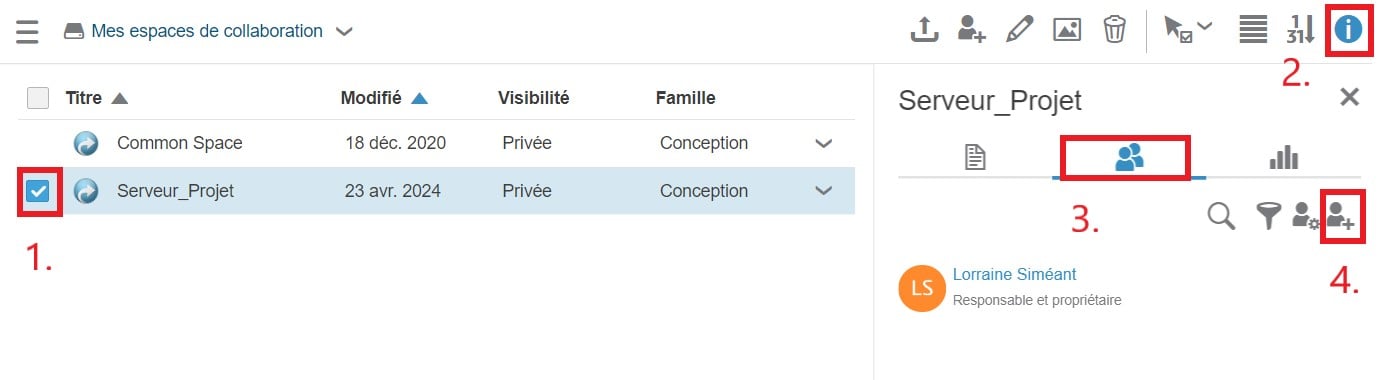
Note: Each newly added user is assigned a role which determines his or her access rights to the collaborative workspace: adding new files, modifying existing files or viewing only. There are different types of role:
- Contributor: provides read-only access to files
- Author : allows you to edit your own files; cannot distribute or delete other contributors’ content
- Responsible: allows a user to broadcast content
- Owner : allows a user to administer the collaborative space, including adding or deleting users.
4. Advanced settings
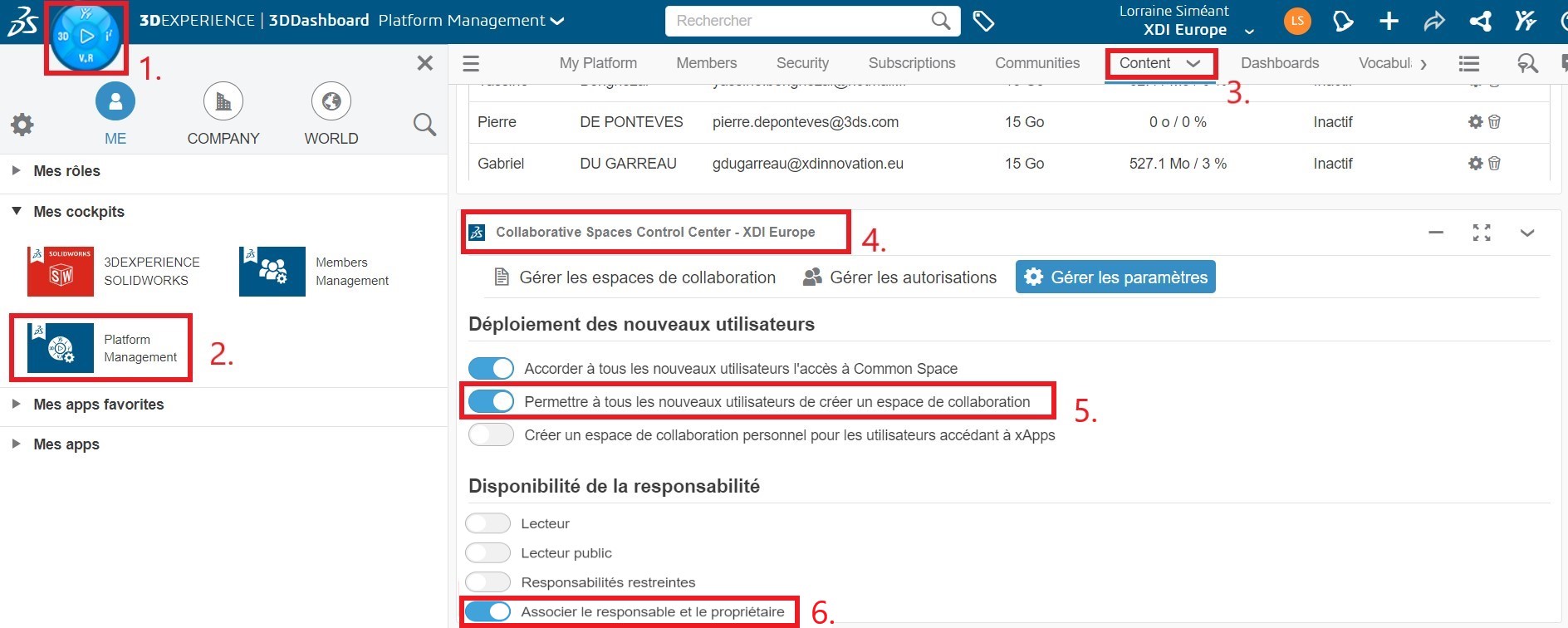
- Option 1: By default, all users can create collaborative workspaces. This can quickly become cumbersome. We recommend restricting the creation of new collaborative workspaces to platform administrators. This behavior is controlled by the“Allow all new users to create a collaborative space” option.
- Option 2: By default, the Manager and Owner roles are combined. They can be dissociated by selecting the“Combine manager and owner” option (recommended for large companies).
Step 2: Choosing your collaborative space on SOLIDWORKS and 3DEXPERIENCE applications
On SOLIDWORKS :
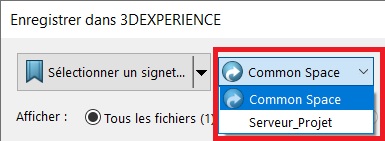
The choice of collaborative space is made when you save. So you can be sure that your files will land on the right space.
On CATIA and other applications :
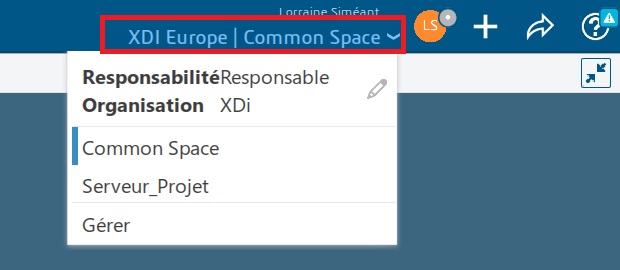
The choice is made as soon as the application is opened.
For more information on backup, please see our articles: Backup basics for SOLIDWORKS, Backup basics for CATIA.
Step 3: Create folders to organize your files
1. Creating folders with Bookmark Editor
Collaborative spaces are not designed to be used as folders.
Bookmark Editor is the main application you’ll be using. Bookmark Editor lets you create folders and sub-folders, just like in Windows.
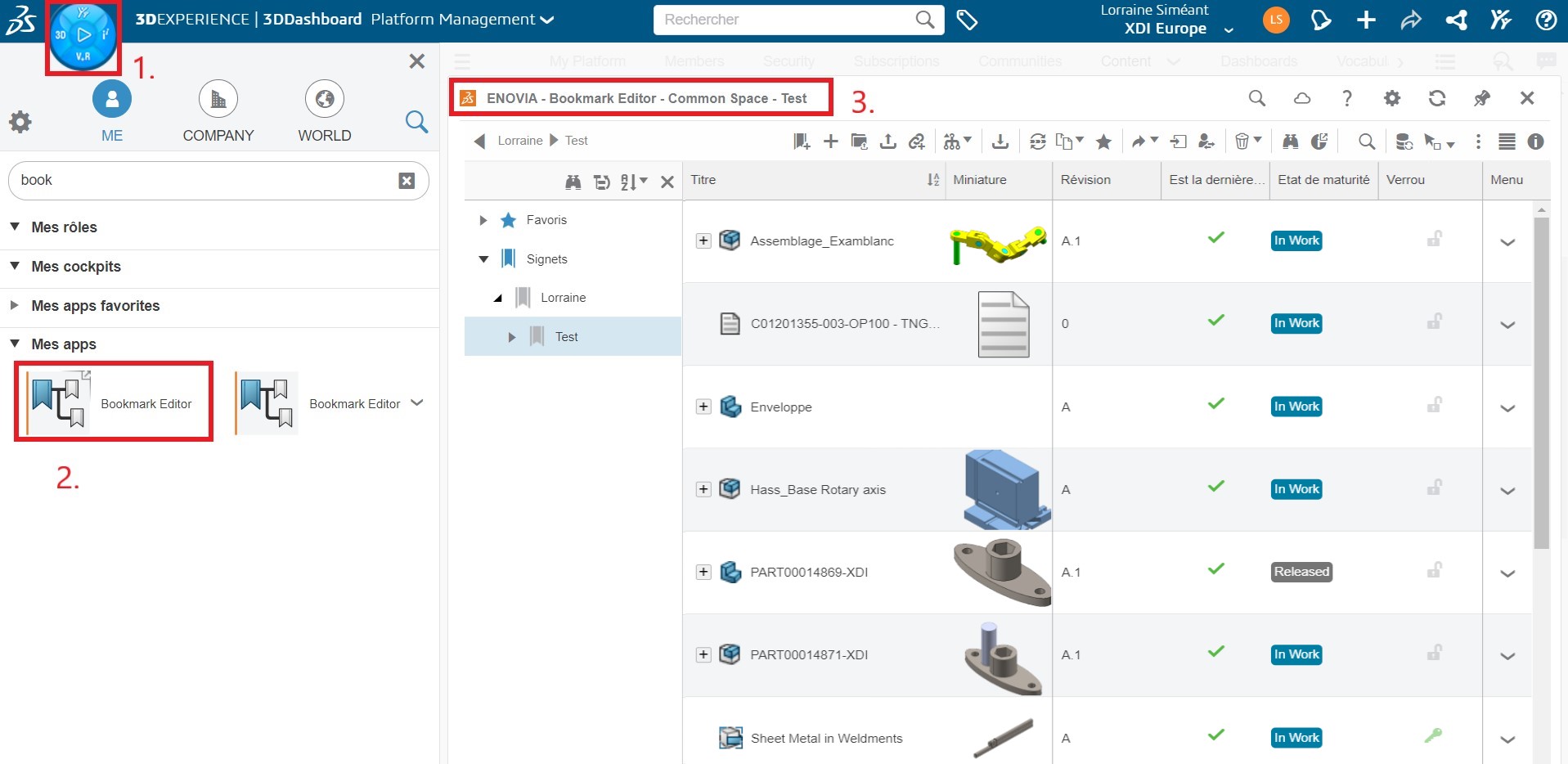
Tip: Bookmarks retrieve all references (there’s a “+” icon next to components), so there’s no need to save ALL your components in the same bookmark. Just save what you need for quick access!
In general, it’s the root assembly, and possibly the drawings.
2. Share folders with other users
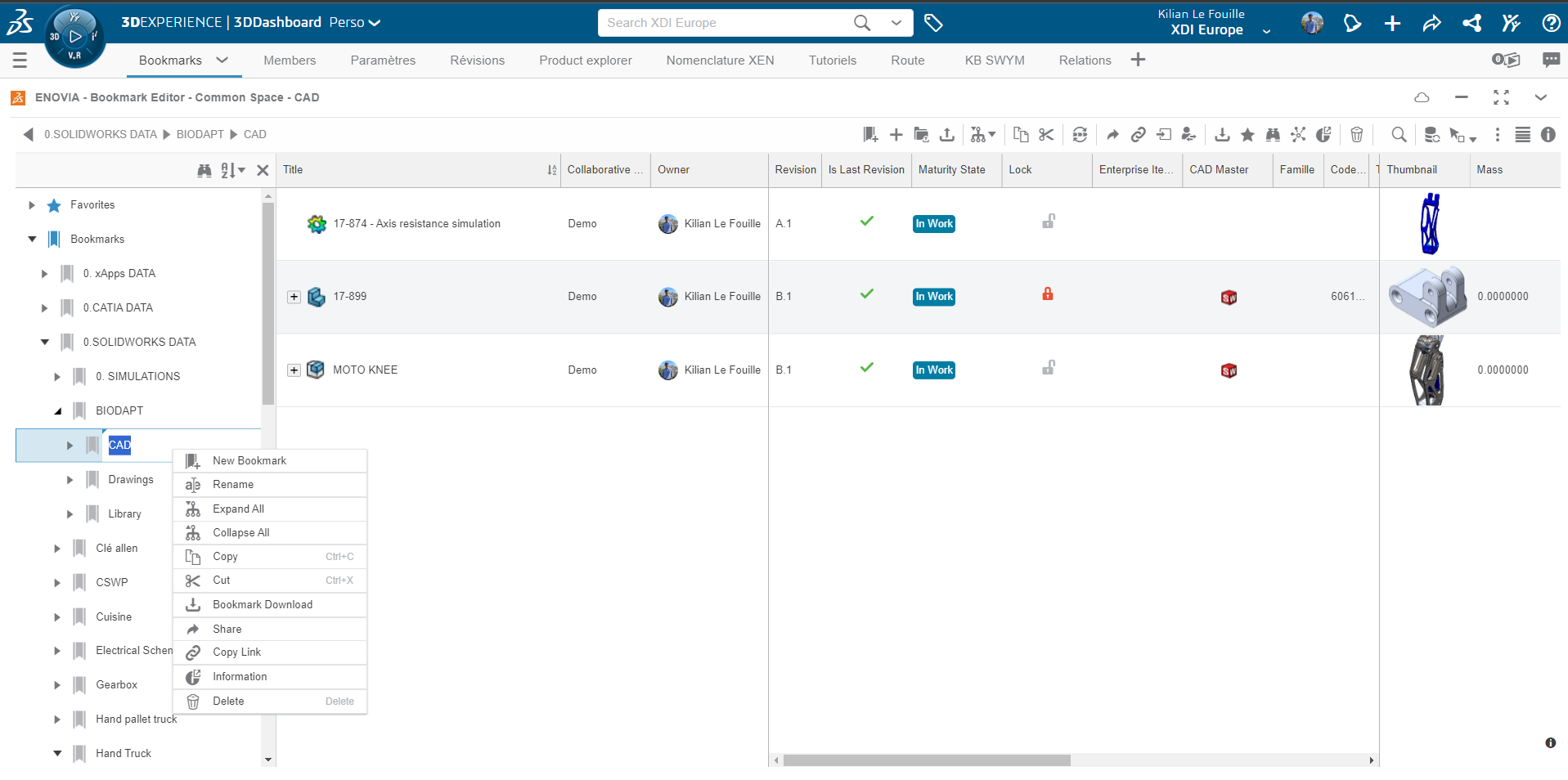
By default, new bookmarks are set to“In Process” status, making them visible to all members of the collaborative space.
To make a bookmark visible only to its creator, set the maturity status to“Draft” using the“Lifecycle” command in the bookmark editor toolbar.

3. Delete bookmarks and files
The delete command is divided into two parts: Delete and Remove.
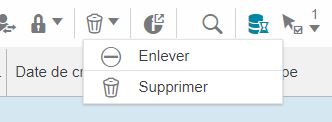
- Remove : the file will be removed from the bookmark, but will still be present in the collaborative space where it was saved.
- Delete : the file is removed from the bookmark and its collaborative space
These two commands can also be applied to bookmarks. On the other hand, if a bookmark contains a file used in other places, deletion will be blocked, so you’ll need to use the“Remove” command.
Summary
It is essential to organize and control access to content.
Collaborative spaces manage security and access, while bookmarks offer a familiar organization of design content in folder form.
It is not necessary to save all components in the same bookmark, simply use the“Expand Structure” button to navigate and open the structure.




