
Introduction
Whether you’re logging on to the platform for the first time, or your team and roles evolve (e.g. after a renewal), you need to know how to manage the people active on your platform and the roles assigned to them.
Everything you need to know before inviting members
- 3DSwymer is the prerequisite role for inviting someone.
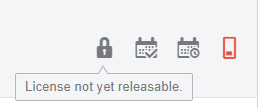
- When you assign a role to someone and that person uses it, the role is locked for that user for 30 days.
- The role is also locked for 2 hours after the last use by the user.
- We can’t remove the role if it’s locked.
Inviting new users
To add new users to your company’s 3DEXPERIENCE platform, access your“Platform Management” dashboard.
Fill in the e-mail address and access rights in the drop-down menu:
- Member: normal access to the platform
- Administrator: for access to the same dashboard and Platform Management functions
- External: to invite people from outside your company (as part of cross-company collaboration).
You can also choose to write a personalized message for the new user. When you’re happy with your choices, click “Next”.
Roles must be assigned to the new user. The prerequisite for logging on to the 3DEXPERIENCE platform is to have a “3DSwymer” role available.
You can then assign other roles. When you assign roles such as SOLIDWORKS or CATIA, the prerequisite role “Collaborative Industry Innovator” is automatically assigned.
Once you’ve assigned the appropriate roles, click “Next”.
Tip: you can invite someone in read-only mode with the “3DSwymer” and “Collaborative Industry Innovator” roles. No need for SOLIDWORKS!
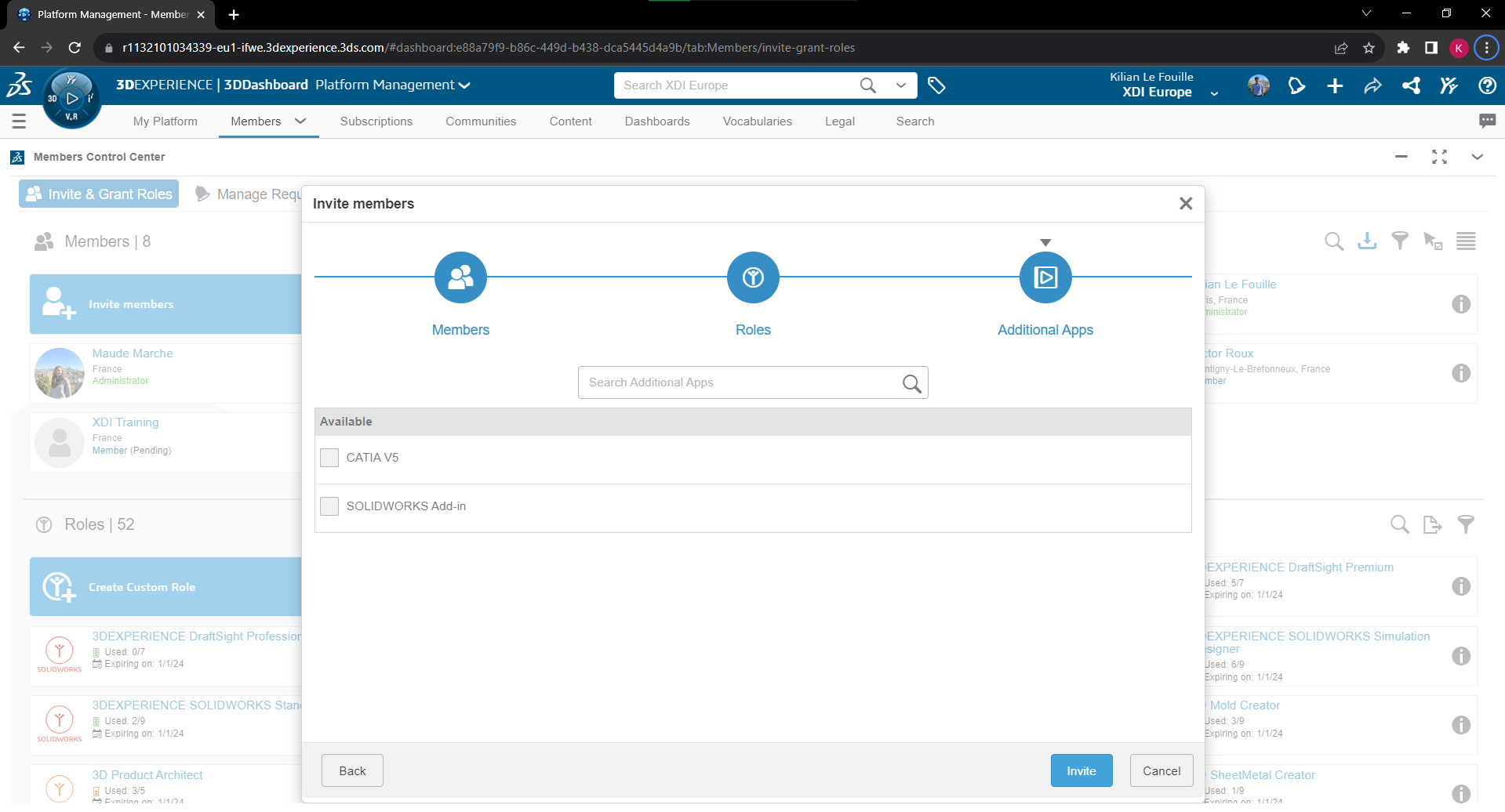
On the next page, you’ll find “SOLIDWORKS add-in” and “CATIA V5”. This is simply a connector for users who already own the older generations of SOLIDWORKS and CATIA. It is not the complete software!
We advise you not to select these options.
An invitation will then be sent to the new user by e-mail. Click on the link provided, create an account and log in.
How to delete a user
You can only delete a user if his or her role is not locked (see the conditions for a role to be locked earlier in this article).
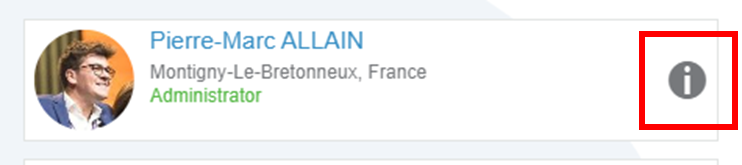
Go to the user’s details:
Then in Settings :
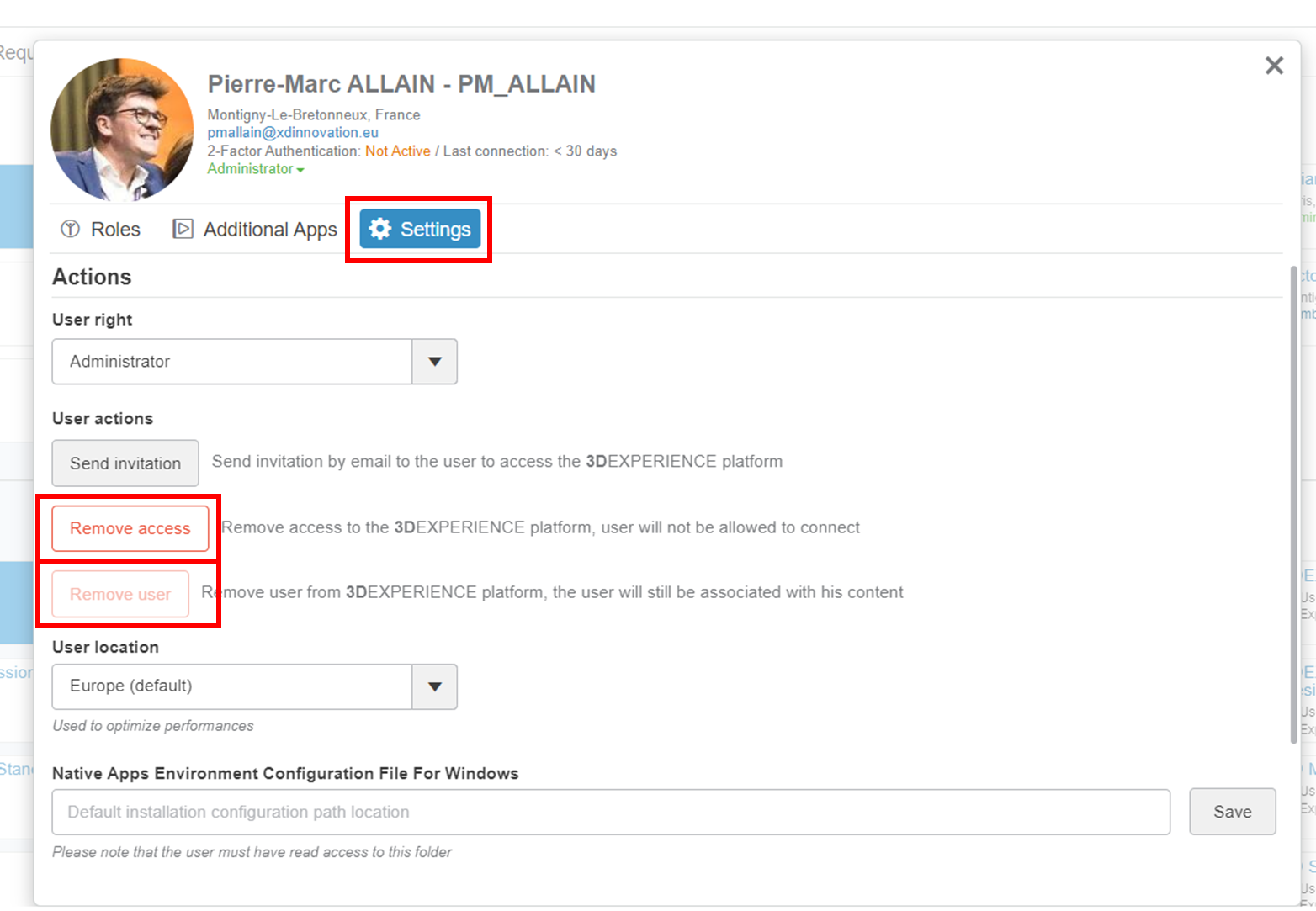
You can then :
- Remove access – the user will no longer be able to log in, but you can reactivate access at any time.
- Delete user – this removes the user from the platform. You can invite them back later if necessary.
Content created by this user will always be associated with his or her name, so you won’t lose any traceability. You can change the owner of files if necessary.
Tip: Stop sending and importing files with your suppliers/customers if they also have 3DEXPERIENCE.
See our article on inter-company collaboration, to invite external members to work with you on the same platform!




