
Introduction
First of all, let’s agree on the definition of an external reference.
Definition: external references are created when a part is built directly into an assembly. Using the existing geometry of another part to help create a new part generates an external reference. So, if the referenced element changes, so does the reference that depends on it.
Using external references is a useful practice when the design is likely to undergo major changes. This applies in particular to preliminary projects.
Please note: at a later design stage (final design, production), external references must be removed or broken.
I – A practice… not so practical!
While the use of external references may seem straightforward, it tends to give rise to a whole host of complications that we could do without!
1. Forget about manufacturing
As mentioned in the introduction, the geometry of external references depends on the geometry of other parts. So there are no dimensions to speak of, no tolerances or anything else… in other words, it would be complicated to start manufacturing such parts!
2. Long calculation times
Each modification made to the original part will result in the updating of the external references that depend on it. If the assembly concerned is quite large, this can lead to significant calculation times.
The risk of long loading times when rebuilding, opening or saving parts is increased by the presence of external references.
Warning: in addition to wasting time, you may even crash SOLIDWORKS, and lose some of your work.
3. Lost or corrupted references
Modifying files can also cause problems: moving, renaming or deleting a file can lead to lost external references.
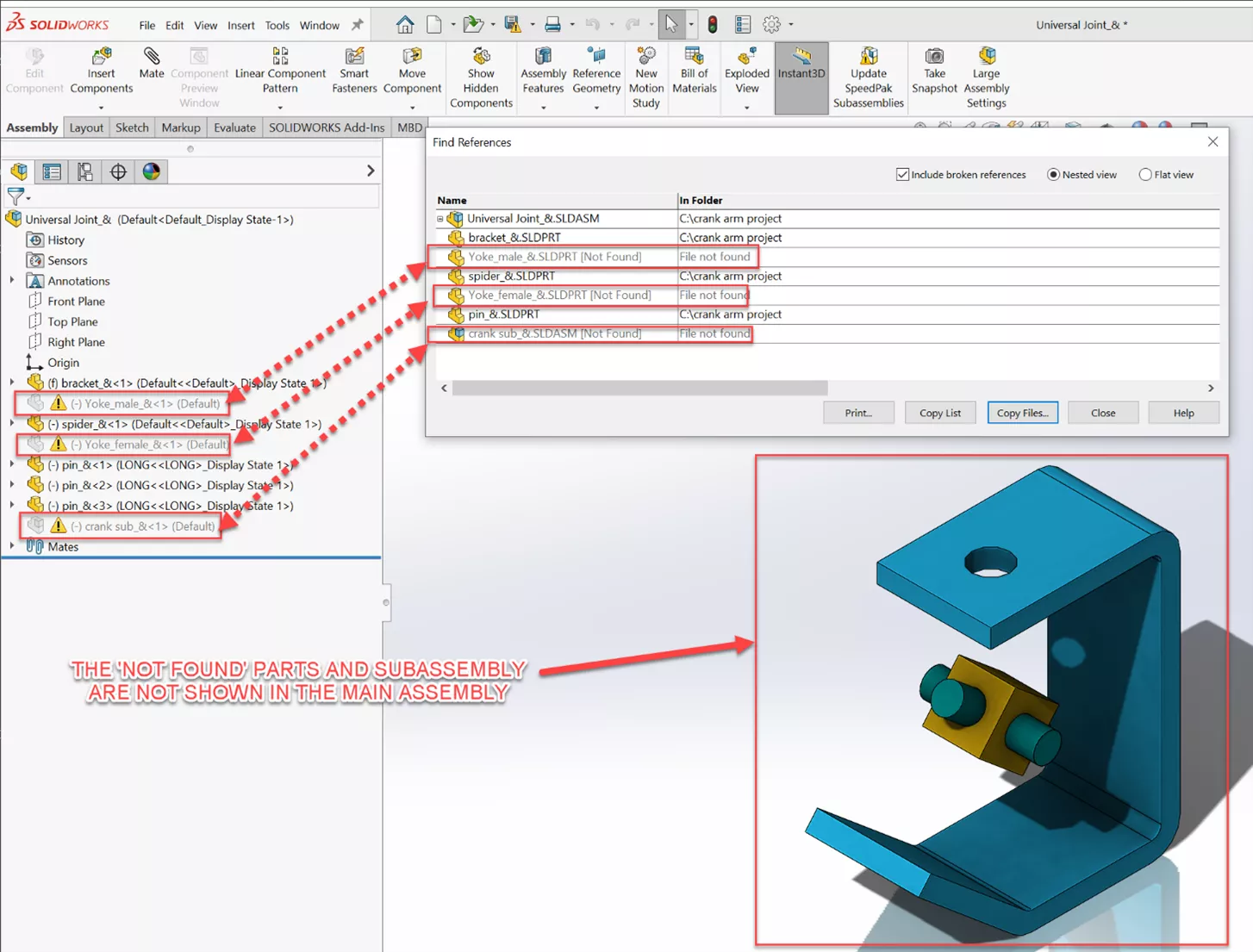 To illustrate, let’s imagine that we create part 1 in assembly A and wish to use it in assembly B. Part 1 depends on Assembly A, which is not present in Assembly B. This creates an unrelated external reference in assembly B, resulting in a loss of reference.
As a result, the software will “running around in a vacuum” trying to find the missing references. That’s a lot of computing time for nothing!
Once again, you’ll waste a lot of time and risk crashing everything.
4. The vicious circle
When you start working with external references, it’s easy to have a lot of them, and above all, to make them all depend on each other. This can lead to cyclical references. SOLIDWORKS may then display error messages or crash.
Please note: the more external references there are, the greater the potential for problems.
5. Time bomb
At the start of the project, external references are fewer, links are not lost – everything works.
After a few weeks or months, it may not be so well managed: references lost, broken, cyclical… Your assembly is very slow, there’s a problem.
Except that you’re nearing the end of the project, you’re in a hurry, and you need to find the source of this problem. But you’ve got external references everywhere: sketches, functions… It’s almost impossible to delete them all.
In CAD, design intent is very important. The work you do in the early days can avoid problems that will only become apparent months later.
In short, using external references has a snowball effect on design problems.

II – Adopt the right reflexes
The use of external references must be a well-considered design intention.
It’s highly recommended to work without it, to ensure a robust design. However, if the context requires you to work with it, it’s best to learn how to do it properly.
1. Working without external references
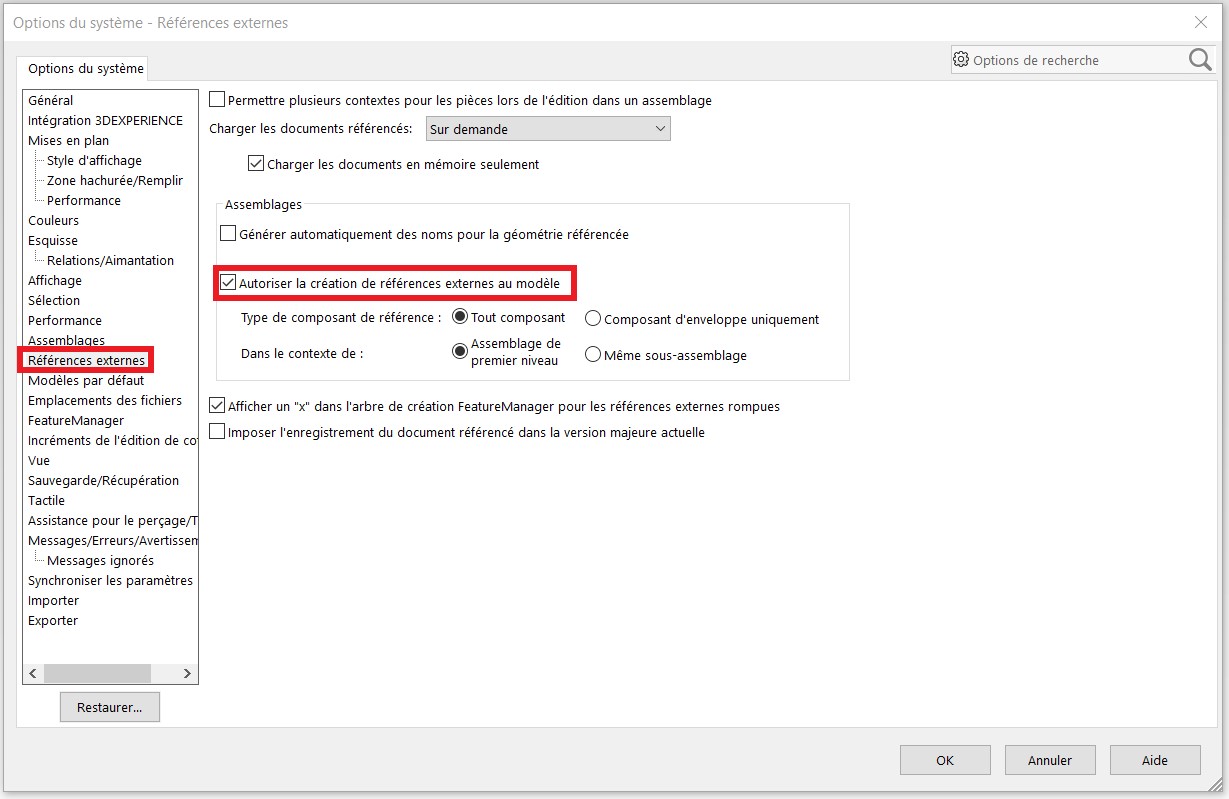
Working without dependence on external references is advantageous, as it allows more autonomous design, minimizing the risk of complications associated with file modification. There is also an option to prevent the use of these references, offering an effective means of preventing their use by designers.
On SOLIDWORKS, simply go to Options, and uncheck the box authorizing the creation of external references.
2. Working with external references
2.1. Keep an eye on external references
External references are like children: you have to keep an eye on them! You always need to know where they are and what they depend on. In this way, you can avoid multiple links and other annoyances encountered in the previous section.
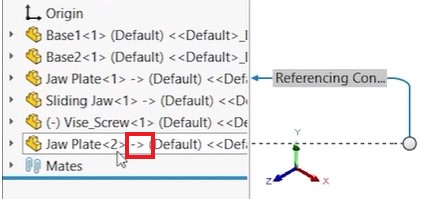
External references can be viewed in the design tree; a small arrow stuck to the name of an element indicates that it is an external reference. These arrows give an indication of the “state”:
- – >: reference “in context”, works properly
- ->? out-of-context reference, file loading problem
- – >*: locked reference, cannot be changed
- – >X: reference broken
When you move your mouse over an external reference, a link is drawn, showing to which part it belongs.
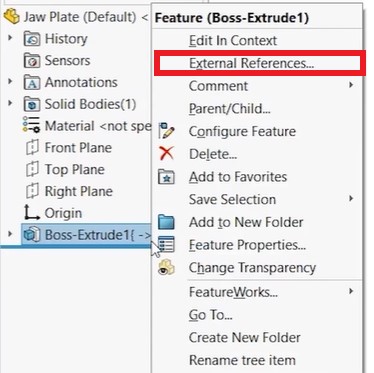
 External references can also be accessed by right-clicking on an element and selecting“External references“.
2.2. Locking external references
When modeling is complete, it is useful to lock it.
Tip: locking external references reduces loading times when rebuilding assemblies
When an assembly is locked, this means that external references will not be updated. To update, simply unlock the assembly and rebuild it.
To lock external references, use the“External references” command described above.
It gives access to the following dialog box:
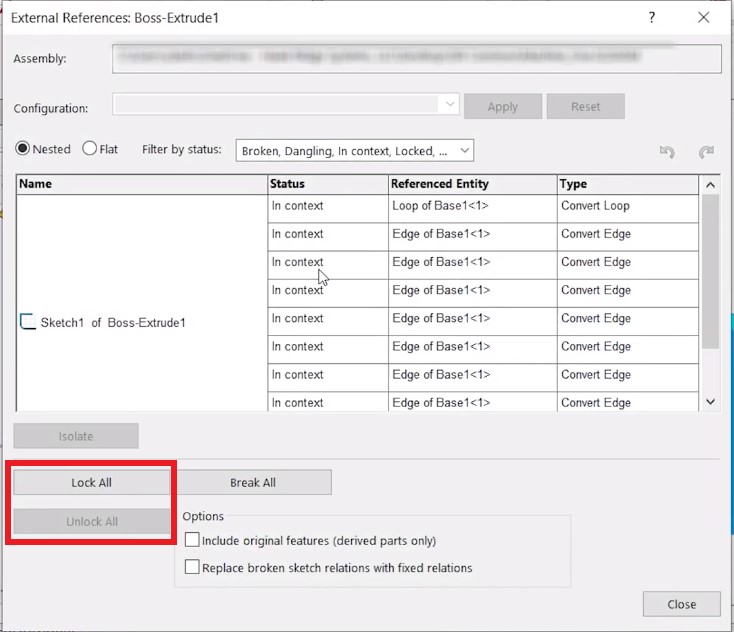
You can unlock your external references at any time.
2.3. Working with a skeleton
One of the most common ways of designing with external references is to use a skeleton as a basis.
The skeleton is a part that contains no 3D, only sketches. The parts of the assembly refer to this skeleton for placement.
Bear in mind that the latter should only be used for positioning your parts, not for sizing them.
Conclusion
External references should be used with caution, and only in the preliminary design phase. A design that doesn’t use them will be much more robust, and will avoid many time-consuming problems.
Further information
Find out more about external references.




