
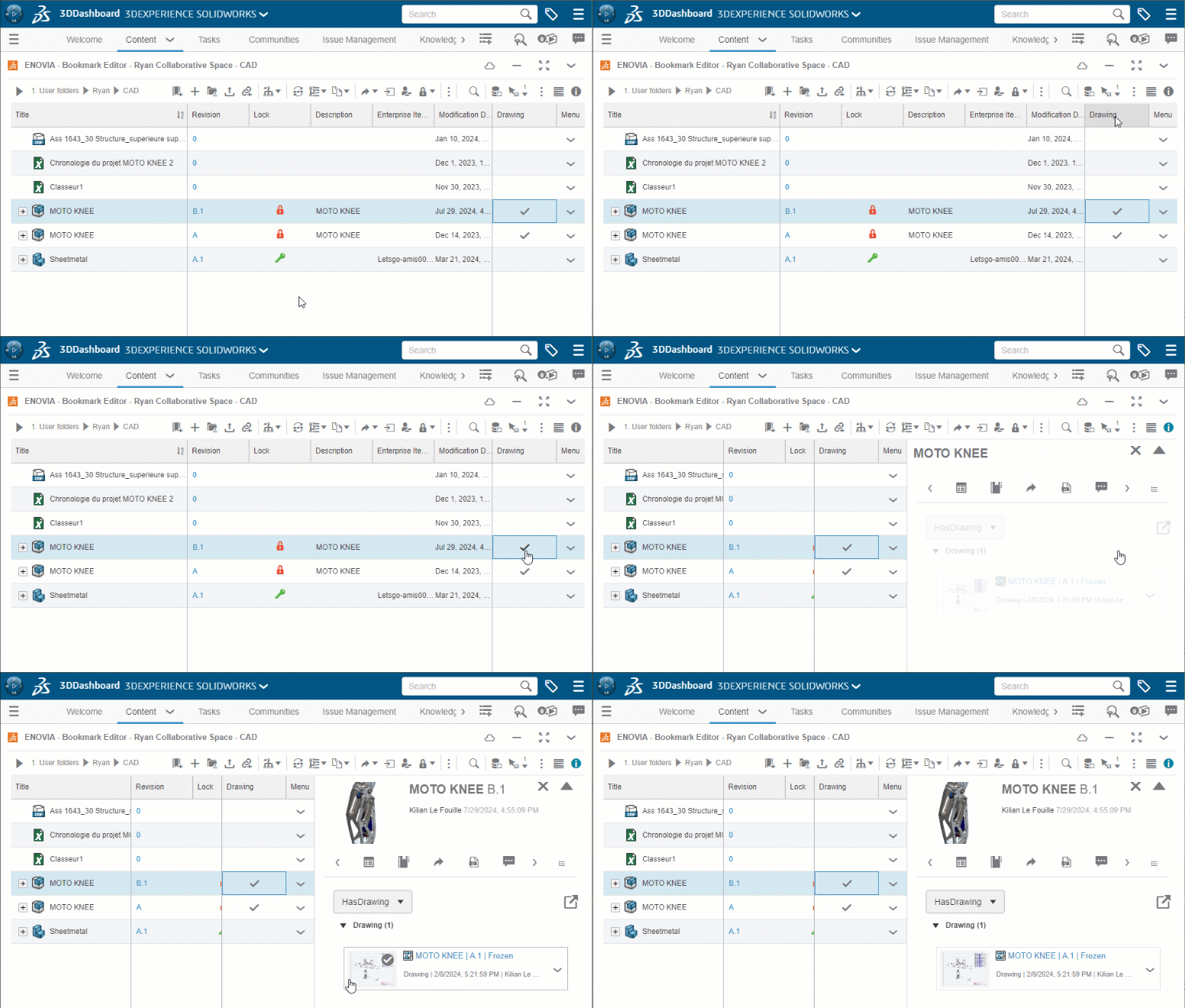
The aim of this article is to add a“drawing” column to your bookmarks that directly displays the drawing linked to your part or assembly.
Step 1: Setup
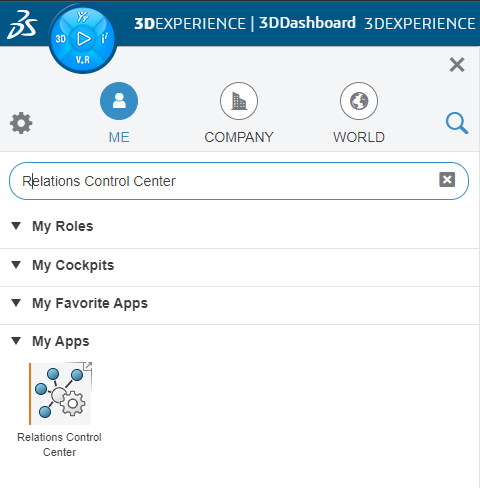
First, click on the compass, then search for the“Relations Control Center” application.
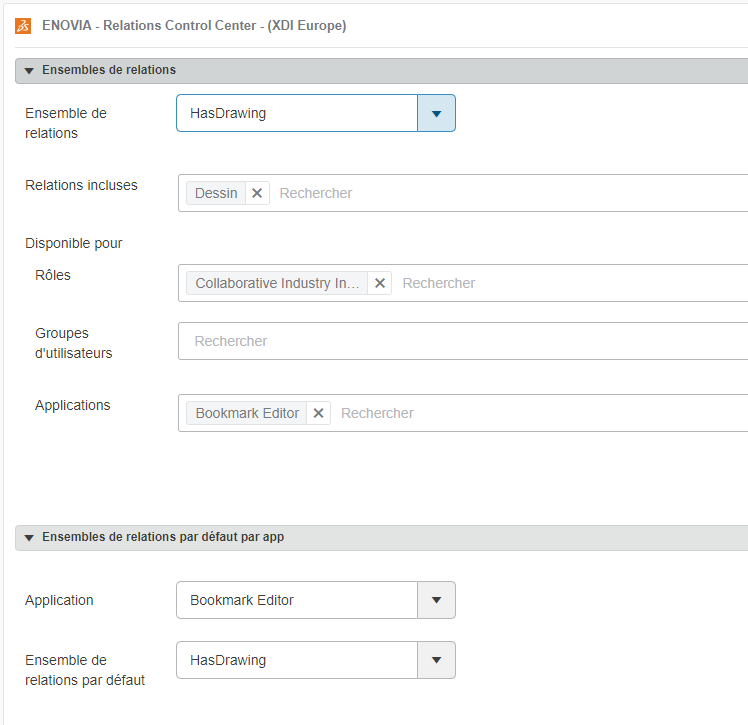
- Click on the “+” and enter the desired name for your new column (in our example“HasDrawing“).
- In the“Relationships included” field, select“Drawing“.
- In the “Available for Roles” field, select“Collaborative Industry Innovator“.
- In the“Applications” field, select“Bookmark Editor“.
- Click on“Save” to save your changes.
- In the menu at the bottom of the page, in the“Application” drop-down menu, select“Bookmark Editor”, then in the“Default relationship set” drop-down menu, select the relationship you’ve just created.
- Click on“Save“.
- In the“Set of relationships” drop-down menu, select“Document Relations“.
- In the “Relationships included” field, add“Drawing“.
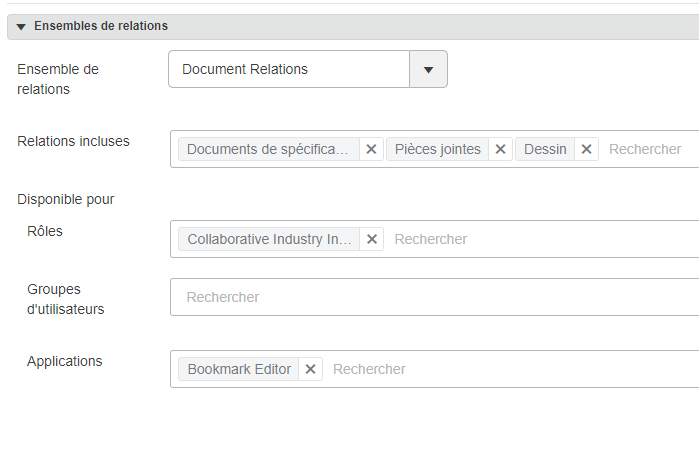
- Finally, click on“Save” to save your changes.
Step 2: Add column to Bookmarks.
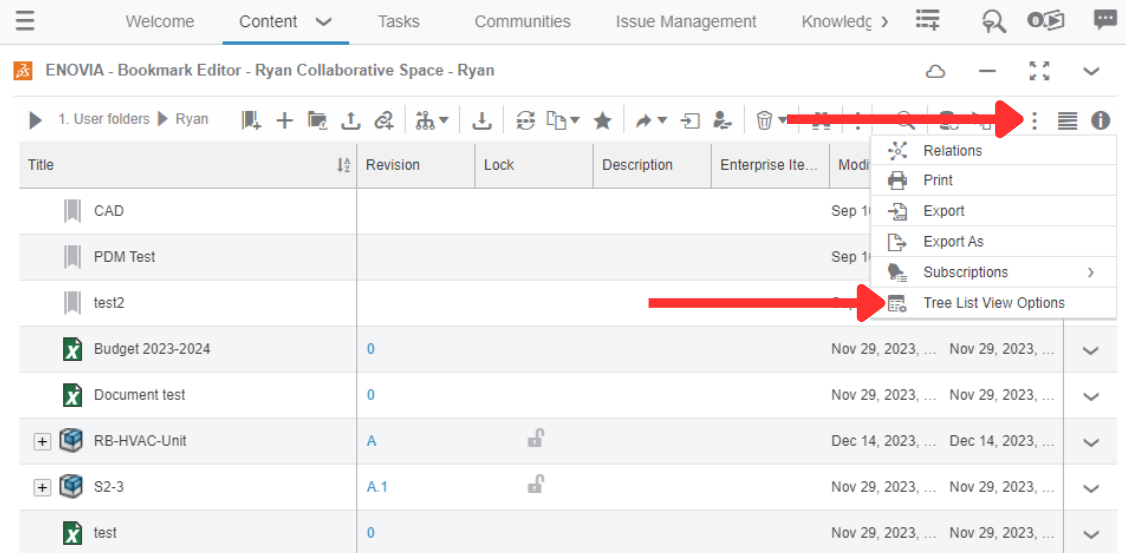
First, go to the“Bookmark Editor” application.
Click on the three dots , then on“Tree List View Options“.
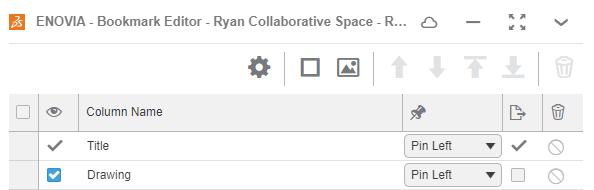
Finally, check the“Drawing” box.
Step 3: How to use the column.
Return to your Bookmarks, where you’ll find the“Drawing” column.
It indicates which parts/assemblies have an associated drawing.
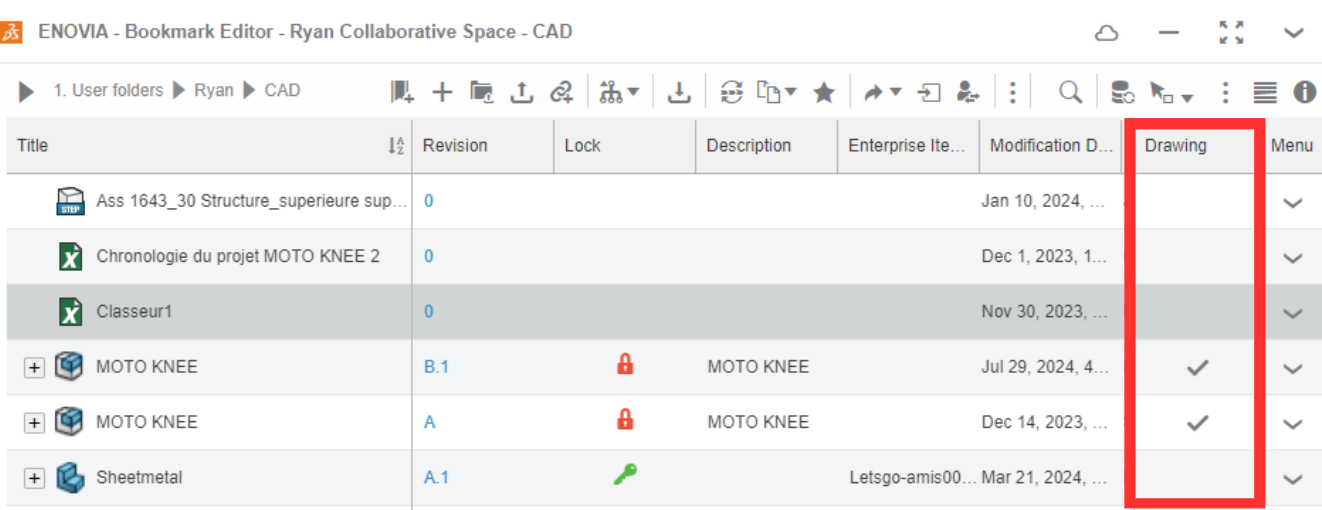
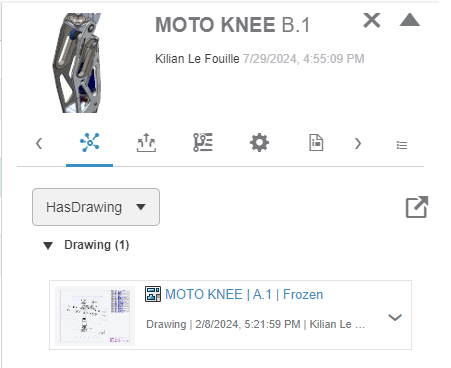
You can then click on the grey tick to go directly to the associated drawing.
You’ve just saved yourself 20 minutes a day!
Need assistance? Send an e-mail to support@xdinnovation.eu
post tags :
solidworks online
Solidworks 3DEXPERIENCE
Solidworks for startups
industrial startup
SOLIDWORKS 2026 pricing
industrial
startup
associative
solidworks legal
solidworks hacking
free licenses
subscriber
lium
solidworks
incubator
drafter
cloud
technical support
catia
CATIA V5
heavy-duty assemblies
solidworks design 2026
Solidworks cloud




