
Introduction
Prerequisites: the collaboration mode described in this article is only applicable to users of the 3DEXPERIENCE platform.
You need the following roles: 3DSWYMER; Collaborative Industry Innovator
It is possible that you are currently experiencing one of these situations:
- Outsource the design of your parts to a subcontractor
- Temporary need to share with an outsider
To share your data and those of your colleagues, you probably use tedious file sharing by e-mail or other methods from another era…
Did you know that the 3DEXPERIENCE platform can greatly facilitate collaboration between different companies?
Advantages: you can manage member access rights and keep track of data history and traceability, all at no extra cost!
Shared files are thus available on a single “server”.
Step 1: Setting up the platform
A – Authorize access to employees/roles/licenses
The first step is to authorize collaborators to access your space, and manage their access to your roles and licenses.
On 3DEXPERIENCE, go to“Platform Management“, the“Members” tab, then“Configure member options“.
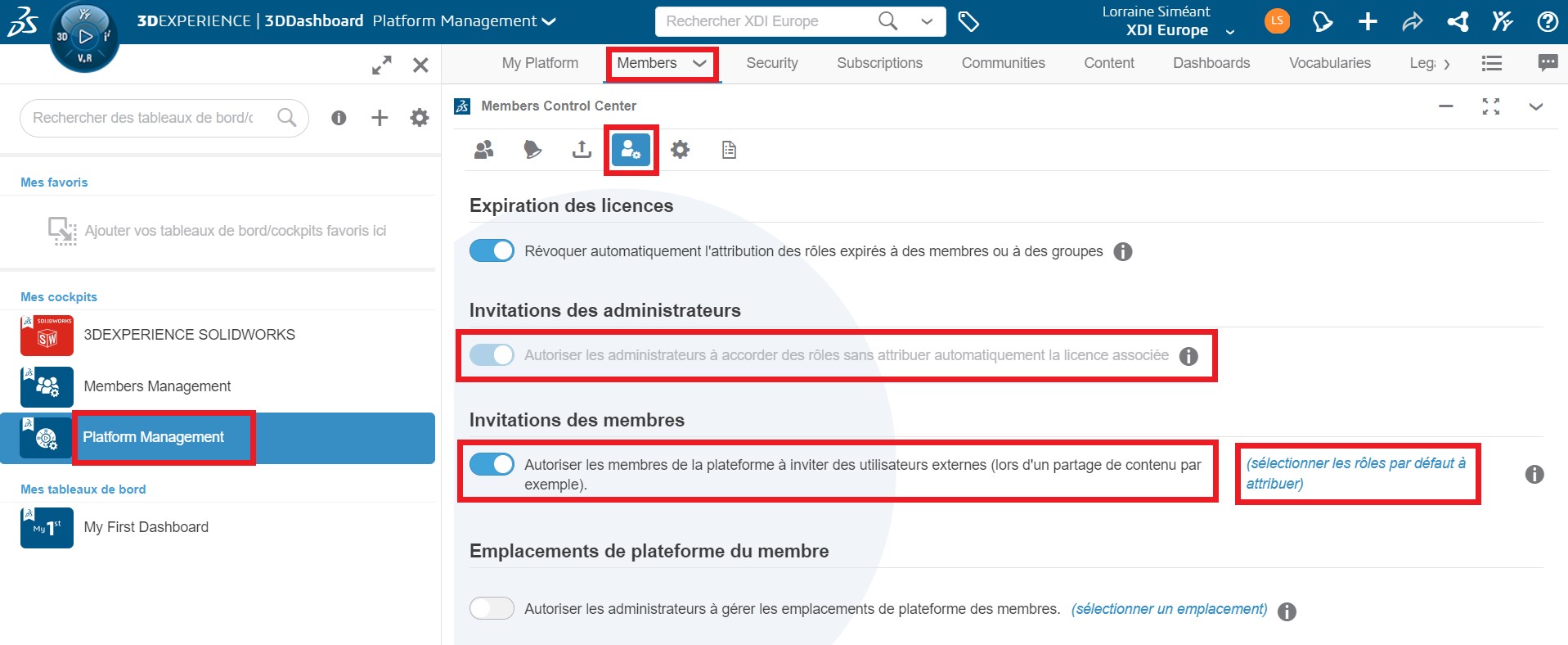
Activate the :
- “Allow platform members to invite external users“.
- “Allow administrators to grant roles without automatically assigning the associated license“.
B – Inviting collaborators
On the same page, still in the“Members” tab, click on“Invite and grant roles“, then“Invite members“.
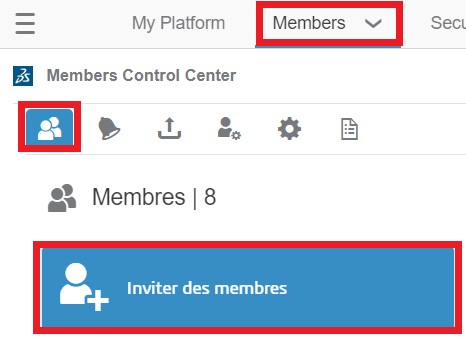
A dialog box opens:
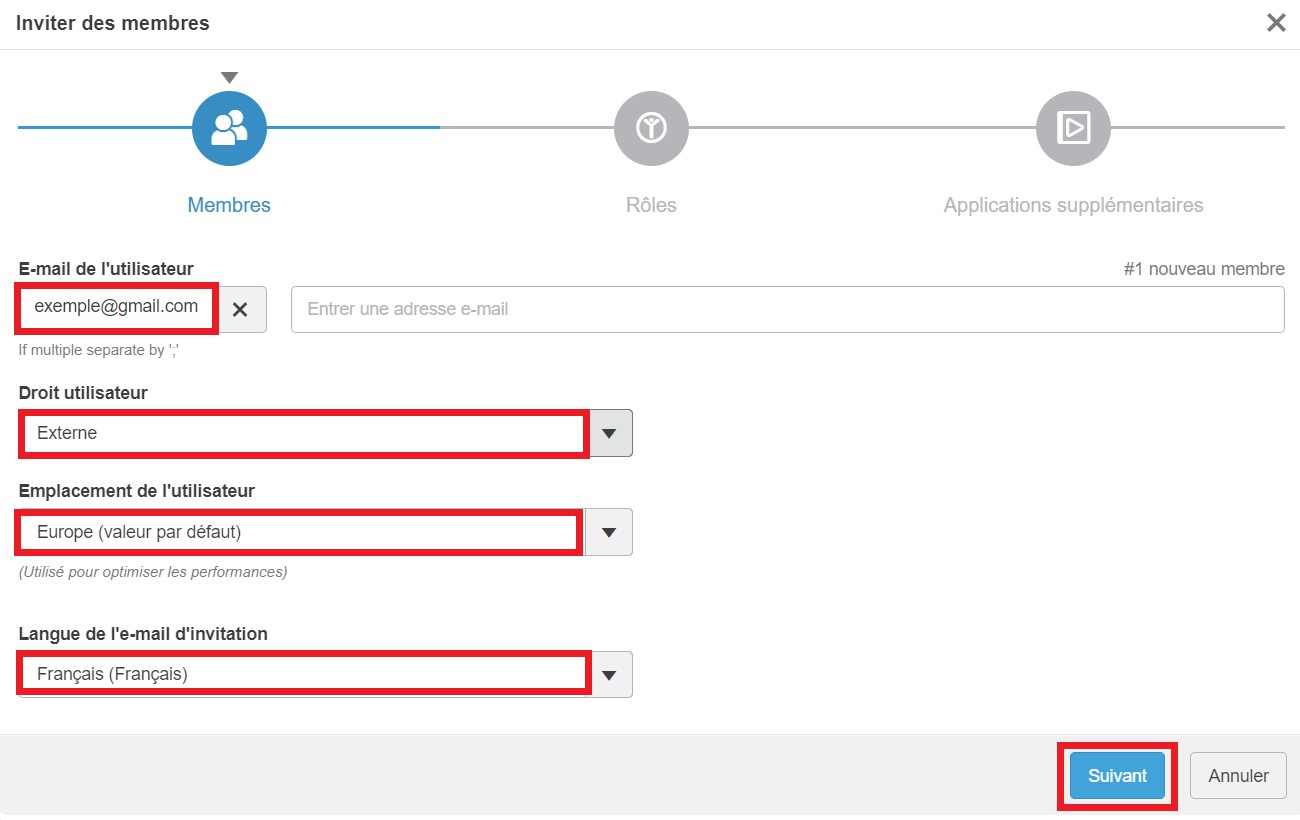
Then click on“Next“.
Select the roles to be assigned, and check the licensing and usage options.
Warning: If you forget to uncheck the “Assign a license” box, your collaborator will consume one of your licenses, which you have paid for.
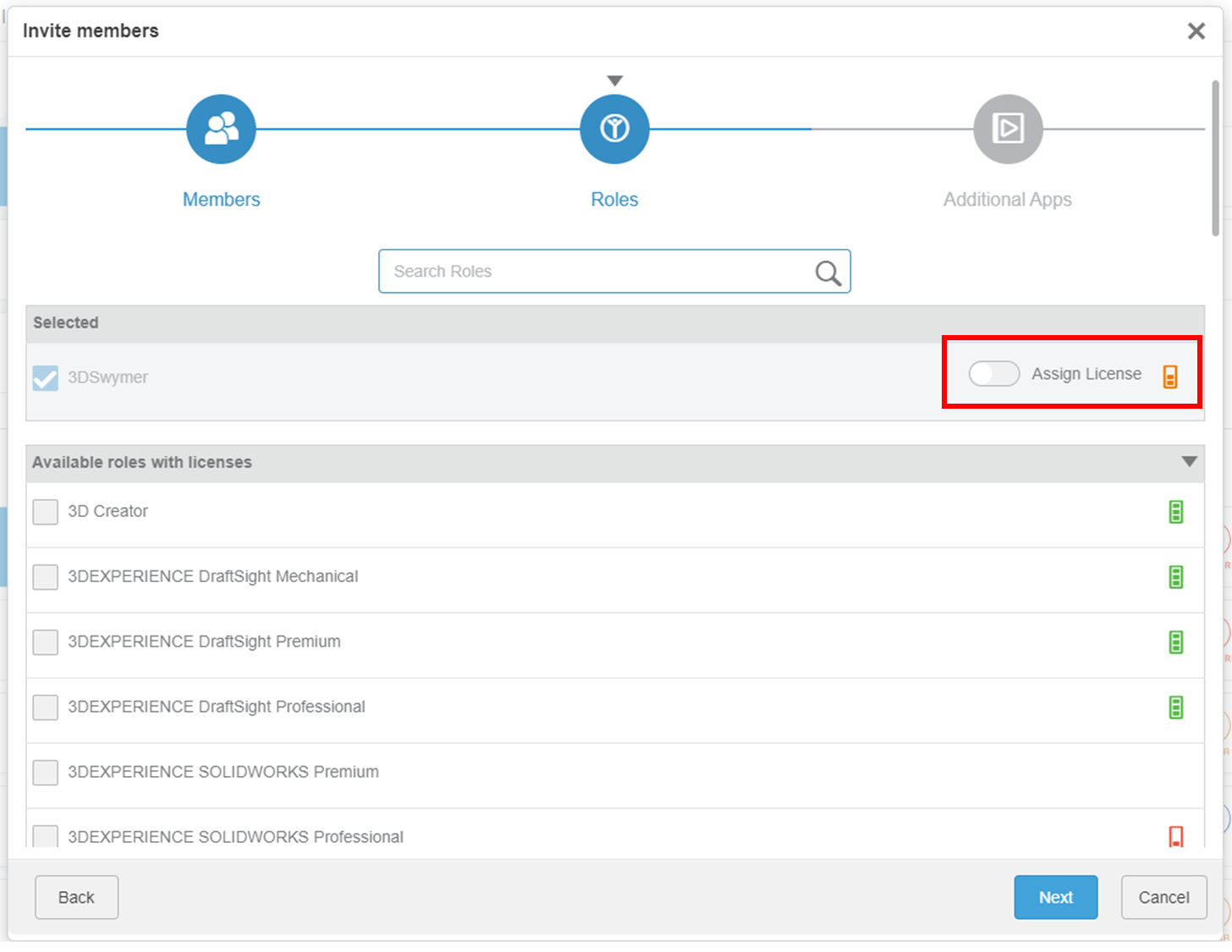
Then click on“Next“.
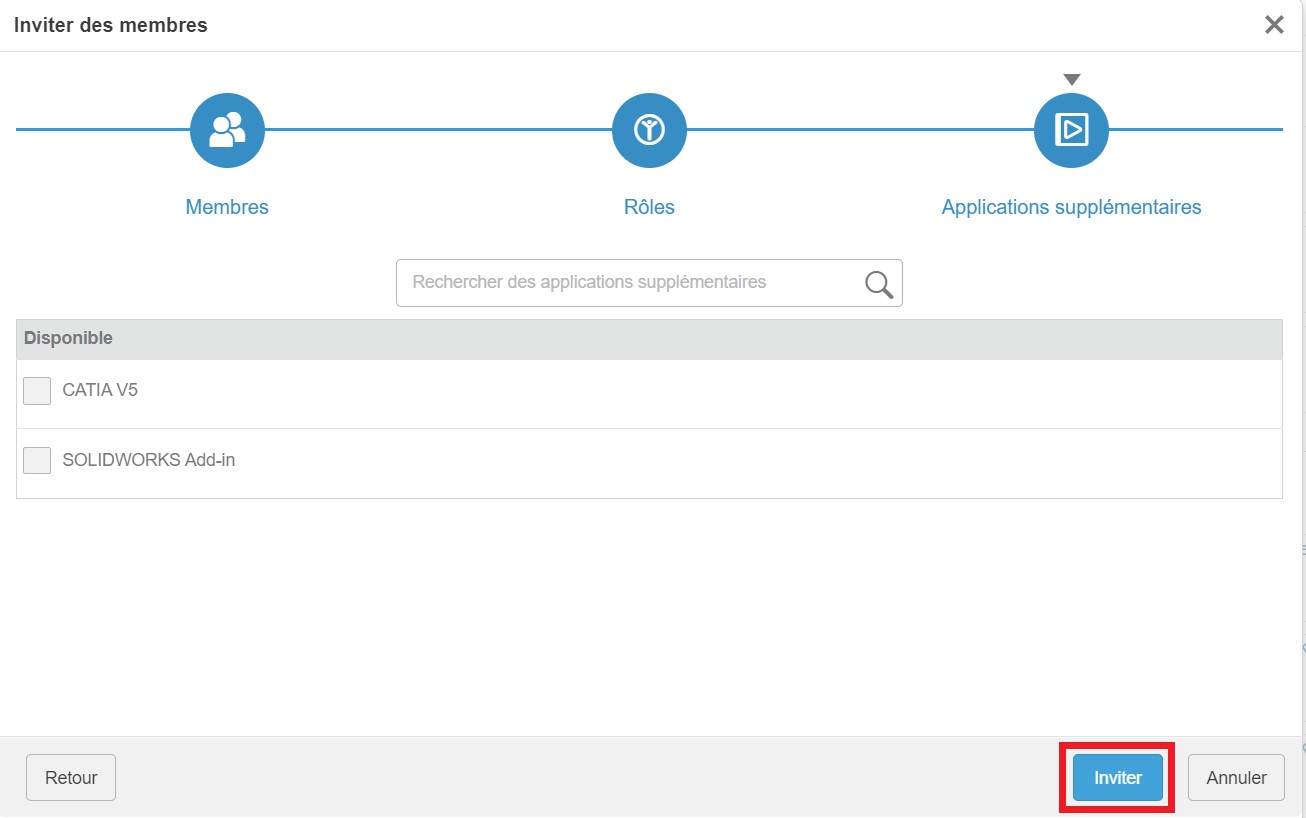
You can invite as many members as you like, without using up your own licenses.
Your colleague will receive an e-mail with an invitation link to the platform.
Step 2: Data sharing
Now that everything is set up and your collaborators are invited, you can use the platform to share your files.
You will then :
- Create a file-sharing server
- Manage backup folders
To do so, check out this tutorial !
Step 3: Edit/delete accesses
Once your project is complete, you want to modify or delete your employees’ access rights?
To learn all about it, go to this tutorial!




