About updates
You can consult the details of each update on this link.
There are several types of updates:
- Major update (R202Xx): corresponds to a SOLIDWORKS year change (from 2022 to 2023, etc.).
These updates take place at the end of each year. They are compulsory (red icon) and must be done in order to launch SOLIDWORKS.
- Minor update (FD0X): corresponds to the addition of new features and bug fixes.
This occurs approximately every 3 months. You have 2 weeks to update before it becomes mandatory (orange icon).
- Hotifx (HF): these are critical bug fixes. This type of update is rare and optional (orange or green icon).
Update example: R2023x FD03 HF3.6
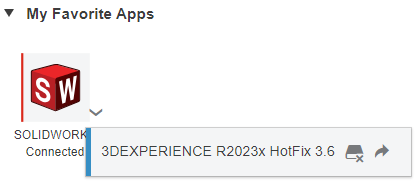
Here, no colored icon: no update available
Note: you will be notified by e-mail a few weeks before the update. Prepare yourself and your teams to have some time to update licenses.
How do I update?
0. Disable offline mode
If you were offline, open SOLIDWORKS and reconnect.
1. Close SOLIDWORKS
We’re pushing open doors, but it’s better to say so.
2. Open the 3DEXPERIENCE platform
If you don’t have it bookmarked, click on the Launcher icon in the bottom right-hand corner of Windows :
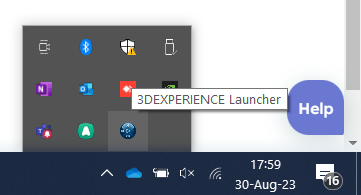
Alternatively, use this generic link: https://eu1-ifwe.3dexperience.3ds.com
3. Open the compass and search for the SOLIDWORKS application
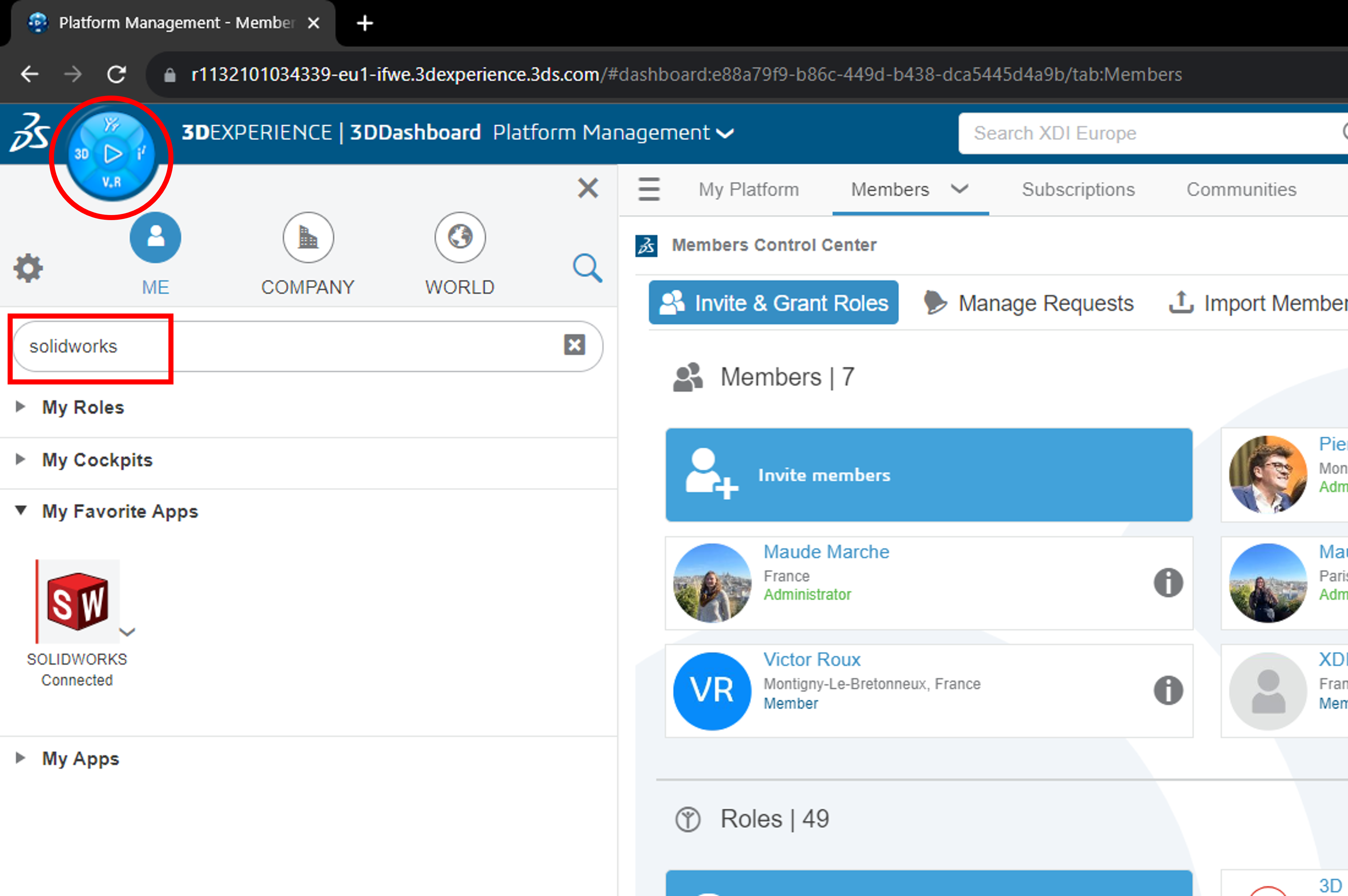
4. Click on the drop-down menu next to the SOLIDWORKS icon
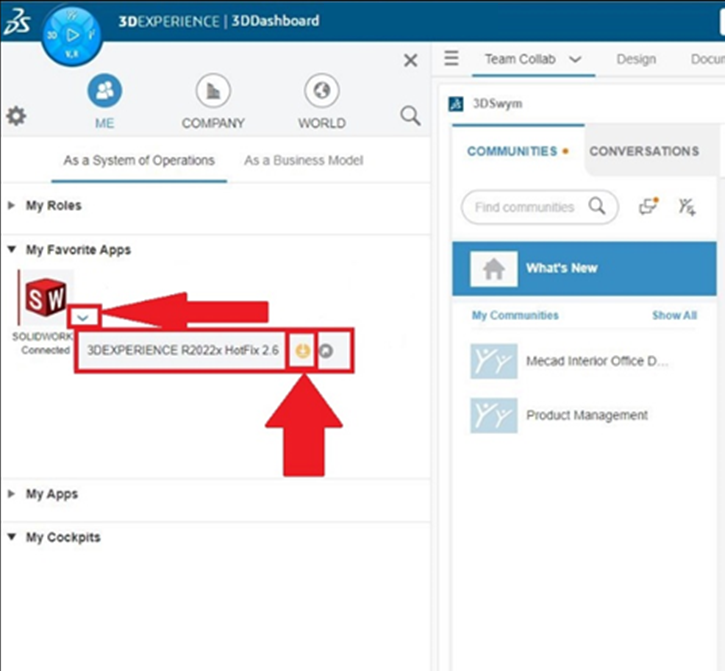
And select the red / orange / green arrow (depending on the type of update)
Sometimes, the 3DEXPERIENCE Launcher also needs to be updated. The update runs automatically, and once completed, you can update SOLIDWORKS Connected.
5. Follow update instructions
If any error or warning messages appear, check that they are not simply processes running on your PC that are blocking installation.
Close these processes if this is the case.
Please note: do NOT restart your PC during the update, even if you are prompted to do so. Do NOT put your PC to sleep either.
In the event of a problem
Sometimes, life gets the better of you… Don’t worry, we’ll help you.
If you have a problem, write to us at support@xdinnovation.eu
Please include screenshots and information about the problem.
Solving known problems
a. Check your equipment
Download and run the Dassault Systèmes Cloud Eligibility Test.
b. “Unable to extract installation data”
If you get this error message :
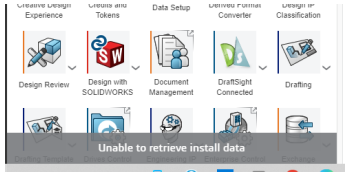
It is very likely that you are being blocked by SentinelOne antivirus. The solution is for you or your IT department to add an exception in your Sentinel One antivirus for the following programs:
C:\Program Files\Dassault Systemes\3DEXPERIENCE Launcher\3DEXPERIENCELauncherBackbone.exe
C:\Program Files\Dassault Systemes\3DEXPERIENCE Launcher\3DEXPERIENCELauncherGUI.exe
Restart the PC, and try again.