
Problem:
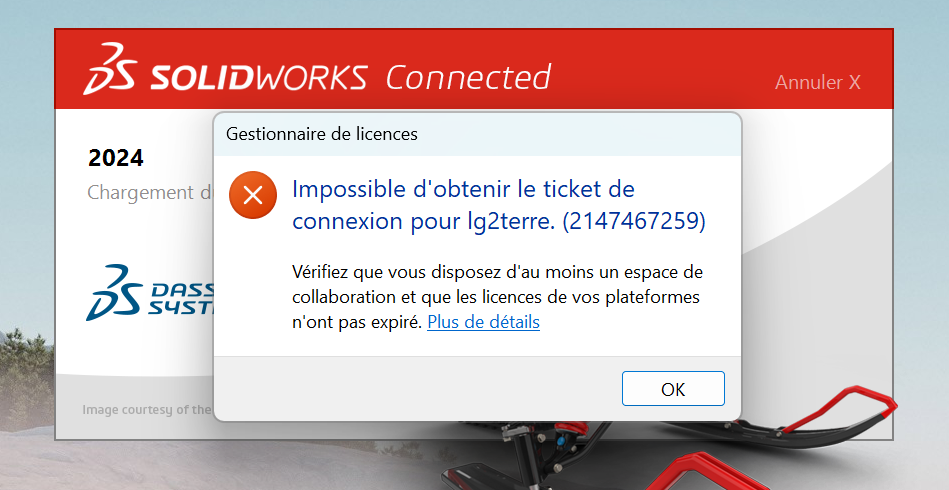
This is a generic error that means you can’t access a collaborative space on your platform. There are different solutions depending on the error code.
Causes and resolutions :
Summary of Errors:
Error 2147467259 :
You may have just changed roles, following the renewal of your subscriptions. This error indicates that :
- You don’t have access to a collaboration space.
- You are a member of several platforms and do not have the appropriate roles or licenses in one of them.
Resolution :
A. Cause 1: expired roles on your profile
To check and resolve this, ask your administrator (if it’s not you) to remove expired roles from the platform:
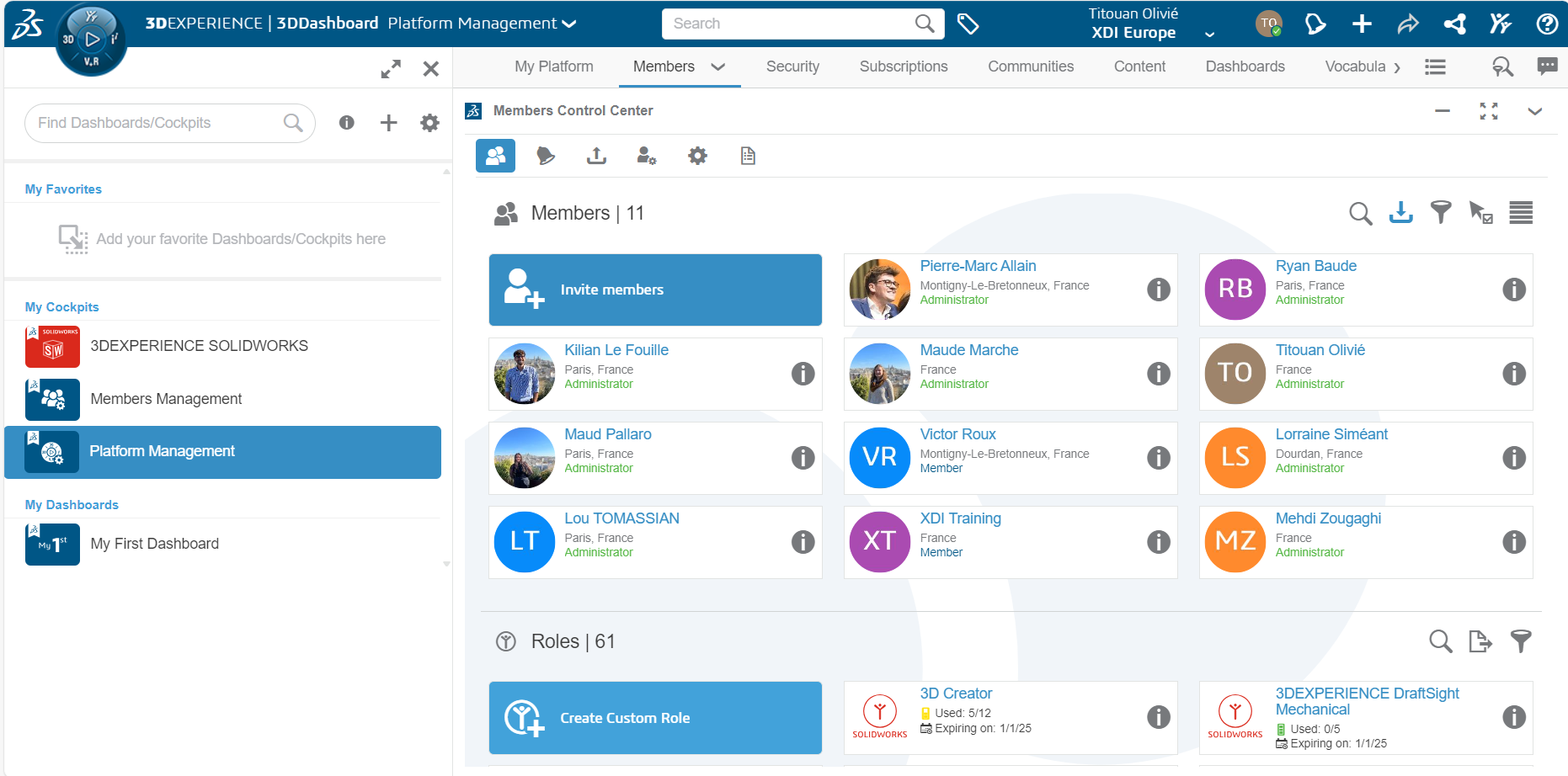
1. Click on the Plaform Management Dashboard, then on the member tab:
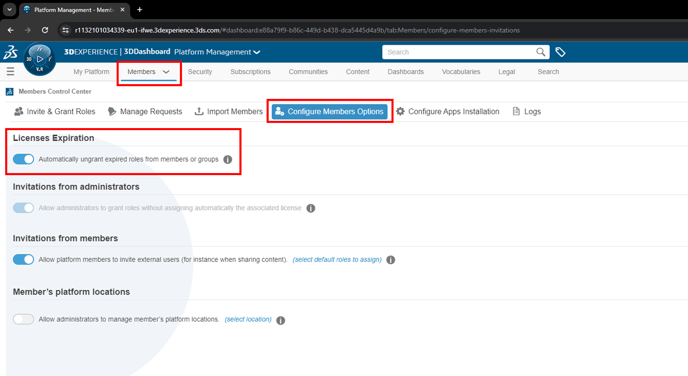
2. Activate the “Remove expired roles automatically” option:
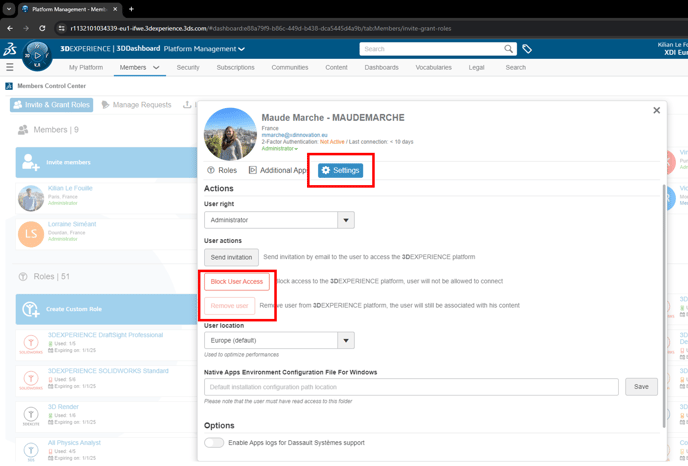
3. Remove excess limbs :
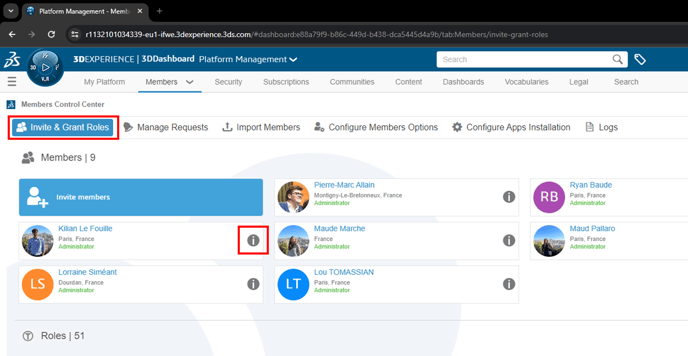
4. You will have two options:
- Remove access: the user will no longer be able to connect
- Remove the user: he/she will no longer appear in the platform, but the files he/she has created will remain accessible. Recommended if available (option grayed out if roles are locked).
B. Cause 2: You may have upgraded from a SOLIDWORKS Premium license to a SOLIDWORKS Standard license. You need to upgrade!
To do this, simply perform an “upgrade”, in the same way as an update. See the tutorial here.
If your SOLIDWORKS is not up to date (orange arrow), you will need to perform this operation twice (update THEN upgrade).
Update example (orange arrow) :

Example of an upgrade (green arrow) :

C. Cause 3: No access to a collaboration space in 3DSpace
- Open a private window (Mozilla Firefox ESR), an Incognito window (Google Chrome) or an InPrivate window (Microsoft Edge Chromium).
- Connect to your 3DEXPERIENCE platform.
- Open compass (3DEXPERIENCE icon)
- Launch the 3DSpace application.
- Activate a collaborative space, such as Common Space, by double-clicking on it.
- If you don’t see any collaborative spaces and can’t create a new one, contact your platform administrator. Once you have access to a collaborative space, proceed to step 6.
- Click on the SOLIDWORKS® Connected application in the Compass.
Error 2147418113 :
This error indicates that you do not have a Collaborative Industry Innovator license.
Error 2147012889 :
This error indicates that you have an expired Collaborative Industry Innovator license on a platform.
Error 2147012894 :
This error indicates a server failure or ongoing maintenance. Check the 3DEXPERIENCE on cloud platform support web page to make sure the servers are available.
Error 400 :
This is the generic HTTP 400 Bad Request error, meaning that the server cannot process the request due to an invalid request.
Resolution:
- Close all web browser sessions.
- Rename or save and delete [%appdata%\DassaultSystemes\CATSettings], if the folder exists in your Windows file explorer.
- Open a new browser session and open a private window (Mozilla Firefox ESR), an Incognito window (Google Chrome) or an InPrivate window (Microsoft Edge Chromium).
- Connect to your 3DEXPERIENCE platform.
- Open the compass.
- Click on the 3DSpace application.
- Activate a collaborative space, such as Common Space, by double-clicking on it.
- If you don’t see any collaborative spaces and can’t create a new one, contact your platform administrator. Once your platform administrator has added you to a collaborative space, proceed to step 8.
- Click on the SOLIDWORKS® Connected application in the Compass.
SOLIDWORKS Connected now starts without error.
Error 403 :
This is the generic HTTP 403 Forbidden error, which means that the server understands the request, but refuses to authorize it.
Error 503:
This is the generic HTTP error 503 Service Unavailable, meaning that the server is not ready to process the request.
This error indicates a server failure, ongoing maintenance or a general internet connection problem. Check the 3DEXPERIENCE on cloud platform support web page to ensure that the servers are available.
Still not working?
If the above information does not solve the problem and the error persists :
- Compress the following folders into a ZIP file:
%appdata%\DassaultSystemes\SWXDesktopHelper
%appdata%\DassaultSystemes\SWXDesktopLauncher
- Send the ZIP file to support@xdinnovation.eu




