
Examples of use:
- Mounting range in context
- Marketing video showing how the product works
- Make your product attractive on your website with dynamic exploded views
Moving a component
In SOLIDWORKS Visualize, moving components is relatively simple, provided you know the pivot points of your parts. There are no constraints as in SOLIDWORKS.
There are two ways to move a component:
Modes :

A selected part will be surrounded bya blue border.

To enable a component to be moved, activate the movement mode (next to part selection).

Note also the pivots used to position the center of the trihedron.

Manual positioning :
- To move, hold down the left mouse button on the arrows of the trihedron and move the cursor to the desired position.
OR
Positioning with coordinates :
It is also possible to move the part using numerical coordinates.
- In the Model tab
- Transformed tab under Transformed

The “Reset” button returns the part to its original position (as soon as the file is opened).
Changing the center of the component marker :
Manual positioning :
- Select the pivot and a ball appears in the center of the trihedron.

- Use the arrows to move the center of the part’s pivot.
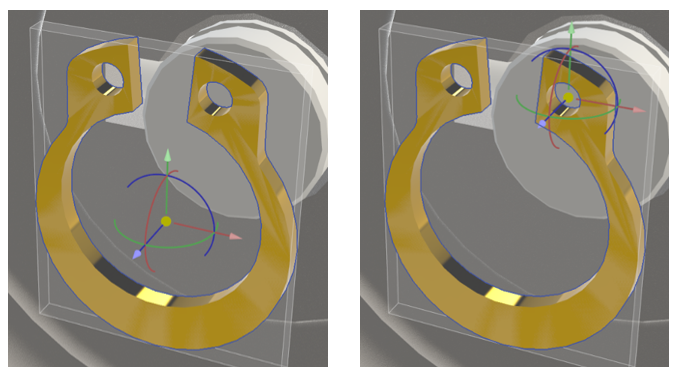
OR
Positioning with coordinates :
- In the Model tab
- Transformed tab under Transformed
It is not possible to use a component edge to position the center of the marker.
If you want to rotate your trihedron (to a position other than the main X, Y, Z axes) when positioning your center, uncheck the “Absolute” box when moving the component.

And then…
Need more information on SOLIDWORKS Visualize? Find all our tutorials here.




