
Introduction
Regardless of whether your product is made up of a small or large number of components, during the design process it is common for several people or teams to be working on the project, sometimes at the same time.
This chapter explains the basic concepts, best practices and configuration parameters of the SOLIDWORKS and 3DEXPERIENCE environment.
About file status
Let’s start by understanding the information presented in MySession in SOLIDWORKS.
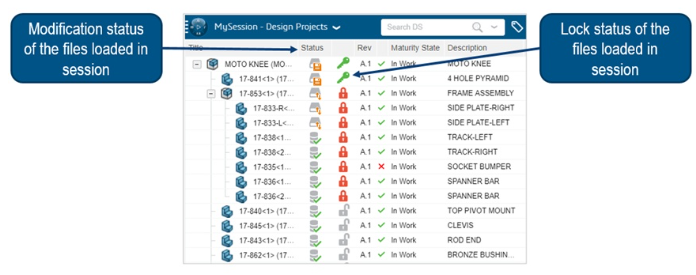
Lock / Unlock
How do you make sure you’re the only one working on the file? With the lock/unlock system!
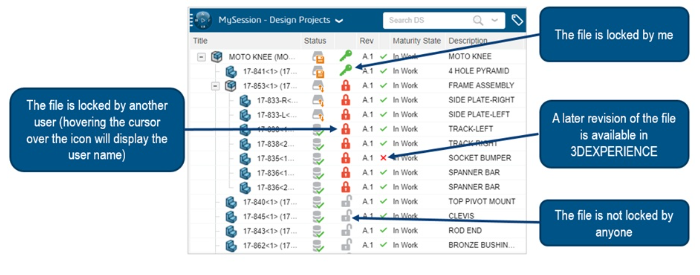
A file can be :
- Unlocked
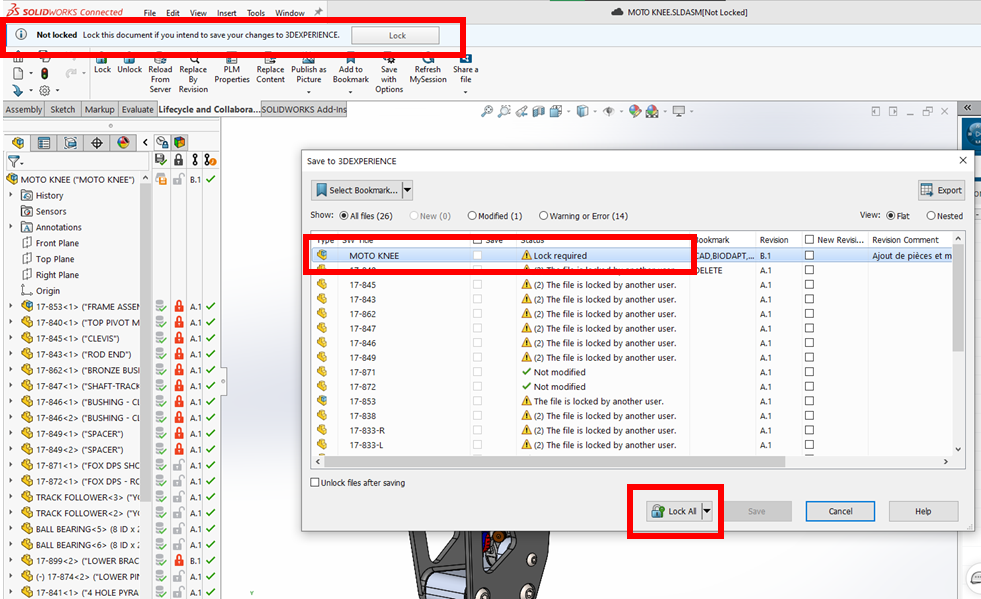
Anyone can lock the file to make changes. If you modify a file without locking it, the backup will be blocked and you will have to lock the file.
Click on “Lock all” to save.
- Locked by yourself
This tells everyone that you are editing the file. You are authorized to save freely.
- Locked by someone else
This displays the person who has locked the file and is probably currently modifying it. You can’t save the file, unless you create a new revision of it (make sure you know all about revisions in 3DEXPERIENCE).
Opening files from 3DEXPERIENCE
- If you open a file from 3DEXPERIENCE with an empty local cache folder, the files are downloaded to this local cache.
- If your local cache is not empty (meaning you have already opened this file at some point), SOLIDWORKS will open the files from the local cache folder instead of downloading them from the cloud. This means that the geometry may not be up to date.
This behavior reduces overall loading time by downloading only the necessary files.
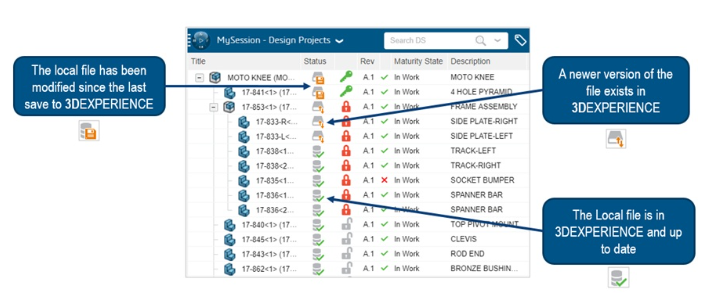
The save status indicates whether the file is up-to-date or not. We recommend checking the save status as soon as the file is opened in SOLIDWORKS!
This is an example of a file opened from the local cache that is out of date – it must be reloaded from the server:
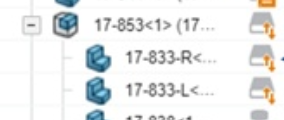
If you see this icon: you must reload from the server. This will overwrite the files in your local cache folder (and therefore, in SOLIDWORKS). Here’s the command:
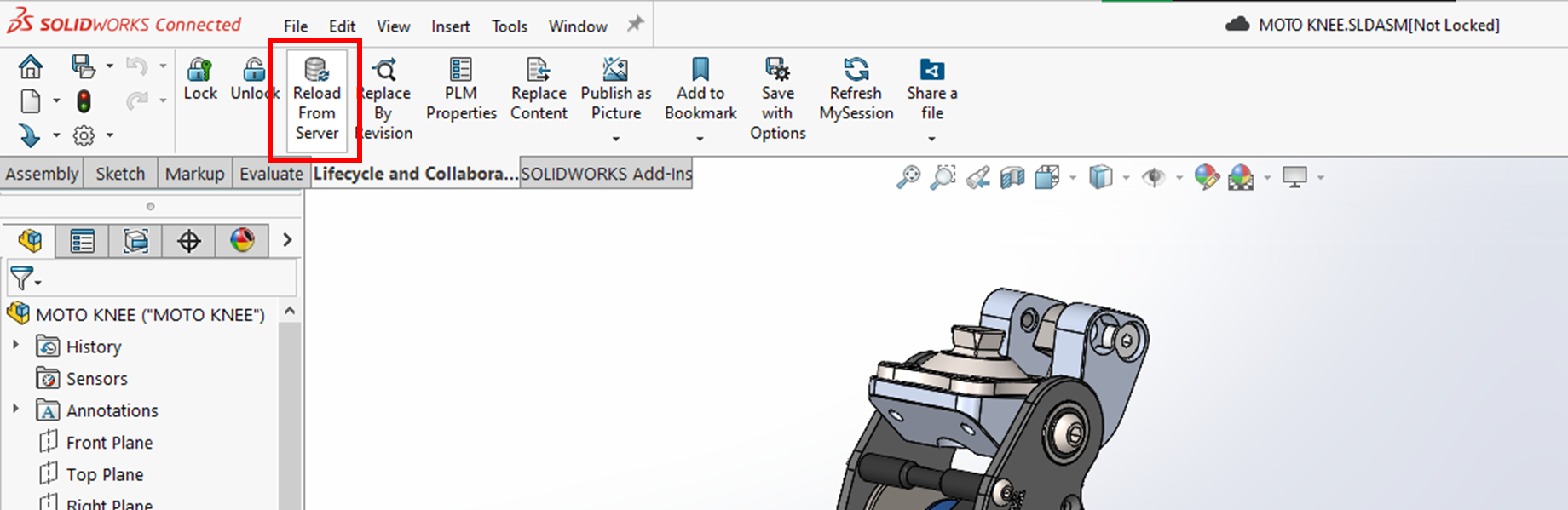
Warning: be careful with this command! It overwrites the files selected for reloading to their last saved state in 3DEXPERIENCE. So, if you’ve made any changes to these files in SOLIDWORKS, your work will be lost!
Is your backup status up-to-date?
By default, the SOLIDWORKS MySession parameter “refresh my session after opening files” is activated, so that you can be sure of obtaining the correct registration status after opening files.

If you’re not sure you have the right backup status, you can manually update MySession :
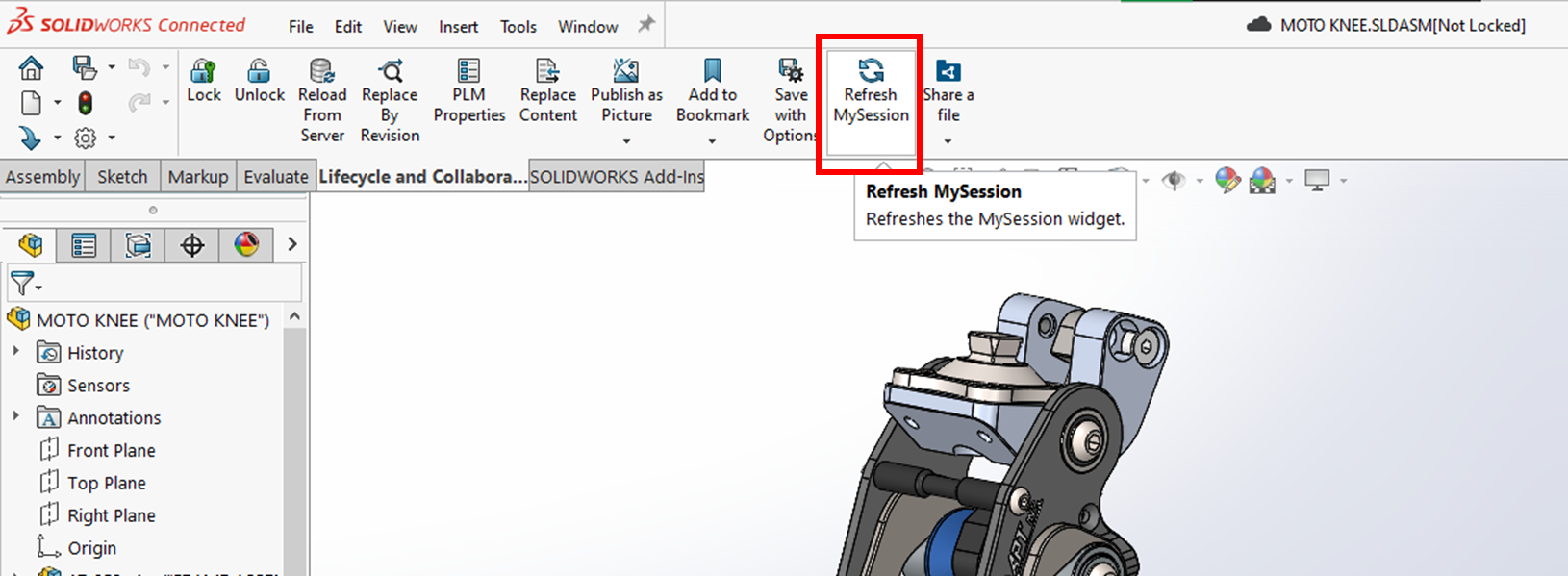
Warning: MySession is not updated automatically. You must update it manually, and we recommend that you do so regularly.
We hope that Dassault Systèmes will make it automatic in the future…
What happens if I forget?
If a user forgets to update MySession, 3DEXPERIENCE will automatically check the latest status of all loaded files when saving changes. If file changes are detected, the user is warned that his local copies of these files are not the latest versions.
At this point, the user has a choice:
- Cancel the save operation, reload the necessary files from the server, then save.
- Ignore these files and continue recording

Summary of best practices
Here are the steps for working collaboratively in SOLIDWORKS Connected :
1. Open files from 3DEXPERIENCE
2. Check registration status
3 (Optional: refresh MySession to update status)
a. If the files display this icon, reload the necessary files from the server.

4. Lock the files you are going to modify
5. Modify design
6. Refresh MySession regularly to obtain the correct file status if you suspect that other people have made changes.
7. Save in 3DEXPERIENCE
8. Make sure the backup status is green!





