
Introduction
Templates can be used to retrieve properties useful to the design office, workshop or purchasing department, and to add elements such as a logo to your drawings.
This allows you to gain in quality and efficiency. This article explains how to create them.
Step 1: Create your part templates
To retrieve properties from your drawing template, you must first declare them in Part and Assembly templates. Let’s create these templates:
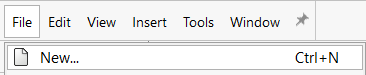
1. Create a new part: File > New
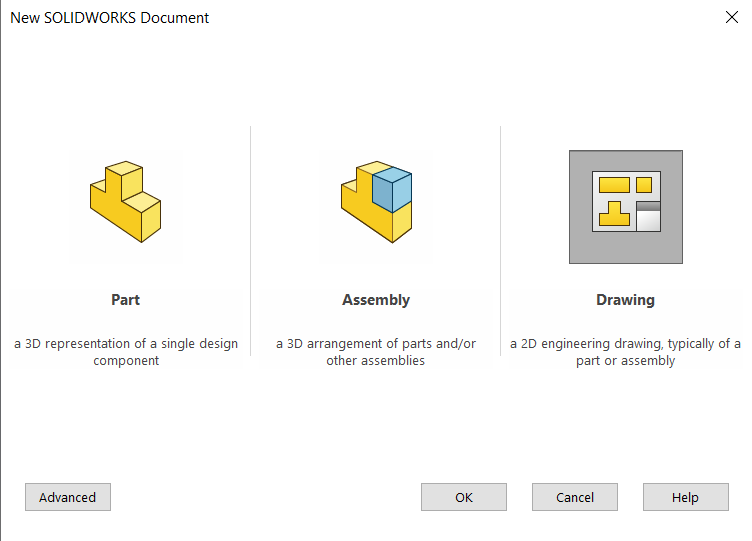
2. Double-click on Part.
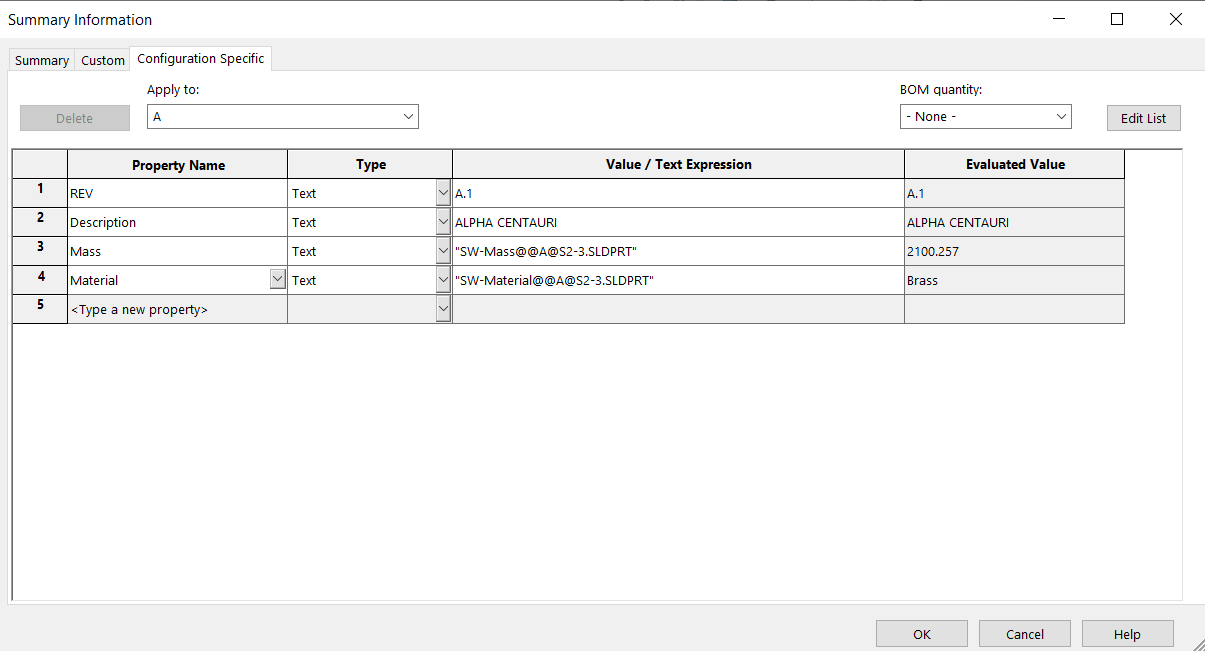
3. Click on File > Properties , then add the desired properties to the template and click on OK.
Here are some examples of interesting properties when working with SOLIDWORKS :
– Material
– Mass
– Review
– Author
– Supplier, project number…
A property can come from SOLIDWORKS or 3DExperience, or can be entered manually.
4. You can modify document parameters such as unit information, line styles and fonts…
To do this, click on Tools>Options > Document properties

5. Bonus: you can also add sketches, notes or functions to your template. They will reappear for each file created with it.
6. To save the template, click on File > Save as template…
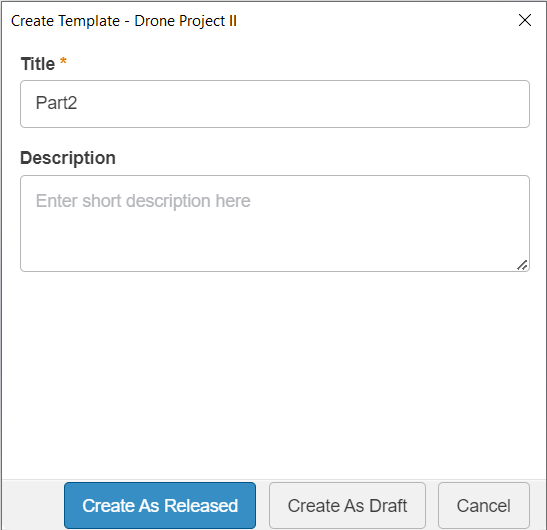
7. Enter a title and description, then select one of these options.
- Create in distributed state (your collaborators will automatically have access to the template and no more modifications will be possible).
- Create as a private model (only you can view and modify the model = draft status)
Your part model is created.
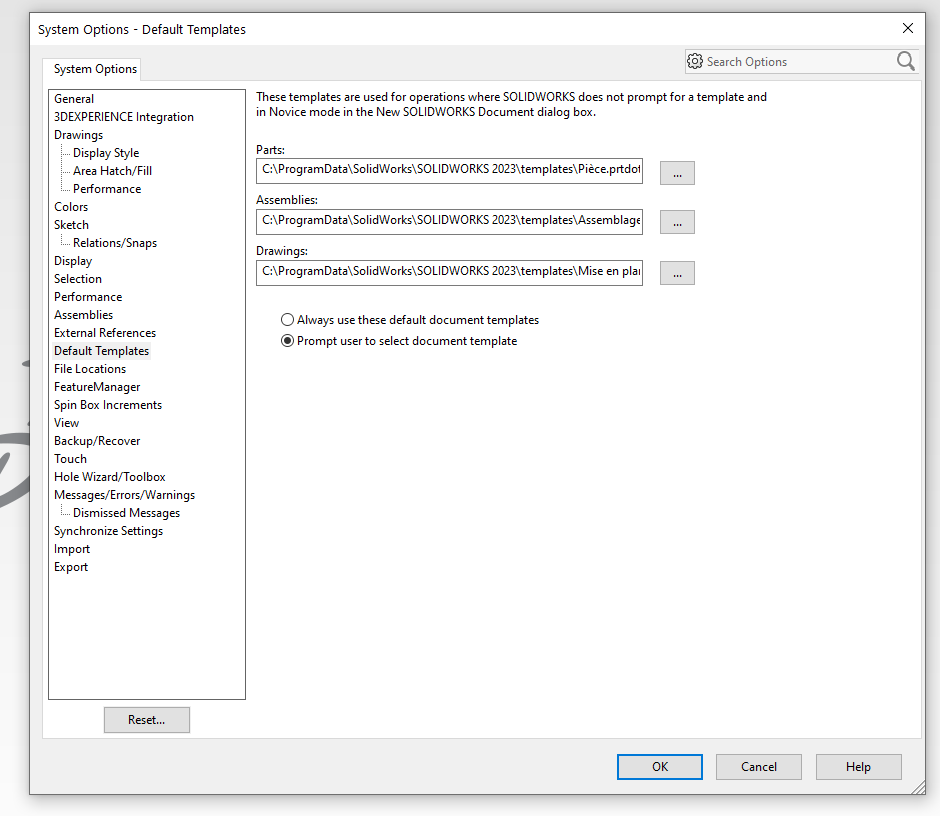
Click on Options>Default templates then activate the option“Ask user to select a document template“.
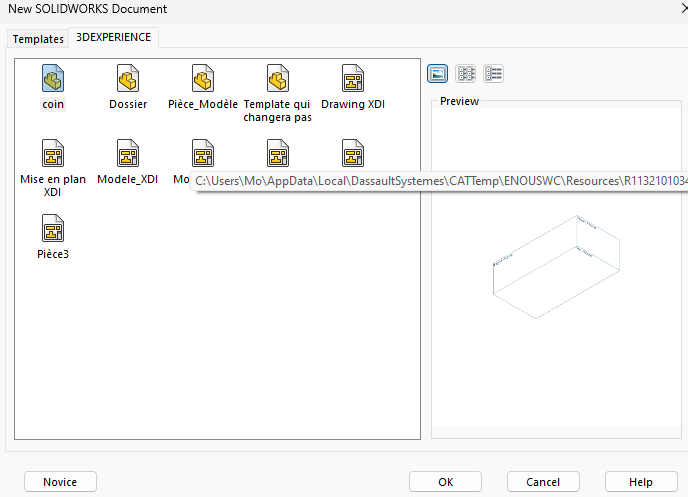
When you create a new document, SOLIDWORKS will ask you which template to use:
Tip: To save the template locally (which does not automatically share it with your colleagues) :
1. Click on File > Save as new
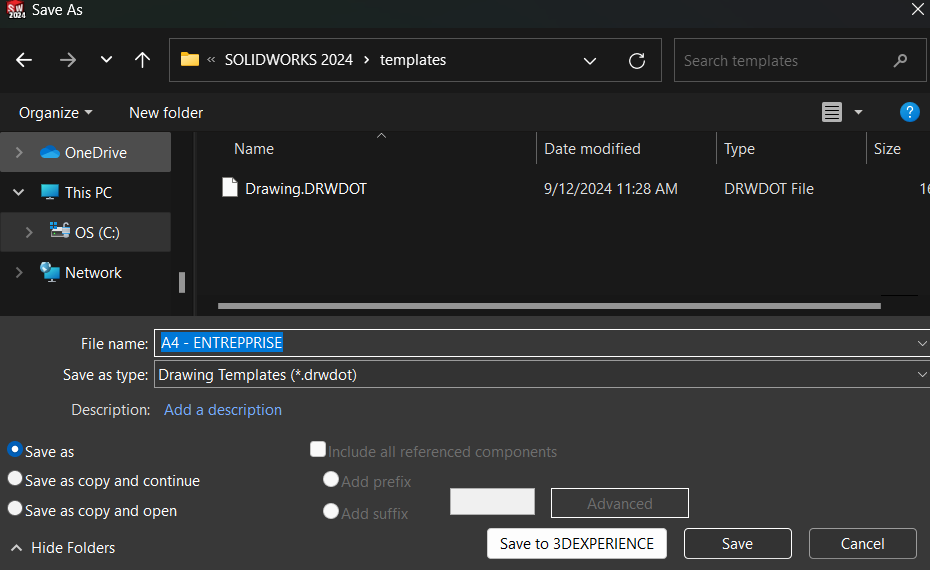
2. Select part model type :
- Part model (*.prtdot)
3. Choose a file name for our model
4. Select a folder in which to save the file.
5. Click onSave.
Step 2: repeat to create the Assembly model
Once you’ve defined your part model, you’ll probably need to repeat the above steps with an assembly.
Step 3: layout template
Now that our templates contain all the properties we’re interested in, let’s see how to customize the background so that it fills in automatically.
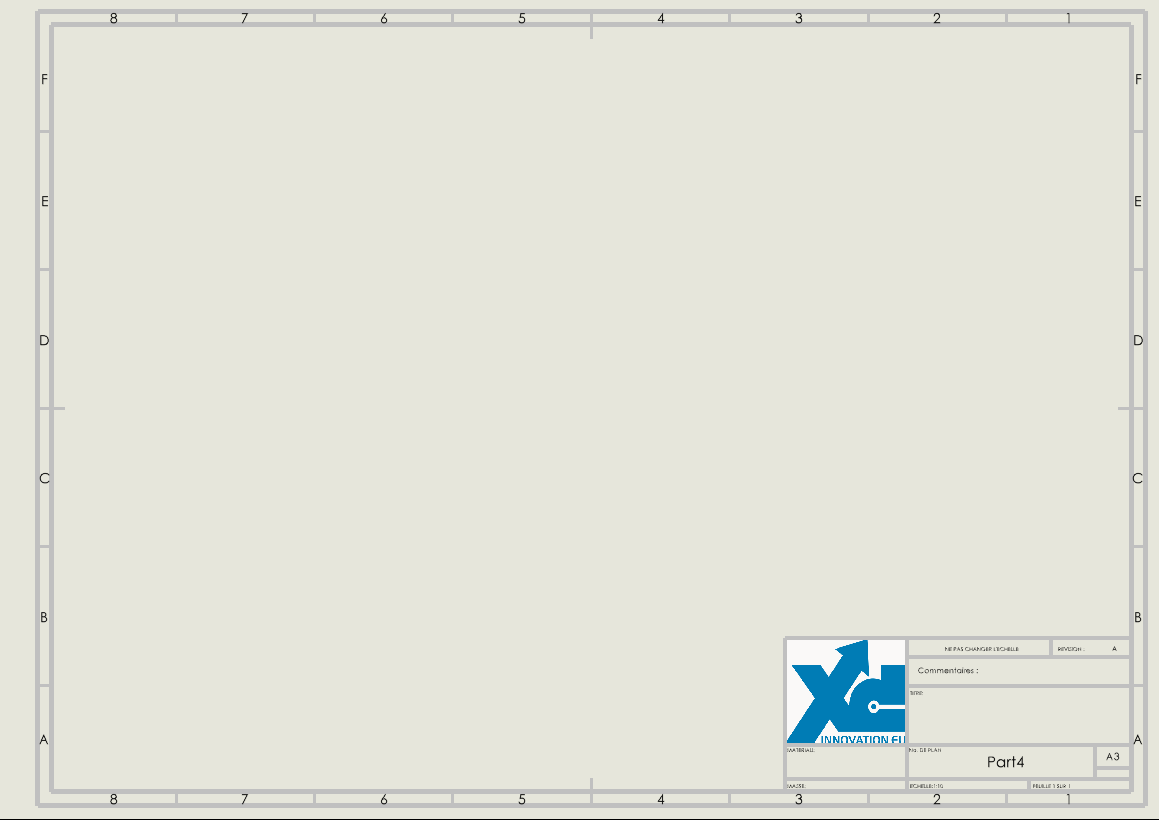
1. First, create a part from the model you created in step 1.
2. Create a drawing from this part by clicking on New>Create a drawing from the part.
3. Editing the background
Right-click on Sheet 1, then click on“Modify background” to adjust the layout of the lines and various attributes in our title block.
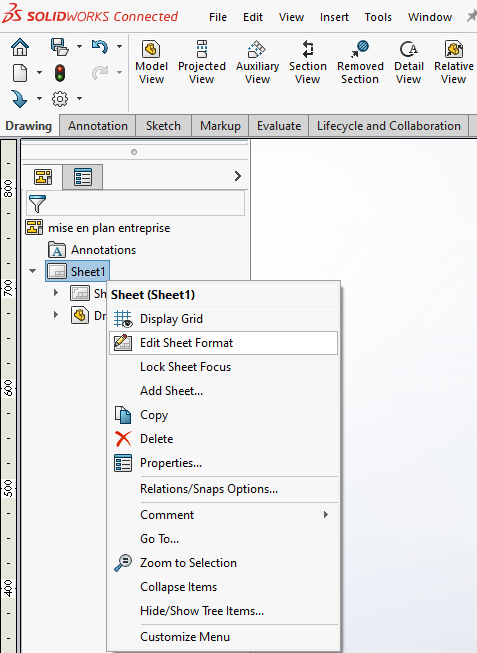
For more information on how to edit your floor plan, see our dedicated article.
4. Add your properties to your title block
First, click on Annotation, then on the location where you want the property to appear.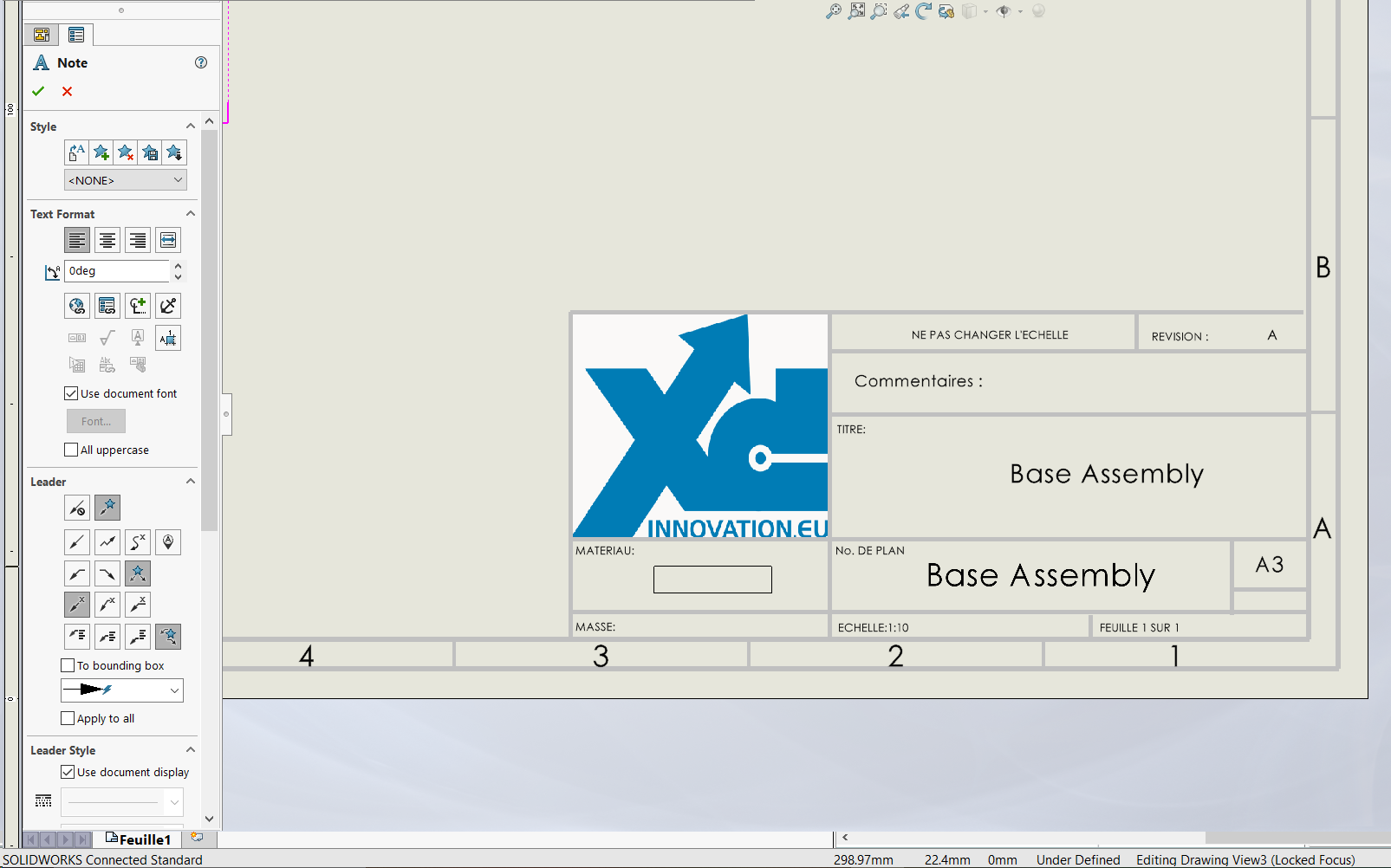
In the left-hand menu, click on the“link to a property” icon 
Check“Model found here” then select“Drawing view specified in sheet properties” from the drop-down menu.
In the“Property name” drop-down menu, select the property of interest, for example mass : 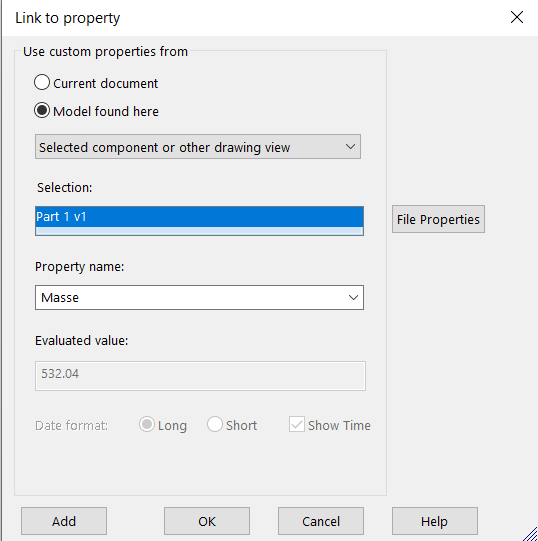
The value displayed is noted in“Evaluated value“. Click on OK.
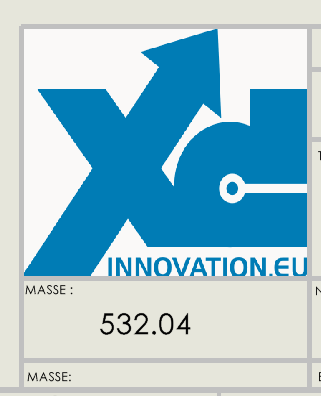
Your property is added to the background map.
Change projection standard.
Once you have entered your properties and annotations, you can change the view projection standard in SOLIDWORKS. See this article: How to change the projection standard.
5. Save drawing template
Once we’ve created our title block, let’s see how to save it.
Click on File>Save as template.
You have two options:
- Create in distributed state (your collaborators will automatically have access to the template and no more modifications will be possible).
- Create as a private model (only you can view and modify the model = draft status)
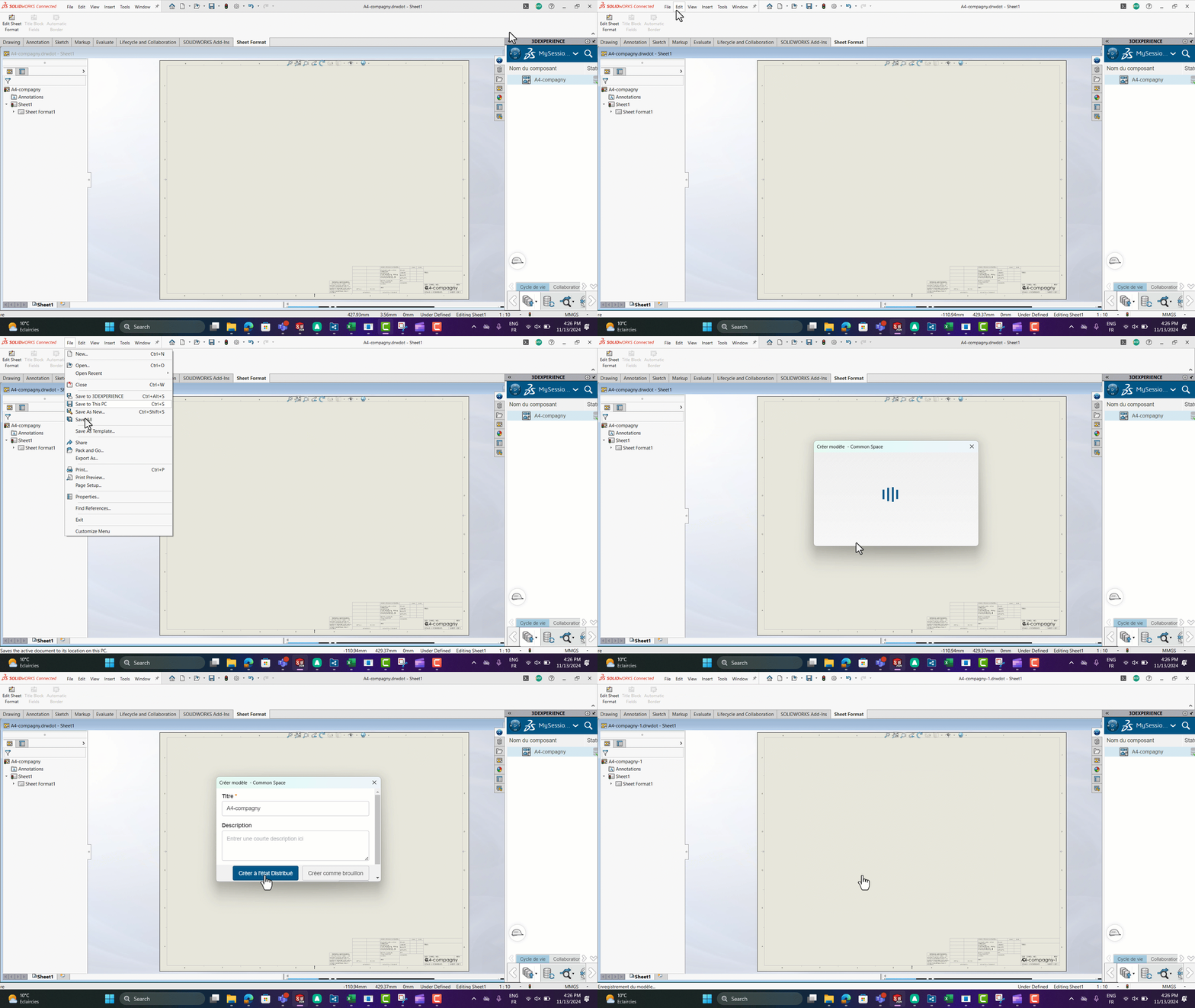
Your layout template is saved and available to all your collaborators.
You’ll find it in the same place as your parts and assembly templates.
Can’t your colleagues see the models you’ve created?
Click on Options>Default templates then activate the option“Ask user to select a document template“.
When you create a new document, SOLIDWORKS will ask you which template to use (“advanced” templates):
Bonus
Would you like to have access to your properties on the 3DEXPERIENCE platform? It’s explained in this article: Attribute mapping
Need help?
Need some help? We’d love to! Send us an e-mail to support@xdinnovation.eu




