
Prerequisites
First of all, you need the right equipment:
- An up-to-date (and certified, it’s better!) computer with Windows 10 or 11 Professional (no “Home” edition)
- Chrome or Edge web browser
Please note: SOLIDWORKS is not compatible with MacOS
Introduction
Once invited to the platform, users can install SOLIDWORKS Connected on their own computer(s).
Check your inbox
- Look for the mail “3DEXPERIENCE SOLIDWORKS® available!”
- Click on “Access my 3DEXPERIENCE platform”.
WARNING: This action will consume a license; the first user must be the platform administrator.
Login
- Connect to 3DEXPERIENCE
- Create an account, if necessary
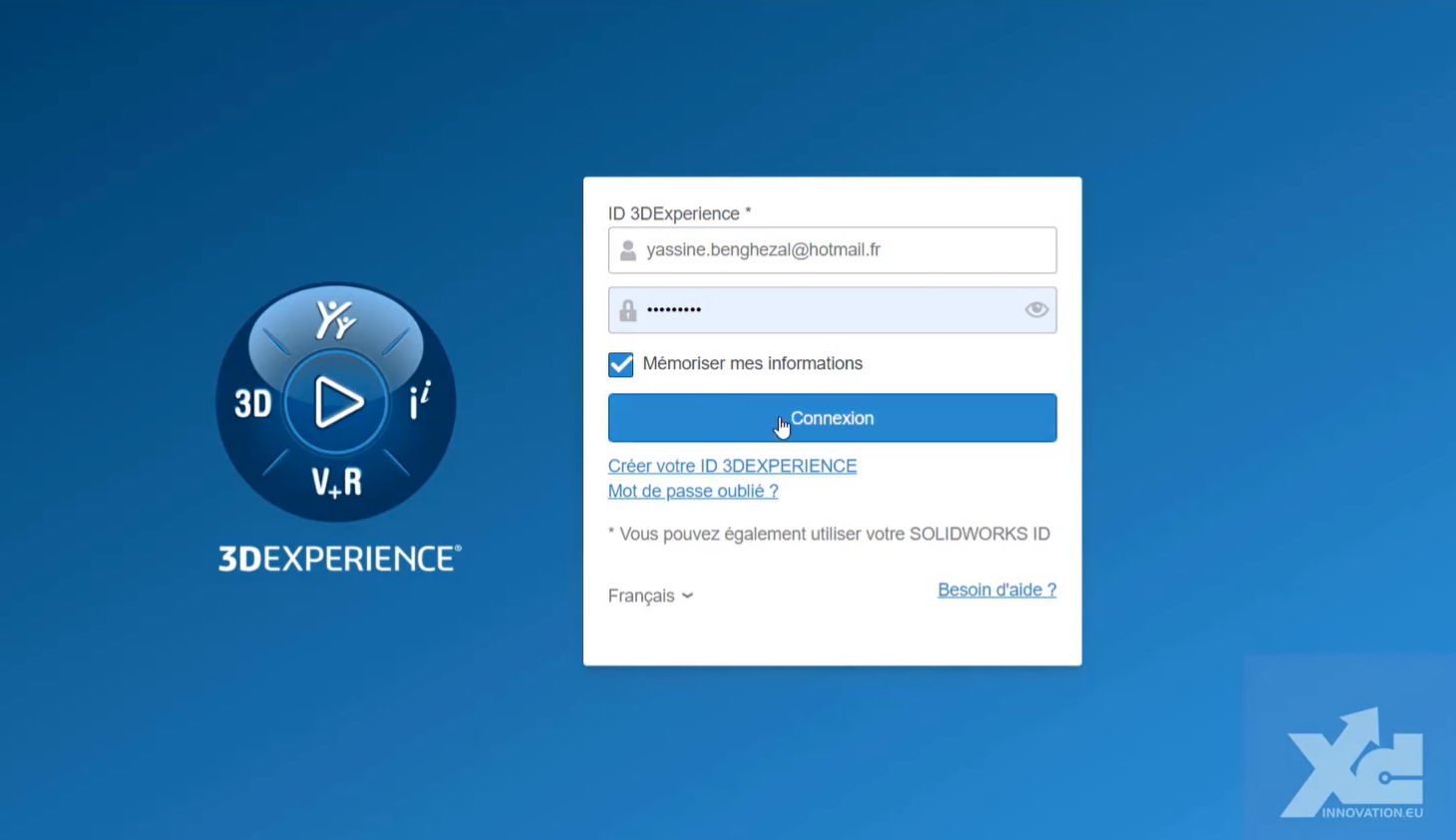
Tip: If your platform has already been activated and you wish to retrieve it, you can access it via the generic link: https://eu1-ifwe.3dexperience.3ds.com
Accept the Customer License and Online Service Agreement (CLOSA)
- Confirm that you are the administrator of your platform
- Click to accept the CLOSA
Step 2: Manage your roles
If you have only purchased a single access to 3DEXPERIENCE, the roles and associated licenses are usually assigned automatically.
Otherwise, the platform administrator must allocate them. To do this, go to the “How to invite members and allocate licenses” article .
Step 3: Install SOLIDWORKS Connected
1. Access the SOLIDWORKS application
The SOLIDWORKS application is available in the compass, which is the 3DEXPERIENCE icon in the top left-hand corner:
- Click on the compass
- Search for SOLIDWORKS in the search bar
- Click on the application to start installation

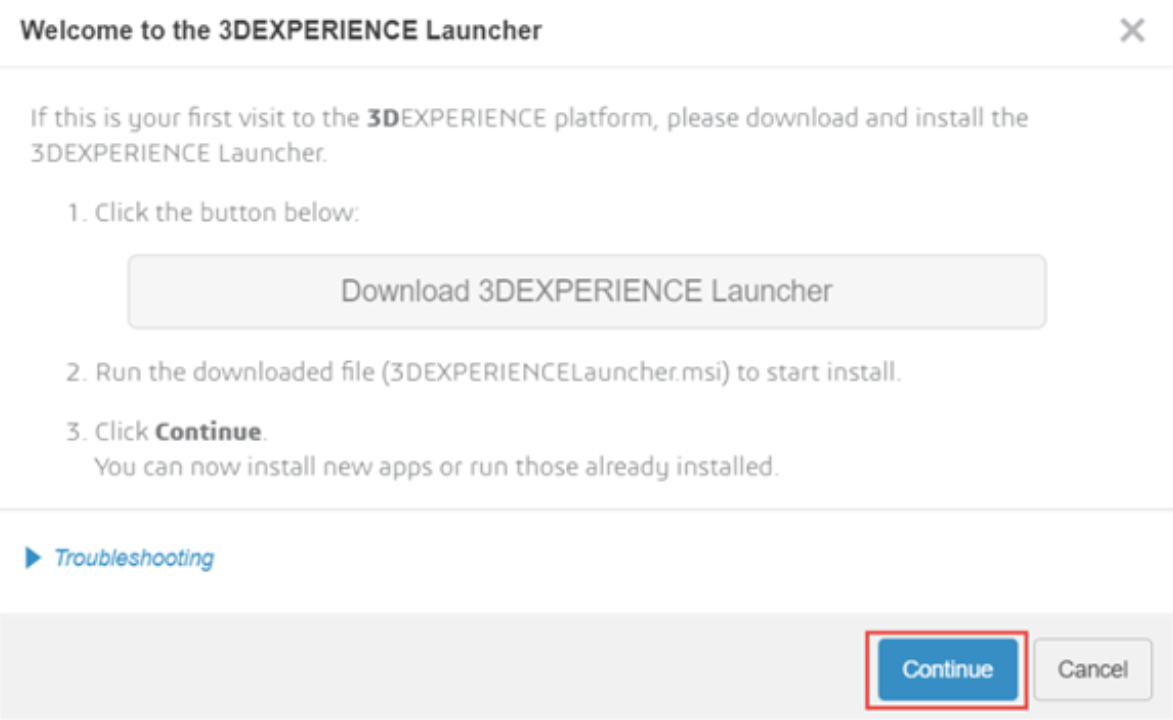
Note: To install SOLIDWORKS, you first need to install a “Launcher”, which provides the connection between 3DEXPERIENCE and the software.
2. Download Launcher
- Click to download 3DEXPERIENCE Launcher
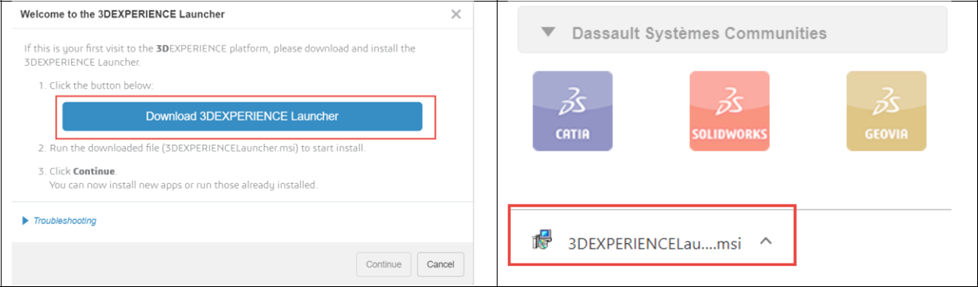
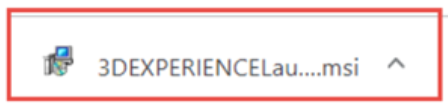
- Click on the downloaded executable file
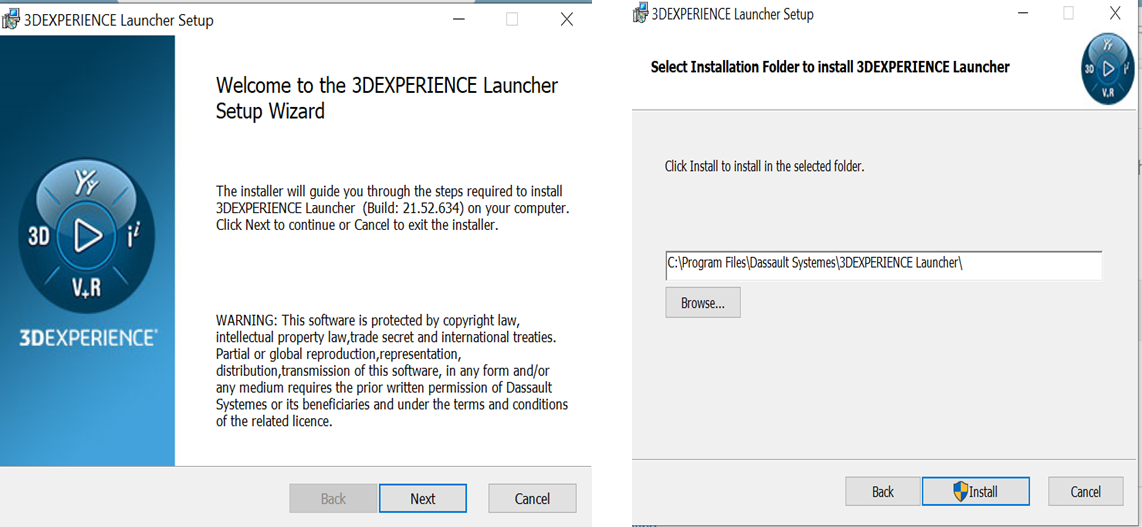
3. Installing the Launcher
- Follow the instructions in the 3DEXPERIENCE Launcher Setup window
4. Install SOLIDWORKS
- Once the Launcher has been installed, click on “Continue”.
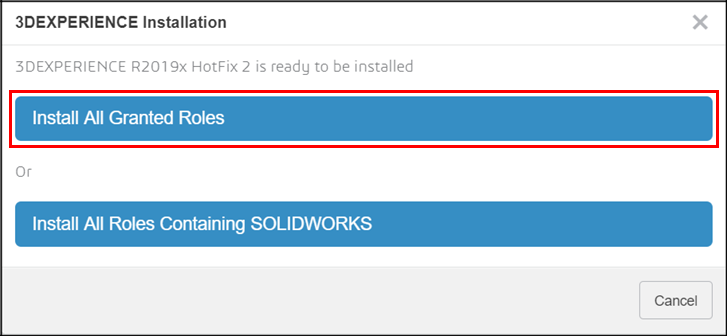
- Select “Install all granted roles” and follow the installation steps
Step 4: Launch SOLIDWORKS
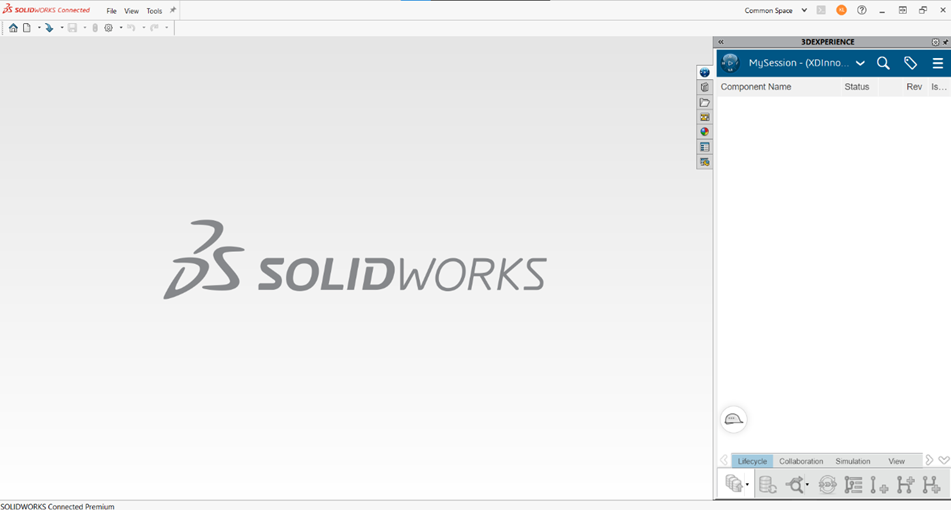
- Click on the SOLIDWORKS icon in the compass of the 3DEXPERIENCE platform to launch the application.
- SOLIDWORKS Connected is ready to use!
Step 5: Schedule a session with your engineer
- To find out more about your business and your needs
- Get to grips with the software more quickly thanks to tailored resources
Plus, we promise to be super friendly!
Need help? We look forward to hearing from you! Contact us at support@xdinnovation.eu




