
Introduction
The“Route Management” application in 3DEXPERIENCE allows you to create a series of tasks, the main purpose of which is to review and validate documents. We’ll take a look at how to use routes to validate a part and its drawing, and change their state of maturity.
Step 1: Create a route in 3DEXPERIENCE
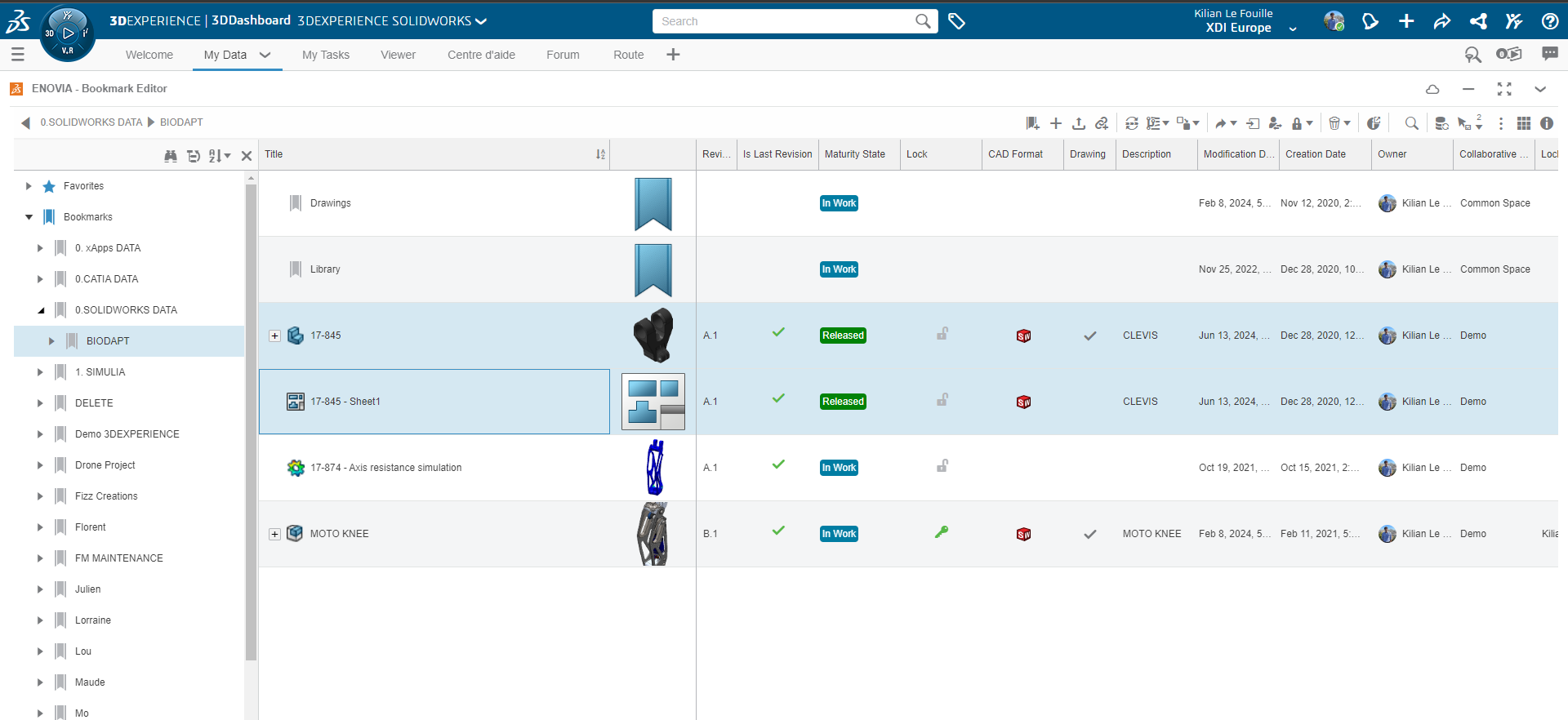
1. A good practice before sending files for review is to change the maturity to“Frozen“. This way, you can be sure that the document you’re sending for review won’t be inadvertently modified.
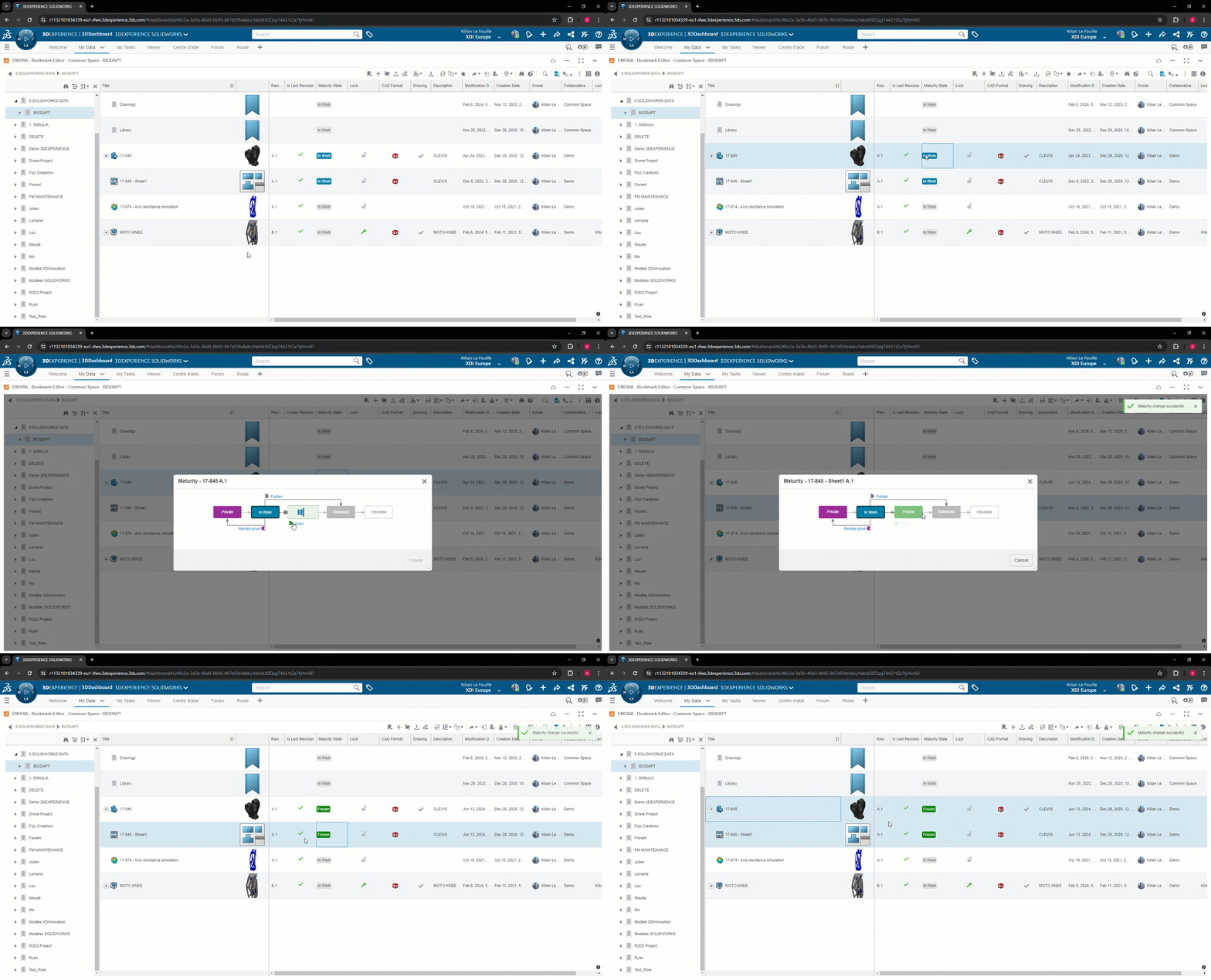
2. Add the“Route Management” application to your 3DDashboard. Simply drag and drop it into a new tab:
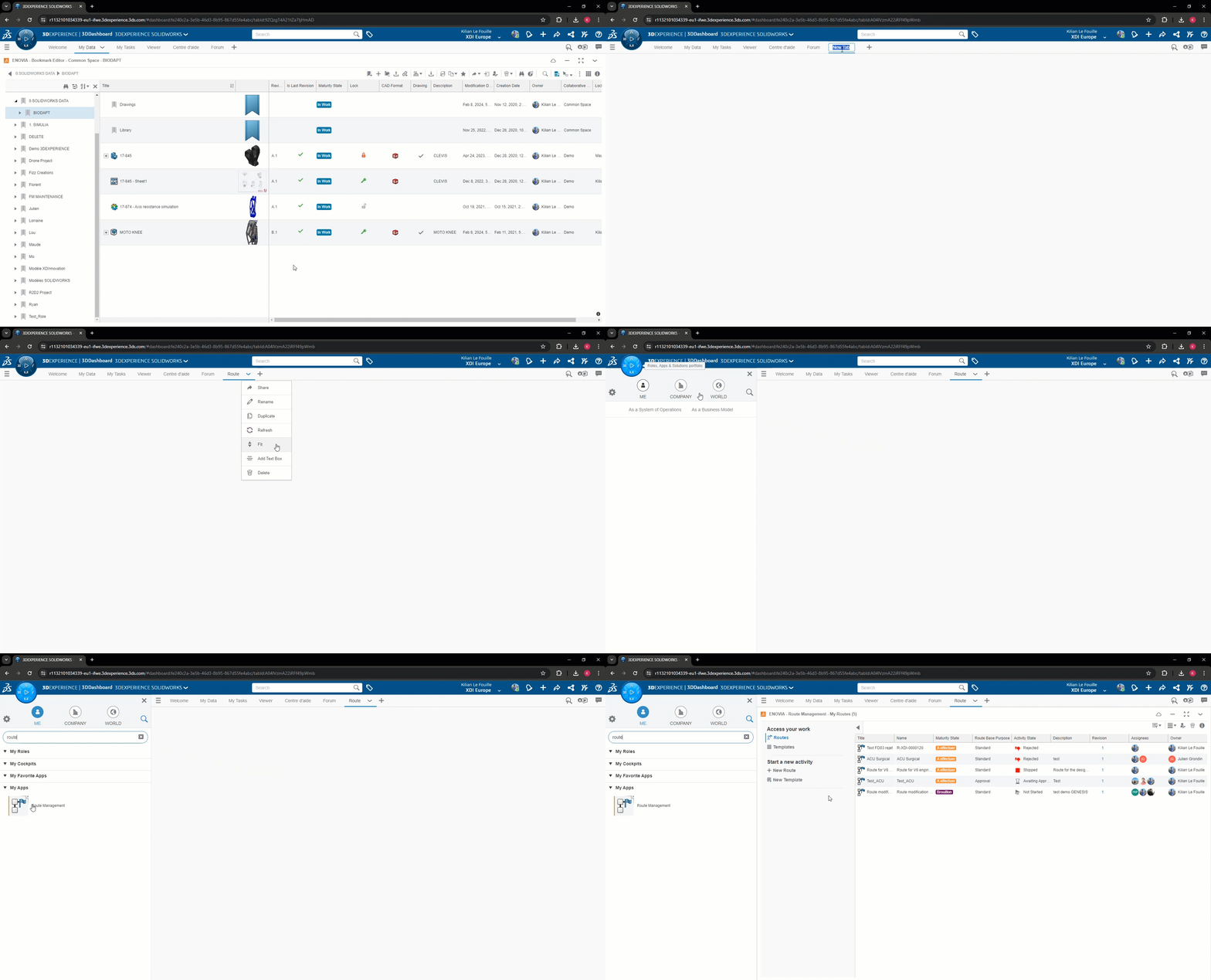
3. Next, you can create a route by clicking on“New route” on the left:
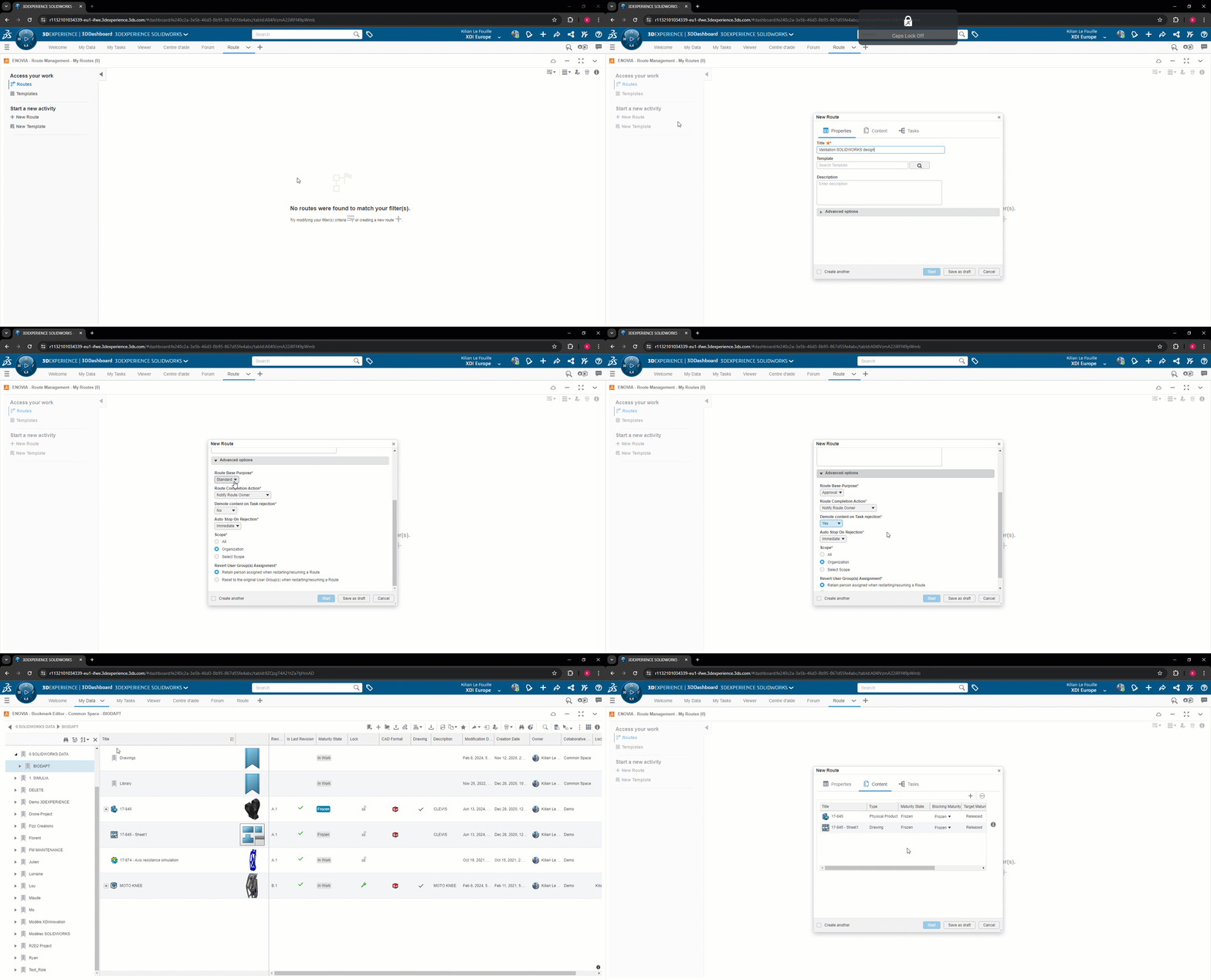
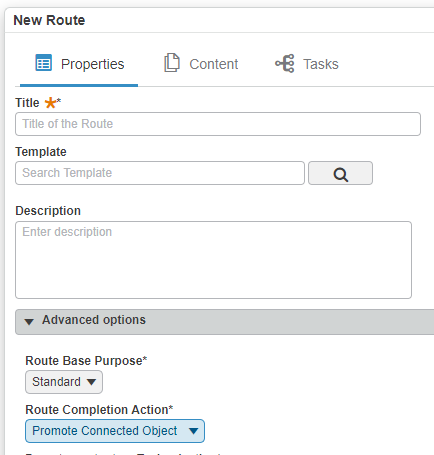
Select“Promote connected objects” as the“Action on route completion” so that files automatically become“Distributed” once the route has been validated.
Add your files to be validated (SOLIDWORKS, CATIA, Excel, PDF, Word…) as shown in the video, or by using the search function.
Please note: for the time being, if you add an assembly, only the assembly itself will become“Distributed” if approved. Sub-assemblies and parts will remain“Frozen“.
We therefore advise you touse routes for parts and layouts.
Next, define the tasks you want for your process. Files are automatically linked to this task, so the approver doesn’t have to search for them!
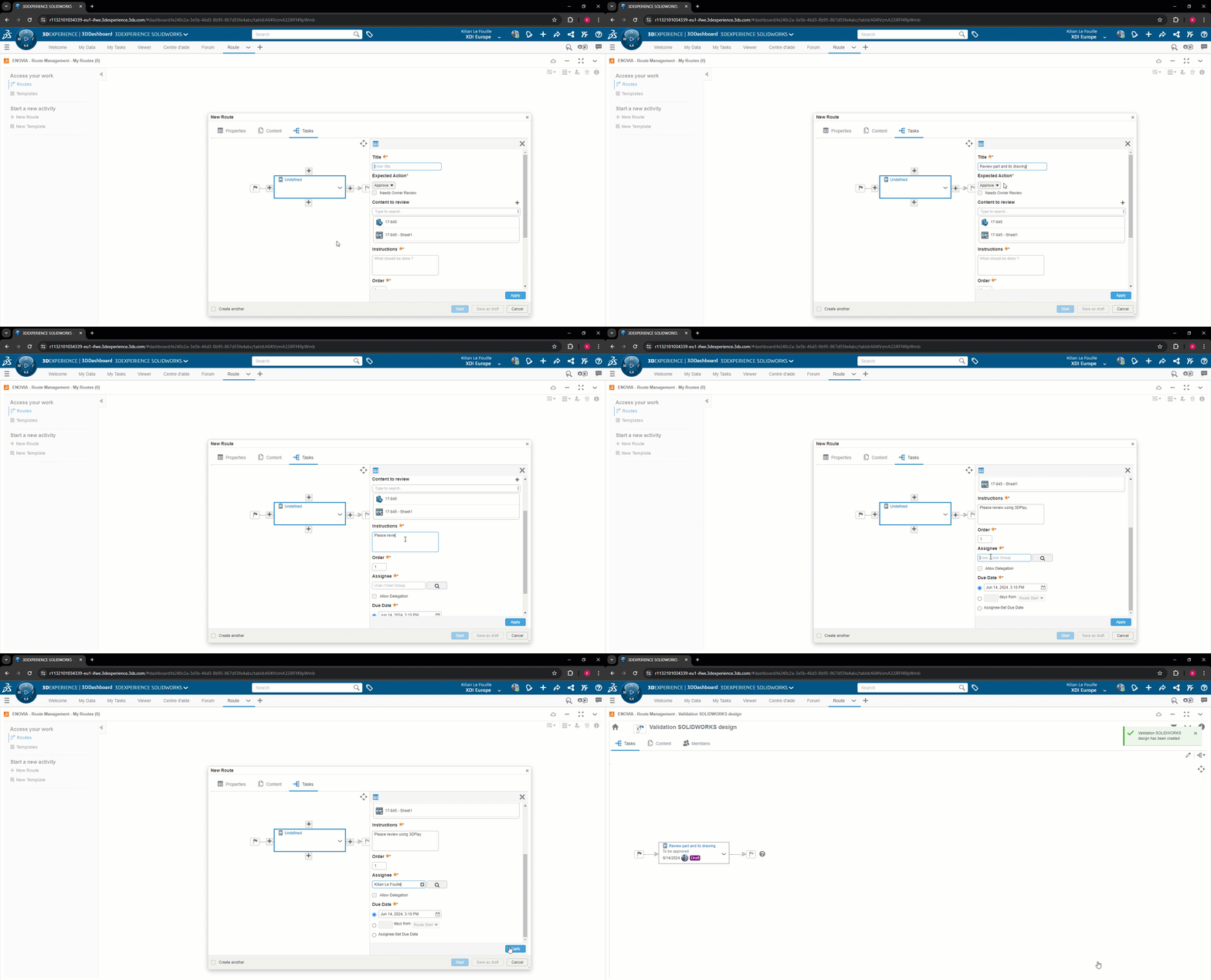
You can create the route“In draft” and start it later.
Step 2: Starting the route
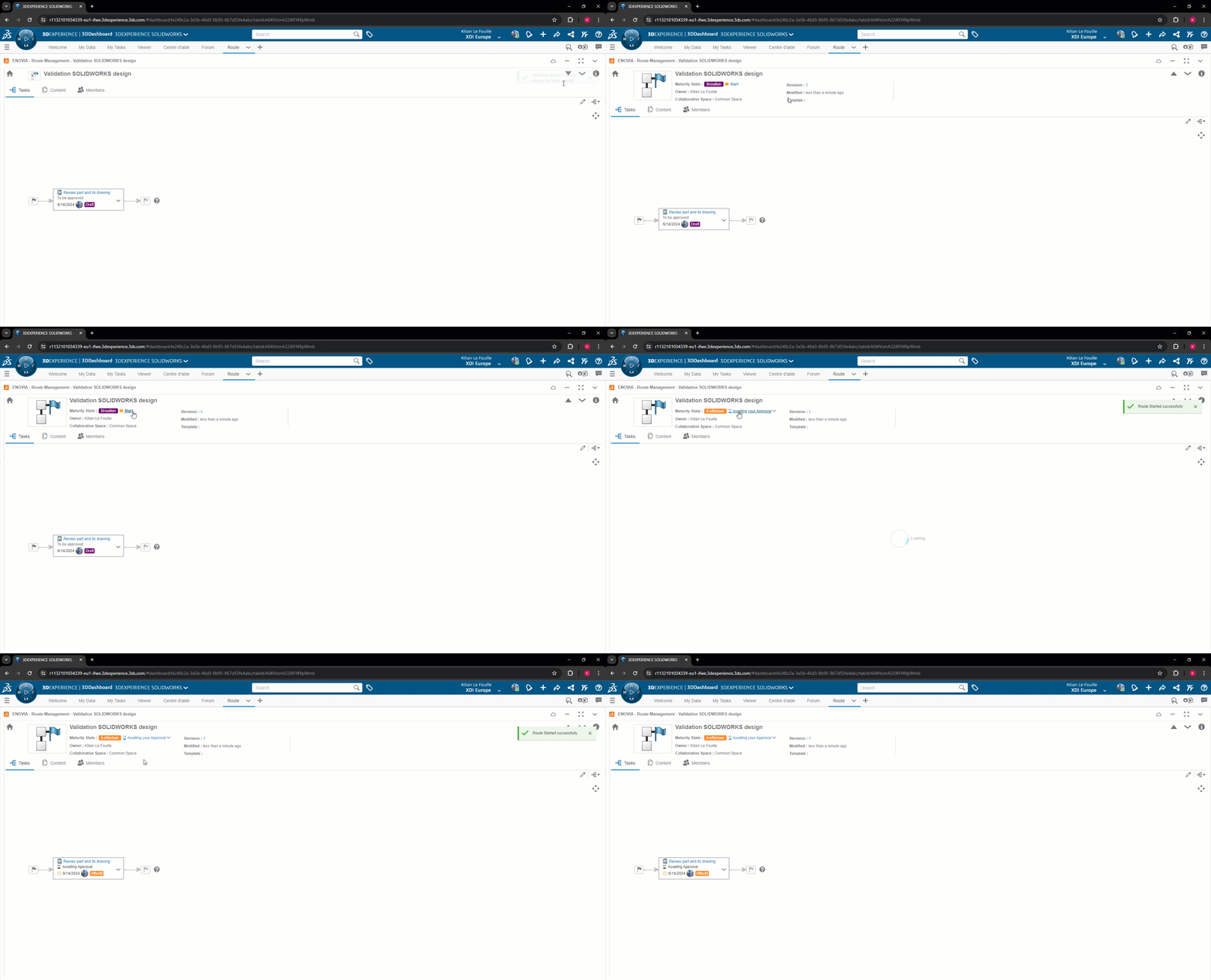
When you have defined all the tasks on your route, start it so that each person is notified when their task is due:
Each person carries out his or her task, and can view the files directly:
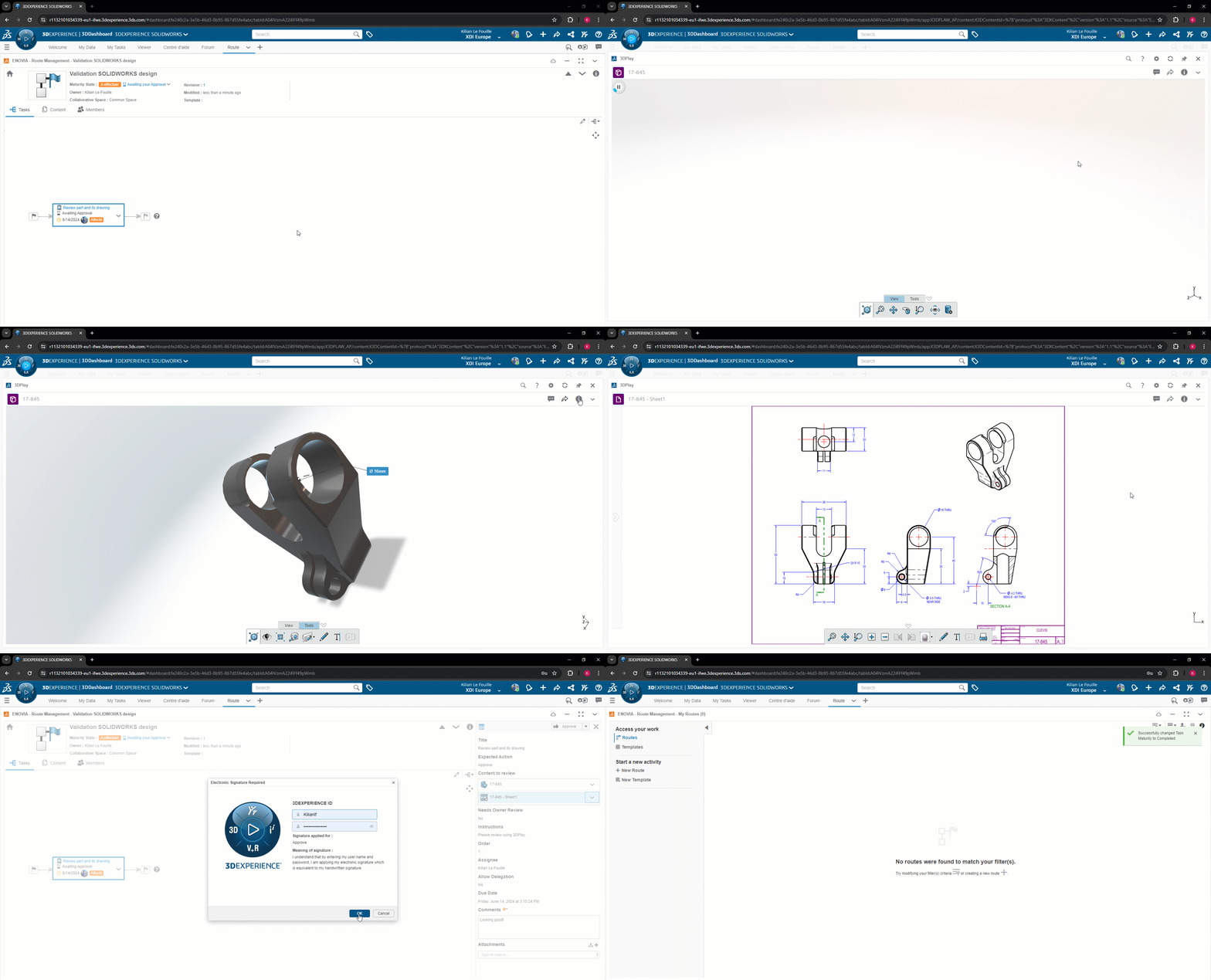
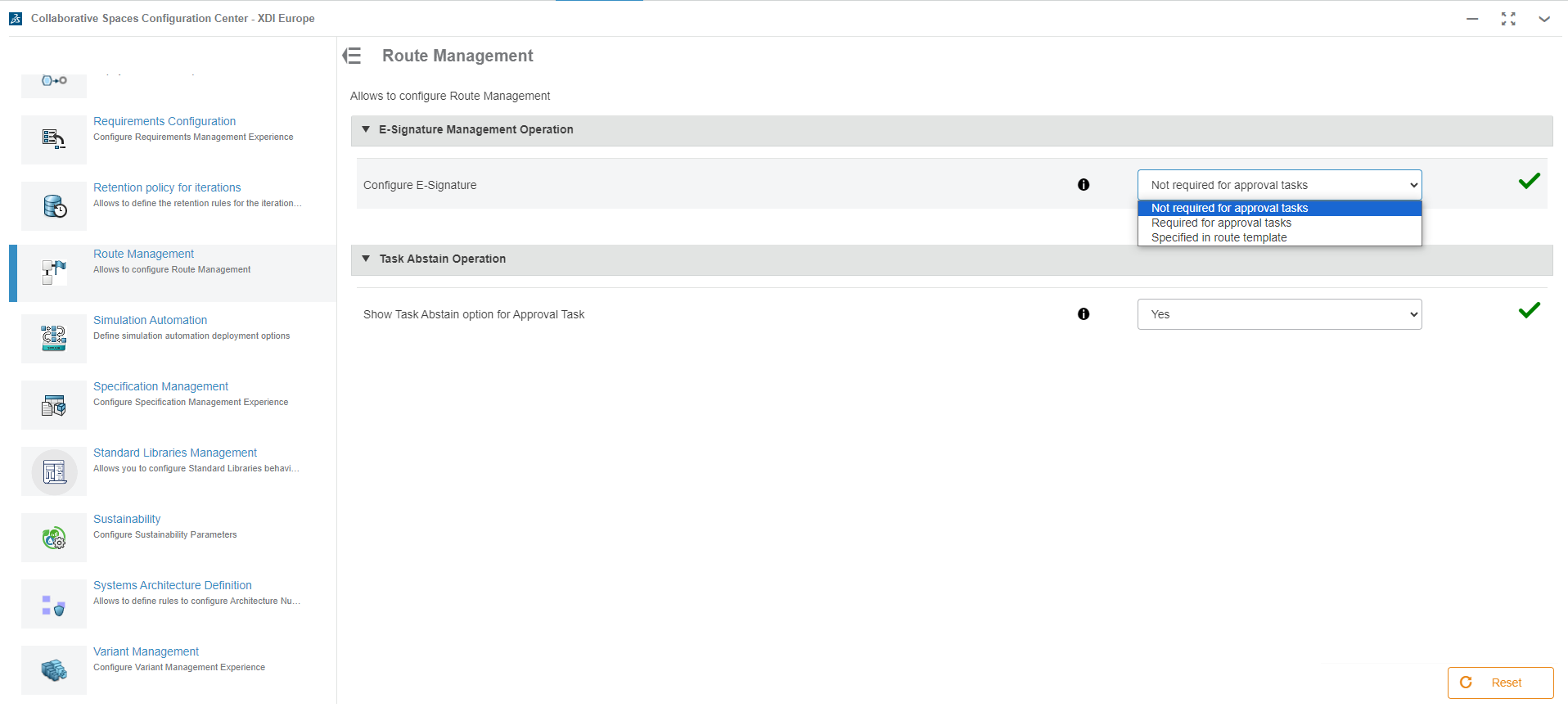
When the task is validated, you can choose to sign the approval electronically (this can be useful for compliance with certain standards). This is set in the Collaborative Space Configuration Center application -> Route Management
When all tasks have been completed, the files are automatically switched to the “Distributed” maturity state, if you selected this option when creating the route.
Then the road ends. You can still access it, to guarantee traceability.
Step 3: Create a route template
In general, a validation process doesn’t change every day. So it’s a good idea to create a route template to be reused each time you want to validate a document.
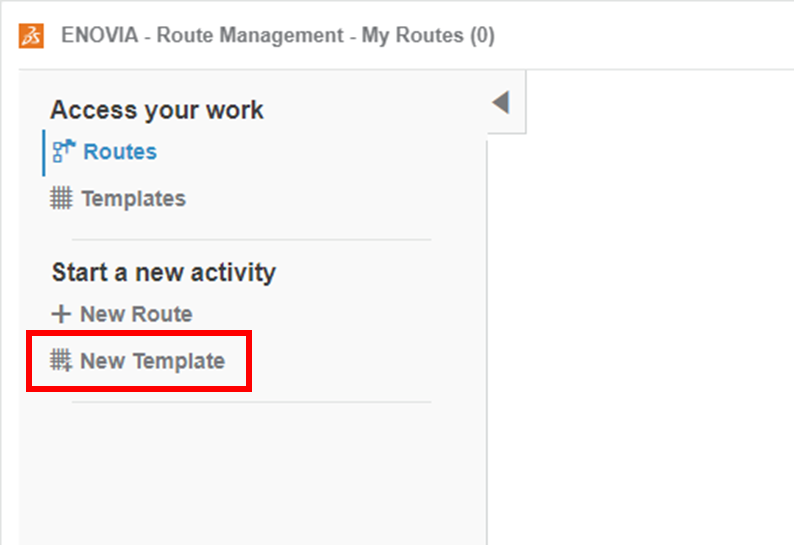
To do this, simply click on“New template” instead of creating a route:
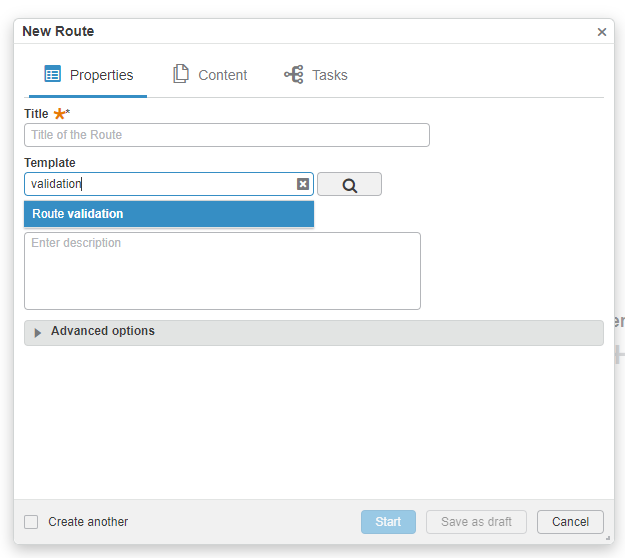
When you create a route, you can then choose this template:
Conclusion
Routes are a good way of guaranteeing the validation and traceability of your documents, whether SOLIDWORKS, CATIA, PDF or Excel files…
If you have any questions or would like to set this up, please contact us!




