
Introduction
After some time in use, you notice problems with SOLIDWORKS: files open very slowly, graphics display is unusual, even SOLIDWORKS crashes…
Let’s take a look at good design practices with SOLIDWORKS to optimize your performance.
Step 1: Establish a diagnosis
To solve a problem, you first need to understand where it comes from.
In general, there are two sources that affect SOLIDWORKS performance: the hardware used, and the design method.
But don’t panic, your design will become infallible once you’ve learned the following tips!
1. Check computer certification
The Dassault Systèmes eligibility test enables you to check your computer’s compatibility with 3DEXPERIENCE software.
For SOLIDWORKS to run smoothly, it is important to consider the following elements:
- Graphics card: integrated or gaming graphics cards are not suitable for SOLIDWORKS. We recommend using an AMD or NVIDIA graphics card.
- Operating system: Windows systems are mandatory; however, we specifically exclude Windows Home, which is a source of problems.
Tip: find the list of certified equipment here!
2. Evaluate file performance on SOLIDWORKS
Having studied the possible causes of hardware problems, it’s time to analyze your files.
Open an assembly in SOLIDWORKS, then click on“Performance Evaluation“.

This tool analyzes your file, detecting any sources that may be slowing down software performance, and opens a dialog box with details of problematic components in several categories.
a. File opening time
The first item displayed is the file opening time.
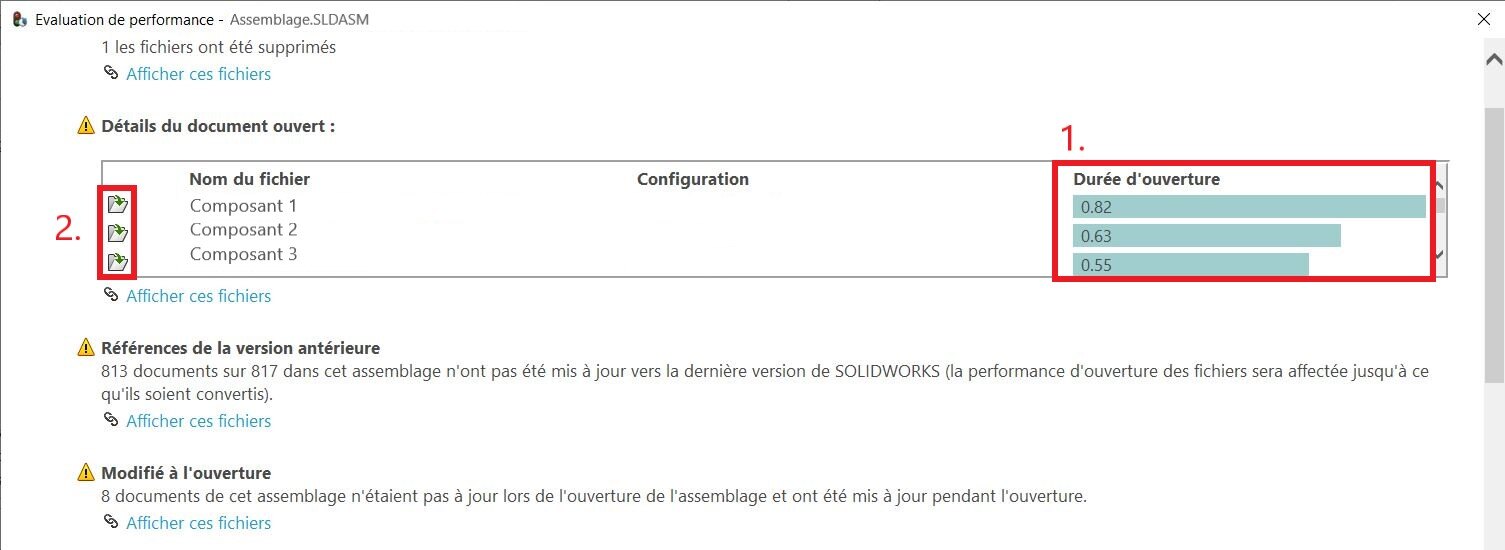
An abnormally long component opening time will lengthen the overall opening time of the assembly. Start by locating them, then open them individually for analysis.
b. Graphic triangles
The graphic triangles indicate the level of detail of a component.
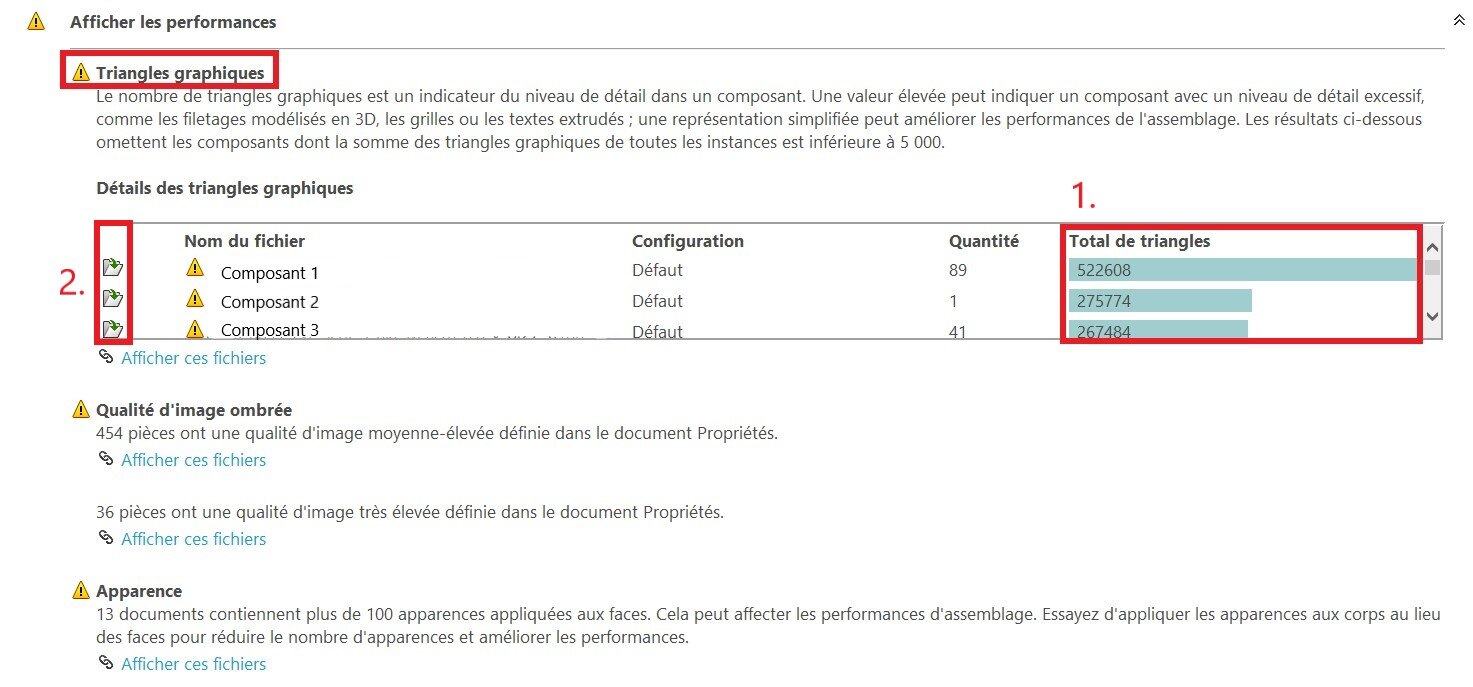
Above a certain threshold, the components are considered graphically very heavy, which increases SOLIDWORKS latency.
Often, these components are files imported from an external source. Open them individually and rework them to make them lighter:
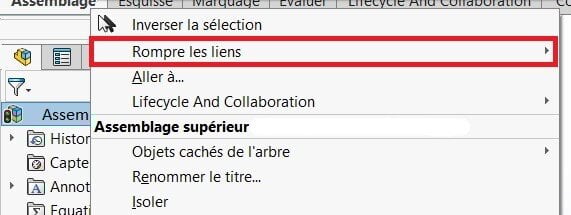
- Breaking links: break links with external references
- Surface cleaning: simplify component geometry and details (3D threads, extruded text, etc.).
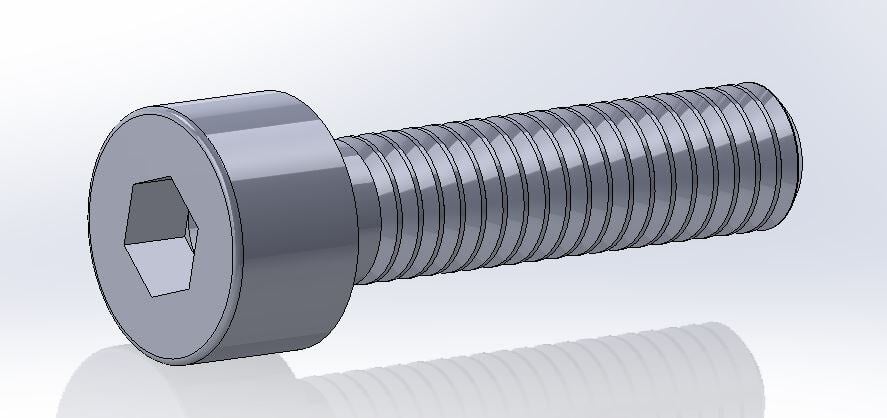
Example: screw with detailed 3D thread; for simplicity, a shaded representation of the thread is sufficient.
Tip: if you’re short of time to rework components, convert them to the lighter Parasolid format.
c. Flexible sub-assemblies
The statistics generated by the evaluation tool give an indication of the quantity of components by type.
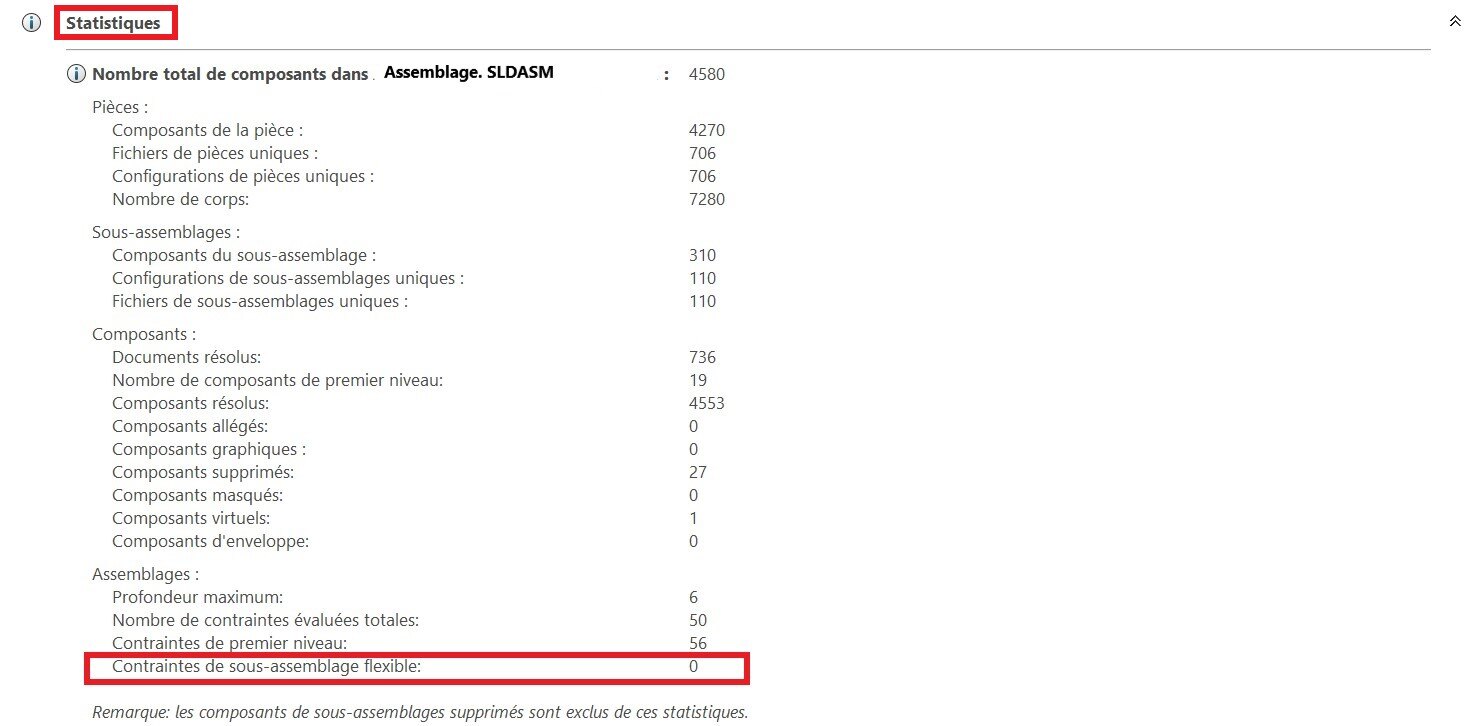
It’s important to consider the data on flexible sub-assemblies: a flexible sub-assembly allows movements. Every time an assembly is opened, all these movements have to be reconstructed, resulting in very long calculation times!
To reduce calculation times, make your sub-assemblies as rigid as possible.

Tip: make your assemblies flexible only when you need them!
Step 2: Adopt good design practices
The SOLIDWORKS performance evaluation gives an initial overview of good practices to adopt in order to optimize performance: simplify component geometry and work with rigid sub-assemblies. Other practices are also worth considering:
1. Avoid external references
External references are created when a part is built directly into an assembly. Using the existing geometry of another part to create a new one generates an external reference.
In particular, this practice leads to very long loading times, as each function that depends on another has to be rebuilt.
Note: for more details on external references, see our article here !
2. Use sub-assemblies
Before creating an assembly, it’s important to think about how it will be created.
Avoid importing a whole bulk of parts, and give preference to sub-assemblies (even if it means having sub-assemblies with one or two parts). Sub-assemblies simplify modification, navigation and reuse of part groups, improving performance and productivity.
3. Open files in light mode
When opening a file in SOLIDWORKS, it is possible to select a resolved or lightened opening mode.
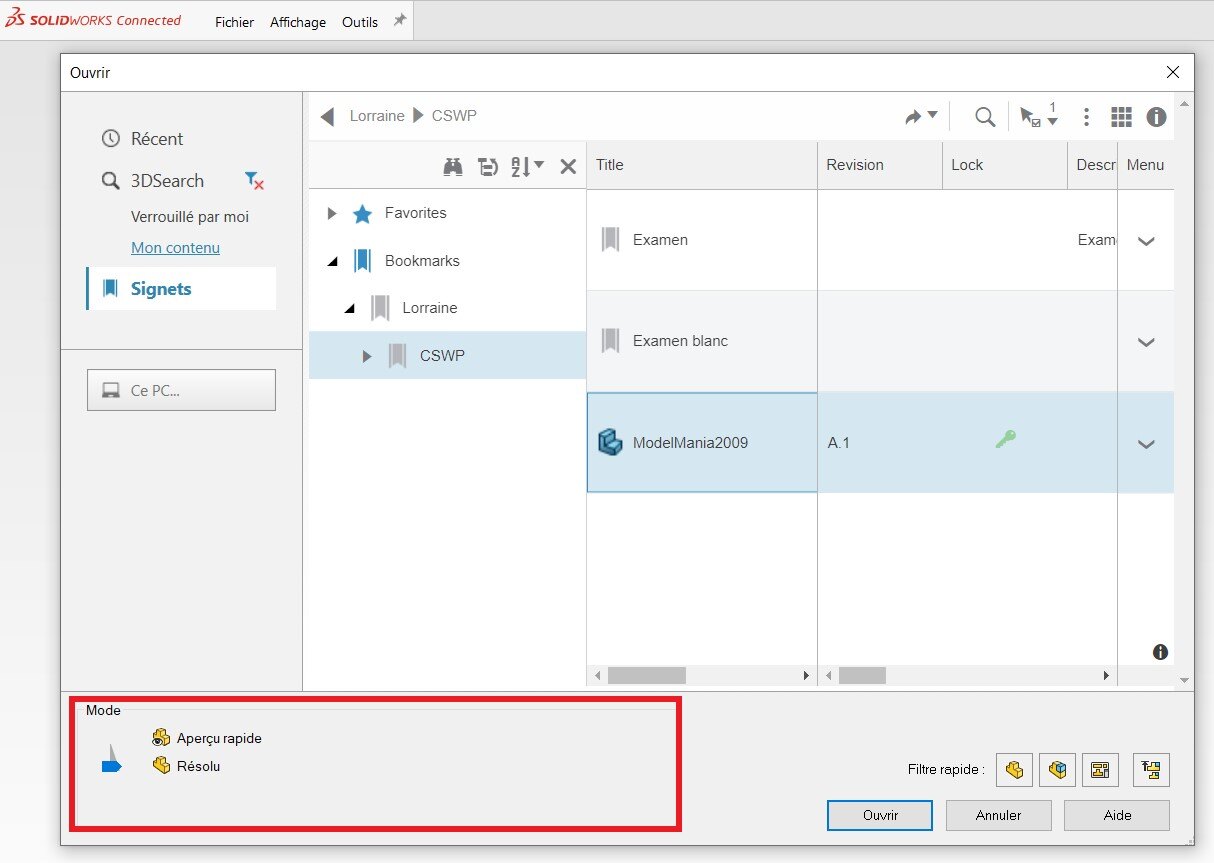
- Resolved mode: allows full loading of graphic elements, rather long opening time
- Light mode (or quick view): allows partial loading of graphic elements, fast opening time
Depending on what you’re going to do with the file when you open it, for example, for reading, the light mode offers time and performance savings.
Conclusion
Improving SOLIDWORKS performance can be achieved not only by choosing the right hardware, but also by optimizing the design. It is of course possible to go even further, by using design intelligence (symmetries, repetitions…) and other tricks included in our coaching programs.
If this article hasn’t solved your problem, please contact us!




