
Why it matters
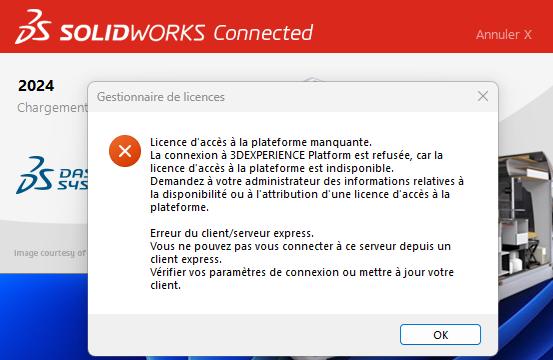
If you do not perform these actions, you may be unable to launch 3DEXPERIENCE SOLIDWORKS / CATIA and encounter the following error messages:
- Unable to connect to 3DEXPERIENCE (not enough roles available)
!['Failed to Get Login Ticket for [...] (2147467259)' Error Message When Launching SOLIDWORKS Connected - SWYFT Solutions](https://images.squarespace-cdn.com/content/v1/5ed532ab341bc74ec50c77ff/4075cb07-7e47-4938-85f5-4ff3db7a7ef1/4+-+3DEXPERIENCE+access+denied+message.jpg)
- Express client/server error (expired roles on your profile)
Before renewal date
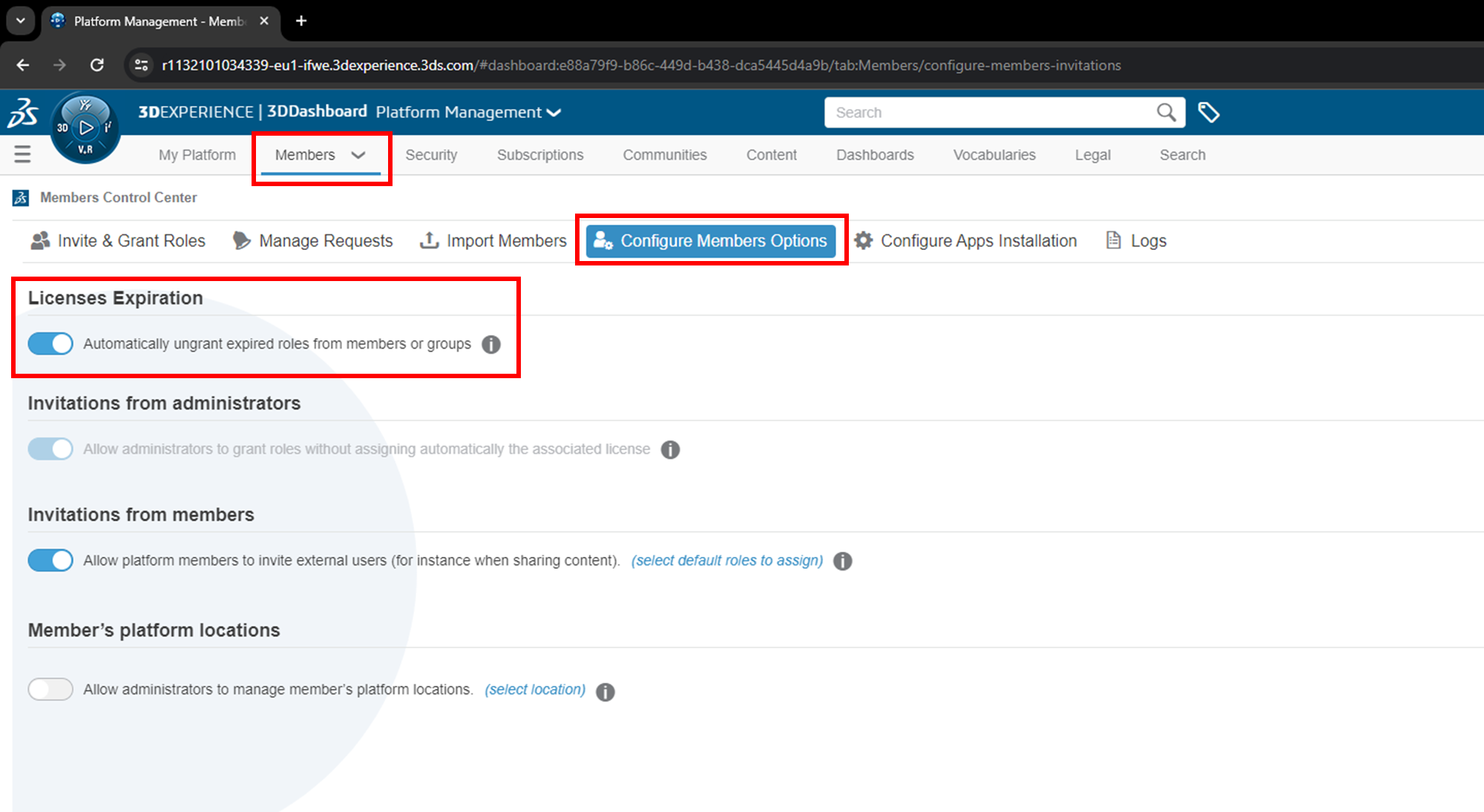
1. Remove expired roles
The platform administrator must go to the“Platform management” Dashboard, then activate the “Remove expired roles automatically” option:
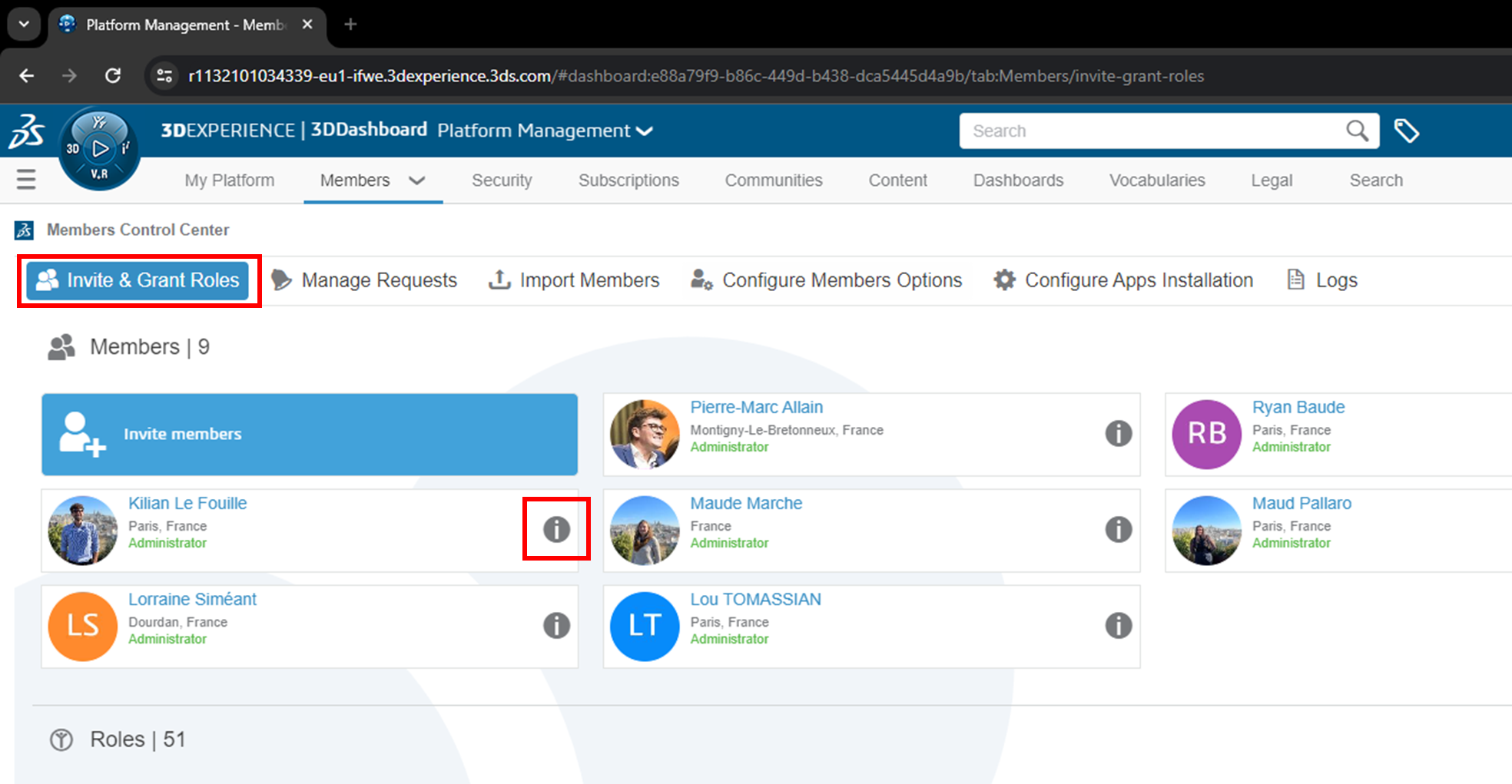
2. Remove members who will no longer have access
Still on the“Platform management” Dashboard, delete the access of members who will no longer have access to 3DEXPERIENCE after renewal:
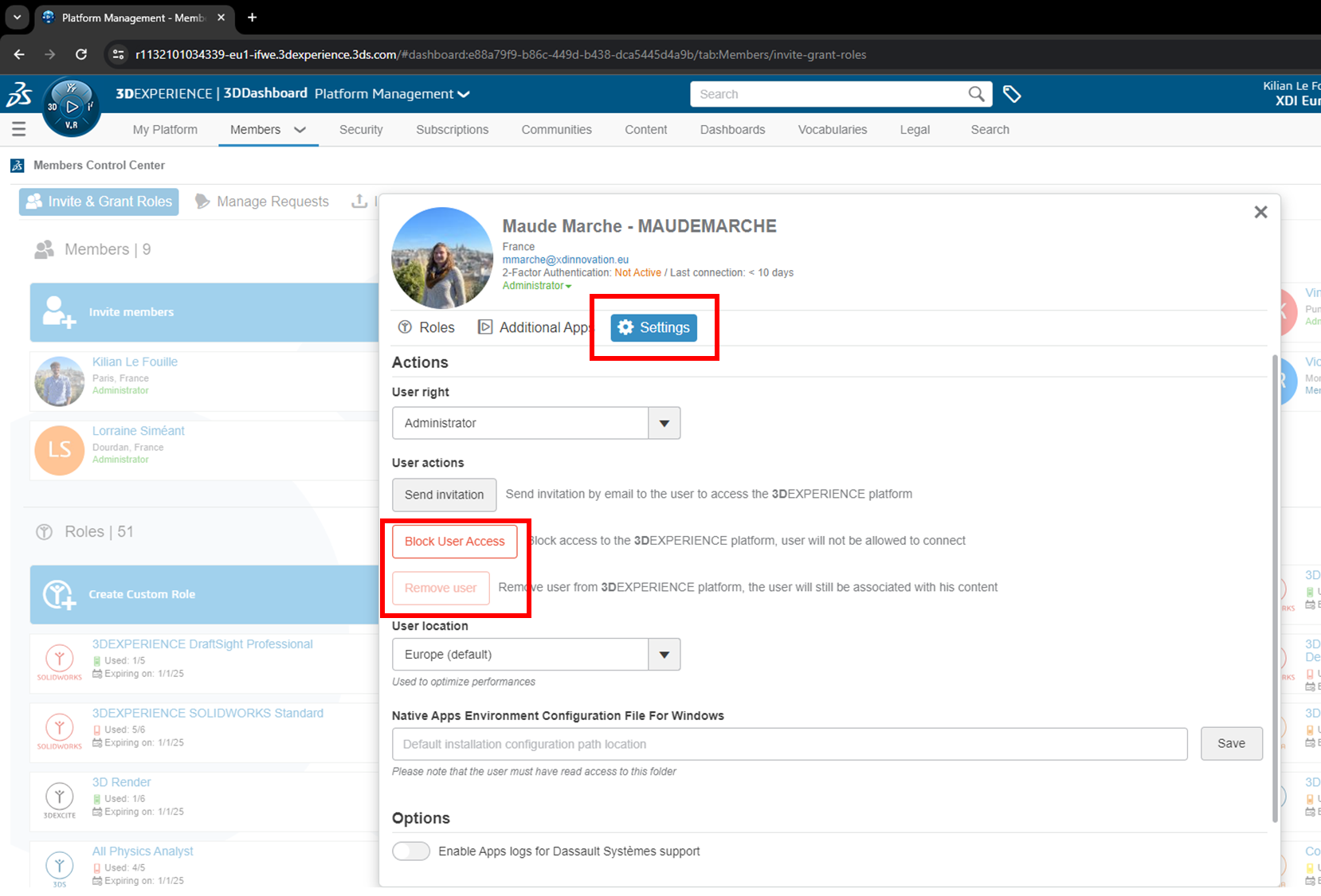
You have two options:
- Remove access: the user will no longer be able to connect
- Remove the user: he/she will no longer appear in the platform, but the files he/she has created will remain accessible. Recommended if available (option grayed out if roles are locked).
After the renewal date :
You may be upgrading from a SOLIDWORKS Premium license to a SOLIDWORKS Standard license. Upgrade now!
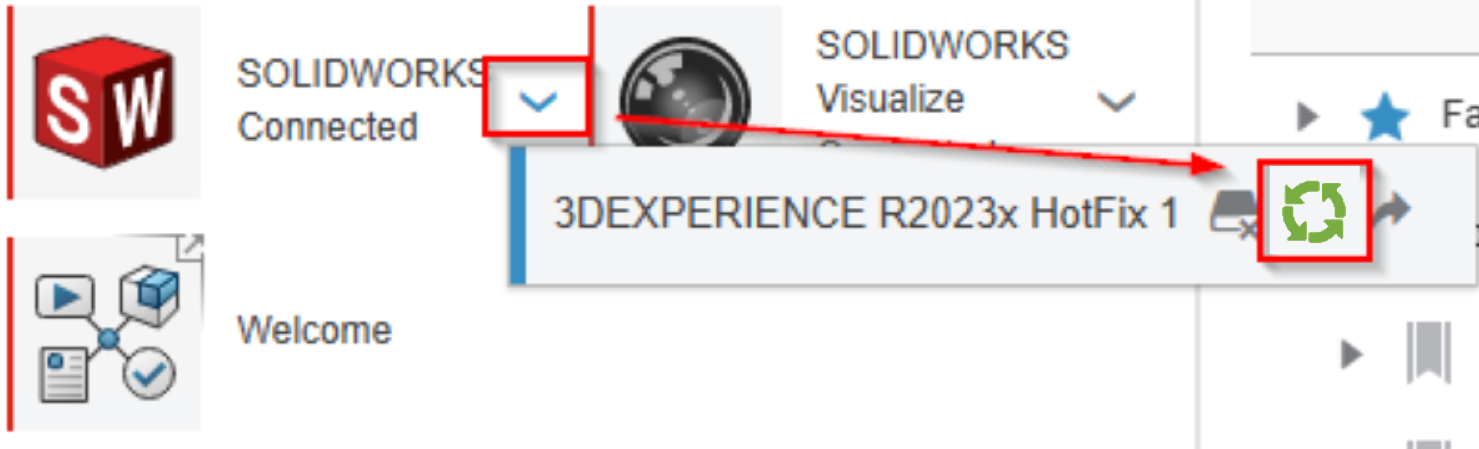
To do this, simply perform an “upgrade”, in the same way as an update. See the tutorial here.
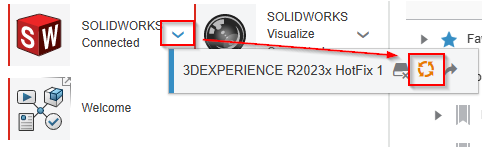
If your SOLIDWORKS is not up to date (orange arrow), you will need to perform this operation twice (update THEN upgrade).
Update example (orange arrow) :
Example of an upgrade (green arrow) :
Still having problems?
Contact us, we’ve probably got the solution!
support@xdinnovation.eu or +33 1 89 71 33 15




