
Standard uninstall
In most most In most cases, a standard uninstall is enough to solve a problem you’ve identified as an installation issue.
- If you are working online, go to step 2. If you are working offline, start SOLIDWORKS® Connected, reconnect to your 3DEXPERIENCE platform and close SOLIDWORKS Connected.
- Right-click on the Start menu and select Apps & Features or Installed Apps. (You can also access the list of installed applications via Windows Settings).
- Uninstall Dassault Systemes SOLIDWORKS 3DEXPERIENCE R20XXx.
- Check that the installation folder has been removed from %programfiles%\Dassault Systemes\SOLIDWORKS 3DEXPERIENCE
Reinstall SOLIDWORKS Connected to see if the problem has been solved.
Intermediate deinstallation
In some cases, a standard uninstall may prove insufficient, and a more complete uninstall may be required.
- Follow steps 1 to 3 of the standard uninstall procedure.
- In no particular order, uninstall :
- Microsoft Visual C++ 2015-2022 Redistributable (x64)
- Microsoft Visual C++ 2015-2022 Redistributable (x86)
- CEF for SOLIDWORKS Applications
Reinstall SOLIDWORKS Connected to see if the problem has been solved.
Advanced uninstall
In very rare cases, an intermediate uninstall may prove insufficient, and you may need to carry out an even more complete uninstall.
- Save your customized settings and file templates
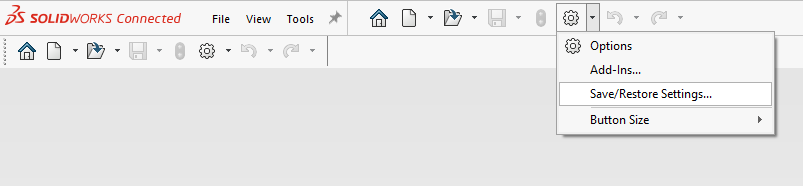
- Follow steps 1 to 3 of the standard uninstall procedure.
- In no particular order, uninstall :
- 3DEXPERIENCELauncher
- CEF for SOLIDWORKS Applications
- Dassault Systemes Software VC11 Prerequisites x86-x64
- Microsoft Visual C++ 2015-2022 Redistributable (x64)
- Microsoft Visual C++ 2015-2022 Redistributable (x86)
- Microsoft Visual Studio Tools for Applications 2022 (If the ‘Uninstall’ button is grayed out, click on ‘Modify’ then uninstall in the window that appears)
- SOLIDWORKS Login Manager
- WPTx64
- Uninstall Visual Basic (VBA) 7.1
-
- Download the attachment QA00000070487_uninstall_vba.bat.
- Right-click on the file and select Run as administrator.
NOTE: If you see other versions of Microsoft Visual C++ Redistributable or Microsoft Visual Studio Tools for Applications, we recommend that you do not uninstall them for the following reasons:
- A third-party application has installed the other versions and requires them. Uninstall other versions only if you know which applications have installed them. Uninstalling other versions may affect the stability and functionality of third-party applications.
- An older version of SOLIDWORKS Connected or SOLIDWORKS Desktop may have installed the other versions.
Cleaning files
- Delete the following folders:
NOTE: step 2 deletes some of these folders, so they may not exist in your environment.
Some of these folders may contain important data such as downloaded media, document templates, databases and design library files.
We recommend that you create a backup of the %public% and %programdata% folders before deleting them.
%programfiles%\Dassault Systemes\SOLIDWORKS 3DEXPERIENCE
%programfiles%\Common Files\SOLIDWORKS Shared
%programfiles(x86)% \Common Files\SOLIDWORKS Shared
%public%\Documents\Dassault Systemes
%public%\Documents\SOLIDWORKS
%programdata%\DassaultSystemes\3DEXPERIENCELauncher
%programdata%\SOLIDWORKS
%programdata%\SolidWorks HotFix
%appdata% \DassaultSystemes
%appdata% \SolidWorks
%localappdata% \TempSWBackupDirectory
%localappdata% \DassaultSystemes
%localappdata% \SolidWorks
%temp% \swcefcache
Cleaning register keys
- Delete the following registry keys. Deleting registry keys requires Windows administration rights:
NOTE: Incorrect modification of the Windows registry can seriously damage your system. We recommend that you back up your keys before deleting them.
We are not responsible for any actions you take as a result of following this guide.
HKEY_CURRENT_USER\SoftwareDassault Systemes\SolidWorks Shared
HKEY_CURRENT_USER\SoftwareDassault Systemes\SolidWorksPDM
HKEY_CURRENT_USER\SoftwareSolidWorks
HKEY_CURRENT_USER\Software\Srac
HKEY_LOCAL_MACHINE\SoftwareDassault Systemes\SolidWorksPDM
HKEY_LOCAL_MACHINE\SoftwareDassault Systemes\SwxConnectors
HKEY_LOCAL_MACHINE\SoftwareDassault Systemes\V6_Common
HKEY_LOCAL_MACHINE\Software\SolidWorks
HKEY_LOCAL_MACHINE\Software\Srac
HKEY_LOCAL_MACHINE\Software\WOW6432Node\SolidWorks
Have you reached the end? Congratulations!
It’s important to restart your computer.
Then reinstall SOLIDWORKS Connected to see if the problem has been solved.
Still not working?
Send us a message to support@xdinnovation.eu




