

- A well-organized CAD file system reduces errors and saves time during production.
- Version control and clear naming conventions ensure data traceability and reliability.
- The use of tools such as PDM or cloud-based solutions facilitates secure collaboration with external partners.
Wasting an hour searching for a 3D file, delivering a machined part based on an outdated version, or discovering that a contractor is working on the wrong assembly, these situations are costly, both in terms of time and credibility. For startups and industrial SMEs, poor organization of CAD files can bring an entire product development cycle to a standstill. This guide offers a structured, step-by-step method to transition from chaotic storage to reliable, traceable, and shareable management. We cover analyzing your needs, structuring folders, version control, and secure sharing, with practical tools and examples you can implement today.
Table of Contents
- Analyze your needs and prepare your CAD tools
- Methodology for organizing files and folders
- Version control and change tracking
- Sharing, traceability, and security of CAD files
- Our lessons learned: what really works in the long run
- Take It Further with Dedicated CAD Solutions
- Frequently asked Questions
Key Points
| Point | Details |
|---|---|
| Appropriate preparation | Clarify your needs and choose the right tools before organizing your CAD files. |
| Intelligent Structuring | Apply naming conventions and a clear directory structure to ensure the long-term viability of the data. |
| Version Control | Implement a rigorous system for tracking changes to prevent losses or confusion. |
| Sharing and Security | Ensure traceability and security when sharing CAD files internally or externally. |
Analyze your needs and prepare your CAD tools
Before renaming any files, you need to take stock of the situation. Who works on your files? How many projects are you managing at the same time? What software is being used? These questions may seem basic, but they completely determine the level of sophistication you need.
Start by mapping out the types of files you produce:
- Native files : SOLIDWORKS (.sldprt, .sldasm), CATIA (.CATPart, .CATProduct), which can only be opened with the source software
- 2D Files : technical drawings in .dwg and .dxf formats, often used for manufacturing
- Neutral formats : STEP (.stp), IGES (.igs), useful for exchanging data between different software programs
- Simulation Files : calculation results, meshes, reports
- Related Documents : specifications, material sheets, bills of materials
Next, clearly identify who needs access to what. An in-house design office does not have the same needs as a machining subcontractor or a quality manager. Mapping out these stakeholders helps you avoid creating a directory structure that is either too complex or, conversely, too permissive.
| Solution | Advantages | Limits | Suitable profile |
|---|---|---|---|
| Manual tree structure | Free and easy to set up | Risk of human error; not very scalable | Freelancer, very small team |
| PDM (SOLIDWORKS PDM, 3DEXPERIENCE) | Automatic traceability, rights management | Cost, required training | SME with a dedicated CAD team |
| Cloud (3DEXPERIENCE, Onshape) | Remote access, real-time collaboration | Network dependency, subscription cost | Distributed teams, agile startups |
The innovative CAD tools Modern solutions allow you to combine several approaches depending on the maturity of your organization. For teams that are just beginning to transition to the cloud, the solution Cloud CAD via 3DEXPERIENCE provides a smooth transition.
The neutral formats for manufacturing Formats such as STEP or IGES are used to validate the geometry and document communications with your manufacturers, regardless of the software used. Be sure to systematically export a STEP file at each validation milestone.
Pro tip: Before choosing a tool, make a list of your five most common problems related to CAD files. This will guide your choice much more effectively than comparing features in a vacuum.
Methodology for organizing files and folders
Once the tools have been defined, the next step is to establish simple, robust organizational rules. The best folder structure is the one that your entire team actually follows, not the one that seems most logical on paper.
Here is a proven folder structure for an industrial small and medium-sized business:
- Project (e.g., PRJ-2026-042_Hydraulic Cylinder)
- Native CAD : SOLIDWORKS or CATIA source files
- CAD_Neutral : STEP, IGES, and DXF exports for data exchange
- 2D_Drawings : approved definition drawings
- Simulation : calculation results and reports
- Documents : specifications, meeting minutes, bills of materials
- Archives : obsolete versions, do not delete
File naming is often overlooked, yet it makes all the difference in day-to-day work. Adopt a clear naming convention:
[ProjectCode]_[PartName]_[Index]_[Date]
Example: PRJ042_Piston_v03_20260415.sldprt
There is no unwritten naming convention. Document your conventions in a README.txt file at the root of each project and post it in your shared workspace.
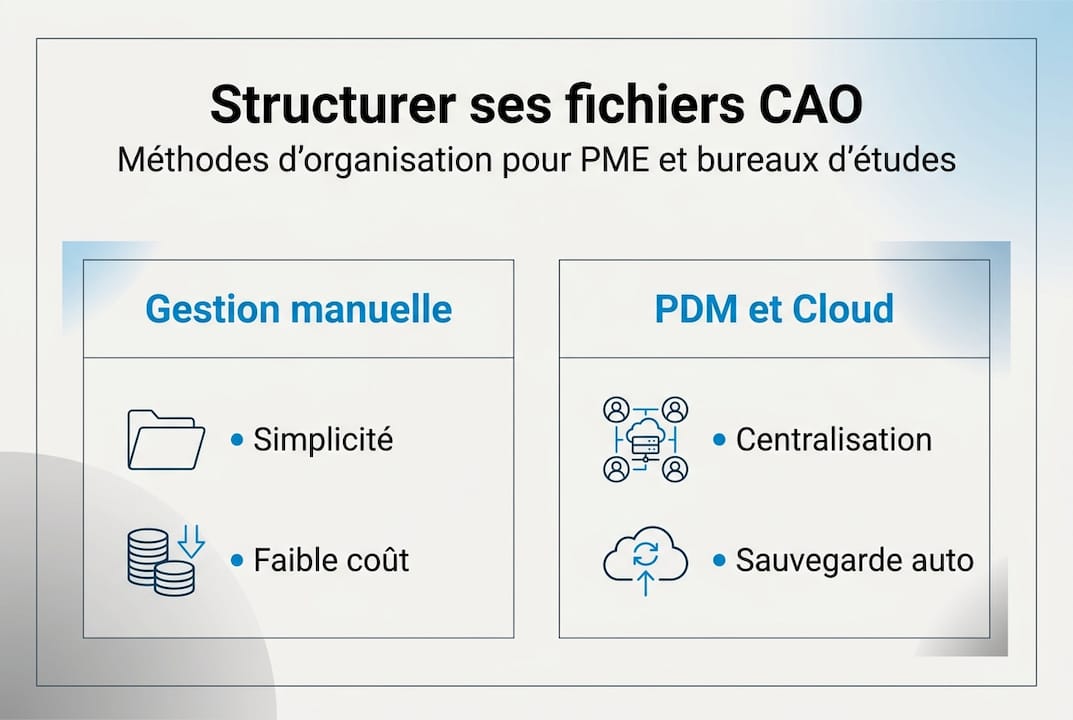
A comparison of these approaches reveals key differences: when comparing manual versus automated management practices, manual naming requires consistent discipline, while a PDM automates traceability but requires rigorous initial configuration.

| Criterion | Manual | Product Data Management | Cloud |
|---|---|---|---|
| Initial cost | Weak | High | Medium |
| Reliability | It depends on the team | Raised | Raised |
| External Collaboration | Difficult | Possible | Easy |
| Scalability | Weak | Good | Excellent |
To learn more about the right way to Name your 3D files Depending on their intended use, and to understand the file naming conventions in a 3DEXPERIENCE context, we recommend that you review these resources before deploying your file structure.
Pro tip: Create a pilot project based on a real product, not a fictional example. Testing your structure on a real project immediately reveals any shortcomings before you roll it out more widely.
Version control and change tracking
Optimal organization goes beyond file structure; it also includes rigorous revision management. This is often where teams waste the most time, and sometimes compromise product quality.
Why should you always use version control? Because a CAD file that’s been modified without a trace is a ticking time bomb. A part machined from an outdated version, an assembly that no longer matches the drawing, a simulation rerun on outdated geometry, these are real, common, and preventable errors.
Here are the best practices to implement right away:
- Never overwrite an existing file : Always create a new index
- Archive obsolete versions in a dedicated subfolder, never in the trash
- Document each revision with a short description (e.g., “R3 leave correction, customer request 04/12”)
- Use a study guide in your 2D drawings, synchronized with the 3D files
- Define who can approve a version update (technical manager approval)
The most common mistakes observed in small and medium-sized businesses:
- Name the files “final,” “final2,” and “ready-for-production” without a date or specific version number
- Delete old versions to “make room”
- Failing to notify the team when a critical indicator changes
- Working locally without synchronizing with the shared server
For teams using SOLIDWORKS or CATIA, the built-in file version control tools greatly simplify this process. The save function in CATIA and the CA approval process provide a structured framework for formally approving each change.
According to established best practices for manual versus automated management in industrial engineering, the STEP format is superior to native formats for interoperability between subcontractors and clients. Always export a STEP file at each validated milestone.
Key statistic: Companies that adopt a PDM reduce the time spent searching for and correcting incorrect or outdated CAD files by an average of 30 to 40%.
Sharing, traceability, and security of CAD files
Effective organization requires controlled and secure file sharing, which is key to true collaboration. Sharing a CAD file without taking precautions risks the leakage of industrial know-how or the production of a part based on the wrong version.
Best practices for controlled sharing:
- Send neutral formats (STEP and DXF files for manufacturing) to your subcontractors, never your native files unless absolutely necessary
- Use time-limited links rather than unmonitored email messages
- Set access levels : read-only, edit, approve, depending on the role
- Track each download : Who accessed which file, and when
- Be sure to revoke access at the end of a project or contract
Traceability is not an administrative burden; it is a form of legal and technical protection. In the event of a dispute over a non-compliant part, being able to prove which version was provided is crucial.
When collaborating with external partners, sharing 3D files via a secure link is an efficient and professional practice. This avoids exchanging files via email, where versions can get lost in endless email threads.
Visualization also plays a key role: allowing a partner to view a 3D model without access to the source files protects your intellectual property. The various Types of 3D Visualization The available options make it possible to determine the appropriate level of sharing based on who you're talking to.
Finally, take physical measures to secure your files: daily automatic backups, the 3-2-1 rule (3 copies, 2 different media types, 1 off-site), and access controls for the server or cloud storage.
Our lessons learned: what really works in the long run
Every year, we help dozens of startups and small and medium-sized businesses transition to professional CAD file management. And what’s the most important lesson we’ve learned? It’s not the tool that makes the difference, it’s consistency.
About 80 % of the companies we meet still rely on manual methods, not because of a lack of resources, but because no one has taken the time to establish clear rules and enforce them. A well-organized shared folder with strict guidelines is often more effective than a poorly configured PDM that the team has never adopted. To find out the threshold at which a PDM is still necessary, see our PDM guide.
What we see in organizations that have been successful over the past two years is that they have appointed someone to manage CAD documentation, even on a part-time basis. They have trained their team on the conventions they’ve chosen. And they review their rules every quarter, not every day.
Our practical advice: start small. A pilot project, documented agreements, and an initial review after three months. This is much more effective than trying to revolutionize everything in a week. To learn more about the overall approach, our 3D Design guide will provide you with a comprehensive methodological framework.
Take It Further with Dedicated CAD Solutions
You now have the basics for organizing your CAD files in a structured way. But if you feel your team needs to take it a step further, there are tailored solutions available, and we’re here to help you implement them.
Our team helps startups and SMEs adopt solutions such as SOLIDWORKS PDM and the 3DEXPERIENCE platform, which are revolutionizing design data management. Check out our guide to 3D visualization to share your models more effectively, explore the 3DEXPERIENCE cloud-based CAD solutions for optimal collaboration, and learn how to implement a consistent and sustainable CAD file naming convention. Contact us for a free assessment of your current setup.
Frequently asked Questions
What is the most versatile CAD file format for manufacturing?
The STEP format is the most widely used for CNC machining, while DXF remains the standard for sheet metal fabrication. These neutral formats allow for data exchange between all software programs without any loss of geometry.
How can you ensure the traceability of a CAD file?
Using a PDM or cloud-based system automates change tracking. Without these tools, strict naming and archiving rules are essential to ensure reliable traceability.
What are the main mistakes to avoid when organizing CAD files?
The lack of a consistent naming convention and local storage without regular backups are the two most costly mistakes. Unstructured versioning inevitably leads to manufacturing errors over the long term.
How can I securely share CAD files with subcontractors?
Send STEP or DXF files via a secure link with time-limited access, and revoke that access as soon as the project is complete to protect your intellectual property.