
Problem:
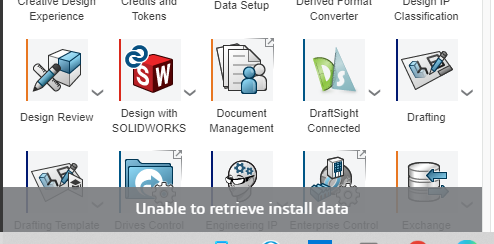
When you launch SOLIDWORKS or other applications, you receive the following error: “Unable to extract installation data”.
Known fixes :
If you use SentinelOne antivirus
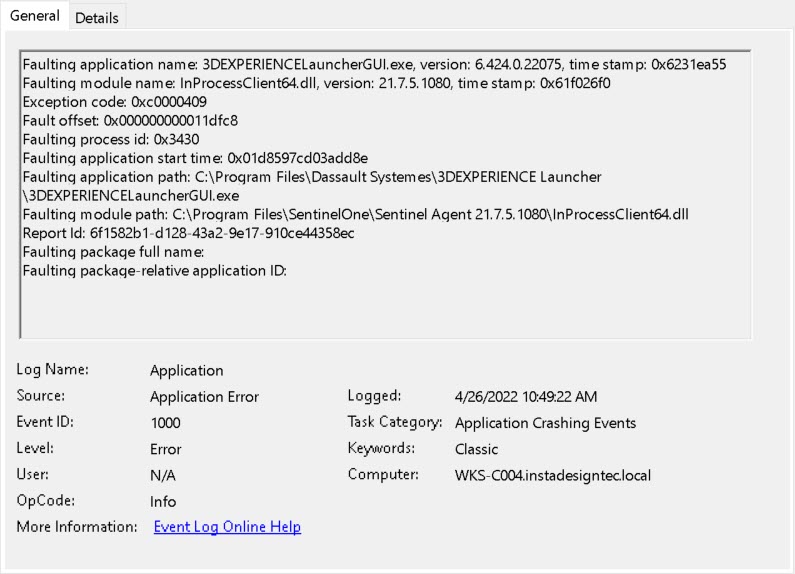
If you use Sentinel One antivirus, it blocks the opening of the 3DEXPERIENCE Launcher.
When you consult the event viewer, a faulty module appears: InProcessClient64.dll, as shown in the image below:
Resolution: you or your IT department must add an exception in your Sentinel One antivirus for the following program:
C:\Program Files\Dassault Systemes\3DEXPERIENCE Launcher\3DEXPERIENCEELauncherGUI.exe
C:\Program Files\Dassault Systemes\Launcher\DEXPERIENCEELauncherBackbone.exe
IMPORTANT: you must restart your workstation once the exception has been added.
If you have installed your 3DEXPERIENCE launcher in a custom location, you will need to add this custom location as an exception.
If you don’t use SentinelOne antivirus
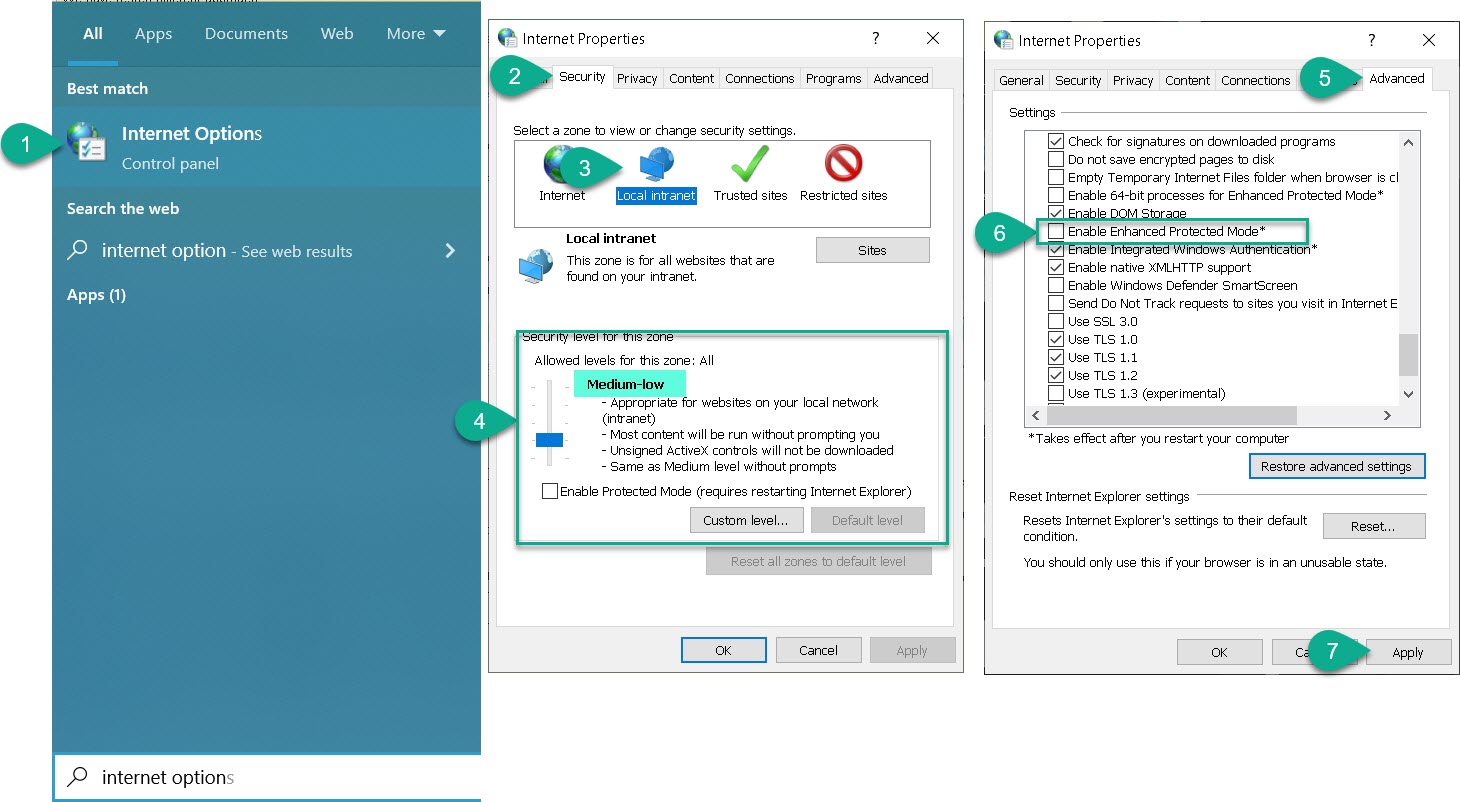
- Another possible cause is the security level of the local intranet, which blocks exchanges with the 3DEXPERIENCE Launcher.
- In this case, try the following procedure:
- Open Internet Options from the Windows Start menu. The Internet Properties window opens.
- Go to the Security tab.
- Click on the Local Intranet icon.
- Make sure the level is NOT set to “high” (e.g. “medium”).
Note: if you have customized settings, you can select Default level to reset the value. - Go to the Advanced tab.
- Make sure the “Enable enhanced protected mode*” checkbox is unchecked/unable.
- Click on Apply.
Still not working?
If this doesn’t solve your problem, please contact us: support@xdinnovation.eu




