
This article describes the various steps involved in adding attributes to the 3DEXPERIENCE platform.
Properties and attributes.
A property (SOLIDWORKS) or attribute (3DEXPERIENCE) is data with a name, type and value.
For example, the property:[Material, text, Tempered steel].
They can be assigned to parts, assemblies or drawings to access or assign data (such as a supplier name, revision number or last modification date).
We’ll start by looking at how to create attributes on the 3DEXPERIENCE platform.
- First, open the Platform Manager and click on the Content tab.
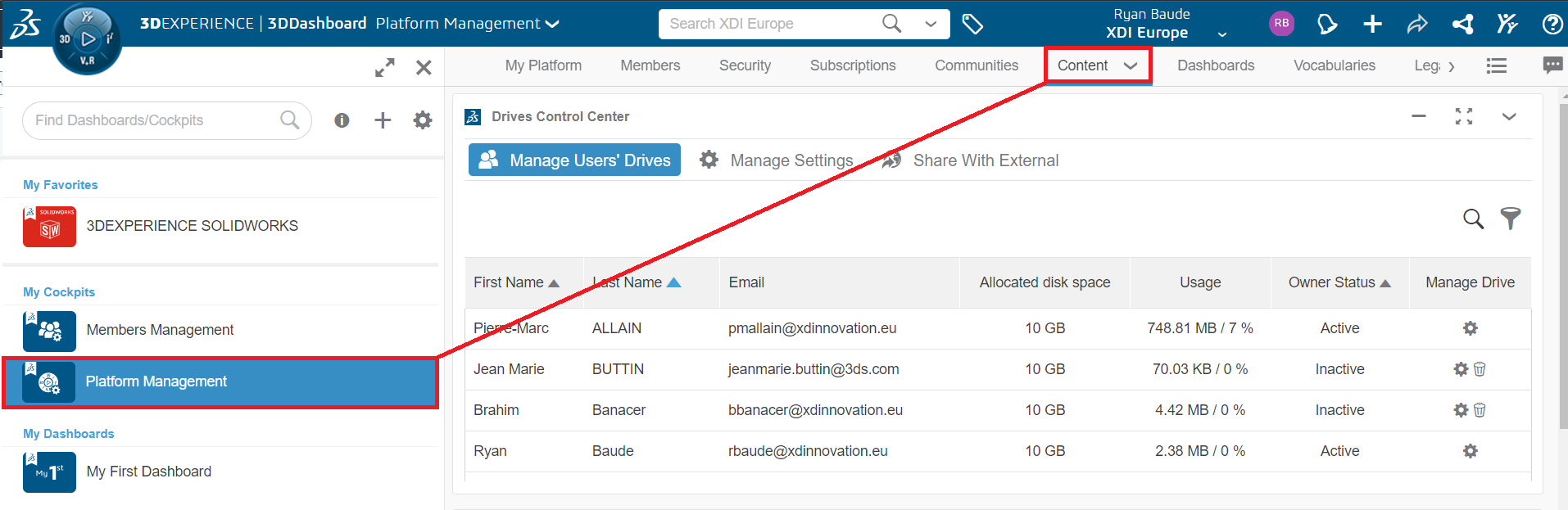
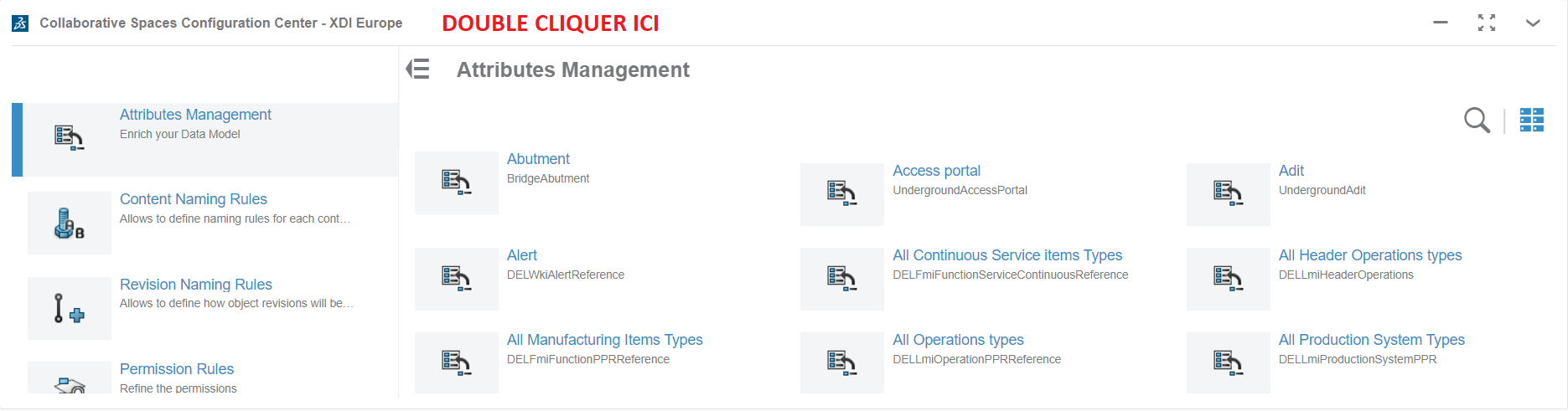
- Scroll down to find the Collaborative Spaces Configuration Center application. Double-click on the name to display it full-screen.
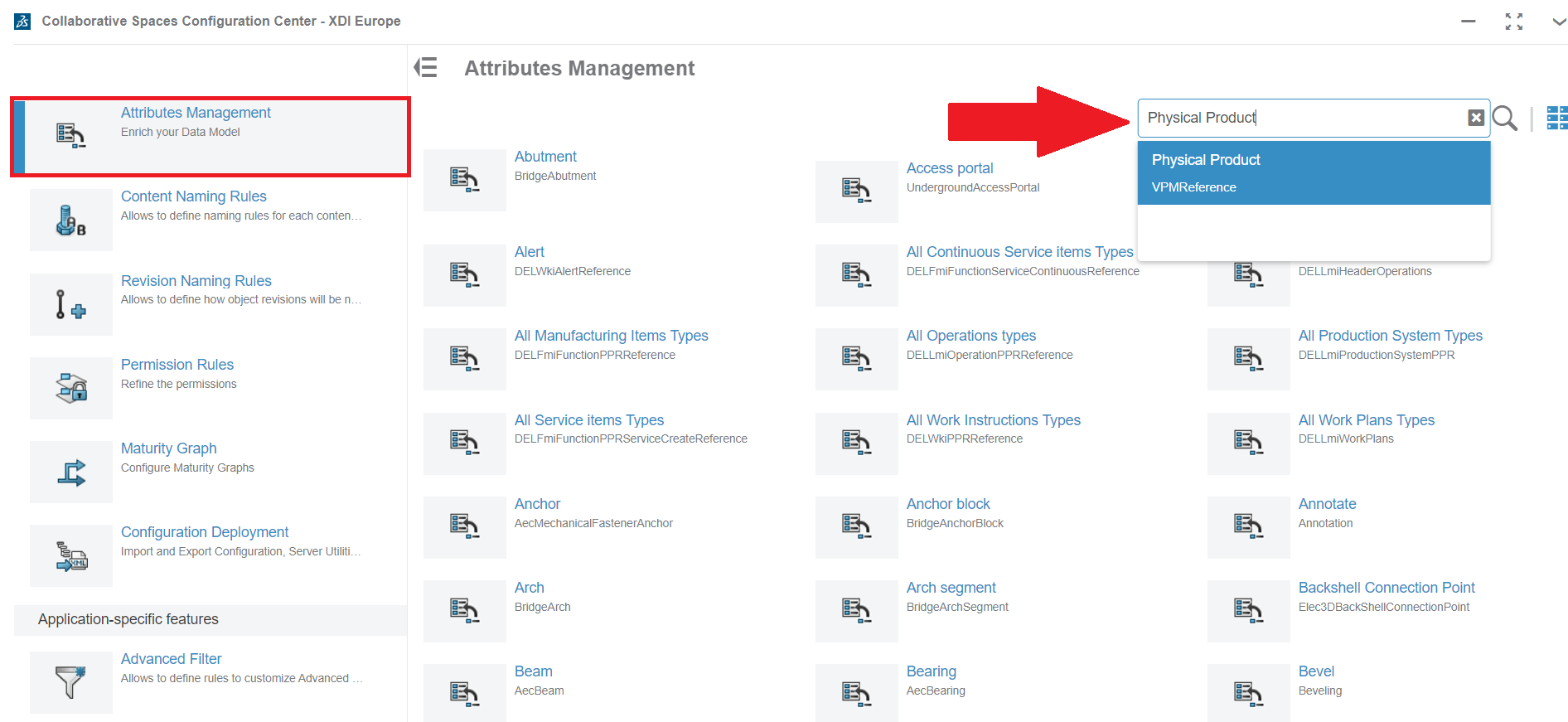
- In the left-hand menu, click on Attributes Management then, using the search tool on the right, search for“Physical Products“.
- Click on ➕ to create a new attribute. The creation menu appears:
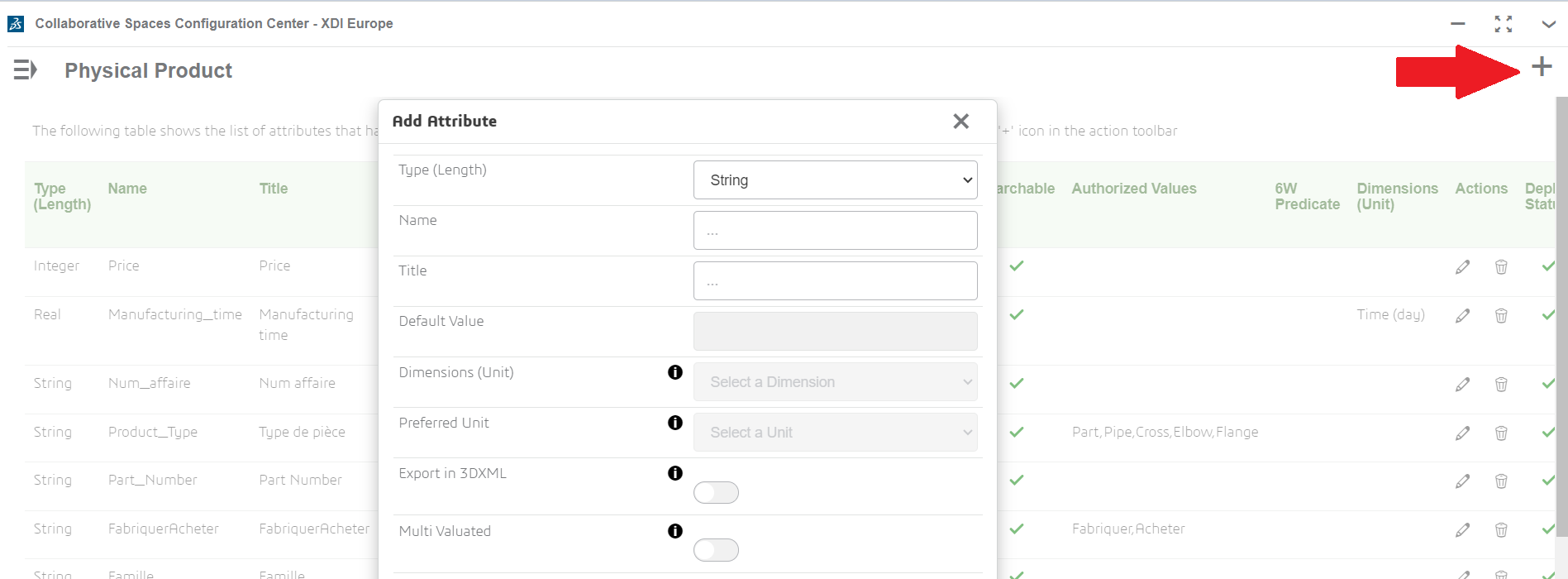
There are several options in this menu:
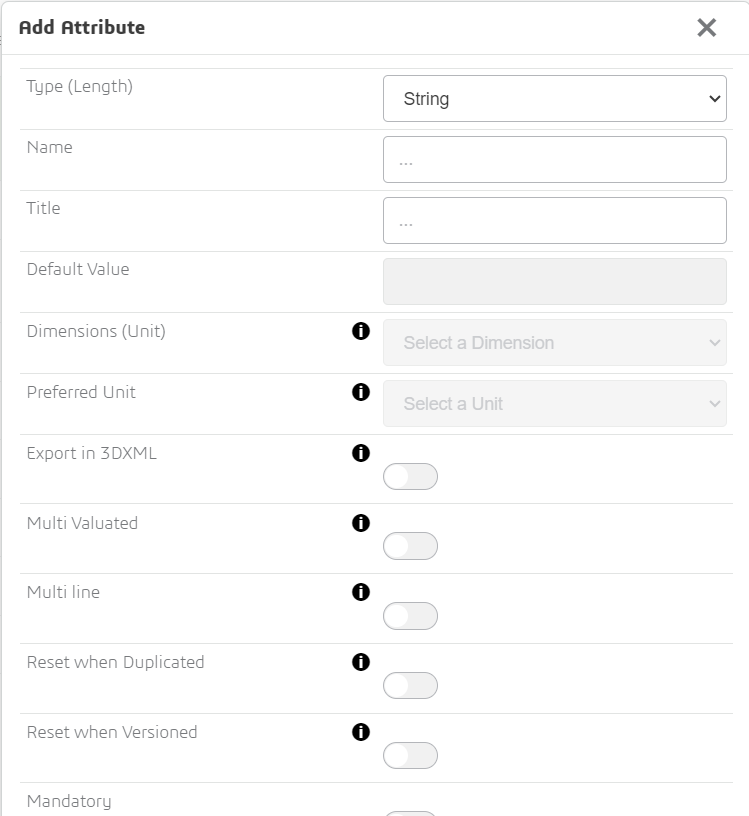
- Property type: This can be a string, a Boolean (Yes/No), a date or a number.
- The property name is important, as it is what the platform will use to interact with SOLIDWORKS. It must therefore be short, meaningful and must not contain any special characters.
- The title is what will be displayed in the platform interface when we search for our
For example, if we want to create a property for the name of the supplier of a part, we’ll have :
- Type: character string
- Name: Supplier_Name
- Title : Supplier name
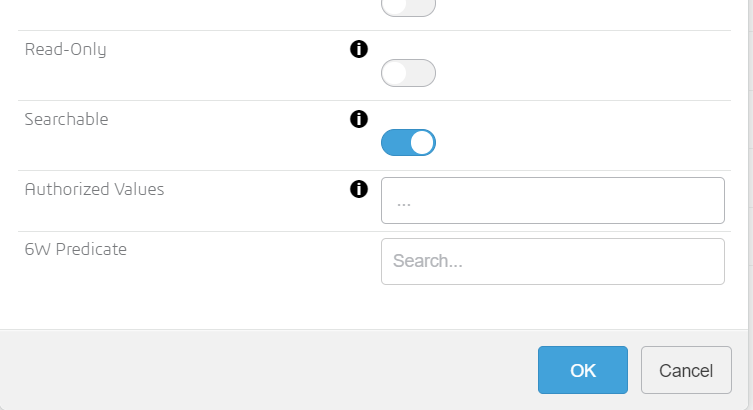
- Mandatory attributes: If an attribute is mandatory, you can’t save a file without first filling it in.
For more information on all attribute parameters, please send an e-mail to support@xdinnovation.eu
5. Once you’ve clicked on OK to save the attribute, click on Apply to make sure it’s taken into account.
6. Now that we’ve created the attribute, we’ll link it to SOLIDWORKS so that we can use it. Return to the Collaborative Spaces Configuration Center application(Step 2). In the same menu as Attributes Management, scroll down until you find the“CAD Collaboration” function. Then click on SOLIDWORKS.
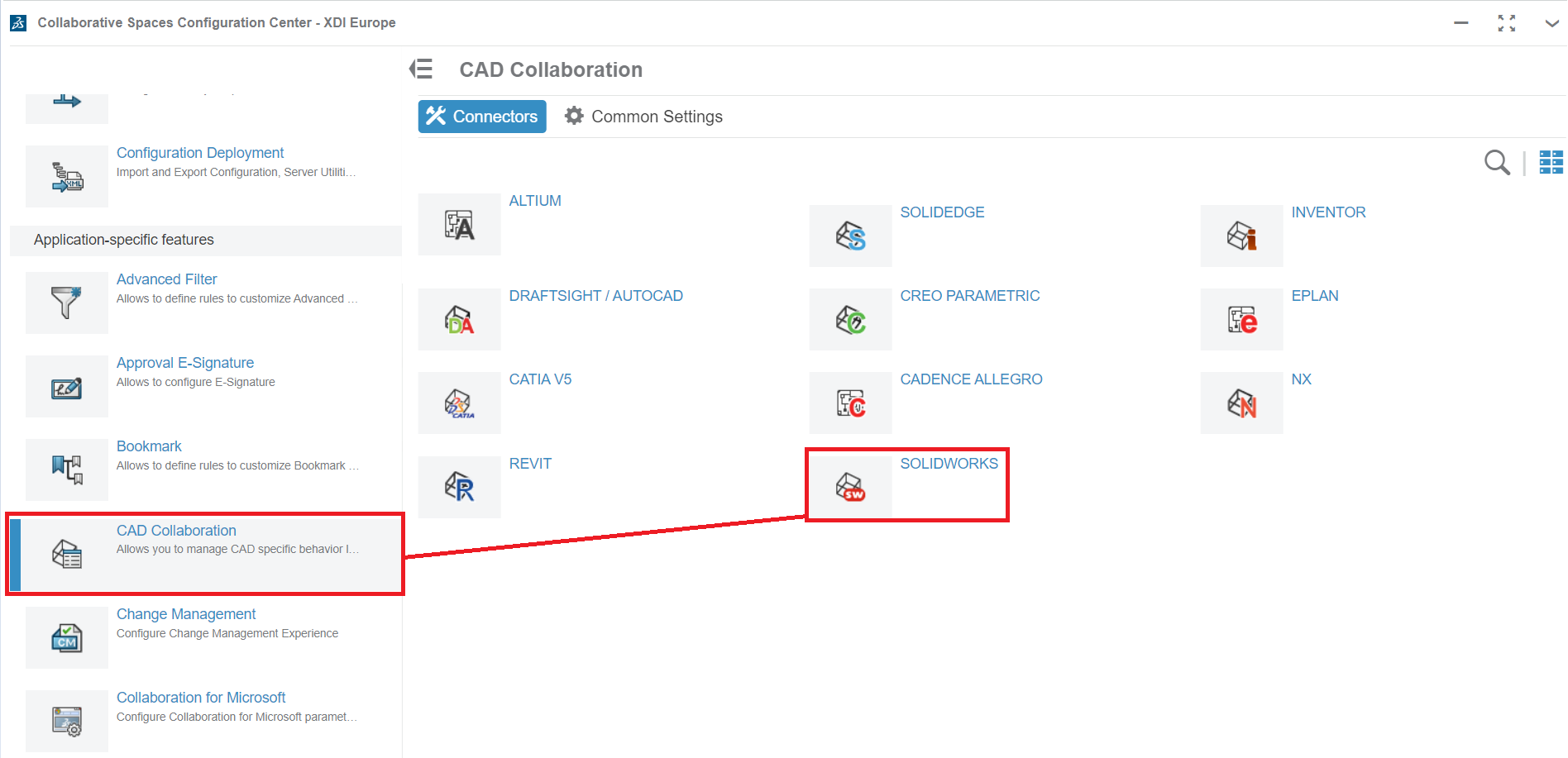
7. Depending on the type of component to which you wish to apply the attribute (Assembly, Part or Plan), scroll to the corresponding menu, then click on the ➕.
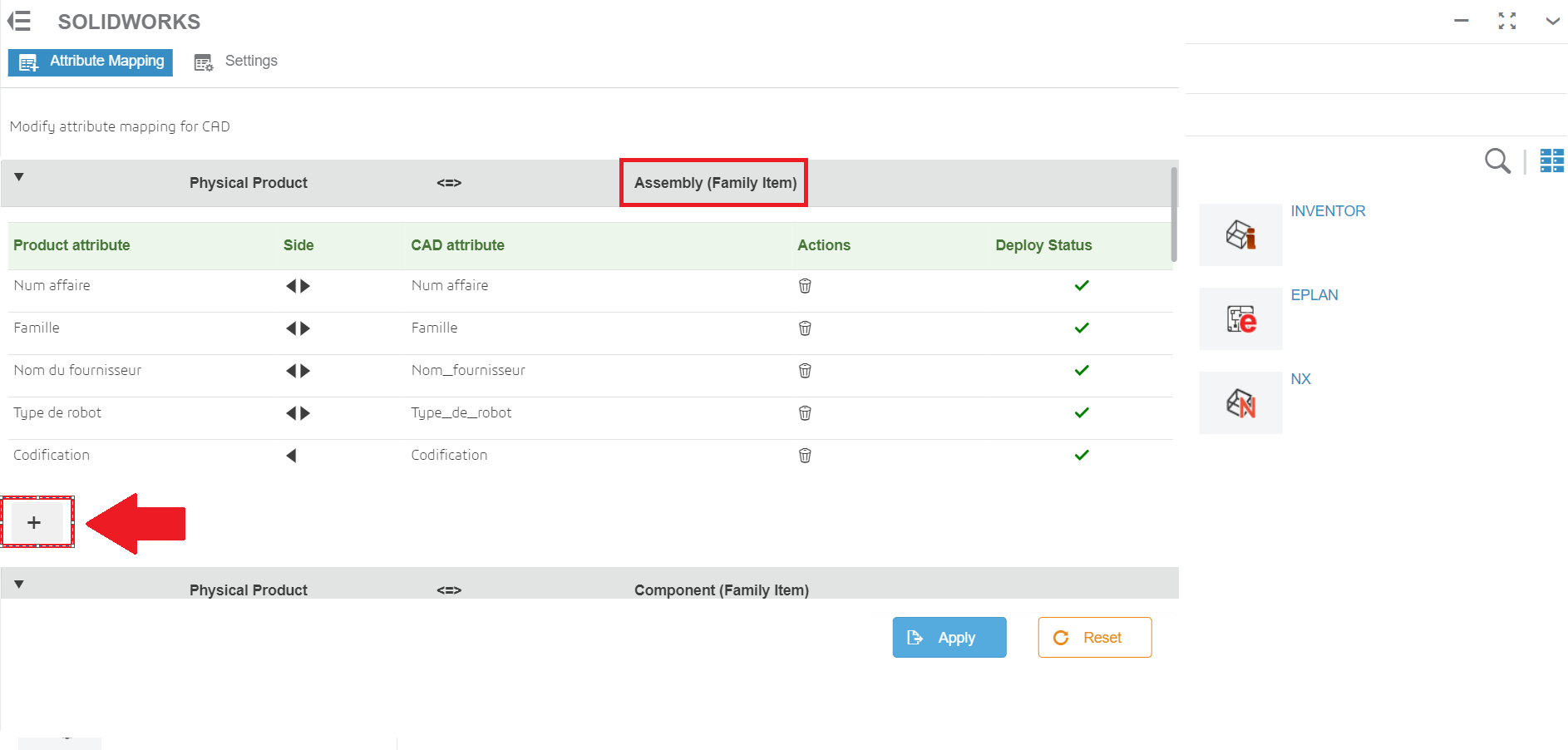
8. In the window that opens, you can select the attribute you have created, and choose the direction in which the information is transferred between the platform and SOLIDWORKS.
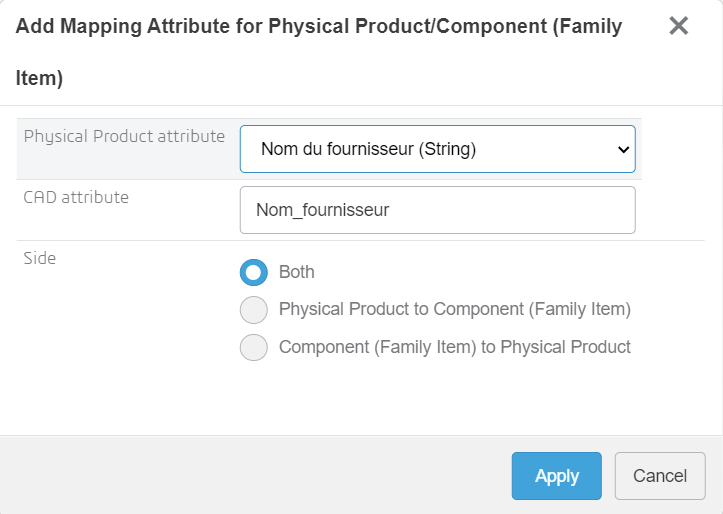
9. Click Apply and then Apply again to save the attribute correctly.
10. To make sure the platform takes our changes into account, we’ll go to the Deployment configuration tab. 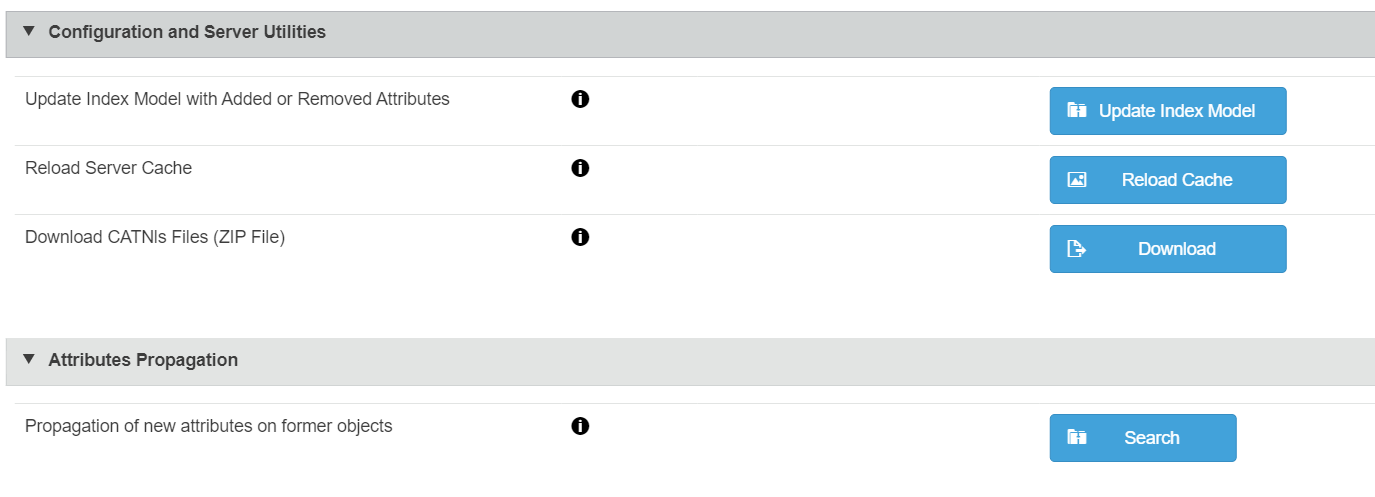
In the“Configuration and Server Utilities” section, click on Update Index Model , then on Reload cache.
11. Finally, in the Attributes Propagation section, click on Search then Propagate.
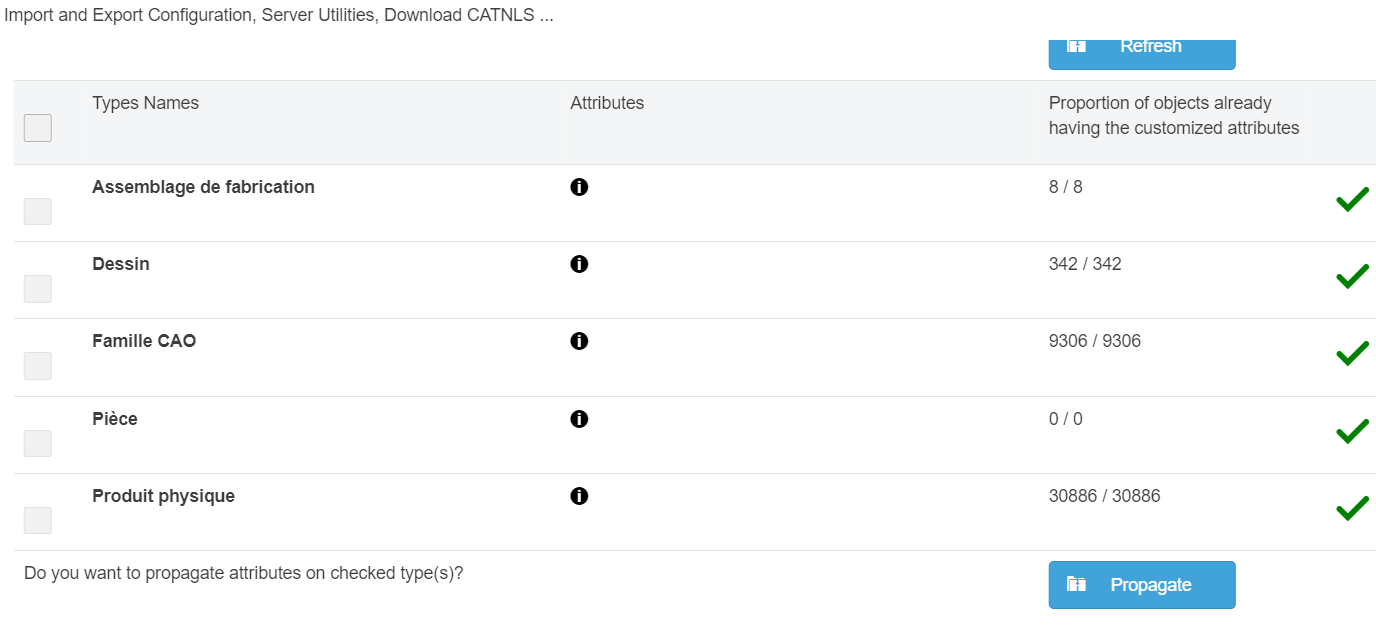
Your attributes are now linked to SOLIDWORKS and can be used as follows 👍
Need assistance? Send an e-mail to support@xdinnovation.eu




